- The pending.xml file coordinates pending update operations and, if corrupted, can block Windows Update and tools like SFC.
- The combination of SoftwareDistribution and Catroot2 cleaning, plus SFC, DISM and the System Update Readiness tool, fixes most cases.
- In complex situations it may be necessary to intervene on pending.xml and the component store, copying files from another healthy computer.
- When the corruption is deep, an on-site repair using the Windows installation media is usually the safest and most definitive way.
When Windows Update It gets stuck because of the pending.xml fileThe feeling of being stuck is complete: the system prompts you to restart repeatedly, updates fail without much warning, and tools like sfc /scannow refuse to run because "a restart is pending." This problem is far more common than it seems, both on home computers and in professional environments with servers and domain controllers.
In this article you will find a guide that compiles and reorganizes Solutions tested by Microsoft support, technicians from manufacturers like Dell, and system administratorsYou'll see everything from the safest methods (cleaning the Windows Update cache, disk check, SFC and DISM) to advanced options like dealing with pending.xml in C:\Windows\WinSxS or repairing the "component store" by copying files from another healthy computer.
What is pending.xml and why might it block Windows Update?
Inside the folder C:\Windows\WinSxS There is a file called pending.xml Windows uses this file to record pending operations after an update: system file changes, component replacements, component store adjustments, etc. This file tells the system what to finish applying in the next update. restartThat's why you often see messages like "Preparing Windows" or "Applying updates" when you start up.
The problem arises when this file is corrupts, it falls short or it contains instructions that no longer make sense because the update failed. In these cases, Windows insists that there are pending tasks, some tools like the System File Checker won't start, and Windows Update can trigger a chain of errors (including the well-known 80073712(which indicates corruption in the component store).
In more advanced scenarios, such as servers or domain controllers, a faulty pending.xml file can cause certain critical updates never finish installing, and the administrator finds themselves caught between the need to update and the inability to simply restart for production reasons.
Typical symptoms when pending.xml blocks updates
Although a clear message doesn't always appear, there are a number of fairly characteristic symptoms when pending.xml is causing problems. Not all of them have to be present, but if you recognize several, it's very likely that the problem lies there.
- Windows keeps asking you to restart. to complete updates, but after the restart nothing changes.
- When running sfc /scannowThe system responds that "there is a pending restart" and does not perform the analysis.
- The updates appear as Installation pending and they never get installed, or they fail without a clear error code.
- Sometimes codes like these are displayed 80073712 indicating corruption in the component store.
- In some cases, messages appear from runtime error mentioning routes such as C:\Windows\WinSxS\pending.xml.
- On brand-name computers (Dell, Alienware, Inspiron, Latitude, OptiPlex, Vostro, XPS, etc.) the problem may affect pre-installed OEM modules oa drivers that depend on specific updates.
When you combine these symptoms with the inability to run repair tools, it becomes clear that something is stuck in the update mechanism, and this is usually related to pending.xml and Windows Update cache.
First, check the basics: restarts and the Windows Update service.
Although it may seem obvious, before messing with sensitive files it's advisable to review the simple things that are sometimes overlookedEspecially if you're helping a family member or non-technical user, it's a good idea to start here.
First, make sure the team has performed a full rebootIt's not simply a resume from sleep or hibernation. With laptops, it's very common for users to close the lid and think it's turned off, when in reality it has only hibernated, leaving pending tasks unfinished.
Furthermore, it is essential to verify that the service Windows Update It is active and configured correctly:
- Press Windows + R, writes services.msc and press OK.
- Locate the service Windows UpdateOpen its properties with a right-click.
- In "Startup type", make sure it's set to Automatic.
- On the "Login" tab, select Local system account.
- In «Recovery», put «Restart the service» at least on the first mistake so that it recovers on its own.
If after checking this you continue to experience boot loops or stuck updates, then you need to move on to more advanced solutions. deep and specific.

Clear the Windows Update cache and the SoftwareDistribution and Catroot2 folders
One of the most common causes of update failures is corrupted or inconsistent files in the folders. Software Distribution y Catroot2Windows uses this to store downloads and update metadata. Resetting it often resolves many errors without the need for more drastic measures.
The recommended procedure is to temporarily stop several services related to updates, rename the folders so that Windows can access them. recreate from scratch and restart those services. It's normal that, when running the commands, some will return an error if they were already stopped; in general, you can Ignore those warnings and continue.
The basic steps are:
- Open a command prompt with permissions administrator.
- Stop the involved services by running, one by one: net stop wuauserv
net stop cryptSvc
net stop bits
net stop msiserver - Rename the folders to force their recreation: ren C:\Windows\SoftwareDistribution SoftwareDistribution.old
ren C:\Windows\System32\catroot2 Catroot2.old - Restart the update services: net start wuauserv
net start cryptSvc
net start bits
net start msiserver
Upon completion, it is recommended to perform a disk cleaning A complete system is needed to remove leftover files and free up space, which on many older computers makes the difference between being able to install a Service Pack or not.
To do this you can use the built-in Windows tool:
- Press Windows + R, writes cleanmgr and press Enter.
- Select the system drive (usually C:) and press OK.
- Check all boxes except Downloads if you don't want to empty that folder.
- Click on «Clean system files», reselect the unit.
- Again, you can select virtually everything, except for Downloads if you want to keep it.
- In the "More options" tab you can uninstall programs you don't use and even delete all restore points except the last one, which sometimes take up space. several gigabytes.
When the process is complete, return to Check for updates Go to Settings or Control Panel and check if the behavior has improved.
Check and repair system files: SFC, DISM and Repair-WindowsImage
If the problem persists after simply resetting the cache, the status of the operating system filesThis is where tools like the System File Checker (SFC) and DISM, or its equivalent in PowerShell.
The idea is that, if there are critical files that are corrupt or different from what was expected, these utilities can replace them with clean copies from the component cache or from the official Windows image.
The usual sequence would be:
- Open Command Prompt as administrator and run: sfc /scannow
- If SFC refuses to run because "there's a pending reset," that reinforces the suspicion that pending.xml is blocking the process.
- In that case, or if SFC doesn't repair everything, proceed to DISM with these commands in order: DISM /Online /Cleanup-Image /CheckHealth
DISM /Online /Cleanup-Image /ScanHealth
DISM /Online /Cleanup-Image /RestoreHealth
If you prefer to work with PowerShell, there is an equivalent cmdlet:
Repair-WindowsImage -Online -RestoreHealth
All these processes can take a long timeespecially on slow or heavily corrupted computers. Once finished, restart and try the updates again from Windows Update to see if they are now applied without problems.
The System Update Readiness tool and error 80073712
In systems like Windows 7, Windows Vista, or Windows Server 2008/2008 R2, the error was very common. 80073712 When installing Service Packs (KB936330, KB948465, KB976932, KB976932 for Windows 7 SP1, etc.). That code indicates that the Windows component store is damagedThat is, the internal repository that stores all the system blocks for adding, removing, or repairing components.
For these cases, Microsoft published the System update readiness tool (System Update Readiness Tool, KB947821), which analyzes the component store (WinSxS) for inconsistencies and tries to correct them.
The recommended flow is:
- Download and install the System Update Readiness tool corresponding to your Windows version and architecture.
- Run it and wait patiently, because the analysis may take quite a while.
- Once finished, open the log file with: Notepad %windir%\Logs\CBS\CheckSUR.log
- At the end of the log you will see a summary like this: Summary:
Seconds executed: XXXX
Errors found: N
Errors corrected: M
If the tool has corrected all errors found (M = N), in theory you can now try installing the Service Pack or cumulative updates again and they should work fine. The problem is that, in some cases, CheckSUR detects missing files but cannot repair them automatically.
Deal directly with pending.xml in C:\Windows\WinSxS
When all previous checks point to a reboot loop and the tools insist there is pending operationsSometimes, there's no other option but to modify the pending.xml file itself. Extreme caution is necessary here, because Microsoft doesn't recommend deleting it lightly, but in practice, many technicians have had to do so. last intermediate resort.
The safest thing to do is not to eliminate it from the start, but to try Stop the responsible service and rename it to create a backup. The service that usually blocks the file is TrustedInstaller, also known as Windows Modules Installer.
The typical steps would be:
- Open a command prompt as administrator.
- Stop TrustedInstaller with:net stop trustedinstaller
- Try deleting the file: del %windir%\WinSxS\pending.xml
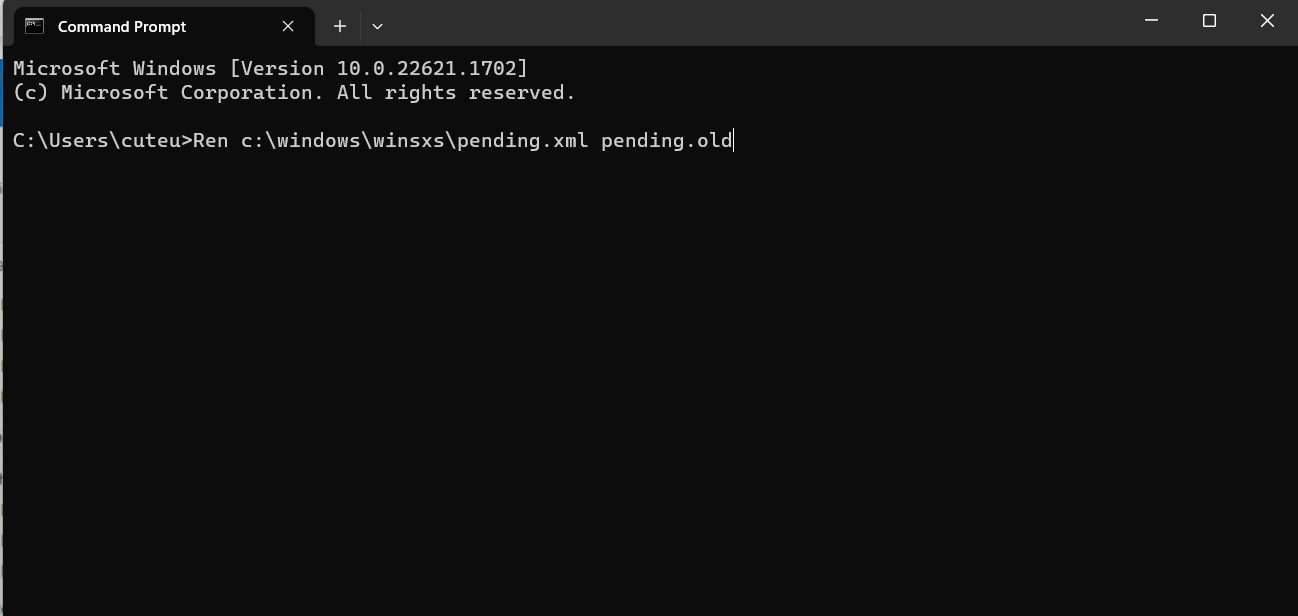
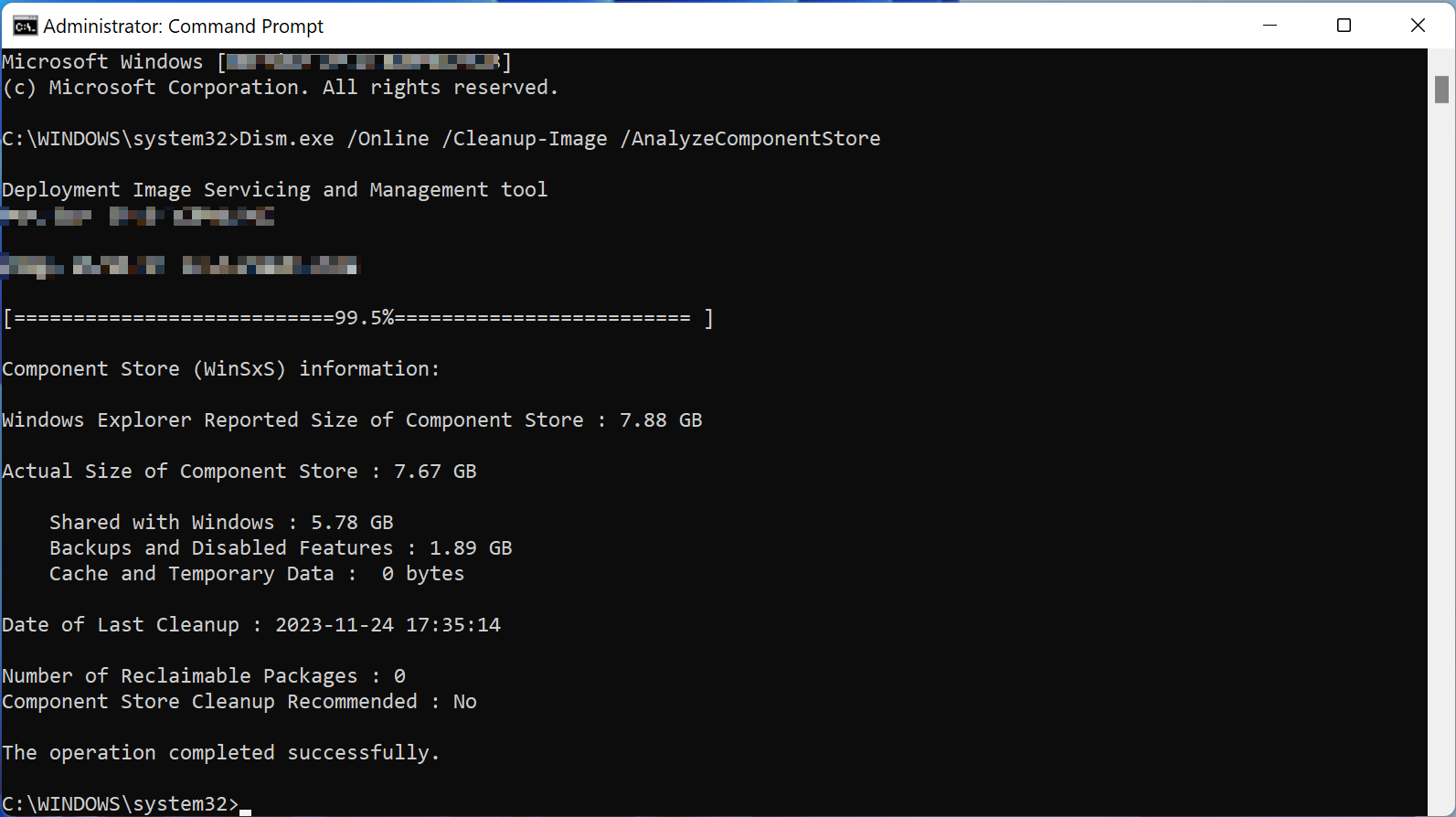
- If you can't delete it due to permissions, try renaming it: ren %windir%\WinSxS\pending.xml pending.old
Sometimes you will have to take possession of the file (properties, security, advanced options) and grant you full control to manipulate it. Be careful with this, because we're talking about a very sensitive system file; it's best to do this only after you've exhausted the more conventional methods and always leaving renamed copy in case it needs to be reversed.
Once renamed or deleted, restart your computer. Often the system will boot up without being stuck on the pending restart and will then allow you to run the program. sfc /scannow, DISM, and the Windows Update troubleshooter normally.
Windows Update troubleshooter and additional cleanup
Windows incorporates a specific troubleshooter for Windows Update which automates some of what we've discussed: it checks services, permissions, cache, registry keys, etc. It doesn't always fix everything, but it's a good idea to run it at some point in the process, especially after resetting the update folders or modifying pending.xml.
In Windows 10 and later you can access it from:
- Settings > System > Solve problems > Other problem solvers.
- Select «Windows Update» and press “Run”.
- Apply the suggested corrections and restart the system.
In previous versions you could search directly for the word "Solving problems" In the Control Panel, select the option related to Windows Update. If you combine this with the prior removal of SoftwareDistribution and Catroot2, it usually detects and fixes the problem. inconsistent configurations that you might have missed.
Check the disk status and file system
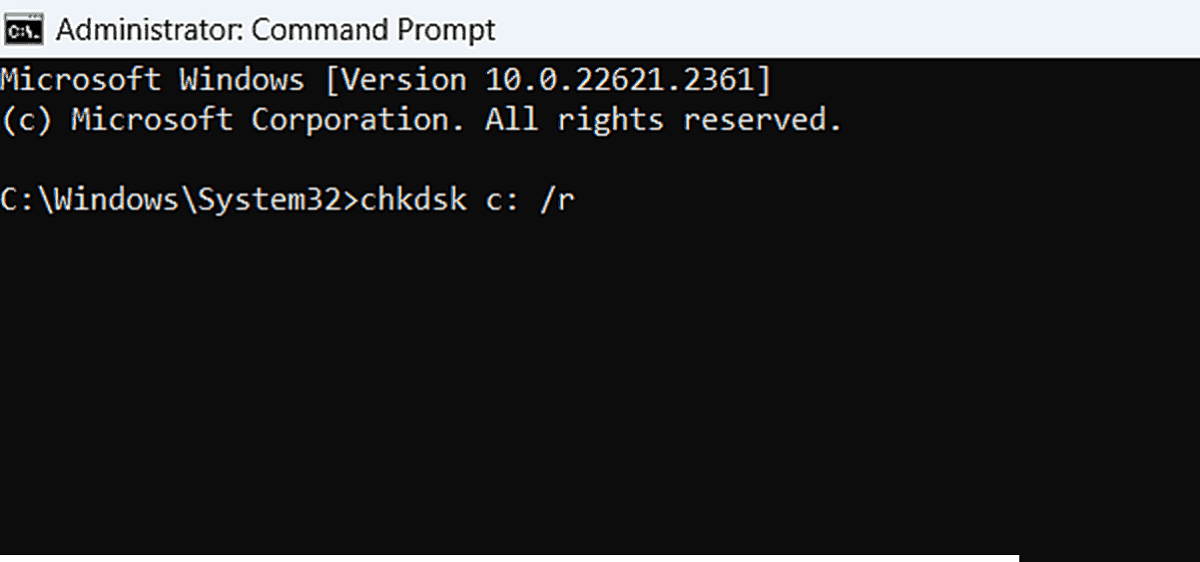
Although less frequent, there are times when Windows Update blocking and component store errors are due to bad sectors or corruption in the file systemBefore giving up on a computer, it's worth checking the system unit.
From an elevated command prompt you can launch:
chkdsk C: /f /r
The parameter /f repairs logical errors and /r It searches for bad sectors and attempts to recover readable data. The system will ask you to schedule the check for the next boot; accept, restart, and let the process finish, although it may take a considerable amount of time on large or severely damaged disks.
After this, run tools like CFS and DISM This increases the chances that repairs will be applied correctly and that pending.xml will not be left unfinished again due to a disk read or write failure.
Advanced verification using registration and key COMPONENTS
In some specialized forums and technical communities, people resort to directly checking the status of the registration key COMPONENTSwhere some of the component store information is stored. It's a very advanced operation, but it helps diagnose deep corruption when other tools don't provide enough clues.
One technique used involves manually loading that hive from the registry and dumping its contents into a file for analysis or sharing with experts:
- Open CMD as administrator.
- Execute:REG LOAD HKLM\COMPONENTS C:\Windows\System32\config\COMPONENTS
REG QUERY HKLM\COMPONENTS >1 && notepad 1
The resulting text file allows you to check for inconsistent keys related to Windows Update/Auto Update or other critical sections. In some cases, certain log branches are also exported to a "hive" file for upload to a technician or support service via OneDrive, Dropbox or another system.
This isn't something the average user should do on their own, but it's good to know this option exists when the problem affects servers, domain controllers or environments where an update failure can have a serious impact and where advanced support is used.
Create a new user profile when the problem is with the account.
In some scenarios, especially on single-user home or laptop computers, the failure with Windows Update and pending.xml is combined with corrupted permissions in the user profileThis may prevent you from modifying files such as pending.xml or accessing certain paths even if the account is displayed as administrator.
A relatively simple solution is to create a new user With administrator privileges, try performing the problematic operations from that newly created account. Microsoft offers detailed guides for each version of Windows on its official support website, with steps for adding accounts, changing their type, and migrating personal data if necessary.
If from the new profile you can Rename pending.xml, run SFC and DISM Without complaining about lack of permissions and completing the updates, you'll know that the source of the bottleneck wasn't so much in the component store as in the initial user himself.
Install the problematic update manually
In professional environments, it is quite common that when an update fails from Windows Update, the update is downloaded manually. MSU or CAB package from the Microsoft Update Catalog and attempt to install it manually. Besides forcing the installation, this has the advantage that many times results are obtained clearer error messages during the process.
The procedure is simple:
- Note the KB number of the update that appears as pending or failed (e.g., KB3020388, KB3021674, etc.).
- Go to the website Microsoft Update Catalog and search for that identifier.
- Download the file corresponding to your Windows version and architecture.
- Run the installer manually and follow the instructions.
If the manual installation also fails but displays a specific error message, that information may be helpful. key to refining the diagnosis and decide if what's blocking the process is still pending.xml, a permissions problem, an incompatible driver, or even a conflict with third-party software like antivirus.
When to consider on-site repair or reinstallation
There are extreme cases where, despite resetting the Windows Update cache, running SFC, DISM, System Update Readiness, carefully manipulating pending.xml, and checking the disk and registry, updates still fail to install or the system continues to launch serious errorsIn those circumstances, continuing to patch things up may be riskier than making a radical decision.
The most conservative option, provided you have the appropriate means, is to perform a repair installation (also called "repair installation" or "in-place upgrade") using a Windows DVD or USB drive of the same version. This procedure reinstalls system files while preserving programs and data, although you will then have to reinstall all updates from scratch.
In server environments or with multiple domain controllersPlanning a maintenance window for controlled reboots and, if necessary, on-site repairs is far more sensible than living indefinitely with a system that isn't updated. The fact that a server has FSMO roles or critical functions doesn't mean it can never be rebooted; the important thing is... coordinate it and ensure that there is redundancy.
Although it may be tedious, reaching this point usually means that the system is dragging on. deep corruption in its component store or in its file structure that sooner or later was going to explode in another way, so it's best to resolve it from the root.
Windows Update blocking due to pending.xml usually involves internal corruption, unfinished pending operations, and often a corrupted update cache. Combining cleaning SoftwareDistribution and Catroot2, repairing with SFC/DISM or System Update Readiness, carefully handling pending.xml, and, if necessary, performing an in-place repair from installation media almost always allows you to recover a system that seemed unrecoverable, whether on a home laptop or a critical production machine.

Index
- 1 What is pending.xml and why might it block Windows Update?
- 2 Typical symptoms when pending.xml blocks updates
- 3 First, check the basics: restarts and the Windows Update service.
- 4 Clear the Windows Update cache and the SoftwareDistribution and Catroot2 folders
- 5 Check and repair system files: SFC, DISM and Repair-WindowsImage
- 6 The System Update Readiness tool and error 80073712
- 7 Deal directly with pending.xml in C:\Windows\WinSxS
- 8 Windows Update troubleshooter and additional cleanup
- 9 Check the disk status and file system
- 10 Advanced verification using registration and key COMPONENTS
- 11 Create a new user profile when the problem is with the account.
- 12 Install the problematic update manually
- 13 When to consider on-site repair or reinstallation

Editor specialized in technology and internet issues with more than ten years of experience in different digital media. I have worked as an editor and content creator for e-commerce, communication, online marketing and advertising companies. I have also written on economics, finance and other sectors websites. My work is also my passion. Now, through my articles in Tecnobits, I try to explore all the news and new opportunities that the world of technology offers us every day to improve our lives.