- Flexible installation on Windows, macOS, Linux, Android, and iOS with silent deployment options.
- Unattended access configuration using permanent passwords and installation of the service with administrator privileges.
- Optimizing the connection in Linux by changing from Wayland to X11 to avoid login errors.
- Possibility of implementing your own or Pro servers to improve the speed and security of sessions.
If you're tired of struggling with remote desktop programs that are a real headache or that charge a fortune for basic functions, RustDesk presents itself as the ideal alternativeAccessing a remote computer with RustDeskES is easy, as it's a powerful, flexible, and, best of all, open-source tool. This means it allows you to take control of your computer from anywhere without unnecessary complications.
Whether you need to help a family member with their PC or want to manage your own work infrastructure from the comfort of your couch, configure this software correctly This is the key to avoiding getting stuck mid-session. Below, we break down everything you need to know to master it from top to bottom.
Compatible platforms and download
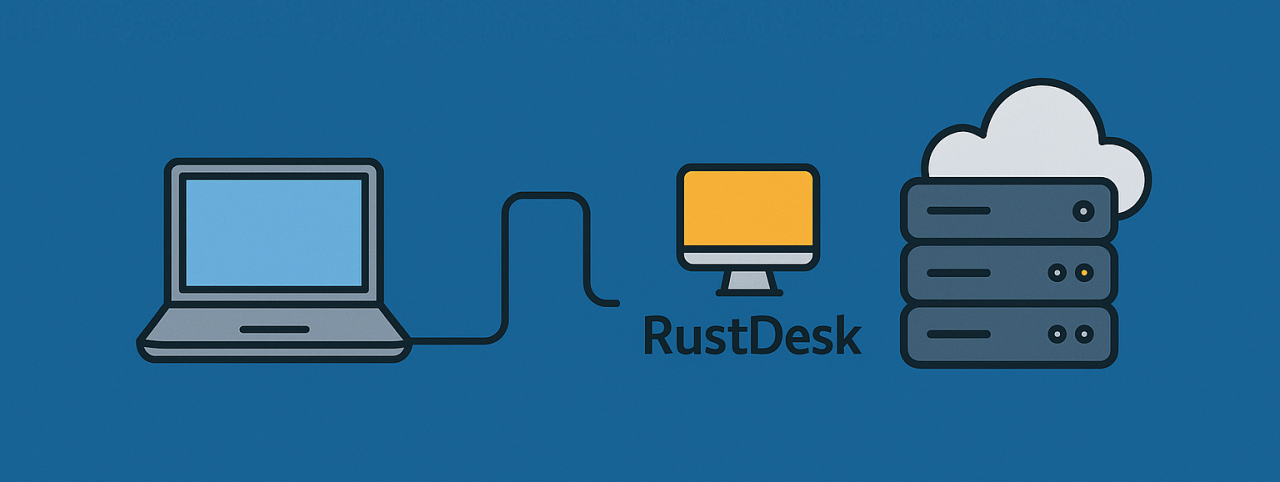
The first thing to know is that RustDesk It's an all-terrain vehicle. You can install it in Microsoft Windows, macOS, and various Linux distributions (such as Ubuntu, Debian, Fedora, CentOS, Arch Linux, Manjaro, openSUSE, or NixOS). It even has applications for Android and iOSHowever, it's important to note that on iPhone or iPad you can only control other devices, not allow them to control you. To begin, simply download the executable from its official repository on GitHub.
Installation according to your operating system
In the case of Windows usersAccessing a remote computer with RustDesk is incredibly easy: download the .exe file and install it. If you prefer to automate processes, you can launch the installation invisibly using the command –silent-install on the console.
For those who use macOSThe process involves downloading the .dmg image, dragging the application to the Applications folder, and, very importantly, Grant all accessibility permissions that the system requests so that the remote control works without interruptions.
In the world LinuxAccessing a remote computer with RustDesk varies depending on the Linux distribution. For Debian or Ubuntu, the GitHub installers are typically used. On NixOS, for example, you can run the software in a temporary shell or integrate it into the user profile. For those seeking full access, the ideal solution is to install the service with administrator privileges using the command sudo rustdesk –service-installThis ensures that the program will run even if there is no user session started.
Getting Started and Basic Usage
We'll explain how to access a remote computer with RustDesk step by step: When you open the application, the first thing you'll see is your Unique ID and a temporary passwordIf you want to connect to another computer, simply enter the remote computer's ID in the connection box. If you need to adjust the software, the Menu button It's your best friend, because from there you can access:
- General: Where you manage audio, visual theme, language, and hardware codecs.
- Security: Essential for defining who can take control and setting passwords.
- Grid: This is where the magic happens if you want to set up your own server or proxy.
- Screen: To synchronize the clipboard and adjust the remote session resolution.
- Account: Useful if you use the Pro version and need to manage the API.

Advanced configuration and unattended access
If you don't want to be asking for permission every time you log on, the unattended access is the solutionTo achieve this, it is vital to establish a permanent password in the security section. This way, you can access the remote PC without anyone having to accept the connection at the other end.
A crucial technical detail for Ubuntu users who wish to access a remote computer with RustDesk is the theme of Wayland vs. X11Since Wayland support is still experimental, unattended access may fail. To resolve this, it is advisable to deactivate Wayland editing the file /etc/gdm3/custom.conf and removing the comment (the # symbol) from the line WaylandEnable=falseAfter restarting your computer, you will be able to reach the Ubuntu login screen and log in with your user password without any problems.
Server management and command line
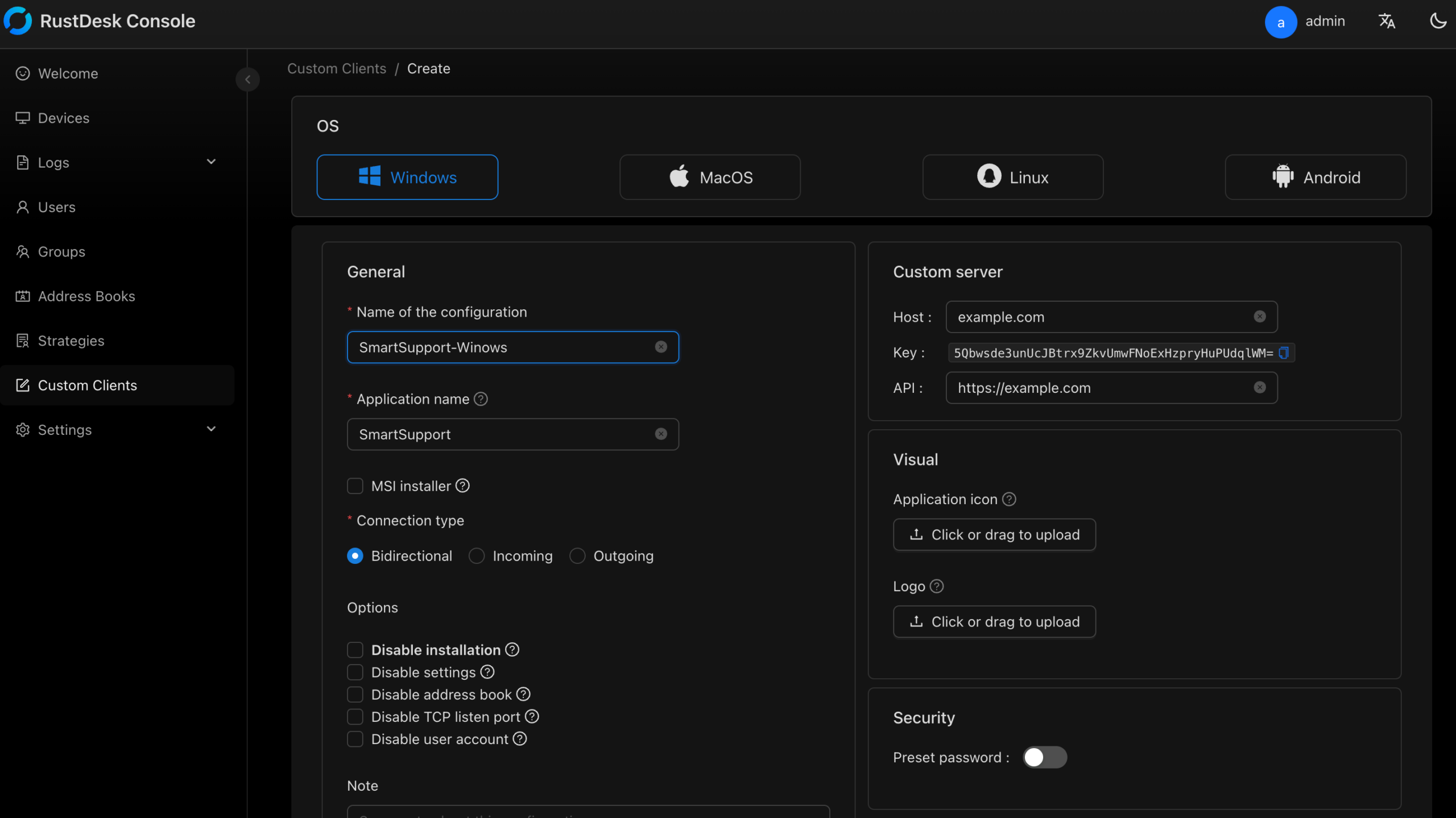
For those seeking maximum speed and privacy, the ideal solution is set up your own serverYou can do this manually in the Network section by unlocking the configuration and entering the ID, Relay, and public key. Alternatively, if you're using the Pro version, you can import the entire configuration at once using the command line. rustdesk.exe --config .
In addition, the program offers several powerful parameters for the terminal, such as –password to define the fixed key, –get-id to find out the device identifier or –set-id If you prefer to customize the ID (always starting with a letter).
Having the service correctly installed and the permanent password configured allows you to continue even after a system restart. access the Windows or Linux login screen and access the remote desktop without any physical intervention on the computer. Accessing a remote computer with RustDesk is that simple.


Editor specialized in technology and internet issues with more than ten years of experience in different digital media. I have worked as an editor and content creator for e-commerce, communication, online marketing and advertising companies. I have also written on economics, finance and other sectors websites. My work is also my passion. Now, through my articles in Tecnobits, I try to explore all the news and new opportunities that the world of technology offers us every day to improve our lives.