- BlueScreenView is a free tool from NirSoft that analyzes memory dump files (.dmp) generated during a critical failure.
- It allows you to identify the specific driver or library that caused the system to crash by highlighting elements in red.
- It facilitates the search for solutions on the internet directly from the program to correct hardware, software or driver errors.

A blue screen can appear at the worst possible moment: while you're working, playing games, or performing any important task. Windows displays a stop code and restarts the computer, sometimes so quickly that There's barely time to read the message or point to the controller mentioned.
This ruling, known as BSOD or stop errorThis occurs when Windows detects a critical situation from which it cannot safely recover. The system stops to prevent it from continuing to operate in an unstable state and potentially causing data corruption.In recent versions of Windows 11, this screen can use a black background, although the term «blue screen».
If Windows manages to save a dump file before restarting, tools like BlueScreenView They allow you to check the error code and the modules that were loaded at that time.This information can serve as a starting point for locating the problem, although it does not always directly identify the real culprit.
What can cause a blue screen in Windows?

The most common causes are faulty or incompatible driversespecially when operating in kernel mode. Other contributing factors include unstable RAM, storage drive issues, firmware errors, high temperatures, power failures, or unstable overclocking and undervolting configurations.
A typical application can crash without affecting the rest of the system. However, when the problem affects essential Windows components or a low-level driver, the system can shut down completely. Therefore, it's unwise to assume that any program running at the time caused the crash.
Formatting the computer shouldn't be the first step either. If the problem lies in a driver, the BIOS, or a physical component, The error may reappear after reinstalling WindowsBefore taking such a drastic measure, it is preferable to study the stop code and check if there is any pattern among the faults.

What is BlueScreenView and what are its limitations?

BlueScreenView is a free, portable utility developed by NirSoft. Its function is to search for the small dump files, or minidumps, that Windows generates after certain critical errors and display their contents in an easier-to-read table.
The program can indicate the date of the failure, the error code, its parameters, and the drivers that were loaded. It requires no installation and can be downloaded from [link missing]. NirSoft official website, where a file to translate the interface into Spanish is also offered.
However, it's an older tool, and its official website only mentions compatibility up to Windows 10. If you decide to use it on Windows 11, keep in mind that NirSoft doesn't officially guarantee its functionality on this system. Furthermore, BlueScreenView is used to perform a first inspection of the dumpingbut it does not replace a more in-depth analysis with WinDbg.
How to interpret a minidump with BlueScreenView
When you open the program, the top section displays the crash logs found. Each row corresponds to a crash and includes data such as the date, the file analyzed, the stop code, and the error description. Selecting an entry displays the drivers and modules that were loaded during the crash at the bottom.
BlueScreenView highlights in pink the modules whose addresses appear within the fault stack. This It does not prove that all of them are responsible.The column Caused By Driver It also represents an estimate and may point to a generic Windows component rather than the actual source.
For example, that it appears ntoskrnl.exe This does not necessarily mean that the Windows kernel is damaged. This component participates in numerous processes and can be logged even if the problem originates from the RAM, another driver, or an unstable configuration.
It is more significant to find the same third-party driver, usually a file with the extension. .sysin several different dumps. In that case, it's advisable to look for the stop code along with the exact driver name and first consult the documentation from Microsoft or the corresponding manufacturer.
What to do if BlueScreenView doesn't show any errors
If the list appears empty, it's possible that Windows isn't generating minidumps, that they've been deleted by a cleanup tool, or that they're being saved in a different location. It's also possible that a block is preventing the file from being created correctly.
To check the settings, search View advanced system settings From the Start menu. Enter Advanced options, opens the settings of Start and recovery and check that, within the debugging information, it is selected Small memory dumpThe usual location is %SystemRoot%\Minidump.
It's also a good idea to keep the system-managed paging file enabled, as Windows may need it to generate certain dumps. If your computer restarts too frequently, you can temporarily disable this option. Automatically restart to have time to read the code displayed on the screen.
Minidumps take up much less space than a full dump, but they also contain less information. When BlueScreenView doesn't provide enough clues, you can analyze the file with WinDbg, Microsoft's debugging tool.

What to do after finding a possible culprit
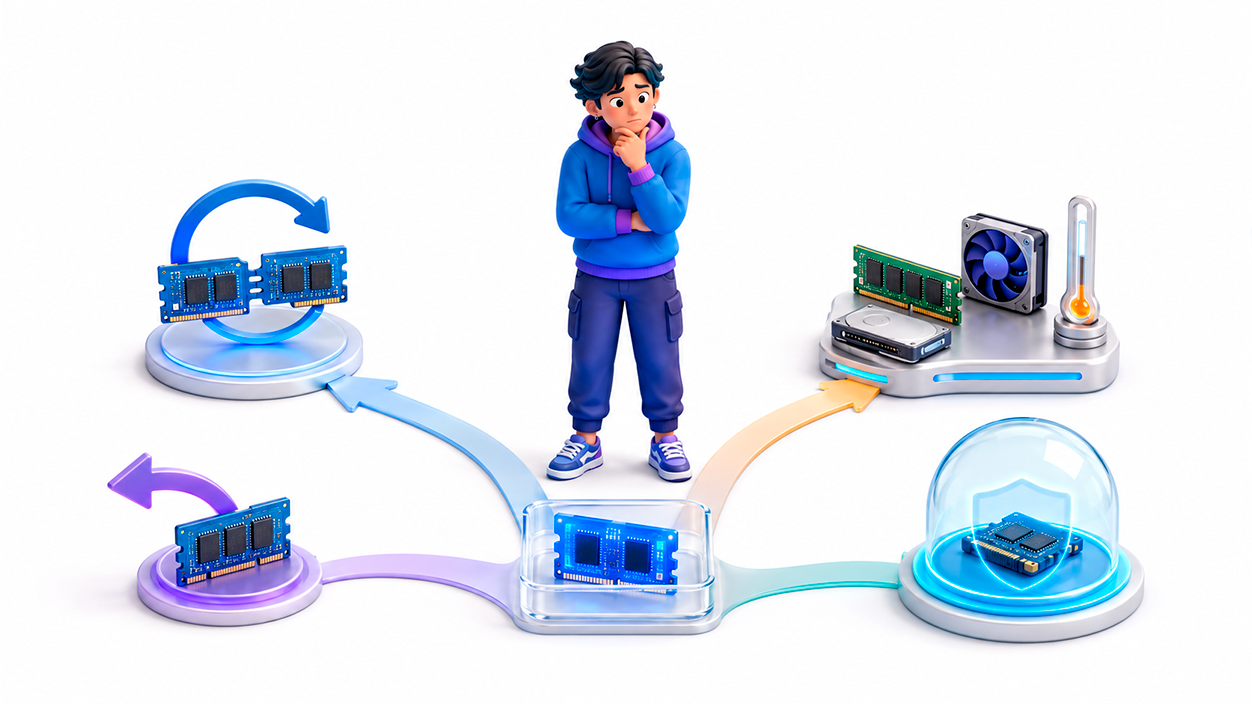
BlueScreenView does not repair your computer or confirm the cause of the blue screen on its own. Its information must be combined with the circumstances under which the error occurred and any recent changes made.
- If a third-party driver appears repeatedly, Update it from the manufacturer's website or revert to a previous stable version.
- If the problem started after a update, Check the drivers and changes implemented during that period.
- If the specified modules vary in each failure, Check the RAMstorage, temperatures and feeding.
- If you use overclocking or undervolting, temporarily restores default values.
- If there are other signs of infection, perform a complete analysis with an updated security tool.
Don't remove a driver just because it's highlighted. Before doing so, identify which device it belongs to and check if a newer version is available or if Windows can function correctly without it. If the dumps are inconclusive, It may be necessary to perform hardware tests or request a technical analysis more advanced.
BlueScreenView remains useful for quickly reviewing crash history and identifying patterns across multiple screenshots. Used judiciously, it allows you to understand what happened around the time of the crash and decide whether to check a driver, update, or other system component.

I am a technology enthusiast who has turned his "geek" interests into a profession. I have spent more than 10 years of my life using cutting-edge technology and tinkering with all kinds of programs out of pure curiosity. Now I have specialized in computer technology and video games. This is because for more than 5 years I have been writing for various websites on technology and video games, creating articles that seek to give you the information you need in a language that is understandable to everyone.
If you have any questions, my knowledge ranges from everything related to the Windows operating system as well as Android for mobile phones. And my commitment is to you, I am always willing to spend a few minutes and help you resolve any questions you may have in this internet world.