Did your child, your partner, or your own absentmindedness rent The Little Mermaid Want to watch 4K TV for €20? If so, you should know how to avoid accidental purchases on your TV using Google Pay and YouTube. We'll tell you how. more effective adjustments you can apply and what to do to get a refund.
Avoiding accidental TV purchases: more common than it seems

Just a decade ago, renting a movie meant going to the video store or, at most, manually entering 16 credit card digits into a remote control. How things have changed! Now your Smart TV knows who you are and has your Google account and payment method saved. a couple of taps on the remoteYou can subscribe to a service or make a purchase.
All that convenience and immediacy is wonderful… until you make an accidental purchase on TV. Suddenly, you get an email notification: “Thank you for your purchase on YouTube.” It wasn't you (maybe your son) or maybe it was, but the damage is already doneNow you're wondering if you should just sit down and watch the movie (you might like it) or look for a YouTube tutorial on how to request a refund.
It's no wonder that preventing accidental purchases from TV is so difficult. Unlike mobile phones, The TV does not have fingerprint lock or facial recognition.Furthermore, it's a shared device, and the remote control is accessible to anyone in the house. Children, teenagers, or adults could accidentally make a purchase, which will be charged to your registered payment method.
How to avoid accidental purchases from TV with Google Pay and YouTube
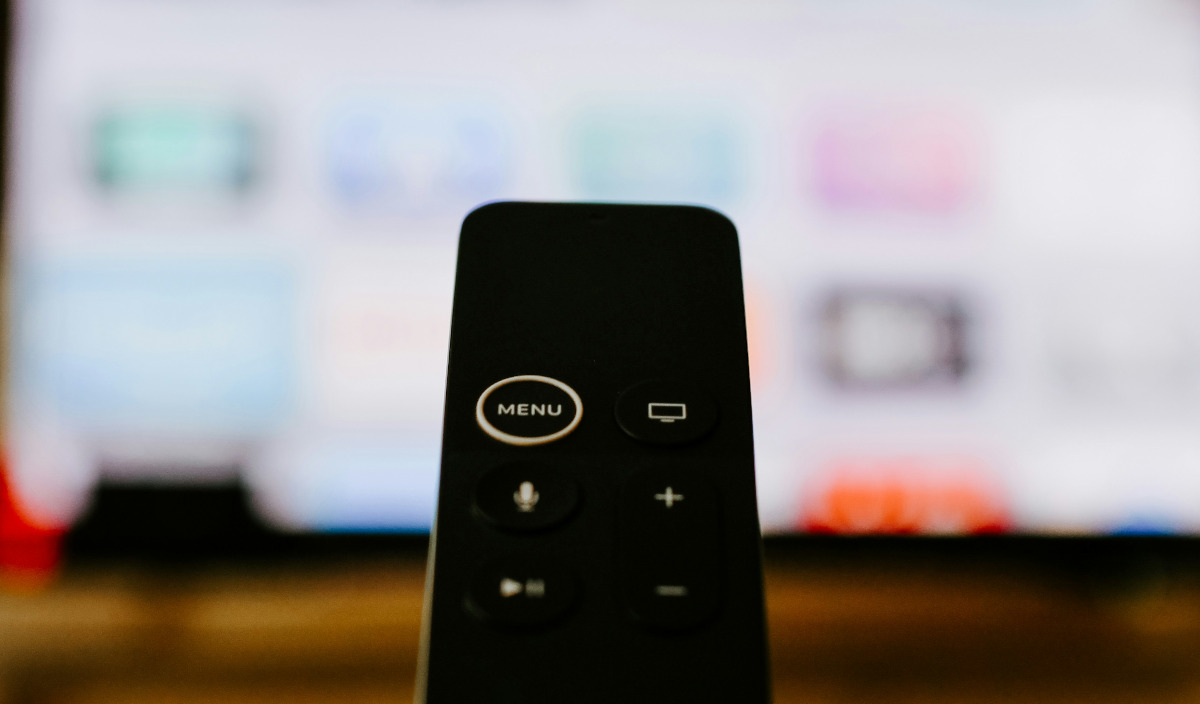
Therefore, prevention is essential if you want to avoid accidental purchases from your TV using Google Pay and YouTube. Fortunately, there are some ways to prevent this. Simple adjustments you can apply to minimize the occurrence of these errorsThis way, you make things harder for your bad luck and protect your money from accidental purchases.
Enable authentication for all purchases
This setting will help you avoid accidental purchases from your TV using Google Play and YouTube. It needs to be enabled because Google, by default, allows purchases without additional verification on devices it considers "trusted." Among these is your home TV, the one everyone in the house uses. Follow these steps on your Smart TV with Google TV or Android TV:
- Open Settings (the gear icon on the home screen).
- Go to accounts and sign-in (it may vary as "Accounts" or "Google").
- Select your primary Gmail account.
- Inside, look for the Purchase Authentication or Purchase Verification option on Google Play.
- Select the option that requires authentication for all purchases, without exception.
- Create a secure PIN that only you know. Avoid obvious numbers like 0000 or 1234.
- Save the changes by confirming the PIN settings so that they apply to all linked apps.
In this way, whenever someone is going to make a purchase, or does so by accident, The transaction will not be completed without the PINIt's true that it's less convenient, but it's also foolproof for preventing accidental purchases from TV.
Turn off quick purchases on YouTube

Preventing accidental purchases from TV is often more necessary on YouTube, and that's not surprising. The app keeps showing ads with a subscribe button. before or after watching any content (even in YouTube Premium LiteIf you want to tame YouTube on your TV, follow these steps:
- Open YouTube on your TV.
- Go to your profile picture (bottom right corner) and select Settings.
- Select Purchases and Memberships.
- Activate "Require authentication for all purchases" (or "Always ask for password").
- In Settings, go to Billing and Payments and turn off the switch for Enable Quick Purchases. This setting affects all devices on the same account.
Activate Google TV's global parental controls to prevent accidental purchases from your TV.
If accidental TV purchases often come from the youngest members of the household, you should activate global parental controls. Google TV includes one. children's profile system It not only regulates content but also purchases. Activating it is very useful: you ensure that children only see age-appropriate content and, at the same time, that they don't make any purchases without your permission.
To activate it, the first thing to do is go to the TV's quick settings and enter Profiles. There, select Add child profile and configure the profile with age-appropriate content. The important step is disable the "Allow purchases" option within that profile's options. However, for it to work, make sure that when the children use the TV, they select their profile, not yours.
Unlink Google Pay from your Google account on your TV
This is the most drastic adjustment to prevent accidental purchases from TV with Google Pay and YouTube. It's also the most effective if you live in a particularly "dangerous" household (with savvy teenagers or very persistent children). And keep in mind that unlink Google Pay The TV signal does not affect your mobile phone or your computer..
What to do if an accidental purchase has already occurred from TV

If you're reading this article because your bank statement shows an unwanted charge from YouTube, don't worry. Google has a fairly reasonable refund policy, as long as you act quickly. For YouTube movies and TV shows, You have 7 days to request a refund provided that no one has started playing the video.
If the content has played (even for a few seconds), Automatic refund is cancelledInstead, you'll need to fill out a specific form claiming an "unauthorized charge by a minor." To request this, go to your purchase history, locate the accidental charge, and select the option that best describes the incident to request a refund.
Undoubtedly, in these cases prevention is better than cure. That's why, Take a few minutes to apply the recommended settings To avoid accidental purchases from your TV using Google Pay and YouTube, you'll prevent unpleasant surprises on your bank statement.
Index

From a young age, I've been fascinated by all things scientific and technological, especially those advancements that make our lives easier and more enjoyable. I love staying up-to-date on the latest news and trends, and sharing my experiences, opinions, and tips about the devices and gadgets I use. This led me to become a web writer a little over five years ago, focusing primarily on Android devices and Windows operating systems. I've learned to explain complex concepts in simple terms so my readers can easily understand them.