- Google Photos integrates all the tools to generate animations, collages, cinematic photos, and best moment videos into the Create tab.
- Google's artificial intelligence allows for advanced photo editing, organization, and searching, including tools like Magic Eraser, Unblur, and Portrait Light.
- Gemini and Image expand creative possibilities by combining, generating, and editing images using natural language instructions and mask editing.
- Cloud backup, locked folders, and features to free up space and share content ensure the security, organization, and accessibility of your memories.

If you've come here looking for how to Create images with Google Pics, Google Photos, and the Google's new AI-powered toolsYou're in the right place. In recent years, Google has gone from being just a place to store photos to becoming a true creative studio: you can put together highlight reels in seconds, GIF-like animations, meticulously crafted collages, and even generate or edit advanced images with artificial intelligence like Gemini or Image.
Throughout this guide you will see, step by step and in great detail, how to take advantage of the Create tab in Google Photos on your computer, how Moments videos work, how to edit and organize your library, and what extra possibilities you have thanks to the Google's AI-powered editing and creation toolsThe idea is that you don't miss a thing and that, when you finish reading, you'll know how to get the most out of Google to create spectacular images and memories.
Important: Google Pics is a new experimental tool from Google focused on creating and editing images using AI. It is currently in limited testing within Google Workspace and should not be confused with Google Photos, although both platforms share part of Google's visual ecosystem.
What exactly is the "Create" tab in Google Photos?
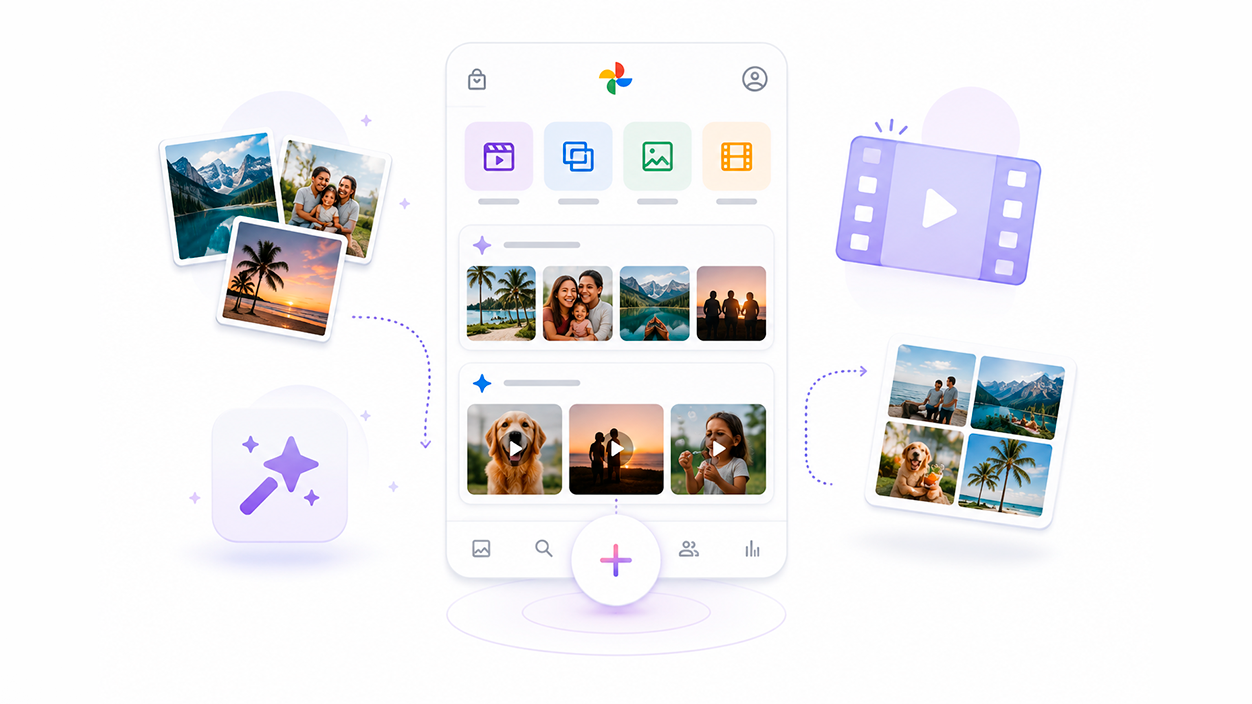
In the latest version of Google Photos, Google has concentrated all its creative options in one place: the Create tab, a specific space within the app Designed to let you unleash your imagination without having to search through menus. From there you can quickly create animations, collages, cinematic photos, and highlight videos.
The great advantage of this tab is that the functions that were previously somewhat hidden are now They appear arranged in a single accessible panelNot only can you create content whenever you want, but you'll also see suggestions and automatic creations that Google Photos generates from your images, ready for you to save or edit if you're interested.
Google Photos uses the power of Google's artificial intelligence to analyze the content of your photos and videos. From there, the system detects patterns such as trips, family events, or special moments and can suggest things to you. Visual stories or pre-prepared montagesYou decide whether you accept them, modify them, or simply use them as inspiration to create your own.
In short, the Create tab isn't just a button for making collages: it's a small creative lab that combines automatic and interactive creations with manual tools so you can moving from simple, isolated photos to much more elaborate visual pieces.
Types of creations you can make with Google Photos
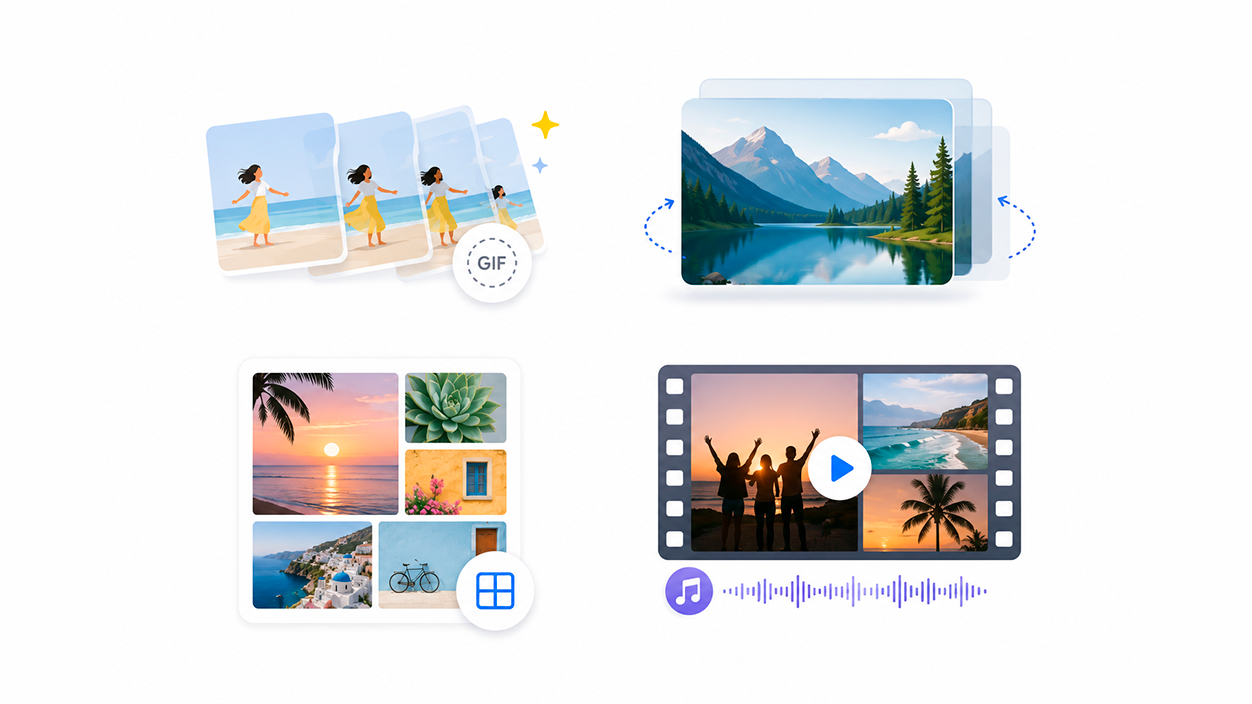
Within the Create tab (both on the web at photos.google.com and in the mobile app) you have several options designed to make your memories much more visually appealing. The most notable are the animations, cinematic photos, collages, and best-of videoseach with a different approach.
Animations are the fastest way to create short GIFs from photos or video clips. Google Photos strings together selected images, creates a smooth transition, and Generates a perfect animated file for sharing on social media or send it by courier. You don't have to worry about the technical format, because the system does it all for you.
Cinematic photos are one of the most striking features. These are photos to which Google applies a subtle depth and motion effect, mimicking a A very pleasing 3D effect that brings static photos to lifeThe algorithm infers depth information, separates planes, and slightly moves the virtual camera to create the sensation of volume.
Collages, on the other hand, allow you to combine several photos into a single composition. The interesting thing is that they aren't limited to a simple grid; you have access to... Customizable templates to place your photos and videos artistically. You can choose layouts, backgrounds, and, depending on the device, even apply coordinated styles and filters to ensure visual coherence.
Finally, Best Moments videos automatically combine images and video clips, add music and transitions, and effortlessly deliver a complete montage. These movies have been updated and are now available on the Google Photos website. Highlight videos are replacing the old automatic movies, giving you greater control over topics and content.
How to receive suggestions and create best moments videos
One of the most powerful functions for "creating images" in a broad sense is the ability to generate Videos of moments from your most memorable experiencesGoogle Photos analyzes your library and allows you to create these montages in a guided way, choosing specific people, places, themes, or dates.
On a computer, the process is quite simple. First, you have to log in to photos.google.com with your Google accountOnce inside, in the upper right corner you'll see the Create option; clicking it will allow you to start a "Best Moments Video". This option opens a wizard that will help you configure the content step by step.
When defining the topic of the video, you can do it in two ways. The first is through the search box: you type words that describe people, places, topics, or dates related to what you want to rememberFor example, you can use terms like "Birthday," "Museum," or "Japan" to focus on a specific event or trip. Google Photos will automatically search for related images and videos.
The second way to choose content is through the suggestions that appear on the screen. Google Photos itself will show you suggested people, places or time periods based on your library. You just have to select which ones you want to include: it could be a specific person, a special location, or a date range, among other options that the system detects.
Once you've chosen a theme, a Preview button will be available at the top of the interface. Clicking it will automatically generate a draft of the video with your chosen music, transitions, and photo and clip order. If you're happy with it, simply click on Save the video to your Google Photos library..
If you're missing someone or a period that doesn't appear in the automatic suggestions, you have additional buttons to refine the result. Google Photos lets you tap on Add person or add dates to expand or refine the content which will be included in the video, so that it better matches what you had in mind.
Create a video of moments manually
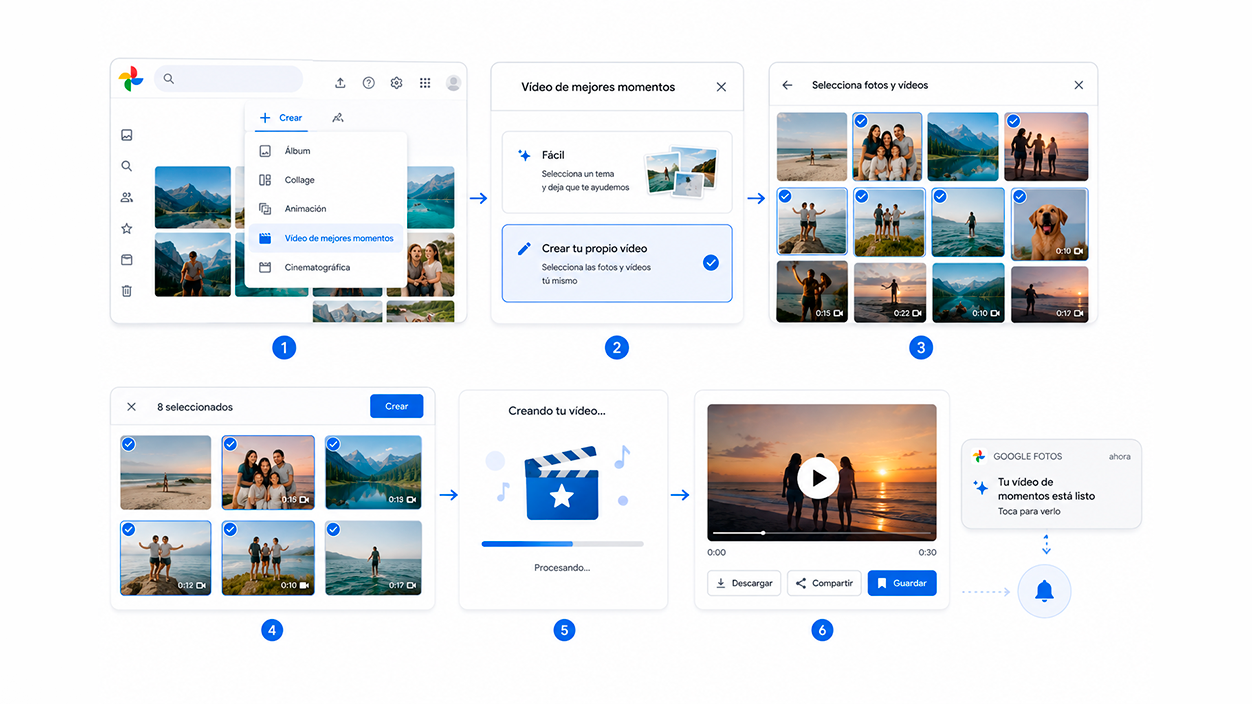
If you prefer to control every image and clip that appears yourself, you can also do that. Create a video of your best moments manually from the Google Photos websiteThis is ideal for more personalized setups, where you want to choose in detail what goes in and what goes out.
To begin, go to photos.google.com on your computer and sign in if you haven't already. At the top, you'll find the Create option, and within that, in addition to Guided mode, there's the "Best Moments" option followed by the function of "Create your own video" completely customizedThat's the one you should select to work manually.
By activating this option, you'll see your photo and video gallery. The next step is to select the items you want to include in the montage. You can click on each thumbnail or use multiple selection to add more content. The more images and clips you add, The longer and more varied the final video will beHowever, it's always best not to make it too long so that it becomes more dynamic.
Once you have your selection ready, tap Create at the top of the screen. Google Photos will begin processing the video, arranging clips, adding transitions and music, and generating a complete composition. If you're satisfied, the final step is to tap Save so that the edit is available in your library like any other multimedia content.
To view the result, you have two options: you can either press the Play button directly when the creation process is complete, or wait for the notification that Google Photos will send you when the video of moments is fully preparedFrom there you can share it, download it, or continue editing it as many times as you want.
Edit your best moments videos
Once you've created a best moments video, you're not stuck with the first version. Google Photos lets you make changes to the edit to adjust the music, the order of the scenes, or remove parts you don't like. All of this is done right from within the app. video editing interface within Google Photos.
To begin editing, open the video of the moments you want to retouch and tap the Edit option. You'll enter a view that displays the clips that make up the edit, as well as the audio track. From here, you have everything you need. Simple but effective controls for changing the character of the video, even flip images and videos.
If you want to change the music, click on the Music icon. You can choose from other available tracks, which significantly changes the atmosphere of the video: a more upbeat or calmer melody can give a completely different tone to the same set of imagesSometimes, themed audio options are also included for certain types of memories.
To rearrange the order of the clips, simply click and hold on one of them and drag it to the correct position. This drag-and-drop system makes it much easier to... quickly rearrange specific scenes until the visual narrative makes senseFor example, starting with the arrival on a trip and ending with the end of the experience.
If you see a photo or video that doesn't fit, you can easily remove it. Next to each clip is a "More" button; clicking it will reveal the "Remove" option. This allows you to refine the final result, keeping only the parts that truly contribute. Once you've adjusted the music, order, and content, tap on... Save to update the video with all changes applied.
Create animations with your photos in Google Photos
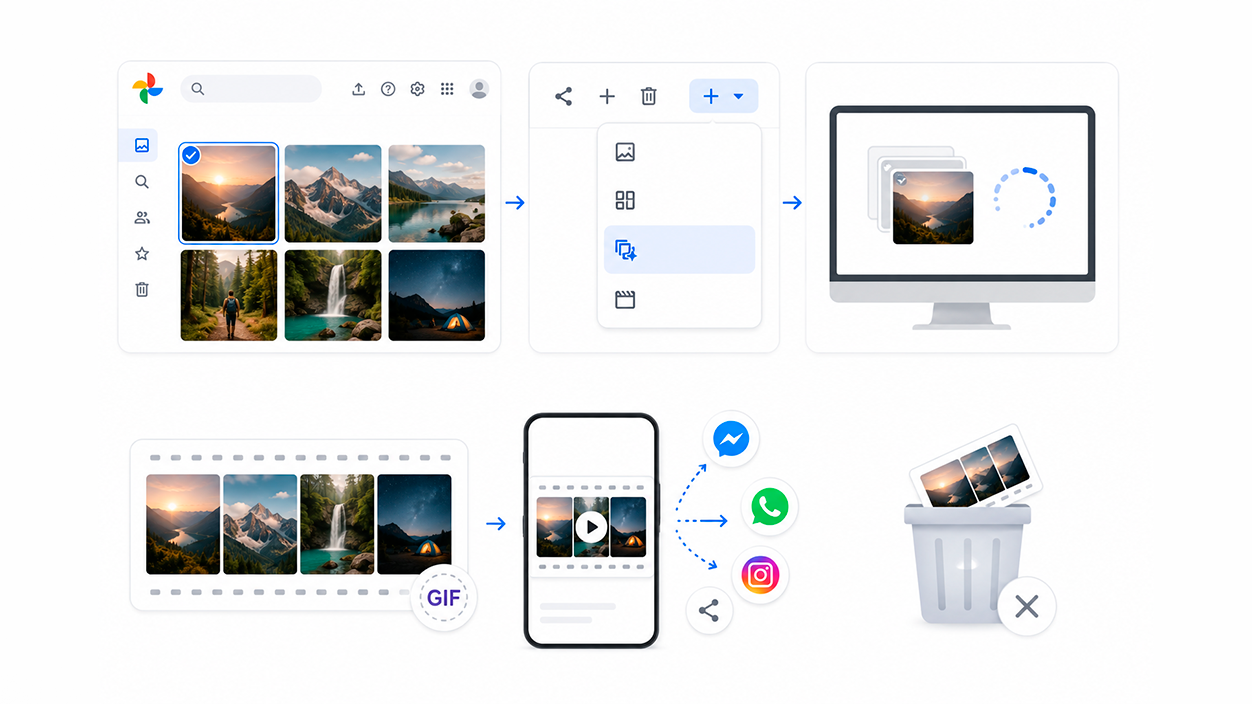
When we talk about "creating Google Pics images," many people think of something quick and eye-catching to share. That's where the [missing word - likely "images" or "images"] come into play. Google Photos animations, which work like small GIFs created from your images and clips. The computer process is very straightforward and requires no technical knowledge.
From your browser, go to photos.google.com and locate the photos you want to use. Place your cursor over the first image and click the checkmark that appears in the corner; it will now be selected. From there, you can select up to 49 additional photos. Create an animation with a maximum of 50 images in totalwhich is more than enough for most uses.
With your selection ready, look at the top of the screen: you'll find the Create button. Clicking it will open a menu with different types of creations. Choose the Animation option to indicate that you want to generate an animated file from the selected set of photos, and let it run. Google Photos automatically processes the sequence.
In a matter of seconds, your animation will be ready, with the images linked in chronological order (or in the order you selected them, depending on the interface). These animations are saved in your library just like any other photo or video, and you can easily share them on social media or messaging apps to show a funny moment, a step-by-step process, or a specific memory.
If you later decide you don't like the animation, you can always delete it like any other Google Photos file. However, if you delete the original photos that the animation was based onYou should keep in mind that it may affect some related creations, so it's a good idea to carefully review what you want to keep in your library.
How to quickly find animations and videos created
As you create content, your Google Photos library fills up with animations, moment videos, collages, and other special formats. To avoid going crazy searching, the platform itself offers a very direct way to locate all this content using the search bar, taking advantage of its intelligent sorting system and the image search tricks.
On the web version, go to photos.google.com and scroll to the top of the screen where you'll find the search box. There you can type specific terms like "Best Moments Videos" or "Animations" for the system to find what you're looking for. Automatically filter your library and show you only creations of that type.It's a very practical way to find old edits you made a while ago.
After entering the term, click the Search icon. You'll see that Google Photos groups the detected creations under that category, showing you thumbnails of videos, animated GIFs, and other items that match your search. From there, you can play, share, download, or Continue editing the creations that interest you most without needing to remember the exact date you generated them.
This same descriptive search approach also works for regular photos. You can type natural descriptions like "beach party" or "dinner with friends," and Google will use its AI to... Interpret the content of your images and show you related resultsIn this way, in addition to finding specific animations or videos, you will locate the original material with which you could create new pieces.
Key features of Google Photos beyond creation
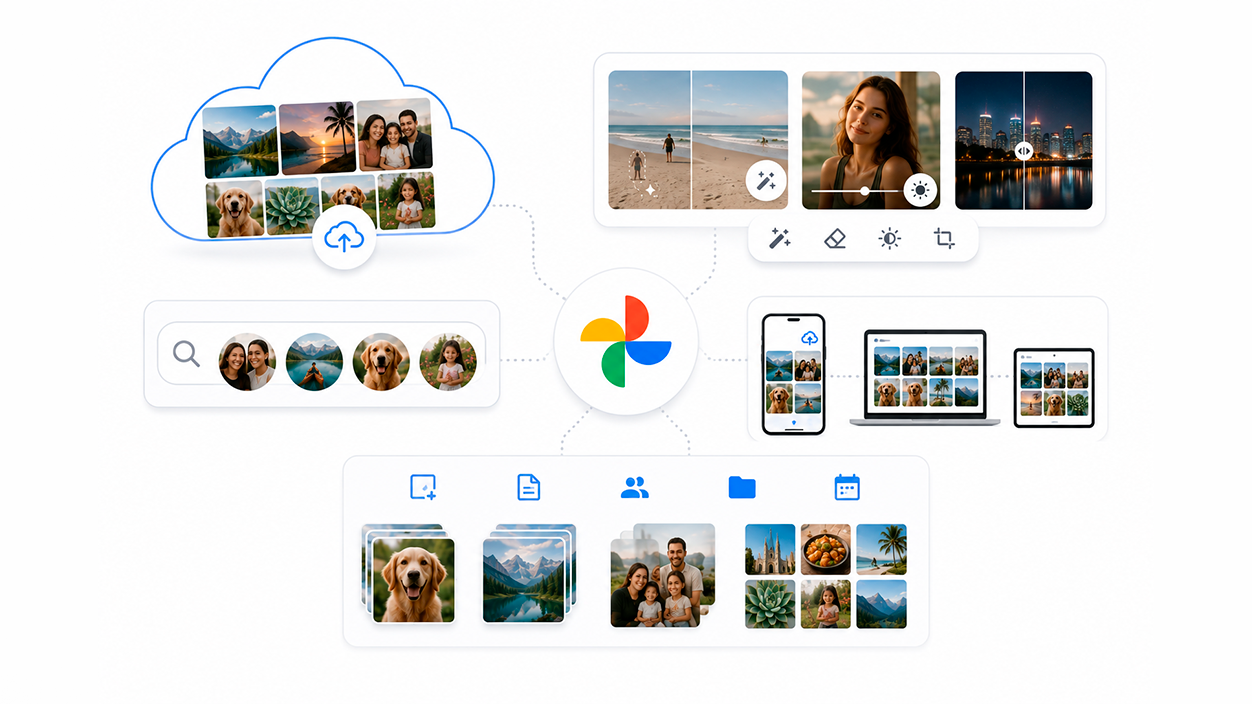
When we think of "Google Pics," our minds go to the creative side, but behind it all is a very powerful infrastructure that makes it possible to store, search, and protect your memories. Google Photos is, fundamentally, Your cloud home for all your photos and videos, with a combination of storage, AI, and highly polished organization.
Each Google account has up to 15 GB of shared cloud storage between Google Photos, Gmail, and Google Drive. In some countries, Google initially offers 5 GB with the option to unlock an additional 10 GB by adding a phone number, but the philosophy is the same: to provide ample space for automatic backups.
In addition to storage space, Google Photos incorporates a powerful set of AI-powered editing tools. Standout features include Magic Eraser, which removes unwanted elements, and Unblur, which helps to enhance photos. photos that are slightly blurry or out of focusor Portrait Light, which allows you to adjust the lighting on faces even after you've taken the photo. All of this with an interface designed so that complex changes can be made in just a few taps.
The search function is also deeply integrated with Google's artificial intelligence. There's no need to manually tag each photo: you can search by typing natural phrases like "Ana and I laughing," "kayaking on a lake surrounded by mountains," or "Emma painting in the garden." The system analyzes both the visual content and the context to show results that fit that description in everyday language.
In terms of organization, Google Photos helps keep your gallery under control in several ways. For example, it can group similar photos or information and in stacks of photos so you don't have ten nearly identical copies taking up space. It also offers specific folders for screenshots, documents, custom albums, and daily camera roll organizationso that your library will practically organize itself.
Privacy, security and space management
Uploading your entire digital life to the cloud can be daunting, and rightly so. That's why Google places so much emphasis on the security and privacy of photos and videos stored in Google PhotosThe content is protected by Google's advanced security infrastructure both while it is stored and during transmission when you share it.
If you have particularly sensitive files (such as personal documents, private photos, or any content you don't want to be visible when you show your phone), you can move them to a locked folder. This folder is protected by your device's screen lock, adding an extra layer of security. It prevents anyone with physical access to your mobile phone from seeing that content. without your permission.
The app also integrates easy sharing features, allowing you to send photos, videos, and albums to your contacts, even if they don't use Google Photos. Shared links are easy to manage, and you can Revoke access at any time to regain control over what you have shared.This is important if you share group albums or family memories.
To avoid running out of space on your phone, Google Photos includes an option to free up local storage. Once your photos and videos are properly backed up to the cloud, you can delete them from your device's internal storage with a single tap. Your phone stays lightweight while your memories remain accessible in the cloud. from any device with your account.
If you ever want to bring your creations to life, Google Photos offers printing services to turn your images into photo books, paper prints, decorative canvases, and other physical formats, with options to obtain high-resolution imagesThese services are available in regions such as The United States, the European Union, the United Kingdom, and Canadawith prices that vary depending on the product, and they constitute a convenient way to bring your favorite images from your mobile phone to the wall at home.
With this entire ecosystem—the Create tab, Moments videos, animations, AI-powered editing like Gemini or Image, smart search, automatic organization, backup, and printing options—Google has made creating images and visual memories more than just taking a photo; it's about building complete experiences. If you make good use of these tools, you can going from having a simple messy reel to a collection of polished, easy-to-share, and well-protected visual stories, ready to enjoy whenever you want.


I am a technology enthusiast who has turned his "geek" interests into a profession. I have spent more than 10 years of my life using cutting-edge technology and tinkering with all kinds of programs out of pure curiosity. Now I have specialized in computer technology and video games. This is because for more than 5 years I have been writing for various websites on technology and video games, creating articles that seek to give you the information you need in a language that is understandable to everyone.
If you have any questions, my knowledge ranges from everything related to the Windows operating system as well as Android for mobile phones. And my commitment is to you, I am always willing to spend a few minutes and help you resolve any questions you may have in this internet world.