- Installation of local models using Ollama to guarantee total data privacy.
- Configuring external providers via OpenAI-compatible APIs to optimize performance.
- Creation of customized workspaces with the ability to index documents and websites (RAG).
- Differentiation between general chat models and advanced reasoning models depending on the task.

You've probably noticed that artificial intelligence is advancing by leaps and bounds, and having a powerful assistant on your PC is no longer science fiction. If you're looking for a way to manage your own data Without leaving your machine or if you want to take advantage of the power of DeepSeek, AnythingLLM is the tool that will save your life, as it turns a complex model into a super intuitive interface.
The magic of this system lies in the fact that it allows you to create what they technically call RAG (Recovery Augmented Generation), which basically means you can Feed the AI with your own documentsWebsites or videos so that it responds based on your actual information and not on generalities. Let's see how to set this up step by step so you don't get lost along the way.
How to install DeepSeek locally using Ollama
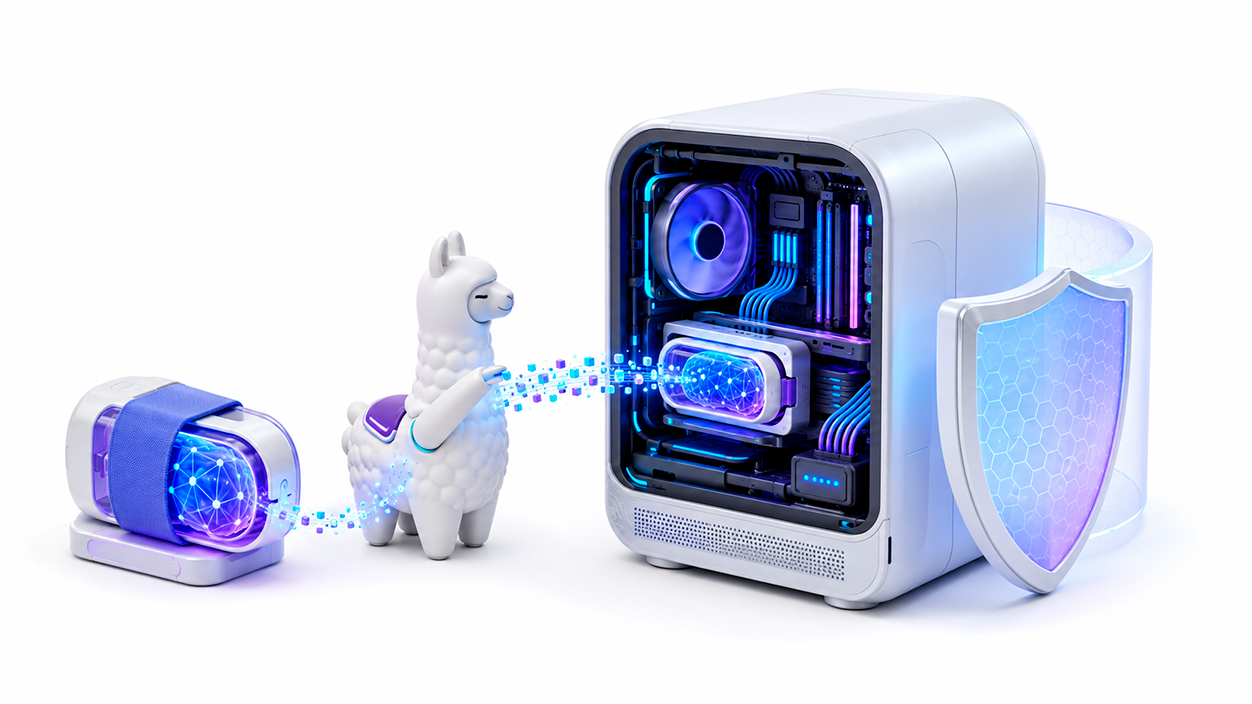
For those who prefer everything to happen within their own hardware for privacy or speed reasons, the best option is to use Ollama. First, you must Download and install Ollama on your computer, a process that is quite simple and takes only a couple of minutes by following the standard installation wizard.
Once you have the software running, it's time to download the model. Just open your operating system's terminal and type the command ollama run deepseek-r1:7bWith this, the system will begin downloading the DeepSeek-R1 model And, as soon as it's over, you'll be able to chat with him directly from the console, although we have to admit that typing on a black screen isn't the most comfortable thing in the world.
Integrating DeepSeek Local into AnythingLLM

Now that the model is up and running on your PC, it's time to give it a fresh look with AnythingLLM. After installing the desktop client, the first thing you should do is create a new workspace (Workspace), which is where you will organize your specific chats and documents.
To connect the cables, click the gear icon next to your workspace name and go to chat settings. In the LLM provider section, Select Ollama from the drop-down listYou'll see that the DeepSeek model you previously downloaded magically appears there; just mark it as default and save the changes to start enjoying a much more user-friendly interface.
Using DeepSeek via API for greater stability
If you don't have a very powerful computer or prefer not to overload your RAM, the alternative is to use an API. In this case, you can use services like API易, which act as a bridge. To do this, you need obtain an API key by registering on their platform and copying the provided token to your control panel.
Within AnythingLLM, instead of choosing Ollama, you should select the option Generic OpenAISince most of these services use the same format, you will need to enter the base URL (for example, https://vip.apiyi.com/v1) and paste your secret key. When choosing the model, you can write deepseek-chat for general tasks or deepseek-reasoner if you need AI to stop and think about and reason through complex problems.
Setting up your private knowledge base
One of AnythingLLM's standout features is its ability to process files. You can drag and drop documentsYou can import URLs from web pages or even add multimedia content. The system takes care of breaking down the information and creating a vector index so that the AI can quickly find the exact answer.
To get the most out of it, I recommend adjust the size of the text fragments (chunking) and organize everything using tags. If you notice that the model is slow to respond, especially with DeepSeek during peak hours, try optimizing the document cache or adjusting the context length in the advanced settings. improve response time.
Whether you choose to go the local route with Ollama for complete control over your privacy, or opt for the flexibility of an API for speed, integrating DeepSeek into AnythingLLM lets you transform a messy bunch of files into an efficient, personalized digital brain that will brilliantly assist you with your daily tasks.

I am a technology enthusiast who has turned his "geek" interests into a profession. I have spent more than 10 years of my life using cutting-edge technology and tinkering with all kinds of programs out of pure curiosity. Now I have specialized in computer technology and video games. This is because for more than 5 years I have been writing for various websites on technology and video games, creating articles that seek to give you the information you need in a language that is understandable to everyone.
If you have any questions, my knowledge ranges from everything related to the Windows operating system as well as Android for mobile phones. And my commitment is to you, I am always willing to spend a few minutes and help you resolve any questions you may have in this internet world.