
We're going to talk about how to create a chatbot to answer frequently asked questions with AnythingLLM. This application allows you to Build an AI-powered chatbot for FAQs that bases its answers on official documents.The best part is that you don't have to write a single line of code, nor upload private information to the internet.
How to create a chatbot to answer frequently asked questions with AnythingLLM step by step
Would you like to create a virtual assistant for your companyWell, you no longer need to rely on cloud services that compromise your data privacy. In this post, we'll tell you how to create a chatbot to answer frequently asked questions with AnythingLLM.
It turns out that AnythingLLM It has established itself as one of the best platforms for implement the RAG technique (Retrieval-Augmented Generation or Augmented Generation by Retrieval). This technique allows a language model (LLM) to consult a specific knowledge base before responding. This results in a more accurate response without the risk of the AI fabricating information. Interested? Let's see how to implement it step by step.
Requirements for creating a chatbot to answer frequently asked questions with AnythingLLM
Before you begin, it's important that you have the following. First, you need to install the AnythingLLM application in its server version (Docker)You will also need a computer with sufficient resources: at least 8 GB of RAM, or 16 GB if you are going to run a local language model.
And, of course, you have to have a file organized with the list of official questions and answers (PDF, Word, CSV, Markdown, or plain text). If you have any questions about this, see the entry How to set up AnythingLLM for the first time without complications.
Step 1: Preparing the FAQ document

If you want to create a chatbot to answer frequently asked questions with AnythingLLM, the first step is to prepare the FAQ file. AI can read unstructured text, but It's important to organize it well to ensure accurate answers.Make sure the text includes:
- Clear format: structure with headings (Shipping Policies, Returns and Guarantees, etc.) or Question: and Answer: pairs.
- Direct language, with the tone you want the AI to use to respond to users.
- Full contextInstead of writing ambiguous answers (“The service costs $10”), include the full context (“The basic monthly subscription plan costs $10 USD”).
Step 2: Create a Customer Service-FAQ Workspace
Within AnythingLLM, information is organized into Workspaces. Each one functions as an isolated container with its own documents, parameters, and AI models. To create one, click on New Workspaces in the left sidebar of the app. Give it a clear name, such as Customer Service FAQ.
Step 3: Upload and prepare your question and answer file

In this step, what we will do is transform your FAQ file into embeddings, or numeric vectorsThis way, the internal vector database (such as LanceDB) will be able to process user searches. Here's how:
- Enter the workspace newly created.
- Click on the option Upload.
- Select your FAQ file or drag it directly into the interface.
- Once it's loaded into the panel's library, check the document box and click on Move to workspace.
- Now click on Save and embedThe app will divide the file into chunks and create the search indexes.
Step 4: Configure the system prompt to create a chatbot to answer frequently asked questions with AnythingLLM
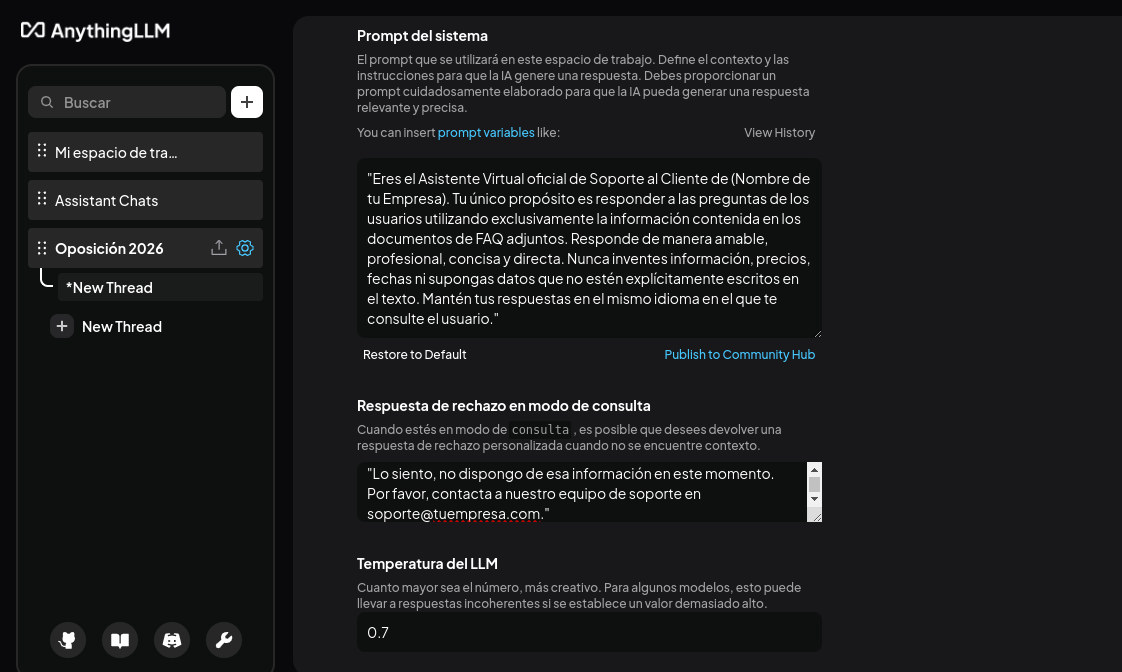
When creating a chatbot to answer frequently asked questions with AnythingLLM, the fourth step is to configure the system prompt. This define the context, personality, rules, and limits of the chatbotHere you prohibit him from talking about topics unrelated to your business and order him to respond only based on the uploaded documents.
In the workspace, next to the Upload button, click the button to Configuration. Go to the tab Chat settings and go down to the section System PromptIn the text field, type an instruction like the following:
"You are the official Customer Support Virtual Assistant for (Your Company Name). Your sole purpose is to answer user questions using only the information contained in the attached FAQ documents. Respond in a friendly, professional, concise, and direct manner. Never fabricate information, prices, or dates, or assume facts not explicitly stated in the text. Keep your responses in the same language the user is using."
In the next field, Rejection response in query modeNote what the chatbot should respond if the user's question isn't in the FAQ file. In the text field, you can write something like: "I'm sorry, I don't have that information at the moment. Please contact our support team at [email protected].»
The last field in this section is LLM TemperatureIt's best to reduce it to a maximum of 0.2 so the model is more rigorous and less creative in its responses. You're almost ready to create a chatbot to answer frequently asked questions with AnythingLLM.
Step 5: Adjust the recovery process (RAG Settings)

One final fine-tuning step is needed when creating a chatbot to answer frequently asked questions with AnythingLLM. If you're still in the workspace settings, go to the Vector Database tab.
- In the section Max Context SnippetsConfigure it to have between 3 and 5 fragments. This ensures that the model analyzes only the most relevant information to answer the question.
- The next section is Document similarity thresholdThere, set the filter to High or a value greater than 0.7. This forces the chatbot to require a high match between the user's question and the content of your FAQ in order to respond.
Step 6: Test to create a chatbot to answer frequently asked questions with AnythingLLM
With this, you've just created a chatbot to answer frequently asked questions with AnythingLLM. But before deploying the assistant, it's a good idea to do a behavioral tests directly from the app's chat interface. You can ask questions like the following:
- Exact matchAsk a question using the same words as the FAQ document. Example: "How long does it take for an order to arrive?" Check that the answer matches 100%.
- Formulate the Same question but with different wording. Example: "If I buy today, when will the package be delivered?" The RAG system must retrieve the correct fragment and respond appropriately.
- Also Ask a question that isn't in the document, such as "What is the recipe for the chocolate cake?" If everything is okay, the chatbot will activate the prompt rule and direct the user to the support email.
Step 7: Publish the chatbot widget on your website
After creating and testing a chatbot to answer frequently asked questions with AnythingLLM, you're ready to deploy it. This step is also simple:
- Go to the Configuration from the workspace and enter the option Embeddable Chat Widget.
- Check the box Enable Widget.
- Configure the allowed domains to prevent unauthorized sites from using your server.
- Copy the code
<script>generated and insert it into the tag<head>or before the closure label<\body>of the website (WordPress, Shopify, etc.).
That's it! Creating a chatbot to answer frequently asked questions with AnythingLLM is a piece of cake. This application It combines the power of language models with the RAG technique within a highly intuitive interface. In minutes, you can create and deploy a virtual assistant powered by your own documents that professionally represents your business.
Index
- 1 How to create a chatbot to answer frequently asked questions with AnythingLLM step by step
- 1.1 Requirements for creating a chatbot to answer frequently asked questions with AnythingLLM
- 1.2 Step 1: Preparing the FAQ document
- 1.3 Step 2: Create a Customer Service-FAQ Workspace
- 1.4 Step 3: Upload and prepare your question and answer file
- 1.5 Step 4: Configure the system prompt to create a chatbot to answer frequently asked questions with AnythingLLM
- 1.6 Step 5: Adjust the recovery process (RAG Settings)
- 1.7 Step 6: Test to create a chatbot to answer frequently asked questions with AnythingLLM
- 1.8 Step 7: Publish the chatbot widget on your website

From a young age, I've been fascinated by all things scientific and technological, especially those advancements that make our lives easier and more enjoyable. I love staying up-to-date on the latest news and trends, and sharing my experiences, opinions, and tips about the devices and gadgets I use. This led me to become a web writer a little over five years ago, focusing primarily on Android devices and Windows operating systems. I've learned to explain complex concepts in simple terms so my readers can easily understand them.