- SmartScreen is a reputation filter built into Windows 11 and Edge that blocks malicious websites, dangerous downloads, and suspicious applications.
- It relies on whitelists and blacklists, digital signatures and telemetry, which reduces many risks, but also generates false positives with little-known software.
- It can be partially or completely disabled from Windows Security, group policies, Registry or PowerShell, adjusting the protection level according to the user type.
- For most users, it is recommended to keep SmartScreen active as an extra layer of security, relaxing it only in advanced and controlled scenarios.

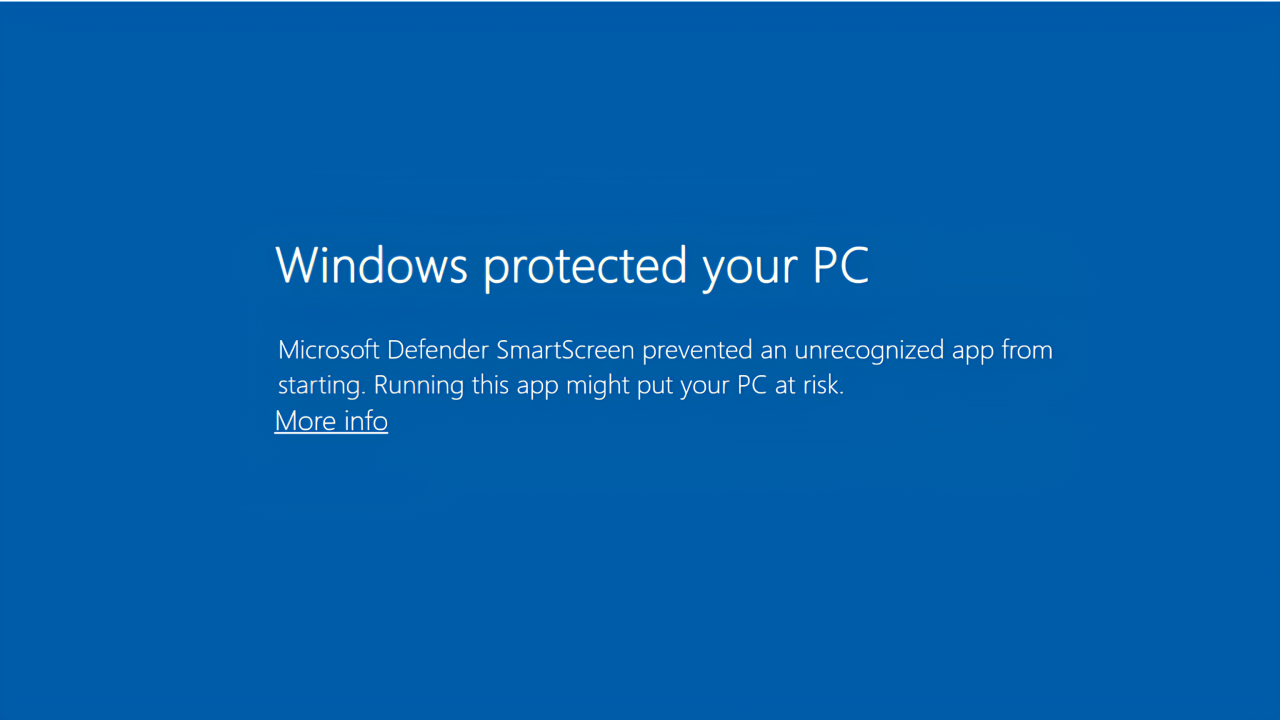
You've probably had to deal with a blue Windows warning at some point, saying your PC is protected and preventing you from opening a program or downloading a file. That "culprit" is... Microsoft Defender SmartScreen, the reputation filter built into Windows 11 which analyzes what you run and the websites you visit. Here's how to easily disable SmartScreen in Windows 11 from Settings.
We'll also review when it's best to keep it active, what risks there are in turning it off, and some frequently asked questions that often arise about this feature.
What is Microsoft Defender SmartScreen and how does it work?
SmartScreen is a security filter which Microsoft has been integrating into Windows and its Edge browser for yearsIts mission is to monitor the websites you visit and the programs or files you run or download, in order to stop phishing attempts, malware, and potentially unwanted applications.
To make decisions, SmartScreen relies on a huge database with whitelists and blacklistsOn one hand, it maintains a list of dangerous sites and programs or those associated with malicious software; on the other hand, it stores information about very popular and widely used files and applications that it considers trustworthy.
When you download or run something new, The filter checks the file's digital signature, its origin, and its reputation. comparing them to that database. If the item is marked as harmful, it blocks execution; if it's unknown and doesn't yet have a good reputation, it displays a warning about the potential risk, even if it's actually a legitimate program.
He applies this same approach in Microsoft Edge: It analyzes in real time the URLs you visit, their behavior, and compares them with dynamic lists of websites reported for phishing or malware.If it detects something suspicious, it displays a warning screen (usually in red) and advises you not to continue.
The funny thing is that SmartScreen runs in the background as an additional layer of security.This is independent of the antivirus itself, the firewall, and other Windows 11 protection features. You shouldn't notice any appreciable impact on performance on moderately up-to-date computers because it only performs checks when you interact with new files or sites.
Advantages and disadvantages of using SmartScreen
In theory, SmartScreen is designed to make your life easier, and the truth is that It offers several important advantages, especially for less experienced users. These are the types of people who download programs from anywhere or who don't carefully check the links they receive. They are:
- Full integration with Windows 11 and the Microsoft ecosystemIt doesn't just check what you open from Edge: it also monitors files launched from other browsers, download managers, email clients, or the Microsoft Store itself, providing consistent alerts across the system.
- Continuous learning model based on reputation and telemetryMicrosoft continuously updates its lists with both automatic and manual reports, so phishing and malware detections improve automatically. These lists are frequently updated and accessed via the cloud.
- Blocking potentially unwanted applications (PUA/PUP), such as installers full of toolbars, software with a bad reputation, or applications that, while not viruses, can cause problems or be intrusive to the user.
The flip side of the coin is that, by relying so heavily on reputation, SmartScreen generates quite a few false positivesLittle-known programs, beta projects, old tools without modern digital signatures, or software very specific to professional niches may be blocked or warned, despite being completely legitimate.
When does it make sense to keep SmartScreen enabled
The general safety recommendation is Leave SmartScreen enabled at all times, especially if you're not an advanced user or if you share the computer with other people who are less careful when browsing or downloading software.
Today, phishing attacks, fraudulent websites, and malware disguised as "free" downloads are commonplace. In this context, any additional layer of protection helpsAnd even more so if it comes natively integrated, at no extra cost and without having to configure anything complicated.
Even for experienced users, it can be helpful to keep it at least at one level. relatively strict mode for web browsing and emailAnyone can have a lapse in concentration, and SmartScreen can serve as a safety net in a silly moment or in the face of a very well-camouflaged attack.
This feature shines brightest in environments with many users, such as small businesses or educational institutions, where The administration can use group policies or Intune to prevent notices from being omitted and thus prevent someone from accidentally bypassing a critical block.
When might it be beneficial to disable or relax SmartScreen
Having said all of the above, there are real cases in which Disabling SmartScreen completely or partially may make senseWe usually talk about advanced users, developers, testers, system administrators, or hobbyists who work with a lot of little-known software.
If you usually install Old applications, highly specific utilities, test builds, or homebrew programs without a digital signatureIt's normal for SmartScreen to frequently trigger false positives. In that scenario, it can become more of a hindrance than a help.
It can also be awkward when Download emulators, modding tools, scripts, or portable programs that don't have enough global reputation. Even if you know perfectly well where they come from and have verified them, the system will keep asking every now and then.
In these cases, you have two options: use the temporary deactivation in each specific notice (run only that file and leave the filter active for everything else), or go a step further and globally disable SmartScreen or some of its specific layers (for Edge, for the Store, for apps and files, etc.).
However, if you like installing "whatever you find" online without looking too closely, Turning it off completely is not a good idea.At a minimum, you should leave some layer of protection active and supplement it with other security solutions.
How to disable SmartScreen in Windows 11 from Windows Security
The simplest and most visual way to manage SmartScreen in Windows 11 is through the application Windows Security (formerly Windows Defender Security Center), which brings together all the system's protection options.
To access the reputation options, you can use the search bar in the Start menu: Type “Windows Security” and open the applicationOnce inside, you'll see several main sections in the left sidebar relating to viruses, firewall, application control, etc.
The one that interests us is “Application and browser control”Click there and you will be shown different sections related to SmartScreen and the reputation-based protection that Windows applies to what you run and what you visit.
In the central part you will see a block called “Reputation-based protection”Just below is a link that says “Reputation-based Protection Settings.” Clicking it will give you access to the various switches you can use to fine-tune the filter's behavior.
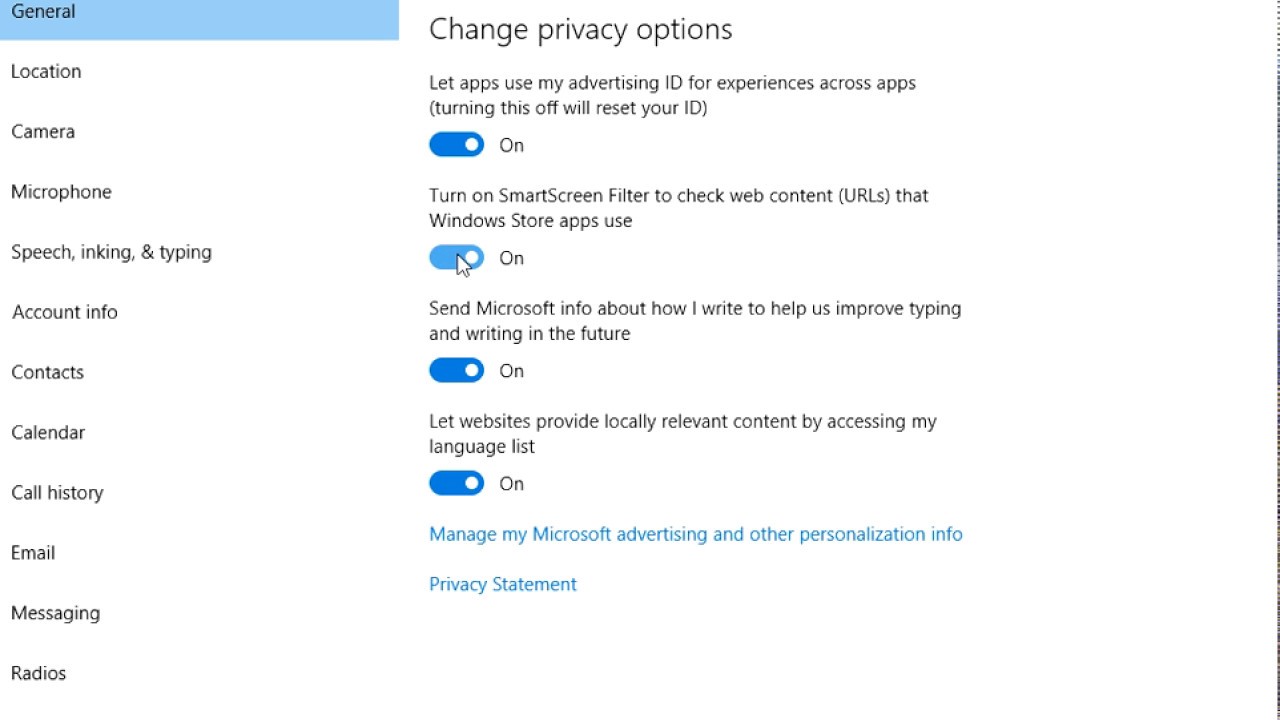
You'll generally find options like “Check apps and files”, “SmartScreen for Microsoft Edge”, “SmartScreen for Microsoft Store apps” and “Block potentially unwanted apps”They are all usually enabled by default in Windows 11.
If you want to completely disable SmartScreen, simply... Turn off the switches for the functions you don't want to useYou can turn off app and file checking only, Edge only, PUA blocking only, or all of them together, depending on your risk tolerance level.
At any time you can retrace your steps and Reactivate the switches to restore protectionIt does not affect other Windows security mechanisms, such as the built-in antivirus, firewall, or account protections.
Other ways to disable SmartScreen in Windows 11
Let's now review other options for disabling Microsoft Defender SmartScreen:
Using the Group Policy Editor
In professional and business editions of Windows 11 (Pro, Enterprise, Education) you have available the Local Group Policy Editor (gpedit.msc)which allows for further fine-tuning of SmartScreen's behavior, especially in managed environments.
To open it, you can use the shortcut Press Windows + R to launch “Run”, type gpedit.msc and press EnterThe policy console will open, with an options tree in the left panel divided into Computer Configuration and User Configuration.
Within the equipment branch, you can find several specific policies for SmartScreen by navigating through paths such as “Administrative Templates > Windows Components > Windows Defender SmartScreen > Explorer”, where you will see options related to checking applications and files.
One of the main ones is the directive “Configure Windows Defender SmartScreen” For the Explorer. If you double-click it, you can set it to "Not Configured," "Enabled," or "Disabled." Marking it as Disabled will force SmartScreen to turn off at this level for all users of the computer.
Another interesting policy is “Configure App Install Control”This feature aims to prevent executable content downloaded from the internet from compromising devices. Changing its status to Disabled also relaxes this filter for installations from the network.
Editing the Windows Registry
Another way to control SmartScreen in Windows 11 is through the Registry Editor (regedit)where you can create or modify specific values that determine whether the filter is active and at what level it operates.
Before touching anything, it is highly recommended back up the RegistryFrom the editor itself, you can export the entire tree or just the branch you are going to modify, so that you have a .reg file to return to if something goes wrong.
To open the Registry Editor, use again Windows + R, type regedit and press EnterAccept the account control notice and once inside, navigate in the left panel to the following path:
HKEY_LOCAL_MACHINE\SOFTWARE\Policies\Microsoft\Windows\System
If the System key doesn't exist, you can create it by right-clicking. Within it, the first step will be add a new DWORD (32-bit) value called EnableSmartScreenDouble-click on it and set the "Value data" to 0 to deactivate it or to 1 to keep it active.
Next, you can create a new string value (REG_SZ) called ShellSmartScreenLevelIn this string, you can indicate the level of action you want: for example, "Warn" to display warnings that can be ignored, or "Block" to try to directly block the execution of suspicious elements.
With these adjustments you get a finer control of SmartScreen behavior from the system levelHowever, changing these values without a clear understanding of what you're doing can cause unexpected behavior. Therefore, it's advisable to note the original state before making any changes and, above all, ensure that the Registry is properly backed up.
From PowerShell
If you prefer to automate tasks or are comfortable with the command line, you can Use PowerShell to enable or disable SmartScreen in Windows 11This is useful for applying the same change to multiple computers or for including it within configuration scripts.
To begin, open PowerShell with elevated privileges: Right-click on the PowerShell icon and choose “Run as administrator”Accept the UAC and, in the console, you will be able to use security cmdlets such as Set-MpPreference.
The base command you're interested in is Set-MpPreferenceThis command allows you to modify Microsoft Defender preferences, including the SmartScreen toggle in certain versions. Specifically, to temporarily disable the filter, you can run:
Set-MpPreference -EnableSmartScreen $false
This setting tells Defender that Disable the SmartScreen-based protection layerFrom that moment on, you will no longer see reputation warnings associated with this feature, although other defenses such as real-time virus scanning will remain active.
SmartScreen, pop-up blocker, and other protections
It is common to confuse SmartScreen with the browser pop-up blocker or other anti-spam toolsbecause all of them, to a greater or lesser extent, come between the user and certain Internet content.
However, its function is different: SmartScreen analyzes the reputation of websites, downloads, and applications, looking for phishing, malware or unwanted software, while the pop-up blocker is limited to slowing down the automatic opening of windows, most often associated with advertisements.
The pop-up filter He doesn't understand reputation or digital signaturesIt simply prevents certain types of annoying or intrusive windows from opening. It's not uncommon for completely harmless banners or pop-ups to be blocked by default, and conversely, it doesn't serve as a reliable barrier against sophisticated malicious sites.
That is why it is considered that Both tools complement each other, but they do not replace each other.You can disable pop-ups if they bother you too much, but keep SmartScreen active. Or, adjust SmartScreen settings to allow more features while still blocking pop-ups in your regular browser.
Similarly, SmartScreen does not replace other Windows 11 protections, such as Microsoft Defender antivirus, firewall, kernel isolation, or account protectionEach layer covers a different type of risk, and ideally, a defense-in-depth approach should be maintained.
Risks and vulnerabilities associated with SmartScreen
It may sound paradoxical, but A security feature can also become an attack vector if a vulnerability is found in its implementationOver time, flaws have been detected in SmartScreen that allowed attackers to bypass or exploit this filter.
A well-known case was the vulnerability CVE-2024-21412, documented by Microsoft in its Security Response Center (MSRC)This flaw allowed malicious actors to bypass SmartScreen's protections using specially crafted files that circumvented standard checks.
Cybercriminal groups such “Water Hydra” even exploited this gap in targeted campaignsHowever, Microsoft fixed the problem through operating system security updates, so keeping Windows 11 up to date is crucial.
Although these incidents demonstrate that No layer of protection is infallible or bug-free.It's also true that these haven't been massive outages that permanently affected all users. In general, the company has reacted quickly to patch them.
In practice, the balance remains favorable to keeping SmartScreen enabled, provided that Combine its use with a good habit of updating and common sense when browsingDisabling it does not prevent vulnerabilities from existing; it simply eliminates extra protection against many everyday attacks.
With all of the above in mind, the key is to adjust SmartScreen to the type of use you give your PC: If you install a lot of unusual or outdated software, you might want to roll it back a bit.But for most users, it's worth leaving it on and living with the occasional warning rather than opening the door wide to any threat.

Editor specialized in technology and internet issues with more than ten years of experience in different digital media. I have worked as an editor and content creator for e-commerce, communication, online marketing and advertising companies. I have also written on economics, finance and other sectors websites. My work is also my passion. Now, through my articles in Tecnobits, I try to explore all the news and new opportunities that the world of technology offers us every day to improve our lives.