- If Discord is streaming music or games through your microphone, first check which input is selected.
- A recording in Windows helps to distinguish a microphone failure from a Discord setting.
- Stereo mixing causes problems when it is selected or directed as an input source.
- Test connections and headphones before modifying drivers or applying general system changes.

You're chatting on Discord and someone alerts you that they can hear the video you have open, the YouTube music, or the game effects. Before randomly changing options, it's a good idea to investigate. where does that sound enter the call?The microphone might be picking it up from the speakers, Windows might be using an input that records system audio, or a mixing application might be sending both sources to Discord.
There's an important distinction: if you're screen sharing, your friends can hear the audio from the stream without it going through your microphone. That's why initial testing should be done. without screen sharingThis way you can identify the problem and apply the appropriate solution.
First, check if the sound is actually coming through the microphone.
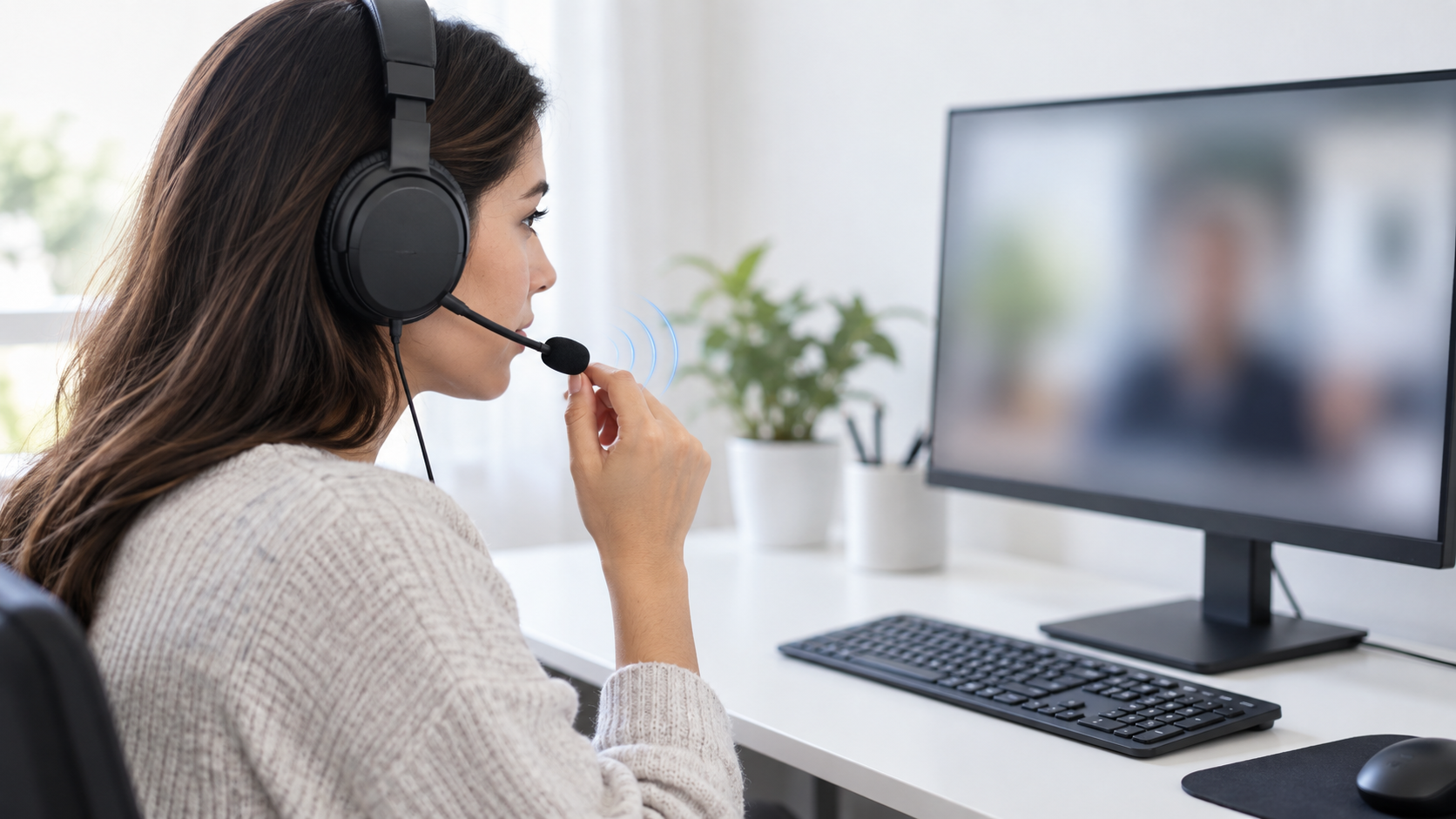
Join a Discord call without starting a stream and play a video or song for a few seconds. Ask someone else if they can hear it. Then, repeat the test with your headphone volume very low and, if your computer allows it, with your microphone muted using its own switch.
- The sound disappears when the volume is lowered: The microphone might be picking up what's coming out of the headphones or speakers.
- The sound can still be heard with the speakers muted: Check the selected entry in Discord and the applications that mix audio.
- This only happens when you share your screen: Check the audio of the transmission before modifying the microphone.
These observations help guide the diagnosis, but a test recording will provide better confirmation. If the sound is already present in the Windows startup, Discord isn't the only program affected.
Make a test recording in Windows 11
Open Home > Settings > System > SoundIn the section EntranceSelect the microphone you are using and open its properties. Press Start testSpeak normally while briefly playing the leaked sound, then choose Stop test y Reproduce.
If the game or music is clearly audible in the sample, check if Windows has selected a different microphone input. If it's only audible in Discord, focus your investigation on its voice settings and any other programs that send audio to the application.
You can also make a second recording without speaking. This test helps determine if the desktop audio is going directly to the input or if the problem occurs mainly when your voice activates the microphone.
Check Stereo Mix and other audio inputs
Press Windows + R, writes mmsys.cpl and open the tab RecordingLocate the physical microphone you're using. It may also appear on some devices. Stereo mix, "What is heard" or another input capable of capturing the computer's playback.
If Discord is using Stereo Mix as your input device, change the selection to your microphone. You can turn off Stereo Mix if you don't need it, but Its mere presence on the list does not prove that it is the causeNot all computers offer that function either.
If you're using OBS, Voicemeeter, virtual audio cables, or gaming headset software, check what signal they're sending to Discord. A virtual input might deliberately combine your voice and desktop audio. To isolate the issue, temporarily select the physical microphone and repeat the test.
In the microphone properties you might see "Listen to this device"That box allows you to hear the input through a PC output. If it causes your voice to be heard through the speakers again, uncheck it and try again; don't treat it as an automatic explanation for any leak.
Select the correct microphone within Discord
Open User settings > Voice and video. In Input deviceSelect your microphone explicitly instead of leaving it on automatic selection. Also check that the Output device Whether it's the headphones or speakers you're actually using, if you connect multiple microphones, a webcam, or a controller with voice input, it's easy to accidentally choose a different one.
Use the microphone test from Discord while a video plays. If the test captures the music, compare the result again with the Windows recording: this will tell you if the leak occurs before reaching Discord or in its settings.
Input sensitivity can prevent the microphone from opening up to soft ambient sounds. Setting it too high can also cut off the beginnings of your sentences. noise suppression and the echo cancellation These settings can help when the microphone is physically picking up the speakers, but they won't fix a virtual input that already contains system audio. If you've changed many settings and can't remember which ones, Discord lets you reset your voice and video settings from its debug section.
If Discord chooses a different device after you connect a headset, check also Why does Windows automatically change the audio device?.
Check the headphones, the connector, and the ports
If Windows Recording includes game audio even with the physical microphone selected, lower the headphone volume and move the microphone away from the headset. If the leaked sound decreases, it may be due to acoustic pickup. Try using external speakers with headphones to confirm.
When you use a connection of 3,5 mmCheck that the connector is properly inserted and that the adapter matches the type of jacks on your computer. Headphones with a single jack for both audio and microphone require a suitable adapter if your PC has two separate jacks. You can also try the same equipment in a different port or connect another USB microphone for diagnostic purposes.
If the leak occurs only at the front connector of a tower and disappears at the rear, check that specific connection. It's not a general rule that all front ports will perform worse. the comparison on your team This is what allows us to draw a conclusion.
When to check audio drivers
If Windows isn't properly detecting the microphone, the device disappears, or the problem started after changing the audio software, look for an updated driver for your specific computer model or motherboardAfter installing it, try recording from Windows first, and then from Discord.
Uninstalling Realtek shouldn't be the first step In the event of a sound leak: you may lose device functionality without having identified the source. There is also no "multi-streaming" option available on all computers that should be universally disabled. Reinstall the driver following Windows help instructions if the device is not detected or if you have confirmed a driver failure.
The box that allows applications to take exclusive control The microphone also doesn't prioritize Discord or automatically separate the game from your voice. If both sounds are arriving at the input simultaneously, go back to testing your device, connection, and routing: that's often where you'll find a useful clue.
In short, start with a call without screen sharing and a test recording on Windows. Then select the physical microphone in Discord, check the audio mixing inputs, and compare headphones and ports. Each change should be followed by another brief test to see if you've actually eliminated the leak.
Index

I am a technology enthusiast who has turned his "geek" interests into a profession. I have spent more than 10 years of my life using cutting-edge technology and tinkering with all kinds of programs out of pure curiosity. Now I have specialized in computer technology and video games. This is because for more than 5 years I have been writing for various websites on technology and video games, creating articles that seek to give you the information you need in a language that is understandable to everyone.
If you have any questions, my knowledge ranges from everything related to the Windows operating system as well as Android for mobile phones. And my commitment is to you, I am always willing to spend a few minutes and help you resolve any questions you may have in this internet world.