- The DualSense may fail in games even though it works in the PS5 menu, due to software, connection or hardware problems.
- Resetting the controller from the rear hole and checking the Bluetooth connection are essential steps to rule out simple errors.
- Updating the DualSense firmware from the PS5 accessory settings helps to fix malfunctions.
- If the problem persists after these checks, it is best to contact the official PlayStation technical support.

If you just bought a PS5 after months of waiting and Your DualSense doesn't work right when you start a gameIt's perfectly normal to have a blank stare. Many players report that, as soon as they start any game, they reach the initial screen and suddenly none of the buttons respond... except for the PS button, which does allow them to return to the console menu, close the game, or navigate the interface.
This type of glitch is puzzling because, in the PS5 menu, The controller seems to be working perfectly.You can open settings, navigate through the options, turn off the console… but as soon as you enter a game, the buttons stop working. To make matters worse, some users have even tried entering the PS5's safe mode, and when the console prompts them to connect the controller via USB, the DualSense still doesn't respond, even when plugged into different ports.
Why your DualSense might stop working when entering a game
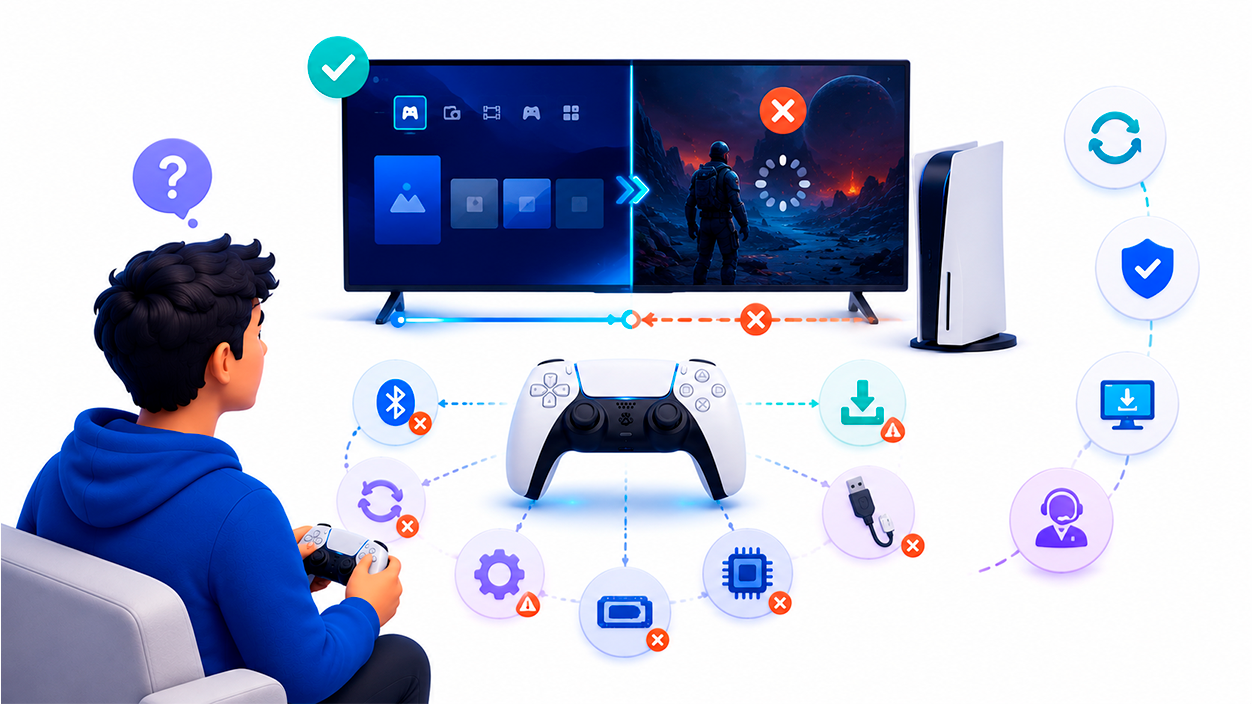
The first thing you need to understand is that, although the PS5 is an extremely powerful machine, Errors with the DualSense controller are relatively common.Just as a console sometimes fails to connect to the internet, a PC overheats when running a demanding game, or an Xbox has trouble reading a disc, PlayStation 5 can also experience glitches that ruin our gaming session.
In the specific case of the DualSense, many players report that the controller It works perfectly on the PS5 interfaceHowever, it has problems loading certain games, switching users, or trying to use it in safe mode. If only the PS button responds and the rest of the buttons or triggers remain unresponsive, it could indicate a software conflict, a corrupted Bluetooth pairing, outdated firmware, or, in the worst case, a physical defect in the controller itself.
It should also be noted that The internal technology of the DualSense is more complex This controller boasts features that are superior to previous models: advanced haptic feedback, adaptive triggers, wireless connectivity, motion detection… All of this delivers a fantastic experience, but also more potential pitfalls if there's a bad update, a power outage at the wrong time, or simply a manufacturing defect.
Several users have shared cases where, after trying the most typical solutions such as resetting the controller with a paperclip or using another USB port, They have not had any resultsEven after booting the console in safe mode and connecting the DualSense controller with a cable, the system hasn't recognized it properly. If you're experiencing this issue, you should follow a series of steps to rule out problems, and if nothing works, it's time to contact PlayStation support.
Basic steps before you "go crazy" with your DualSense
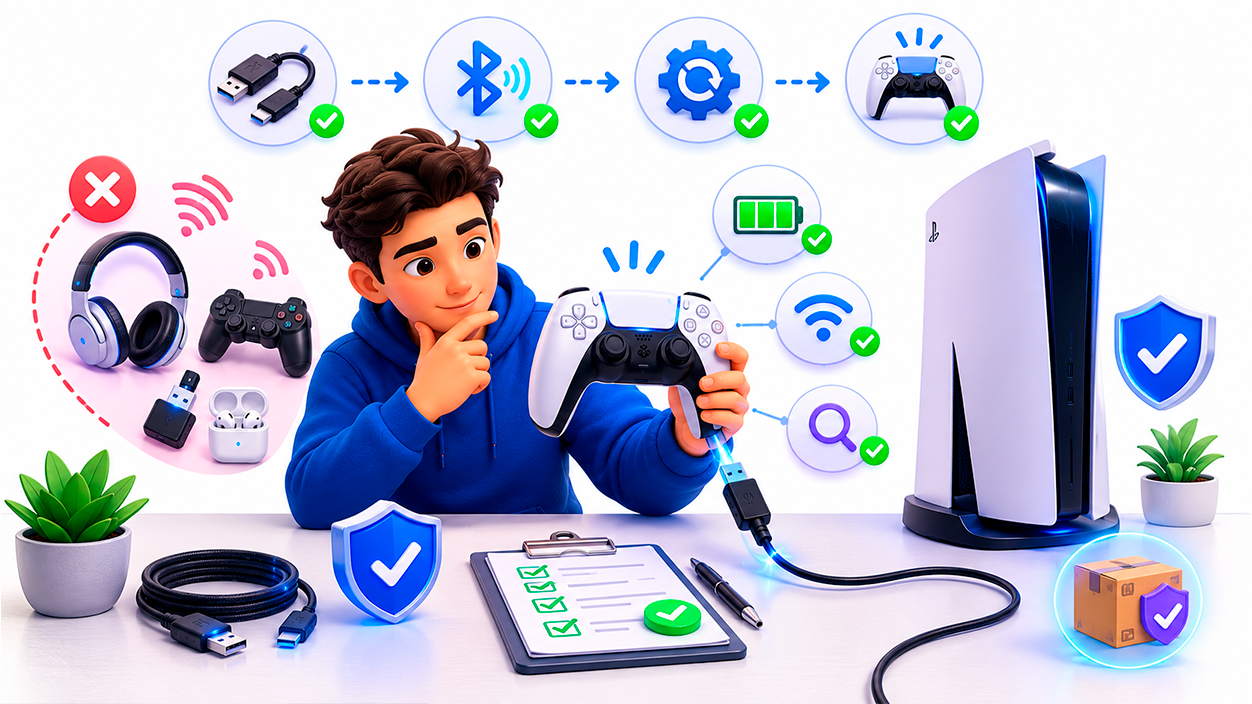
Before you start tweaking advanced settings, it's a good idea to do a few simple checks. Sometimes, A very silly detail could be the cause that the controller doesn't respond well in games, although the problem seems more serious than it really is.
To begin, make sure your console is properly updated and that There are no other Bluetooth devices interfering near the PS5. Wireless headphones, older controllers, adapters, and other accessories can cause strange conflicts, especially if several are trying to connect at the same time or if one of them is partially paired and gives errors.
Another basic check is to inspect the condition of the USB cable you're using. A damaged or poor-quality cable can cause problems. the console does not recognize the controller correctlyespecially when you try to use it in safe mode or update its firmware. Try, whenever possible, with the original PS5 cable or with a good quality one that supports both data and load.
If the DualSense connects via Bluetooth when you turn on the console, but becomes "half dead" when you start a game, it is recommended that Try using it only with a cable during testing. This reduces the possibility that the problem originates from the wireless connectivity and allows you to focus on whether the issue lies with the controller, the system, or the game itself.
Finally, keep in mind that if the console is new and the controller has had problems since the first or second day, It is quite possible that the defect is due to a manufacturing fault.It's not common, but it happens. This doesn't mean you shouldn't try troubleshooting methods, but you should do so with the understanding that if there's no improvement, the warranty is there to be used, and you shouldn't have to put up with a faulty controller.
Typical case: the controller works in the menu but not in the games.
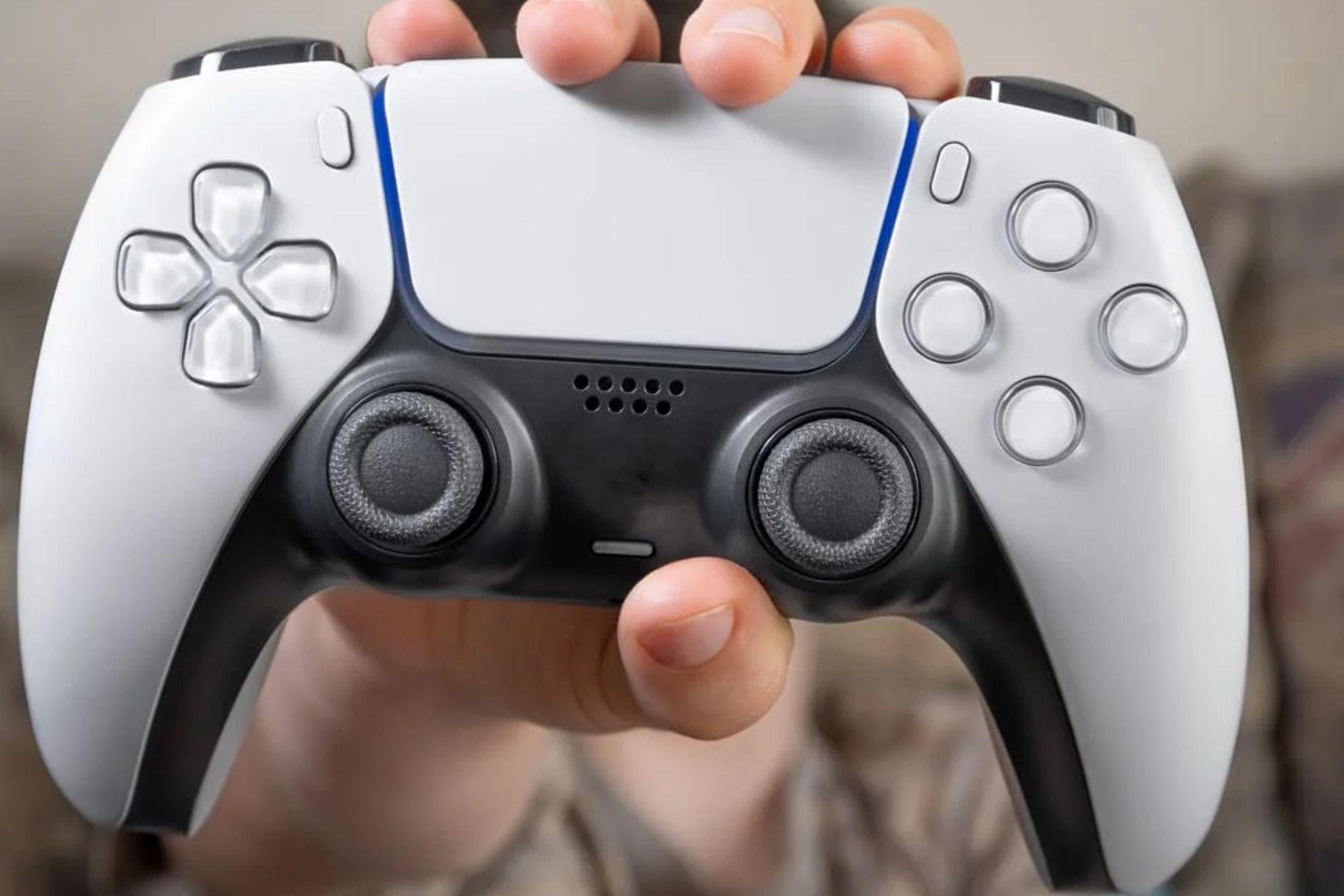
One of the most frustrating scenarios described by users is this: Everything is fine in the PS5 menuYou can navigate without problems, you can open the store, check your trophies or enter Settings, but as soon as you start a game, the controller gets stuck on the title screen.
On the game's initial screen, you're usually prompted to press a button to continue, accept, log in, or simply return to the main menu. However, the DualSense controller isn't responding to anything except the PS button, which still works to return to the console menu, close the game, or switch users. This is very confusing because it feels like the controller is "deciding" to malfunction on its own within games.
Some testimonies mention that attempts have already been made reset the remote control from the small hole on the back I tried using a paperclip, without success. I also tried starting the PS5 in safe mode and connecting the DualSense with a cable when the system prompted me, but when I got to the screen "Connect the controller via USB and press the PS button," the controller still didn't respond even after plugging and unplugging it several times or changing USB ports.
This type of problem They point to a failure which isn't always solved with the simplest solutions. Even so, it's best to take it one step at a time: first try completely reset the DualSenseNext, check the Bluetooth pairing and, finally, update the controller's internal software. If the problem persists after following these steps, it's time to consider that the issue may be with the hardware.
It's also important not to rely solely on one game. If the problem occurs, try opening... several different titles To rule out that the problem lies with a specific bug in a particular game. If the controller freezes in all of them in the same way, the likelihood of it being a problem with the DualSense itself or the console is much higher.
How to completely reset your DualSense controller
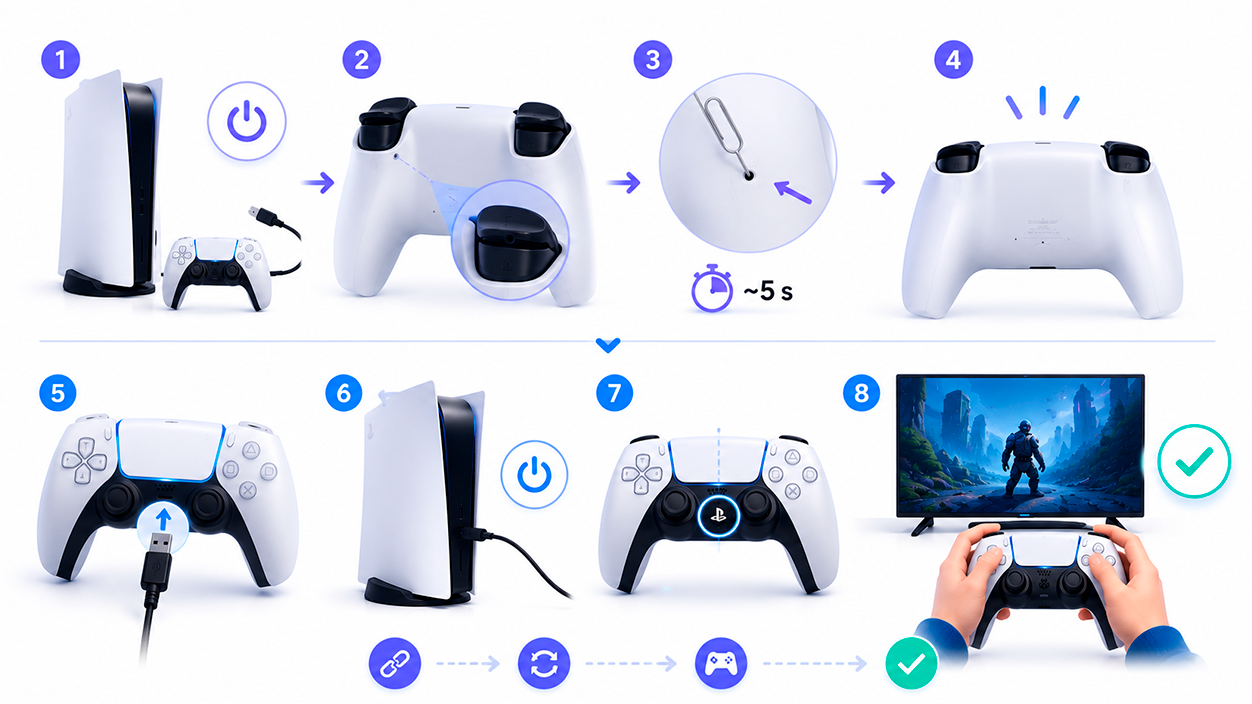
One of the first solutions recommended by Sony and the community is to perform a DualSense full resetIt's not just a matter of turning it off and on, but of forcing a reset using the hidden physical button on the back.
First, completely turn off your PS5 and Disconnect the controller from the consoleWhether you're using a wired or Bluetooth connection, it's important that the console is turned off and not simply in sleep mode to ensure the cleanest possible restart.
Next, take the DualSense controller and locate a small reset hole on the back, near the L2 button. Inside this hole is a reset button that can only be pressed with a thin object, such as a pin, a straightened paperclip, or a similar tool. Insert the pin and Press and hold the reset button for a few seconds (usually, about 5 seconds is enough).
When you finish pressing the button, wait a moment and then reconnect the controller to the PS5 using a USB cable. Ideally, use the original cable or a good quality one to avoid connection drops or problems syncing the device. Once plugged in, turn on the console And, when it starts up, press the PS button on the DualSense to pair it again.
If everything has gone well, the controller should have "forgotten" the previous connections and re-establish a clean connection with the consoleFrom here, try navigating the menu, starting a game, and checking if the buttons respond again on the title screen and during gameplay. If the problem persists, you'll need to continue with the remaining steps.
Check the Bluetooth connection and for possible interference
If resetting the controller hasn't fixed anything, the next thing to check is the Bluetooth connection between the DualSense and the PS5Sometimes, a faulty pairing or the presence of other wireless devices can cause the controller to behave strangely. Also check if the controller flashes blue, as it may indicate a pairing problem.
From the PS5 main menu, go to the section of "Configuration" (the gear icon in the upper right corner). Once inside, go to the “Devices” section, and then access the “Bluetooth” submenu (depending on the firmware version, it may appear as part of “Accessories” or “Bluetooth Devices”).
On that screen, you'll see which controllers and wireless accessories are paired with the console. Check that your DualSense It appears correctly as connected. and that there are no other active Bluetooth devices that could cause conflict, especially if they are additional controllers, adapters, or similar accessories.
If you find that the DualSense is not paired, Try linking it againYou can do this by connecting the controller to the PS5 via USB cable and pressing the PS button until the console detects it; from there, once paired, you can go back to using it wirelessly if there are no further problems.
In some cases, it can be helpful to temporarily delete or turn off other paired Bluetooth devices, leaving only the main controller, and see if that resolves the issue. improves connection stabilityIf the problem persists after these checks, it's a good idea to move on to the next step: checking and updating the DualSense's internal software.
Update the DualSense controller firmware
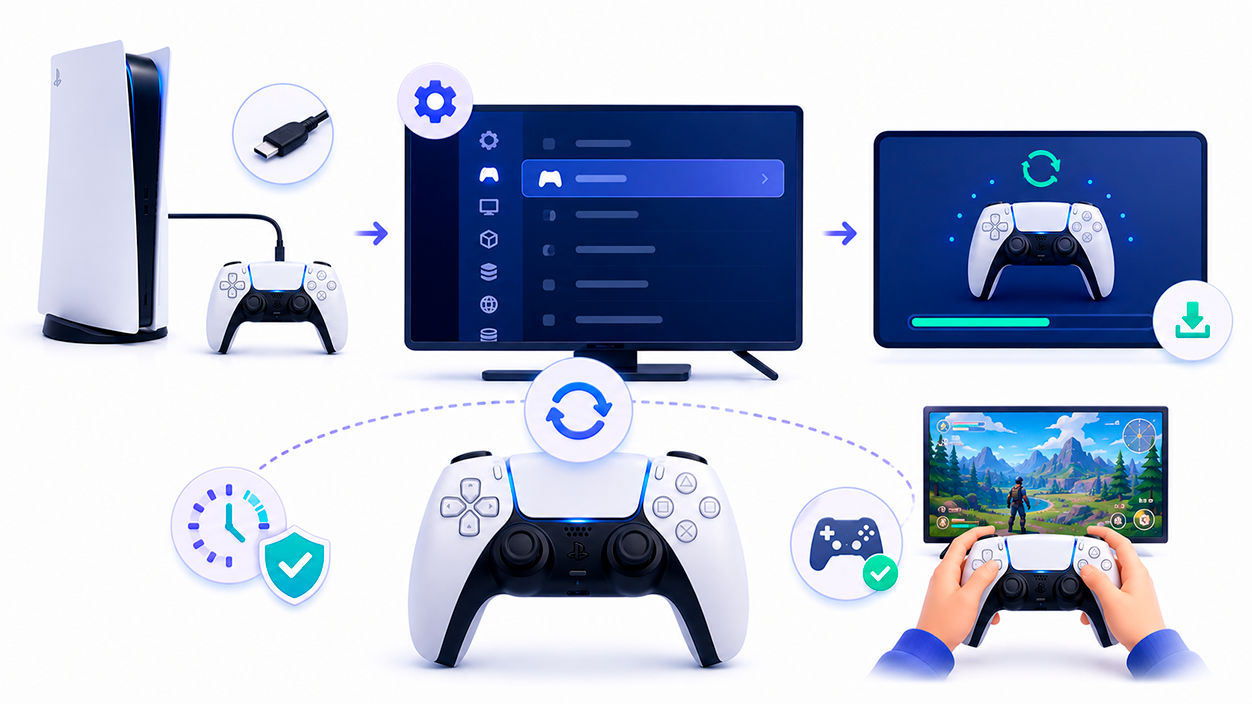
The DualSense, in addition to relying on the console's software, has its own internal firmware which also receives improvements and bug fixes over time. If this firmware is outdated or has become corrupted for any reason, the controller may experience responsiveness issues or disconnections.
To update the DualSense firmware, first connect the controller to your PS5 using a reliable USB cable. Avoid using Bluetooth during the update process to reduce risks. Then, return to the menu. "Configuration" of the console.
In Settings, go to "Accessories" and then look for a section called something like "Control (General)" or "Controls". Once there, you'll find the option “Update DualSense wireless controller device software”Select it and follow the instructions that appear on the screen.
During this process, it's important not to disconnect the controller or turn off the console, as an interruption could interrupt the firmware update and worsen the situation. The update usually takes very little time, and when it's finished, the PS5 will notify you that... The controller software is now up to date..
After updating, test the DualSense again: navigate the menu, launch several different games, and check if the buttons respond correctly both on the title screens and during gameplay. If the controller still doesn't respond in games but works in the interface, the possibility that... there is a hardware problem or something deeper in the system.
When to contact PlayStation technical support
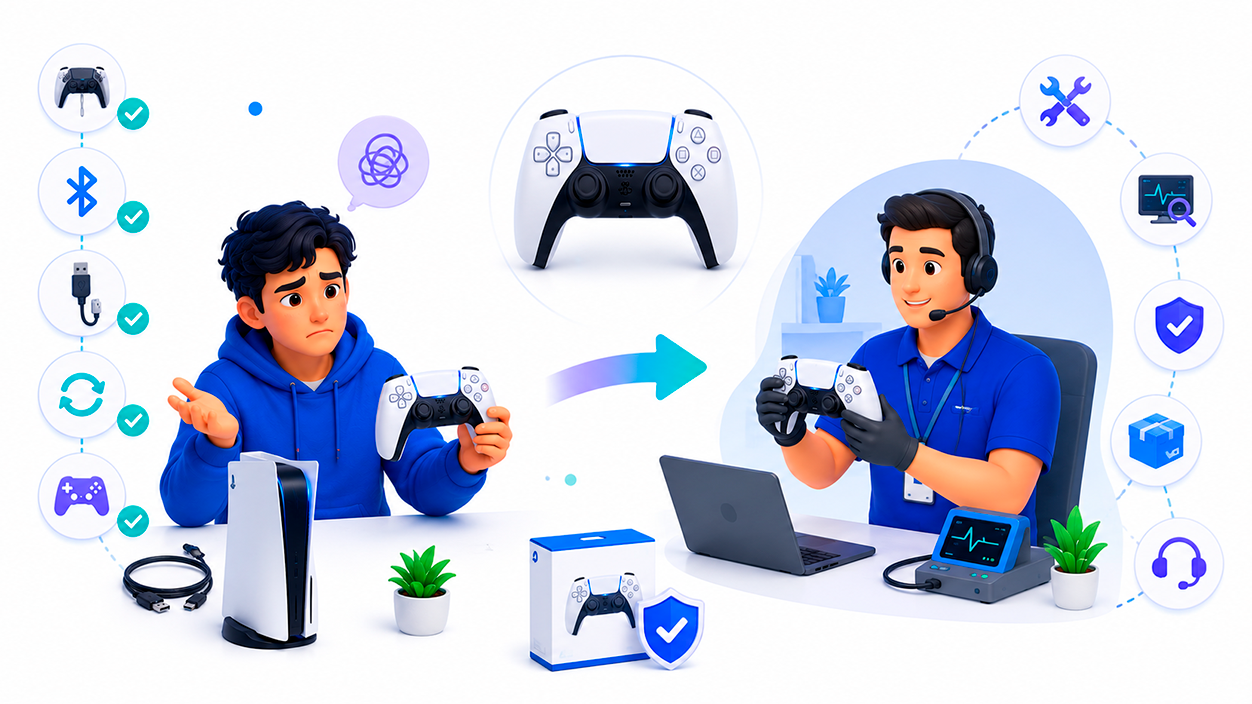
There comes a point where, if you've already tried Restart the DualSenseIf you've tried checking the Bluetooth connection, using a USB cable, changing ports, and updating the controller's firmware, and the problem persists, you should seriously consider contacting Sony's official support.
Especially if the console and controller are relatively new, or if the DualSense has had problems since the first or second day of use, it's most likely that you may be dealing with a manufacturing defect Or it could be an internal fault that you won't be able to fix at home. The warranty covers these kinds of situations, so there's no point in continuing to struggle with a controller that might be defective from the start.
PlayStation's technical support is, ultimately, who is best able to diagnose If the problem lies with the controller, the console, or a combination of both, they may offer repair, controller replacement, or provide more specific troubleshooting steps based on tests you've already performed.
When you contact them, it's advisable to explain in detail everything you've tried: restarting with the rear button, using safe mode, changing cables and ports, checking Bluetooth, updating firmware, testing with various games… The more information you give them, the faster they can help. rule out causes and offer you a solution appropriate.
Also, keep your console or controller purchase information handy, in case they need to check the warranty period. And don't worry if you think the problem might be documented in older forum posts. These failures still occur todayThat's why it's important to have official support when there are no other reasonable options besides trying at home.
After reviewing all these possibilities, it's quite clear that, although the DualSense is a very advanced controller, It is not free from errors that can be frustrating. This can happen to anyone, especially when it works in the menu but freezes in games or doesn't even respond when connected in safe mode. Luckily, by following a logical order—from a physical restart, to checking the Bluetooth connection and updating its firmware, to contacting technical support if none of this works—it's possible to narrow down the problem and decide if it can still be fixed at home or if it's time to use the warranty and let the PlayStation experts take care of it so you can get back to enjoying your games without the controller letting you down just when you want to play the most.

I am a technology enthusiast who has turned his "geek" interests into a profession. I have spent more than 10 years of my life using cutting-edge technology and tinkering with all kinds of programs out of pure curiosity. Now I have specialized in computer technology and video games. This is because for more than 5 years I have been writing for various websites on technology and video games, creating articles that seek to give you the information you need in a language that is understandable to everyone.
If you have any questions, my knowledge ranges from everything related to the Windows operating system as well as Android for mobile phones. And my commitment is to you, I am always willing to spend a few minutes and help you resolve any questions you may have in this internet world.