- Error 524 indicates an authorization failure when trying to join a server, usually due to access restrictions or experience settings.
- The most frequent causes are private VIP servers, age restrictions (13+/17+), account privacy settings, and occasional problems on Roblox servers.
- To fix this, you need to check server permissions, visibility and private servers in the account, platform status and network connection (VPN, router, DNS).
- If, after checking everything, the problem persists in several games, it is recommended to contact Roblox support, providing detailed information about the account and the error.
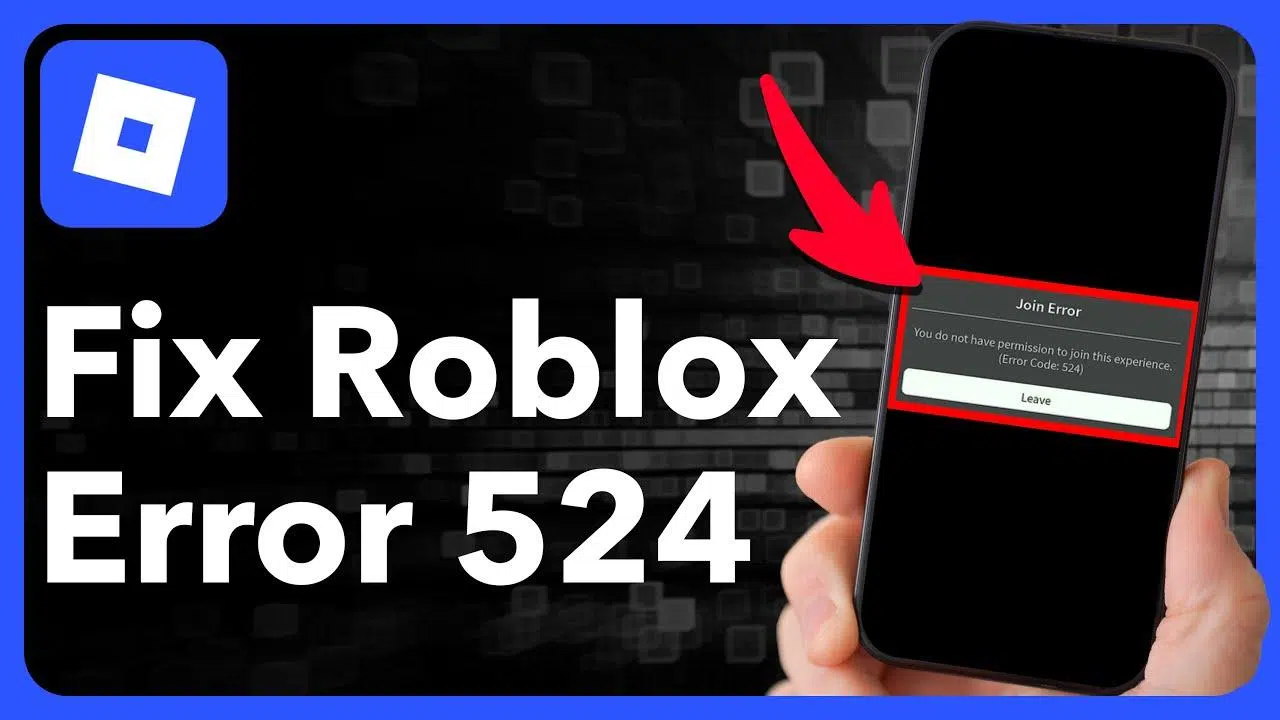
If you play Roblox frequently, it's very likely that at some point you've encountered the dreaded Error 524 when trying to enter a gameSuddenly, the game throws a message at you like "Not authorized to join this game" or "error code 524, channel: Production" and leaves you with a poker face, not quite knowing what happened.
This message usually appears especially when you try to log in VIP servers, private rooms, or restricted access experiencesAnd it can be tricky to understand exactly what's going wrong: whether it's an issue with your account, the game settings, your connection, or Roblox's servers themselves. Below, we'll break down the problem step by step, clearly explaining what error 524 means, what causes it, and What can you do to solve it in each case?We're going to help you with the Roblox error 524: private servers and restrictions explained
What does error 524 mean in Roblox and why does it appear?
Error 524 indicates that Roblox has blocked your attempt to join a specific serverTechnically, it's an authorization failure: the server understands that, for some reason, your account is not authorized to access that instance of the game, so it cuts the connection before even letting you into the map.
In practice, this error is usually displayed with messages like “Not authorized to join this game” or similar variations, and is almost always related to private servers, VIP servers, or experiences that apply strict filters (such as age requirements, whitelists, or friends-only access).
Although many people think it's a general game bug, most of the time the cause lies in How is access to the server you are trying to access configured?It may only allow friends of the owner, a list of specific players, or require that you have active and validated age verification.
Additionally, in some cases code 524 may be linked to occasional problems with Roblox servers There may be network failures in your connection, preventing you from creating a secure session with the game server, resulting in the error message even though, in theory, you should be able to join.
Most common causes of error 524 in Roblox
Behind code 524 there can be several different causes, but in the vast majority of situations a series of very clear patterns related to permissions, restrictions, and connection problems.
Firstly, one of the most common reasons is to try Joining a VIP or private server without authorizationIf the server owner has not given you direct permission, added you to their list of allowed players, or provided you with a valid invitation link, the system will automatically cut off your access.
The people themselves also play a significant role server or experience privacy settingsMany games restrict private sessions to friends, specific whitelisted users, or players who meet certain criteria. If your account doesn't meet these criteria, the system will display error 524 instead of allowing you to load the map.
Another increasingly common case involves experiences marked as 13+ or 17+If the game is rated for players of a certain age and your account has not passed the corresponding verification, or the system has not yet fully updated your status after validating your document, access is blocked and the error that appears is precisely 524.
Finally, although it is less discussed, they can also have an influence temporary issues with Roblox servers or network failuresIf the system cannot properly verify your credentials or establish a stable connection, it interprets this as an inability to authorize you and returns the same error code.
Error 524 and VIP or private servers
The relationship between error 524 and the VIP or private servers It's straightforward: in these environments, the server owner has total control over who enters and who doesn't, and any clash between that configuration and your account usually ends in a nice 524 on the screen.
When you try to access a private room without permission, Roblox checks if your name is authorized in that instance.If the owner hasn't added you to the allowed players list, or the experience is set to only allow the owner's friends, the server will close the door to you and display the error message.
To avoid this blockage, the owner will normally have to Add your username to the VIP server's allowed list Or, in some games, sharing an invitation link containing a valid token. Without one of these two methods, access to that specific server is essentially impossible by design.
Additionally, in your account settings you can limit or allow which types of private servers you see and which ones you can join. If you've restricted the options by mistake, you might not even be able to... connecting to VIP servers even if the owner wants to let you in.
If the permission was already correctly configured to “Everyone” and the error continues to occur on the same server, the most logical solution is speak directly with the owner of the private serverAsk him to check your access list or at least add him as a friend so you can take advantage of the "Join Game" options from his profile.
Account settings: visibility and private servers
A key point for VIP servers to work well is to check how you have them configured Privacy and content options in your Roblox accountFrom there you can control who can invite you, which private servers you can join, and what restrictions apply.
Within Roblox's settings, in the section of Privacy and content restrictions, you can find the subsection of Visibility and private serversThere you'll find the "Private Servers" section, where you should select the "All" option if you want to. Make sure your account is allowed to connect to these types of rooms.
If your account only shows the options “Connections” and “None” in that same section, it means that Roblox does not yet consider your age to be confirmed as 13 years or olderThis significantly limits access to many VIP servers and may explain why you encounter error 524 repeatedly.
It is possible to access that configuration through a direct link from the browserwithout having to search through all the menus. Once there, simply ensure that the permissions are set to "Everyone" so that, from your account's perspective, there are no additional restrictions when entering private servers.
If after adjusting this parameter correctly you still cannot access the VIP servers you want, it seems the limitation is due to... either through concrete experience or through the owner's authorized listnot so much because of your profile.
Age verification and access to games 13+ or 17+
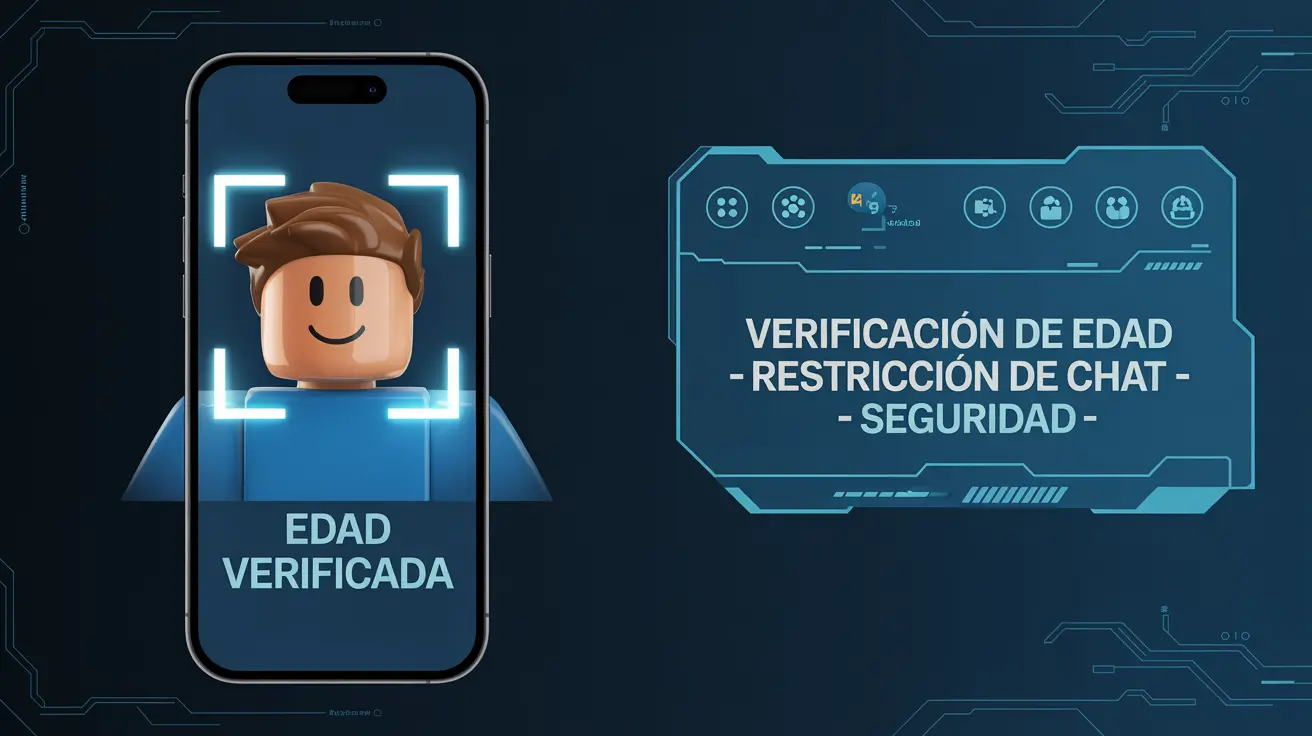
In recent times, Roblox has greatly enhanced the system of age verification To control access to sensitive experiences, especially those marked as 13+ or 17+. This has caused many players to see error 524 when trying to enter age-restricted games.
A typical case is that of users who complete age verification and see a message appear on their account stating that Your date of birth has been verifiedHowever, when they try to start a 17+ game, they still see a padlock icon on the play button. When they click it, Roblox responds with the infamous “error code 524 channel: production”.
In these situations, it is most common for there to be a small time lag between verification and actual update of all internal systemsEven if your profile shows as validated, it may still take a few hours for all Roblox services to consider your account suitable for 17+ content.
While this synchronization is in progress, it is very likely that every time you try to join an age-restricted game, the server will continue to interpret that Your account does not meet the requirements and therefore block the connection by returning error 524.
If a reasonable amount of time (for example, more than 24 hours) has passed since you verified your age and the padlock icon still appears on games rated 17+, then it's advisable Check the verification again or contact Roblox supportclearly stating the problem, the exact error message, and that your birthday is already verified on the account.
Check the status of Roblox servers
Before you drive yourself crazy messing with settings, it's worth checking if error 524 isn't simply due to... Roblox servers are having problems at that timeWhen the platform experiences outages or instability, it is normal for authorization errors to increase.
To verify this, you can go to the Roblox official status pageJust below the logo, you'll see a line indicating the overall status. If everything is working correctly, something like "All systems operational" will appear on a green background, indicating that, in principle, There are no major infrastructure incidents.
However, if the message is different and the background appears in yellow, orange, or red, it means there is temporary technical problems or partial interruptionsIn these scenarios, error 524 can be a direct consequence of the platform not being able to properly handle connection requests.
When the problem comes from this side, unfortunately the only thing you can do is wait for the developers to restore the serversRestarting the game, the app, or even your device usually doesn't make a difference until Roblox has fixed the global issue.
It's also worth checking if the outage affects only one region, one type of service (for example, only the game sessions portion), or the entire platform, as this will give you clues about the Probability that error 524 is widespread or specific to your account.
Join games through friends
In some cases you can smoothly bypass certain restrictions if You are trying to enter the server through a friend who is already in.Many games allow friends to join your session even when the server has some degree of privacy.
To test this method, simply open the your friend's profile within Roblox and look for the "Join Game" button if it's available. If the game allows friends to join that session, the system will try to put you in the same instance as your contact.
However, this will only work if the experience is configured to allow friends to join private or VIP serversIf the room owner has limited access exclusively to a predefined list of users, not even friends will be able to enter directly and error 524 will continue to appear.
Even so, it's an interesting trick to try before giving up on the problem, especially if you know that Other people on your friends list are playing without problems on that same server and you want to rule out that the problem is with your connection or your device.
Review the permissions and experience settings
If you are a developer or owner of an experience on Roblox and you see that your players They complain of constant 524 errors when logging inThe problem may lie in how you have configured the game permissions, not so much in your accounts.
To check it, go to the Your experience page within Roblox Studio or from the web and access the “Configure Experience” option. In the menu that opens, navigate to the section on Permitswhere it is managed who can play, whether the game is public or private, and what additional restrictions apply.
It is important to review the experience It may not be marked as private unintentionally. or limited to only a very specific group of users. It's also worth checking that the age filters, whitelists, or group membership requirements match what you actually want.
A poorly implemented change in this section could cause some players to suddenly start seeing Authorization errors when trying to join your gameseven if they didn't have any problems before. Resetting permissions usually resolves most of these blocks.
If, after reviewing all the settings, you continue to receive error 524 reports from players who, in theory, should be able to log in, it's advisable to try with test accounts and, if the problem persists, Open a support ticket with Roblox, attaching screenshots of your permission settings..
Restart device and Roblox client
Although it may seem like basic advice, often it is enough to Restart the device you're playing on and reopen Roblox. to make error 524 disappear, especially when it is accompanied by other strange problems or client crashes.
On computers, turning the machine off and on cleans up background processes, closes unresponsive connections, and frees up memory occupied by applications you're no longer using. All of this helps to Re-establish a more stable gaming session without residue from previous connections..
On smartphones and tablets (Android or iOS), a simple device restart can correct minor system or app glitches, as well as reconnect better to the mobile network or Wi-Fi, avoiding interference that could confuse the Roblox customer.
Additionally, completely closing the Roblox application and reopening it, or logging out of your account and logging back in, forces the system to Reset your authentication token and access permissionswhich often resolves occasional authorization errors.
If, after restarting your device and the application, error 524 persists in all games and servers, then it's a good time to move on to more advanced solutions related to the network or the customer's own installation.
Reset the network and improve the connection
Many 524 error messages are related to Network problems that prevent your access from being validated correctlyIt's not always a matter of ping or speed, but rather how domains are resolved, how your IP is assigned, or if there are intermediate filters.
The first test to perform is restart the routerTurn it off using the physical button on the device, wait 10 to 15 seconds, and turn it back on. This forces a new session with your internet provider, clears any errors in the router itself, and sometimes assigns you a new IP address.
On a Windows PC, you can also open the command prompt (CMD) and run a series of instructions to clean and refresh network settingsThe most common commands are: ipconfig /flushdns to clear the DNS cache, ipconfig /release to release the current IP address and ipconfig /renew to request a new router configuration.
On a mobile phone, the procedure is simpler: you just need to Turn off mobile data and Wi-Fi for a few seconds Or, even faster, turn on airplane mode and then turn it off after a while. This resets active connections and forces a clean reconnection to the network; if you're playing on a mobile device, you can also check how Fix lag on Roblox mobile to improve stability.
If, despite all this, error 524 continues to appear systematically, you can consider using the option of “Network reset” in Windows settingsThis function returns all network adapters to their factory state, which means losing saved Wi-Fi networks and their passwords, but it also eliminates conflicting settings that may be causing the problem.
Update your system and reinstall Roblox
Another aspect worth checking is whether the operating system is Updated with the latest patches and network componentsMany Windows updates, for example, include improvements or fixes that directly affect the stability of online applications.
To check, enter the area of Windows Update (or equivalent on your system) and check for new updates. Installing pending patches can help fix compatibility issues, expired certificates, or failures in services that Roblox needs to function properly.
If you continue to experience the same problem after updating the system, it's worth considering a more drastic but effective solution: Reinstall the Roblox client from scratchThis eliminates potentially corrupted files, broken caches, or incomplete installations.
The process is simple: first uninstall Roblox from your device (from the applications panel on PC or from the app manager on mobile) and then, Download the game again from the official website or the app store of your system. Install it, log in with your account, and try accessing the experiences that were giving you errors again.
In the web version, it is enough to Log in to your account and open any gameThe page itself will offer to install the client if it detects that it's not present. Click the download button, run the file, and let the installer do its job without touching anything else.
VPNs, proxies, and IP changes that cause error 524
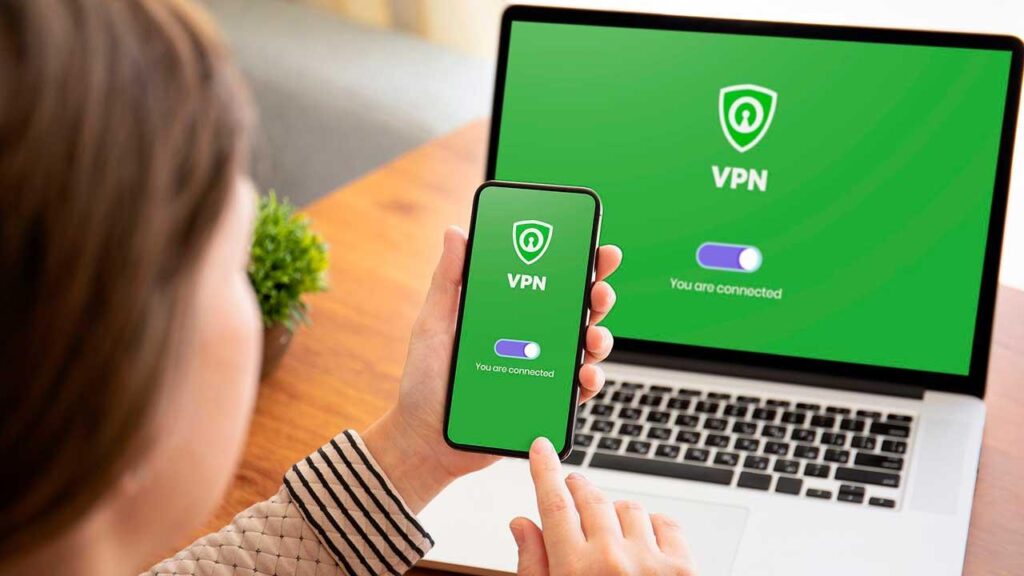
One factor that many users overlook is the applications or settings that modify your network connection, such as VPNs, proxies, IP change tools, or filters installed by companies and educational institutions.
Roblox can identify certain network configurations as unreliable or suspicious, leading to Authorization to enter some servers may be restricted or complicated.When this happens, the system usually responds with connection error codes, including 524.
To rule out that the problem is coming from there, deactivate any VPN application you have openas well as proxies manually configured in the browser or advanced network settings that are not the standard ones from your provider.
If you play from an environment with corporate or school filtersIt's possible that certain ports or services that Roblox needs to validate your access are being blocked. In these cases, there's little you can do other than try from another home network or contact your system administrator, if necessary.
In general, to minimize these problems, it's best to connect to Roblox with a network configuration as clean and straightforward as possible, without additional layers that significantly alter your IP address or the routing of your data.
When to contact Roblox support
If you've tried the account setup solutions, checked the VIP servers, verified your network, and even reinstalled the client, but Error 524 continues to appear in virtually all experiencesThe time has come to turn to official support for Roblox.
When you open a ticket, it's crucial to provide as much information as possible so the technicians don't have to guess the context. Indicate When did the error start appearing?whether it occurs only in certain games or in all games, and whether it is displayed on public servers, private servers, or both.
Include yours too exact username and the device you are playing from (PC, mobile, console…), as well as any relevant details about your configuration: whether you have activated VIP servers, whether you use a VPN, whether you have recently verified your age or changed anything in the privacy settings.
Clearly describe what steps you have already tried on your own (restarts, network changes, reinstallation, etc.), so that Support won't make you repeat the same basic tests and can focus on potential account problems, automatic blocks, or specific issues related to your profile.
With this information, the Roblox team will be able to investigate if there are any internal restrictions applied to your account, a known bug affecting a certain group of users or any other technical reason that you cannot resolve from your end.
Error 524 in Roblox is usually, essentially, a warning that Something in the authorization chain doesn't add up: private server permissions, age restrictions, privacy settings, server status, or network configurationUnderstanding the source of the block is key to resolving it without wasting hours trying random things. By reviewing your private server options, checking Roblox's status, fine-tuning your connection, and, if necessary, contacting support with all the information at hand, you'll usually be able to rejoin your favorite games without seeing that 524 error again for quite some time.

Passionate about technology since he was little. I love being up to date in the sector and, above all, communicating it. That is why I have been dedicated to communication on technology and video game websites for many years. You can find me writing about Android, Windows, MacOS, iOS, Nintendo or any other related topic that comes to mind.