
Finding a specific photo in a WhatsApp chat can quickly become a Infinite scrolling nightmareHaving to sift through hundreds of text messages, voice notes, stickers, and more can be exhausting just thinking about it. That's why in this post we'll tell you how to find old photos on WhatsApp without scrolling through chats (there are several ways to do it).
How to find old photos on WhatsApp without scrolling through chats

It's happened to all of us. We can't find a photo on WhatsApp that was sent months or even years ago.The scene is common: you open the app, enter a group or individual chat, and start scrolling endlessly. Your eyes get tired, your finger hurts, and after ten minutes, you'd rather forget about that memory.
Fortunately, there are several ways to find old photos on WhatsApp without scrolling through chats. Some are obvious, others are somewhat hidden, and others depend on your phone's settings. In any case, knowing them will be very useful so you can... Stop wasting time and quickly locate that image, receipt, or multimedia file..
Using the "Files, links and docs" section of each chat
Let's look at an effective way to find old photos in WhatsApp without scrolling through chats. You may already know that WhatsApp automatically organizes all photos, videos, and documents sent in each conversation. Using this method, you can place only the photos and images within each chat, without any text messages involved.
The section is "Files, links and docs", and It only works if you remember which group the image was shared in or who sent it to you.To access it, follow these simple steps:
- Open the chat where you think the photo is.
- Tap the contact or group name.
- Now it's time for the section Files, links, and docs.
- In the Files tab you will see all the photos and videos shared in that chat arranged chronologically. You can navigate much faster here than in the chat.
Find old photos on WhatsApp without scrolling through chats using the date search.
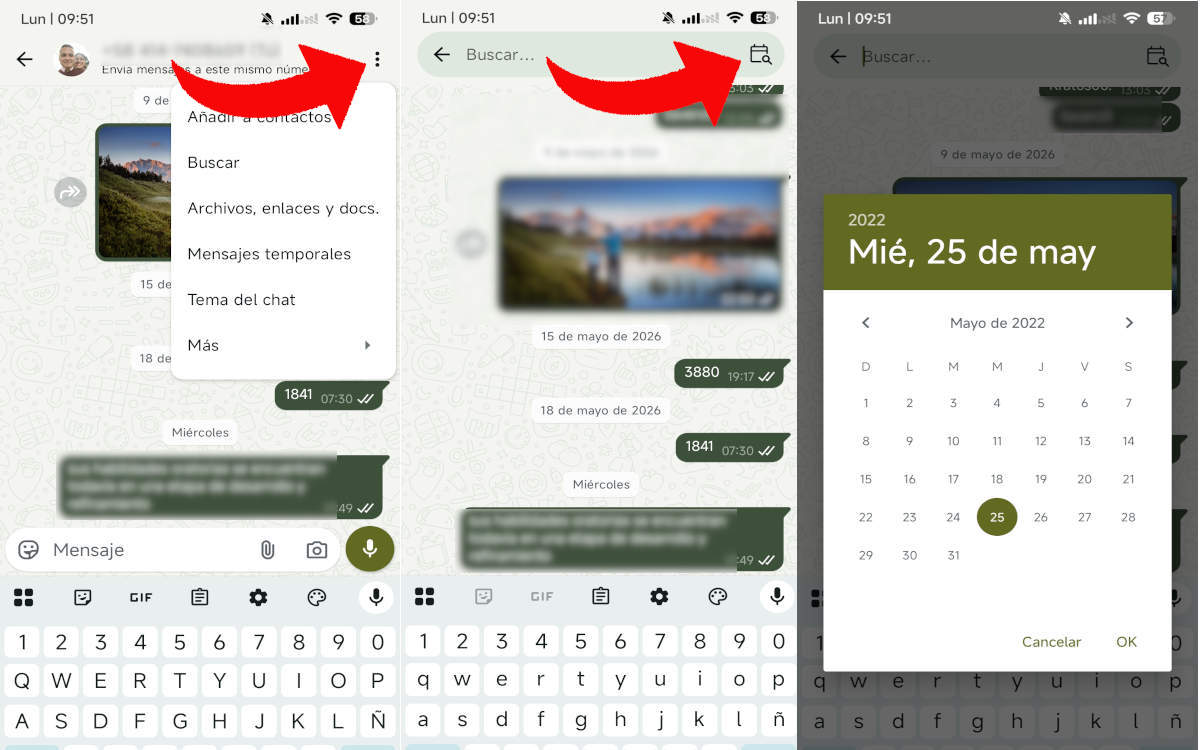
You can perform a more specific search within a WhatsApp chat. applying filters by dateThis is especially useful if you remember roughly when the photo was sent (2024 vacation). Few people use this option because it's a bit hidden, but it can save you the trouble of scrolling through messages to find a specific photo.
- Open the individual or group chat.
- Tap on the menu Options (three vertical dots at the top right).
- Select Look for.
- Now it's time for the calendar icon which is in the upper right corner.
- Choose the day, month, or year when you think the image was shared.
- This will take you directly to that point in the history, without scrolling through messages.
From the global WhatsApp search engine (Android and iPhone)
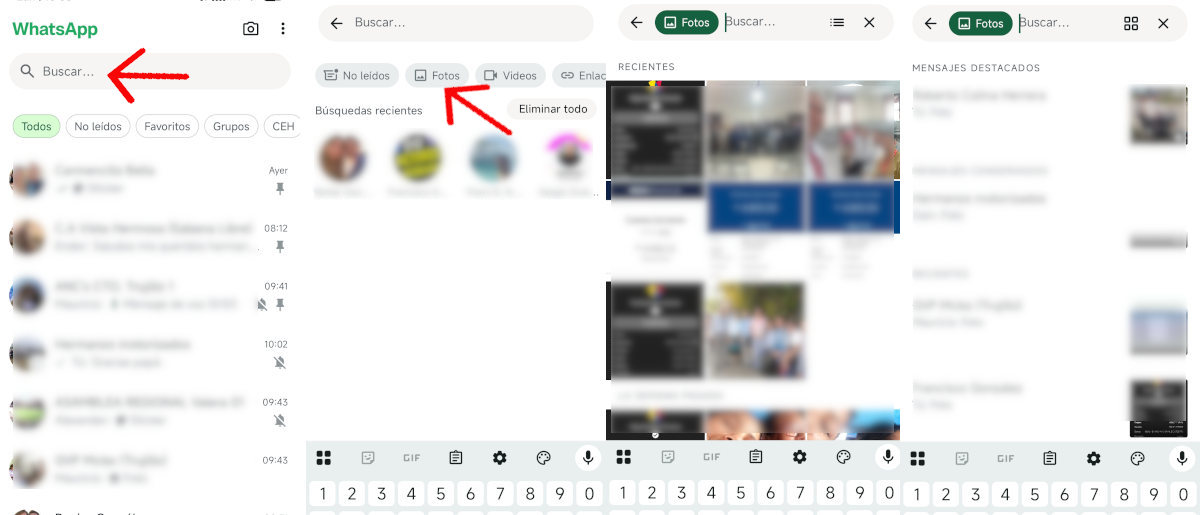
AND What happens if you don't remember which chat the photo was in?Is there a way to find old photos on WhatsApp without going through chats? Yes, fortunately, the app has a global search function that allows you to filter by file type. This makes it possible to search for an image, video, or document shared in the app, regardless of which chat it's in. To use it, follow these steps:
- Open WhatsApp and go to the main screen, where the list of all your chats appears.
- Tap on the bar Look for (the magnifying glass icon) at the top.
- Instead of writing text, observe the labels or filters that appear just below (Unread, Photos, Videos, Links, GIF, Audio).
- Select the option Photos.
- Below, you will see a chronological list of all the photos in your history, from the most recent to the oldest.
- You can further filter by typing a word that accompanies the image in the text field.
- If you tap on the list icon, the list will display the photos along with the name of the group or contact where they are located.
Using the Gallery and the phone's internal storage
We're continuing with this project of finding old photos on WhatsApp without going through chats, and it's time for... use a file managerThe mobile phone's gallery allows you to do this, as do cloud storage services like Google Photos, iCloud, etc. But, to a large extent, using them will depend on how you have configured your WhatsApp settings.
By default, WhatsApp is configured to automatically download images to your phone's internal storage. This means that, no matter how old the photo is, you might be able to find it in the Gallery app. If it's not there, then Look for it in File Explorer of the system by following this path: Internal storage – Android – media – com.whatsapp – WhatsApp – Media – WhatsApp Images.
But remember: if you ever disabled automatic image and video downloads to save space, WhatsApp photos won't appear in your Gallery. However, they may still be saved there. WhatsApp Images internal folderSo it's always a good idea to go there to verify it.
Use Google Photos to find old photos in WhatsApp without scrolling through chats

With Google Photos you can also search for old photos in WhatsApp without scrolling through chats. However, for this method to work, there are two requirements: the first is have enabled automatic synchronization between the mobile phone's Gallery and Google Photos. And the second, Let WhatsApp save the photos to the gallery allowing automatic photo downloads from the app.
The great advantage of using services like Google Photos or iCloud is that, thanks to AI, They already recognize the content of the imagesIn other words, you can Do a Google Photos search by typing a wordType in keywords like "beach," "dog," or "birthday," and the service will search for similar photos. Even if the photo came from WhatsApp, it will appear in the results, no matter how old it is.
As you can see, you can find old photos in WhatsApp without going through chats. It is possible and simpler than expectedAll you have to do is use the app's and your phone's built-in search options to find them. WhatsApp's global search and cloud services are your best allies for retrieving that photo you need without wasting time.
Index
- 1 How to find old photos on WhatsApp without scrolling through chats
- 1.1 Using the "Files, links and docs" section of each chat
- 1.2 Find old photos on WhatsApp without scrolling through chats using the date search.
- 1.3 From the global WhatsApp search engine (Android and iPhone)
- 1.4 Using the Gallery and the phone's internal storage
- 1.5 Use Google Photos to find old photos in WhatsApp without scrolling through chats

From a young age, I've been fascinated by all things scientific and technological, especially those advancements that make our lives easier and more enjoyable. I love staying up-to-date on the latest news and trends, and sharing my experiences, opinions, and tips about the devices and gadgets I use. This led me to become a web writer a little over five years ago, focusing primarily on Android devices and Windows operating systems. I've learned to explain complex concepts in simple terms so my readers can easily understand them.