Is your gaming PC taking too long to boot up? Before concluding that it has a virus, it's worth checking... Check if you have too many programs running automatically when Windows starts.In this post, we'll tell you how to find out which game processes affect system startup and what to do to have a cleaner boot.
Which game processes affect system startup
Playing video games is one of the main uses of modern computers. In fact, many of the innovations in computer software and hardware are aimed at improving the gaming experience. Therefore, it's not surprising that Video games and their ecosystems are becoming increasingly complex and consuming more and more resources.
So, if you use your PC for gaming and notice it takes too long to boot up, don't jump to conclusions that it's a virus. The cause of such slowness could be due to a intricate combination of programs running in the backgroundThese multiple game processes affect system startup: they make everything slower and slower.
It's important to remember that modern video games are not just isolated executables. They usually come with accessories such as:
- Launchers such as Steam, Epic Games, Ubisoft Connect or EA App.
- Services automatic updates that check for patches even when you're not playing.
- Systems such as Easy Anti-Cheat or Riot Vanguard (Valorant), which are loaded at startup for security reasons.
- If you use AMD or NVIDIA graphics cards, you probably have them installed. optimization tools such as GeForce Experience or Software Adrenalin.
- Peripheral utilitiesExamples include Logitech G Hub, Armoury Crate, and SteelSeries GG. These suites are necessary for customizing hardware, but their services are often resource-intensive.
- Other services of telemetry that collect performance and usage data.
And many of these processes They are configured to start automatically as soon as you turn on your computer.This means that Windows has to load them, allocate resources to them, and give them network access. Doing all this can add seconds (and even minutes) to the boot time.
How can I find out which game processes affect system startup?

If you have multiple games installed or play on different platforms, you'll likely have dozens of processes running at startup. All of these, in addition to the game's own processes, will likely cause problems. Windows 11 processes, can cause a huge bottleneckSo, how can you tell which game processes affect system startup?
One tool that will help you achieve this is the Task ManagerThis panel displays all running system instances. It also lists the programs, services, and processes that start during system startup. Another advanced analysis tool is the Microsoft Autoruns (Sysinternals), with which you can find and disable deep-level processes.
Using Task Manager
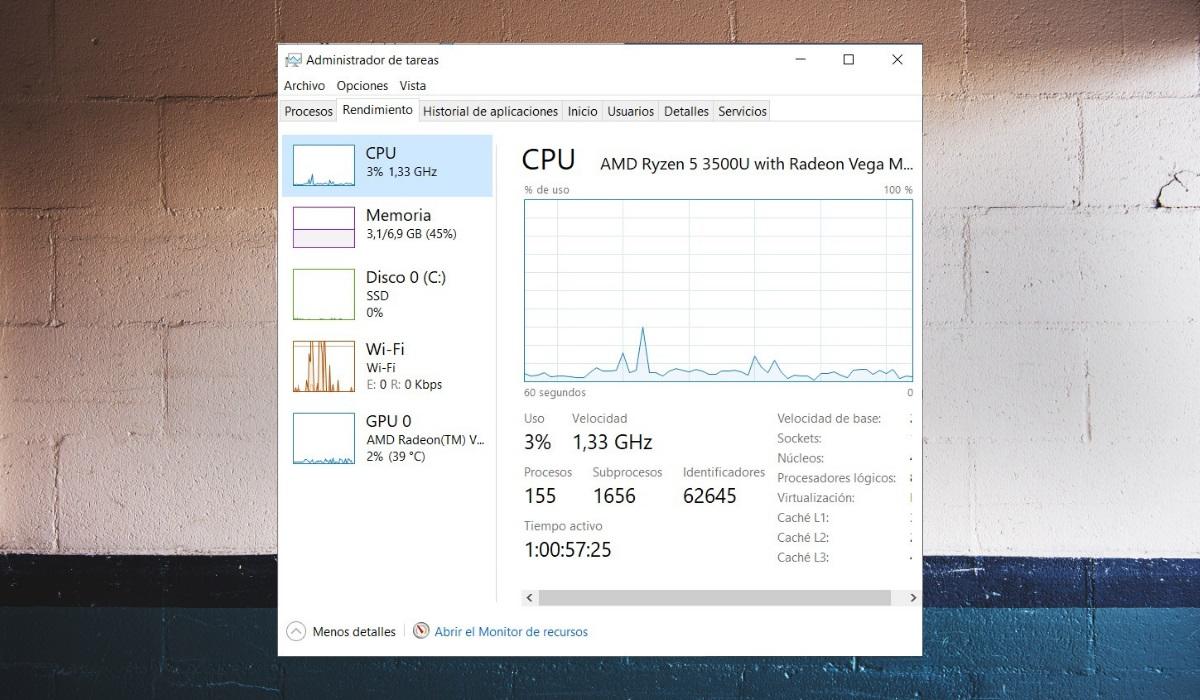
With the Task Manager You can diagnose the impact of each game process on system startup. To open this tool, press Ctrl + Shift + Esc, or right-click on the taskbar and select Task Manager. Once inside, go to the tab Start and look at the list of programs enabled to start with Windows.
If you find entries like in the process list Steam, Epic Games Launcher, Riot Client, Battle.net o Rockstar Games LauncherDon't lose sight of them. Now look at the column Initial impact And look at how each process is rated: High, Medium, or Low. If one has a High impact, it means it affects system startup and is a good candidate for disabling.
Background services
Within Task Manager, some processes do not appear in the Startup tab because they run as system servicesBut that doesn't mean they don't affect startup time, so it's best to disable them to prevent them from starting automatically.
To find these services, exit Task Manager, press the Win + R keys, writes services.msc and press enter. In the list, look for services related to games, such as Easy Anti-Cheat Service, BattlEye Service, Riot Vanguard o Steam Client Service.
Many of these services are set to Automatic, meaning they load when the system starts. To change them to Manual or disable them, do the following: right-click Regarding the service, select Properties, expand the tab Start type and change it.
Use Microsoft Autoruns to find out which game processes affect startup
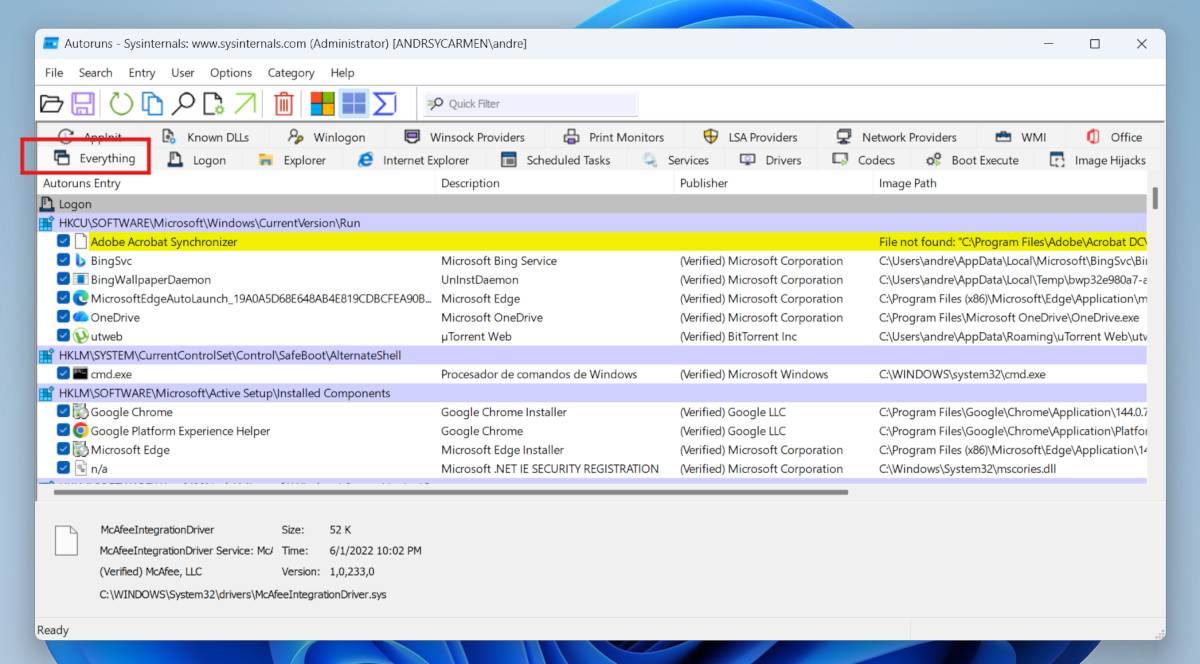
Microsoft Autoruns is another effective utility for identifying which game processes affect system startup. It's free and available from Microsoft. (Sysinternals) and you can Download it from the official Microsoft websiteUnlike Task Manager, which only shows superficial applications, Autoruns lets you It displays every DLL, service, driver, and scheduled task that is registered at startup..
To use it, simply go to the official website and download the executable or click on the Run now option. Sysinternals LiveNext, go to your Downloads folder and run the Autoruns64.exe file as administrator. A window will then open, and under the tab Everything, You will see all the auto-start entries: services, scheduled tasks, loaded DLLs, Explorer add-ons, etc.
However, to find out which game processes affect system startup, you need to filter through so many results. A good idea is to use the search bar and type terms like "steam", "epic", "ubisoft", "riot", "razer", "logitec", "corsair", etc. Look at the results and uncheck the box corresponding to a game software or peripheral.
Conclusion
Having so many game processes running is a necessary evil if you want to enjoy every match. But, as you've seen, it's possible to find out which game processes affect startup and, more importantly, how to stop them. Start with Task Manager to interrupt any game-related processes that run at startup.
If startup time doesn't improve, investigate the services section and switch to manual those that come from launchers or installed titles. The last option is to open the Windows Autoruns Then, with patience and care, identify which game processes affect startup and disable them. This way, you can better manage system resources and prevent your computer from taking forever to boot up.
Index

From a young age, I've been fascinated by all things scientific and technological, especially those advancements that make our lives easier and more enjoyable. I love staying up-to-date on the latest news and trends, and sharing my experiences, opinions, and tips about the devices and gadgets I use. This led me to become a web writer a little over five years ago, focusing primarily on Android devices and Windows operating systems. I've learned to explain complex concepts in simple terms so my readers can easily understand them.