
It's normal to feel frustrated if Gemini on Google Home doesn't recognize the custom name you gave a device. This synchronization or interpretation issue disrupts the flow of your voice commands. However, it's more common than you might think. Therefore, we'll explain what the causes are. The most common causes of this problem and how to fix it step by step.
Gemini in Google Home does not recognize the custom name you gave to a device
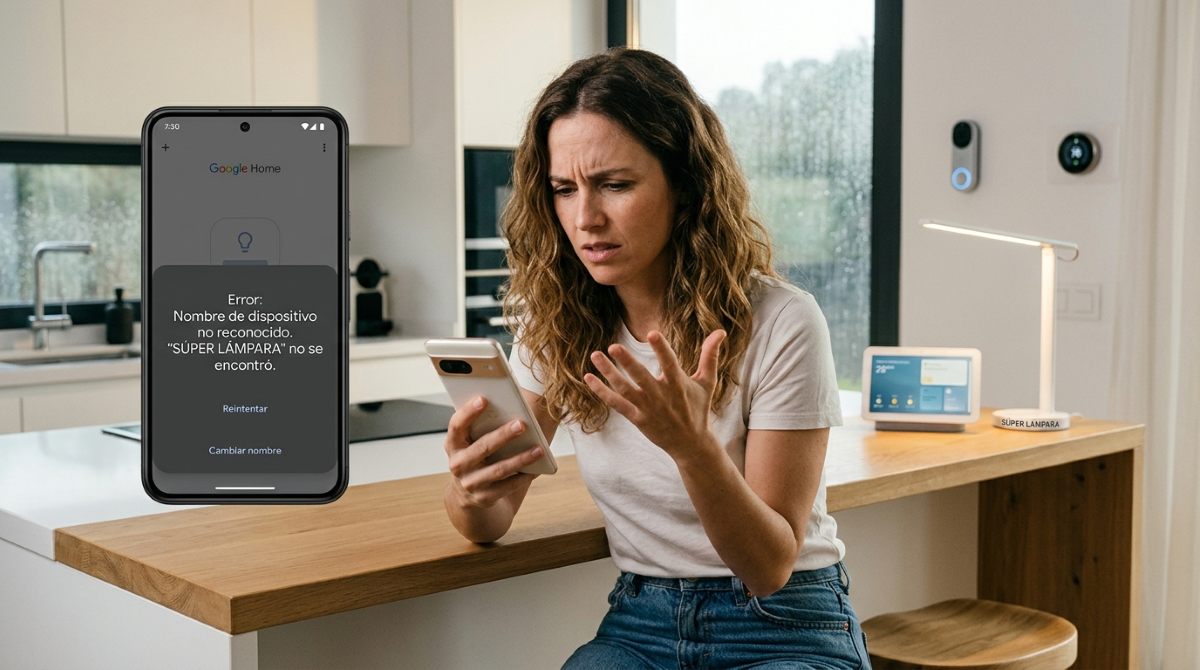
If Google Home doesn't recognize the custom name you've given a device, you need to figure out what's going on and how to fix itAnd assigning a name to a device in Google Home makes controlling your home much easier. smart homeThis centralizes the management and automation of connected devices in one place.
The app Google Home works as the central control panel on your phone To add, organize by room, and control all compatible devices. This is aided by Gemini, Google's AI, which interprets voice or text commands to perform actions, answer questions, and control the environment without manually interacting with buttons.
And these two tools are complemented by speakers or smart displays that you have at home: audio servers and physical commands that listen for voice instructions using the activation word ("Hey Google"). That's why, These three tools must work in perfect harmony. so that Gemini in Google Home correctly recognizes the custom names you give to your devices.
Why it's important for Google Home to properly recognize custom names
When the name you assigned to a device is correctly recognized, The following is achieved:
- Natural and intuitive control: You can interact using the exact words you use every day (for example, "Light from the stairs") without learning difficult commands or technical names.
- More precise orders and faster responses: You avoid confusion when you have multiple devices of the same type at home. When Google Home recognizes a device's custom name, you ensure that the command is executed on the exact device you want on the first try.
- Personalizing your home: It is easier to establish routines and environments that adapt to the real daily life of your space and family.
Since it's so advantageous for Google to identify the names of your devices, we'll now look at the Most frequent causes and step-by-step solutions which you can apply if Gemini in Google Home does not recognize the custom name you gave to a device.
Gemini on Google Home doesn't recognize the custom name you gave a device: reasons and solutions
1. Lack of cloud synchronization
When Gemini in Google Home doesn't recognize the custom name you gave a device, it's mainly due to the lack of data synchronizationChanges made to the Google Home app are not always reflected immediately on Gemini servers or smart speakers.
- The solution? Force voice synchronization. Say out loud: "OK Google, sync my devices" Or, you can also say "OK Google, sync my lights/plugs"This will force the account to refresh the hardware inventory and assigned names.
2. Google Home does not recognize the custom name due to phonetic conflicts, ambiguous names, or redundancy with the room name.
Gemini processes voice commands using natural language recognitionSo, if the custom name sounds very similar to a system command (for example, "Night mode"), contains special characters or uses unnatural word combinations, the algorithm fails to match it with the device.
On the other hand, There may be redundancy with the application nameIf the device is called "Room light" and is assigned to room "Hall"the assistant receives the redundant instruction "Light in the living room", which creates a flaw in its interpretation.
- The solution? Review the room assignment and optimize the assigned name. In the Google Home app, check that the device is assigned to a specific room. If a device doesn't have a light assigned to it, or if the name includes the room's name, the name interpretation may fail.
- Optimize the assigned name: If Google Home doesn't recognize a device's custom name, use simple words; avoid symbols, complex numbers, or unusual combinations. You can also change the name to a temporary word (for example: "Proof"), save the changes, wait a few seconds and change it back to the name you want.
3. Differences in third-party brand devices
Another reason why Google Home might not recognize the custom name you gave a device is that there is a lag in third-party brand devicesOn devices linked through external services (Smart Life, TP-Link, Xiaomi, etc.), the name change made in Google Home is sometimes not replaced correctly if the manufacturer's application retains the original name without updating the API.
- The solution? Unplug and plug back in the service. If the device is from another brand, do the following:
- Open Google Home – Settings – Works with Google.
- Find the corresponding brand, select it, and tap on the option Unlink account.
- Relink your account to refresh all names, from the manufacturer's app.
4. Outdated cache in the app or speaker
Sometimes, local data stored in the app or in the Nest/Home speaker firmware may retain the settings from before the change. In other words, The tool keeps the old name.Even if you've already assigned it a new name, that's why Google Home doesn't recognize the custom name you gave a device.
- The solution? Clear the app's cache. On your phone, go to System Settings – Apps – Google Home – Storage and select Clear cache. Then restart the app to ensure the changes are saved correctly.
In conclusion, if Gemini in Google Home doesn't recognize the custom name you gave a device, it's because... You can solve it in a couple of minutesIf you apply these synchronization settings, simplify the names, and correct the room assignments, you can get Gemini to respond flawlessly to your voice commands on the first try.
Index

From a young age, I've been fascinated by all things scientific and technological, especially those advancements that make our lives easier and more enjoyable. I love staying up-to-date on the latest news and trends, and sharing my experiences, opinions, and tips about the devices and gadgets I use. This led me to become a web writer a little over five years ago, focusing primarily on Android devices and Windows operating systems. I've learned to explain complex concepts in simple terms so my readers can easily understand them.