Does Android Auto frequently disconnect while you're driving? These interruptions are quite annoying and could even be dangerous. For example, the music might stop playing at the worst possible moment, or the map might suddenly disappear. In this article, we'll give you some tips. Ideas to permanently prevent connection drops in Android Auto.
How to avoid connection drops in Android Auto

To avoid connection drops in Android Auto, you need to understand why they happen. Most of the time, these drops are due to... Power problems, incorrect settings, worn cables, or wireless interferenceThe good news is that all these problems have a solution.
Avoiding connection drops in Android Auto will allow you to get the most out of it. This Google tool by using your phone on your car's screen. This way, you'll travel comfortably and, above all, safely. Below, we've provided a step-by-step guide for Prevent unexpected outages depending on the type of connection you use.
If you are using a USB cable connection
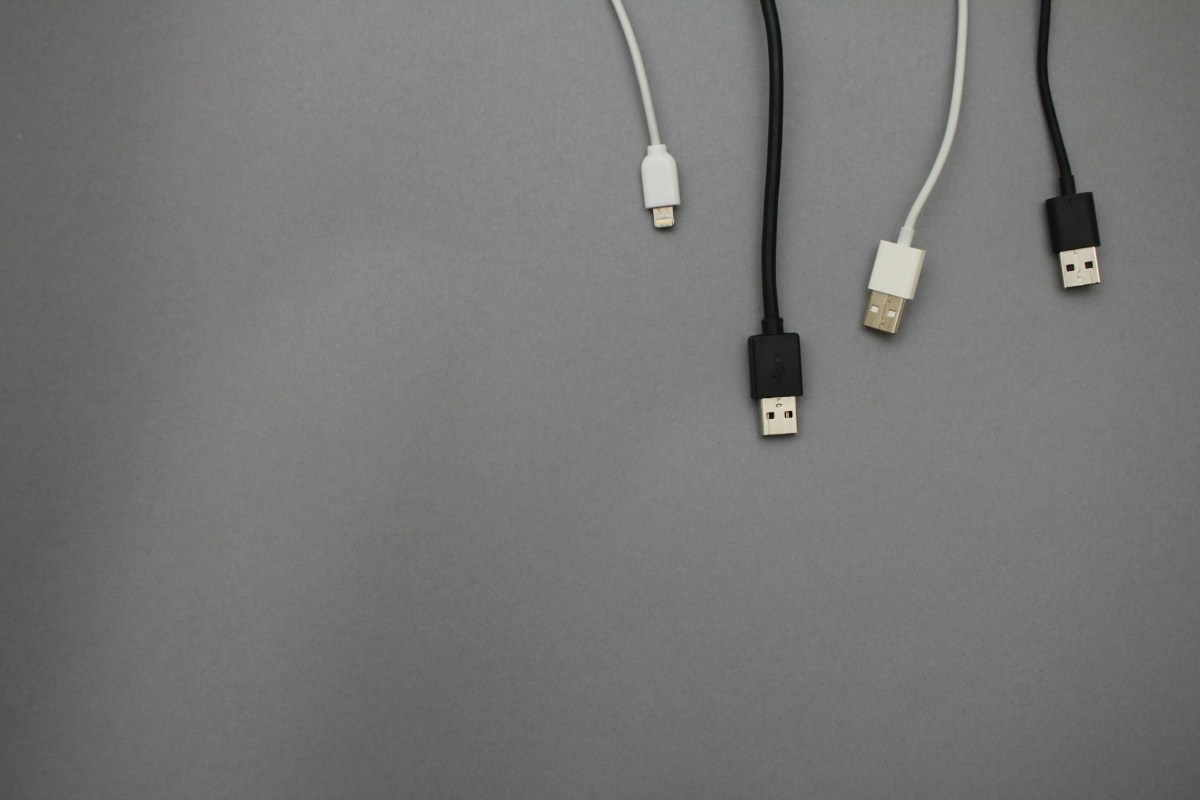
The most common cause of connection drops in Android Auto is damage to or interference with the USB cable. Android Auto is extremely demanding when it comes to data transfer. That said, the connection will always be more stable using a cable. If you suspect that your cable might be causing the problems with your connection,Try the following to avoid connection drops in Android Auto:
- Replace the cable with a better quality one: The original phone cable or one from a reputable brand is usually best for this. Make sure the cable is short, less than 1 meter, and certified for high-speed data transfer (USB 3.0 or higher).
- Clean the phone's USB port: It's possible that the USB port on your phone has gotten quite dirty in the daily grind. Use a wooden or plastic toothpick to remove the buildup. When you insert the cable into your phone, you should hear a firm "click" to ensure it doesn't disconnect easily.
- Avoid adapters or hubs: It is always best to connect the cable directly to the car's USB port and not to charging-only ports or cigarette lighter adapters.
If you use a wireless connection
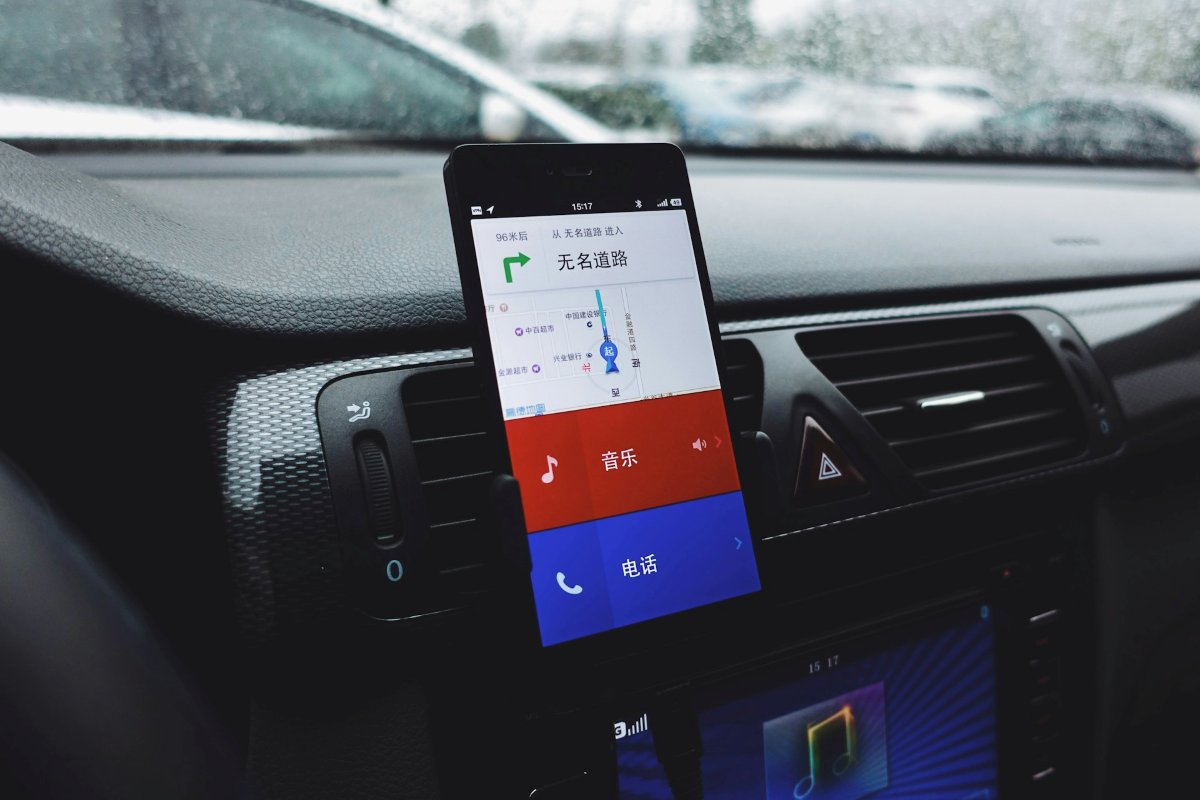
The wireless connection uses Wi-Fi and Bluetooth simultaneously. That's why when you pass by areas with a lot of interference Near toll booths, power lines, or urban Wi-Fi networks, the signal often weakens or drops. To avoid connection drops in Android Auto when connecting wirelessly, try this:
- Disable background Wi-Fi scanning: Go to Settings – Location – Location services and turn off Wi-Fi network scanning and Bluetooth device scanning. This will prevent your phone from trying to connect to other networks while you're driving.
- Change the Wi-Fi band (if your car offers this option): Some cars allow you to choose between the 2.4 GHz and 5 GHz bands. The 5 GHz band is much faster and suffers less interference, although it has less range (something that won't be a problem because you'll be inside the car).
- Make sure Background Data is turned on and turn off your phone's hotspot, as it may interfere with the car's Wi-Fi network.
- Remove the vehicle from your mobile's Bluetooth connection list. Then, re-link it from scratch to verify that the problem has been solved.
How to avoid connection drops in Android Auto: Software settings on the phone (for both methods)
Sometimes The operating system itself disables or deactivates Android Auto to save battery. and consume fewer resources. However, this can cause the tool to experience frequent glitches in your daily use. Here are some practical tips to avoid connection drops in Android Auto, whether you're using a cable or a wireless connection.
- Turn off power saving for Android Auto: Go to Settings – Apps – See all apps. Find Android Auto, tap on Battery (or Battery usage) and select No restrictions (or Don't optimize). Do the same for Google Maps. Spotify or the music app you usually use.
- Keep everything updated: The first thing you absolutely must update is your Android Auto version from the Google Play Store. And why not also check if your car's system has any pending updates at a service center or through the manufacturer's website.
- Clear the application cache: To prevent connection drops in Android Auto, sometimes simply clearing its cache is enough. To do this, go to Settings – Apps – Android Auto – Storage and tap Clear cache.
Another factor that could be affecting the connection is heat. If you notice that the phone is very hot when you unplug it, the problem could be thermal. If possible, Do not place your mobile phone in direct sunlightbecause the system interrupts heavy connections to protect its internal components and prevent further damage.
Additional tips to avoid connection drops in Android Auto
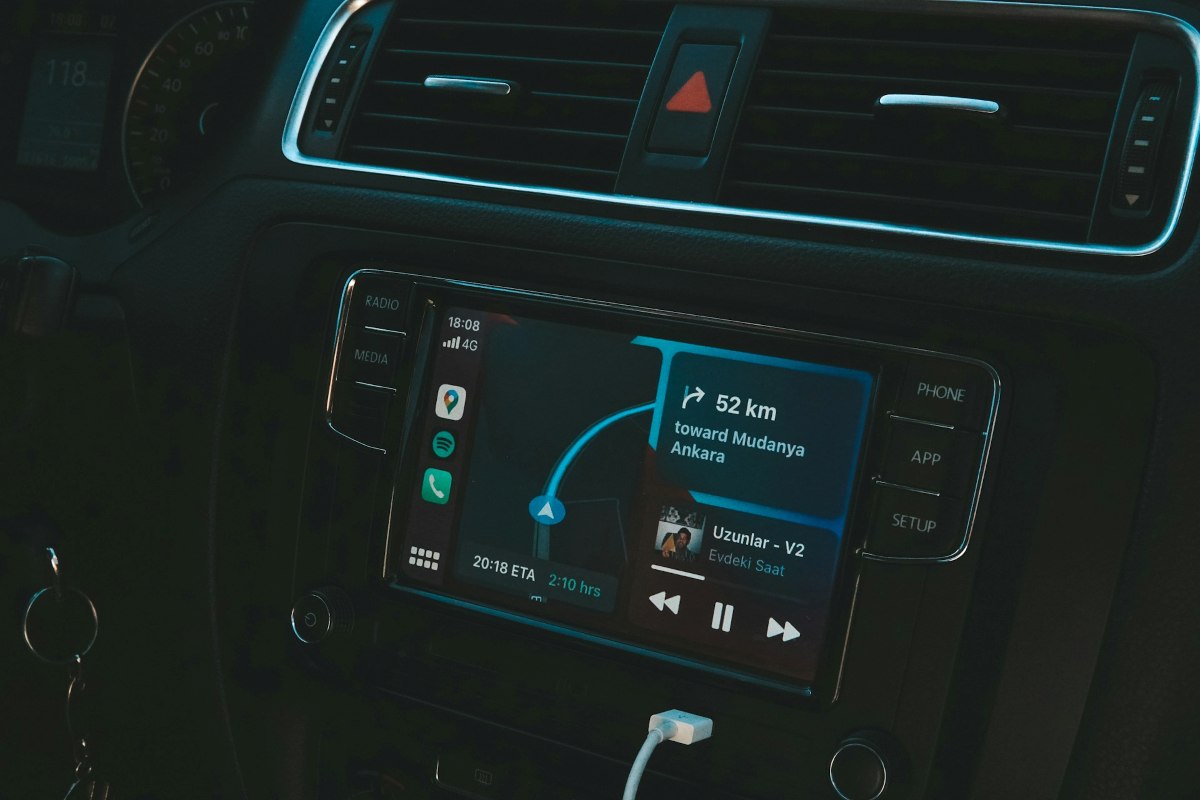
If you've implemented all the ideas we mentioned above and you're still experiencing connection drops, Here are a couple of less common, but very effective tricks To avoid connection drops in Android Auto:
- Ask your other occupants to turn off Bluetooth: If other people have connected to your car in the past, the car's multimedia system may try to connect to them and create a conflict of interest that shuts down your connection.
- Place the phone in a ventilation grille: To avoid overheating, place your phone in a holder that receives air conditioning from the car. This will keep it at a comfortable temperature and prevent the system from shutting off.
- Configure automatic startup: Open the Android Auto app on your phone and find the "Start Android Auto with phone locked" option and enable it. This way, if your phone is completely locked, the car won't lose access to background data.
Index

From a young age, I've been fascinated by all things scientific and technological, especially those advancements that make our lives easier and more enjoyable. I love staying up-to-date on the latest news and trends, and sharing my experiences, opinions, and tips about the devices and gadgets I use. This led me to become a web writer a little over five years ago, focusing primarily on Android devices and Windows operating systems. I've learned to explain complex concepts in simple terms so my readers can easily understand them.