Backing up the Windows 11 registry is essential before making any changes to the system's internal settings. This will help you revert any errors or unwanted changes that have occurredBelow, we'll explain two ways to create a backup, what they're for, and when it's a good idea to do it. Let's get started.
How to backup the Windows 11 registry
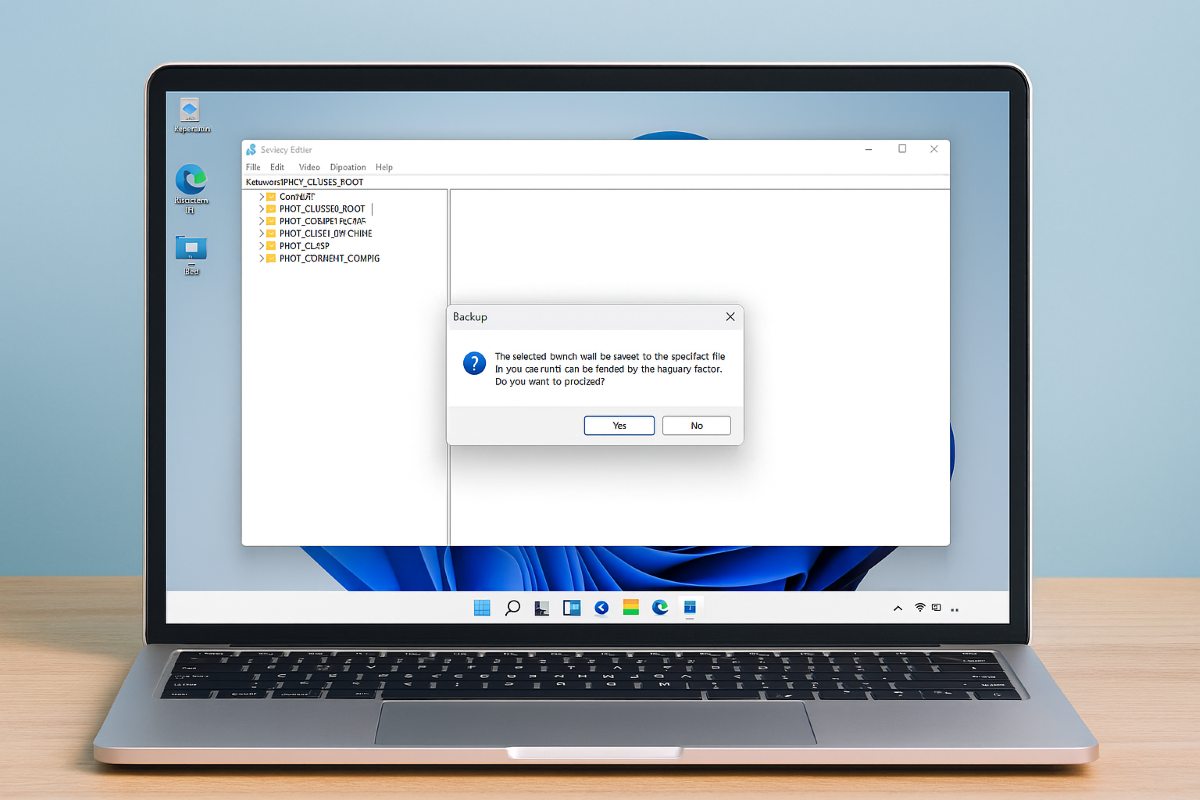
Backing up the Windows 11 registry is a priority, especially when major changes need to be made to the equipmentThe Windows registry is like the hidden brain of the operating system: it stores settings, communication between the hardware and Windows, users, applications, and more. Therefore, it's essential to back it up before modifying it.
Next, we will see How to manually back up the Windows 11 registry and create a system restore pointWith the first method, you can save a full or partial backup of your system. With the second, you'll back up your entire system. Let's see.
Export from Registry Editor
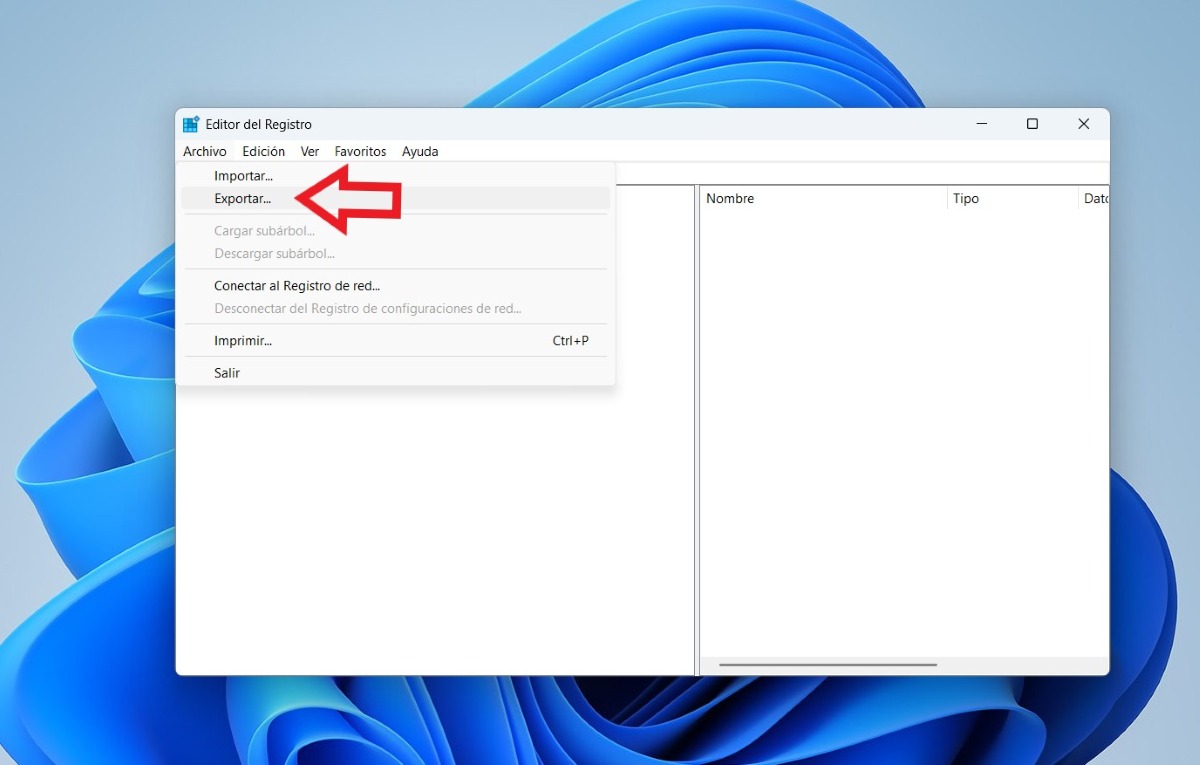
To manually back up the Registry, Follow the steps below:
- Select Start and type regedit.exe in the search box and click Enter. If you are prompted for an administrator password or to confirm the action, type the password or just click Yes.
- Once inside the Registry Editor, find and click the registry key or subkey you want to back up. For example, if you want to make a full copy, Click on the Team folder. If you want to do this from a specific section, navigate to the desired key such as HKEY_CURRENT_USER\Software.
- Next, click on File – Export. Choose a safe location to save the .reg file. Give the file a name and select All in the Export Range field if it is a full backup.
- Finally, select Keep so that the backup file is stored on your computer.
How to restore the registry backup
After making a backup, how can you restore it? To do this, Follow these steps:
- Click Start and type regedit.exe and press Enter. Again, if necessary, type the administrator password or simply click Yes to log in.
- In the Registry Editor, click on File – Import.
- Now, in the Import Registry File dialog box, select the location where you want to save the backup, choose the backup file, and then click on Open.
Another option you have to restore the registry and revert the changes made is double-click the .reg file that you exported. Confirm that you want to add the information to the Registry, and that's it. Windows will apply the values you previously saved when you backed up.
Create a system restore point
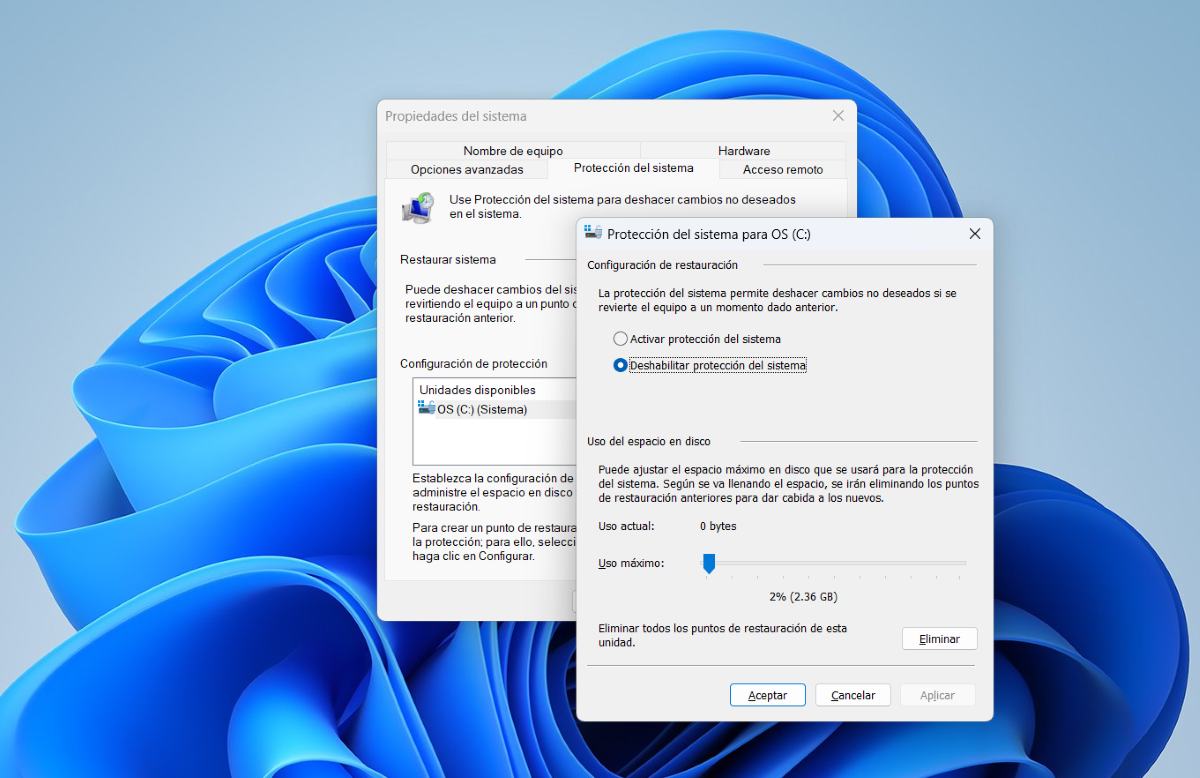
The second way to backup the Windows 11 registry is creating a system restore pointThis method is useful because it not only backs up the registry, but also the entire system. It's also automatic, since Windows generates restore points before major updates. To create a restore point, follow these steps:
- Open the Restore panel: to do this press Windows + S, writes "Create a restore point” and select the result.
- Verify that protection is enabled in System Protection, click Configure, and turn it on.
- Click on Create, type a descriptive name, and click again. Create.
If something goes wrong and you need to revert the change you made to the registry, you can restore itTo do this, return to the "Create a restore point" panel and click System Restore. Choose the point you created, follow the instructions, and you're done.
What is the purpose of backing up the Windows 11 registry?
Backing up your Windows 11 registry is like having a map before you go on a hike: You can go back at any time without getting lost along the wayIf you don't back up your registry before modifying it, you expose yourself to several risks that can seriously affect your system's performance.
These are some Reasons why it is advantageous to back up the Windows 11 registry:
- Avoid irreversible damage: Since the registry controls essential functions for your system, an incorrect change can cause errors, crashes, or cause Windows to not boot.
- Restore previous settings- If you modify a registry folder (key) and something doesn't go as expected, you can revert to the previous state thanks to the backup created.
- Test advanced settings and major changes without fear- If you have a registry backup, you can always try new things with the confidence that you can roll back if something goes wrong.
When is it a good idea to back up the Windows 11 registry?
Backing up your Windows 11 registry is key. before making significant changes to your PC systemHere are some situations where you should back up your Windows registry:
- Before installing software that modifies the system. For example, before using customization tools such as Winaero Tweaker or programs that change the appearance of Windows. The same applies to installing unofficial drivers or beta versions that could alter system passwords.
- Before applying advanced settingsIf you want to enable hidden features like God Mode, it's a good idea to have a backup. Also, if you want to disable OneDrive or change the window style.
- Before deleting keys To troubleshoot errors: If at any time you want to delete a key and it turns out to be the wrong one, the most prudent thing to do is to have a backup copy.
- Before migrating settings between computers.
- It is also wise to back up your Windows 11 registry. before cleaning the registryFor example, if you use tools like CCleaner or perform a manual cleanup, a backup protects you from deleting keys necessary for optimal system performance.

From a young age, I've been fascinated by all things scientific and technological, especially those advancements that make our lives easier and more enjoyable. I love staying up-to-date on the latest news and trends, and sharing my experiences, opinions, and tips about the devices and gadgets I use. This led me to become a web writer a little over five years ago, focusing primarily on Android devices and Windows operating systems. I've learned to explain complex concepts in simple terms so my readers can easily understand them.