- There are websites like Flaticon and Icons8 where you can download free themed icon packs.
- The Shortcuts app allows you to replace any original icon with a custom image from your camera roll.
- iOS 18 introduces the tint option to change the color of all apps natively.
- There are theme apps that automate changing icons, backgrounds, and widgets with a single click.
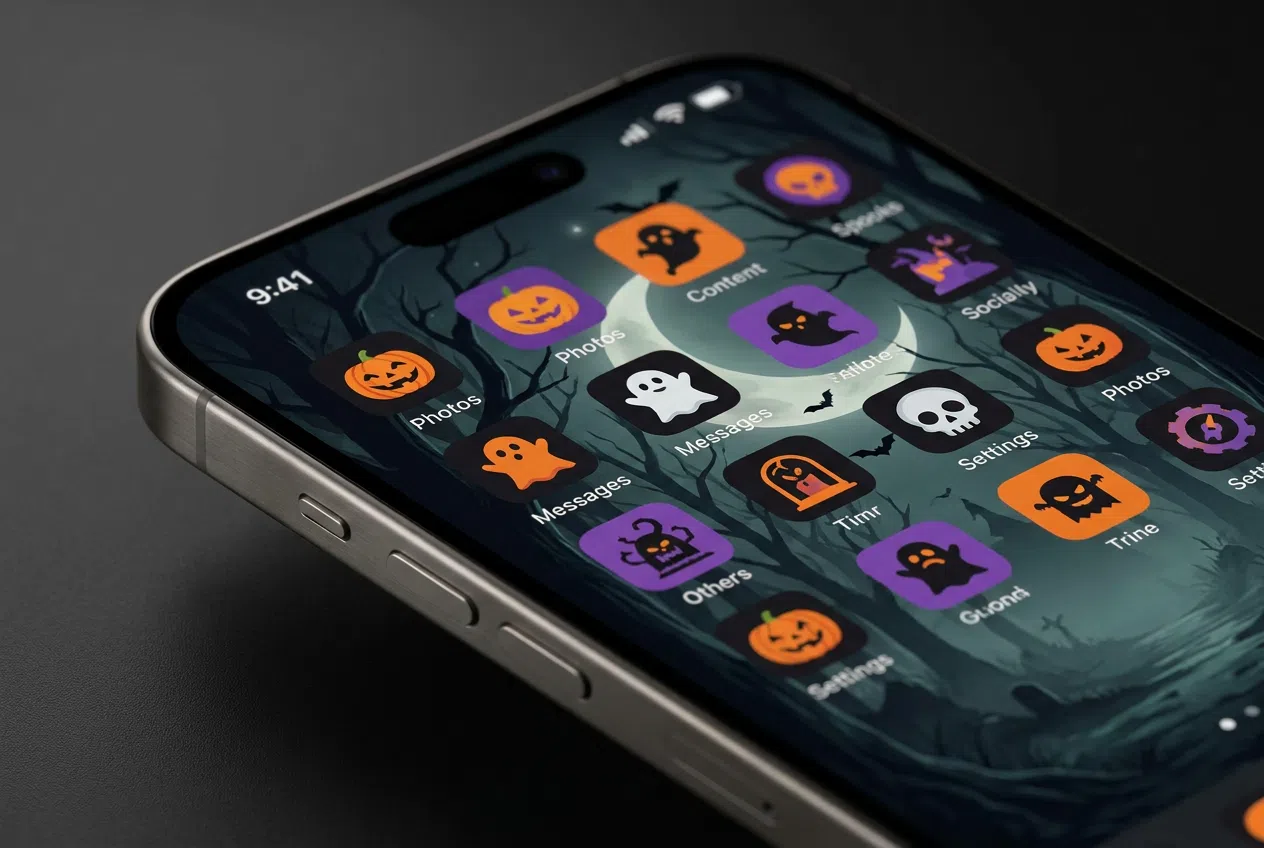
How to change your iPhone icons to a Halloween theme? The arrival of October brings with it that mysterious air and the desire to refresh our surroundings, so why not do the same with our mobile device? Give it a spooky touch to your iPhone It's a great way to get into the spirit of the season without having to spend a penny on physical decorations.
Fortunately, the Apple ecosystem allows us to play with the aesthetics of the home screen, whether through tricks with official apps or by taking advantage of the latest features of the operating system. If you want your phone to look like it's straight out of a horror movie or have a certain vibe aesthetic For Halloween, here's the full detailed roadmap.
Where can I get the best free Halloween icons?
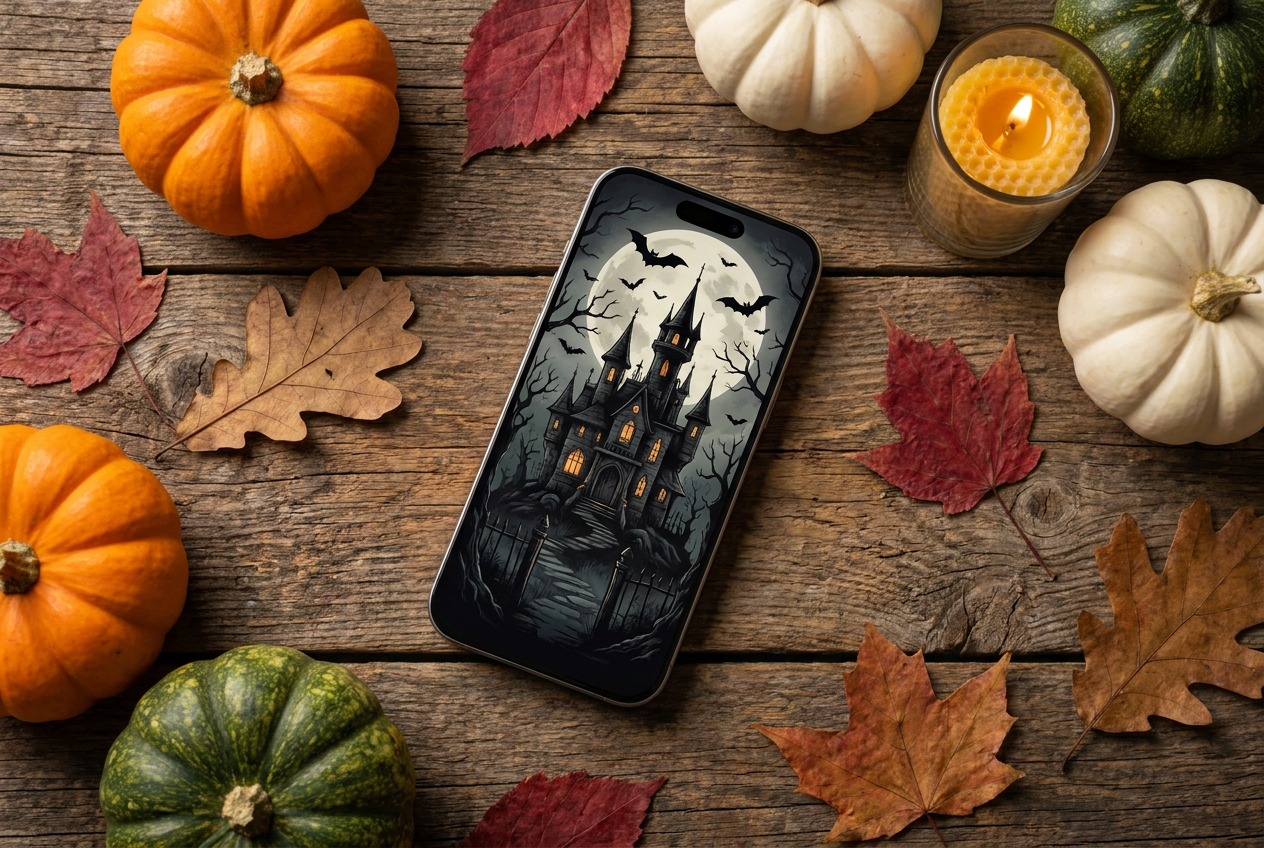
Before we start with the setup, you'll need the materials. You don't need to spend hours searching; they're readily available. platforms specializing in graphic resources where you can download complete packs or individual images. Some of the most recommended options are:
- Flaticon and Icons8: They are true temples of design. At Flaticon you can play with colors before downloading and find animated versions, while Icons8 lets you create entire collections to organize your downloads.
- MacOSicons: Ideal if you're looking for a finish that respects the Apple's minimalist aestheticensuring that the new icons do not clash with the rest of the system.
- Kawping and Clan Funds: Great sites to find everything from neutral covers in orange tones to much more minimalist and clean designs.
How to transform your icons step by step (Shortcuts Method)
If you don't have the latest system version or want complete control over the image, the application Shortcuts It's your best ally. This tool comes pre-installed, but if you don't see it, you can download it for free from the App Store. Follow these steps to make the change:
- Open Shortcuts and press the + button located at the top right to start a new flow.
- Click on "Add action" and search for the command "Open application".
- Tap the word "App" (in blue) and select the specific app you want to dress up for Halloween.
- Tap the information icon (the i) or the top drop-down menu and choose the option "Add to home screen".
- Here's the important part: tap the generic icon and select the Halloween photo that you have previously downloaded to your camera roll.
- Adjust the image so it fits properly and click "Add".
A little expert trick: try to leave a slight margin around the image by framing it; this way, when you open the app, the transition animation will look much smoother and more professional. Finally, remember that you'll now have two icons for the same app. To avoid clutter, press and hold the original app and select "Remove from home screen" (Note: Do not delete it from your phone, just hide it).
Advanced customization with iOS 18
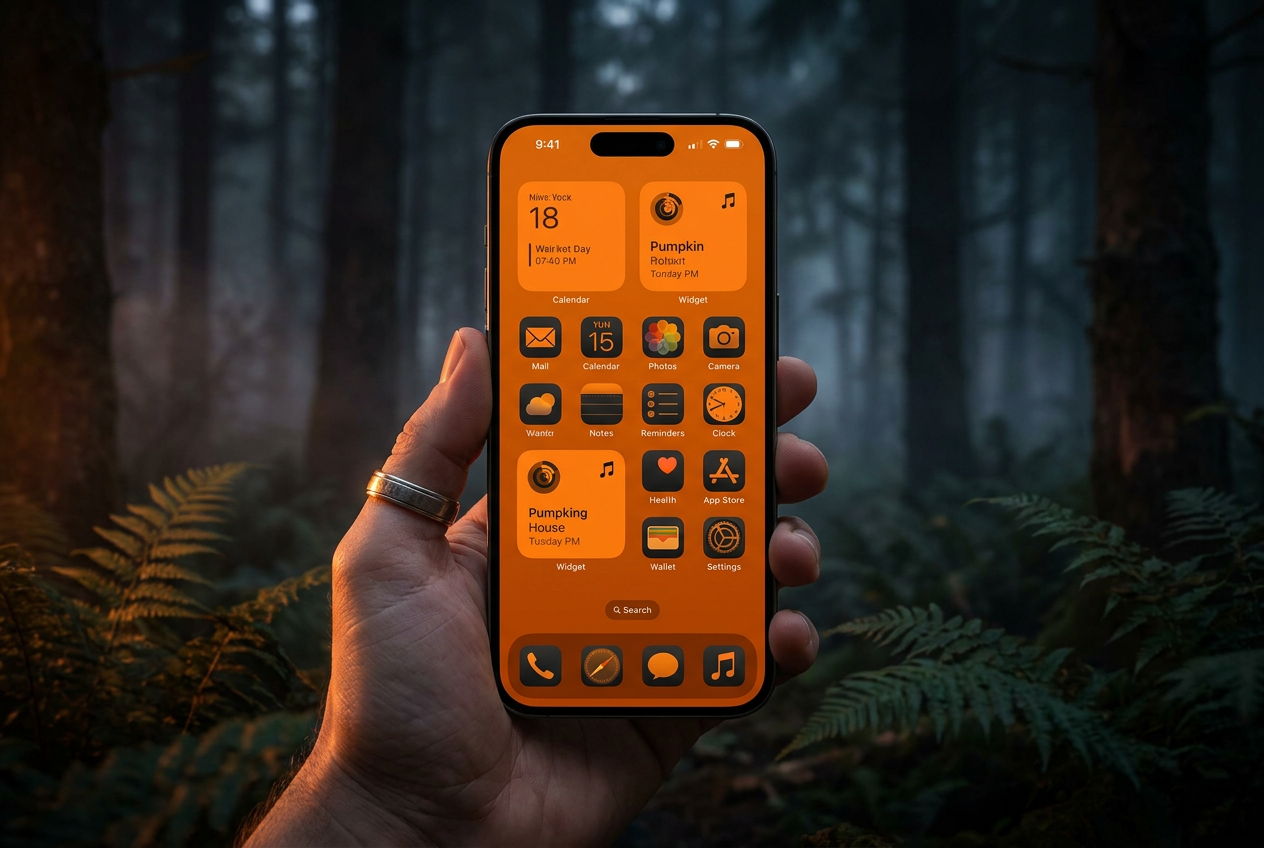
If you are lucky enough to have iOS 18The process is infinitely simpler because Apple has integrated native customization options. You no longer rely solely on shortcuts to change the overall color.
To use it, press and hold the home screen until the icons vibrate, then press the button. "Edit" in the top left cornerWhen you go into "Customize", you'll see that you can choose between light mode, dark mode, or the tinted styleThis last one is pure gold for Halloween, as it allows you to apply a uniform color (like pumpkin orange or dark purple) to all your icons in one fell swoop, creating a visually coherent aesthetic in seconds.
Quick alternatives: Theme and Widget apps
If doing the process one step at a time seems overwhelming, there are apps on the App Store designed specifically for this. Apps like "Themes - Widgets and Wallpapers" They offer complete packages that include coordinated wallpapers, widgets, and icons. These tools allow for a one-click replacementmaking it easy for your iPhone to go from looking normal to having a gothic or fun style in a matter of moments.
Extra tips: Transferring icons and widgets
If you decide to change your mobile phone mid-season, there are solutions such as MobileTrans which allow you to transfer your settings and icon files between different devices, even if you switch from iPhone to Android. On the other hand, don't forget that the experience isn't complete without custom widgets that display the weather or shortcuts, which you can adjust in size and color to fit your new horror theme.
Customizing your iPhone for Halloween is a creative process that combines the use of free image repositoriesThe power of the Shortcuts app and the new tinting features in iOS 18 make it easy to create a Halloween-themed home screen. Whether you choose the manual route for a unique design or use theme apps to save time, achieving a themed home screen is the perfect way to celebrate the holiday in our digital world. Now you know how to change your iPhone icons to a Halloween theme.
Index

Passionate about technology since he was little. I love being up to date in the sector and, above all, communicating it. That is why I have been dedicated to communication on technology and video game websites for many years. You can find me writing about Android, Windows, MacOS, iOS, Nintendo or any other related topic that comes to mind.