- The CD command allows you to change directories using relative or absolute paths to move quickly through the file system.
- REN and MOVE allow you to rename folders and files from CMD without altering their content or basic location.
- The PATH variable indicates which directories Windows looks for executables in, allowing you to use tools from any folder.
- Modifying PATH offers a lot of flexibility, but requires caution to avoid breaking critical programs or system components.
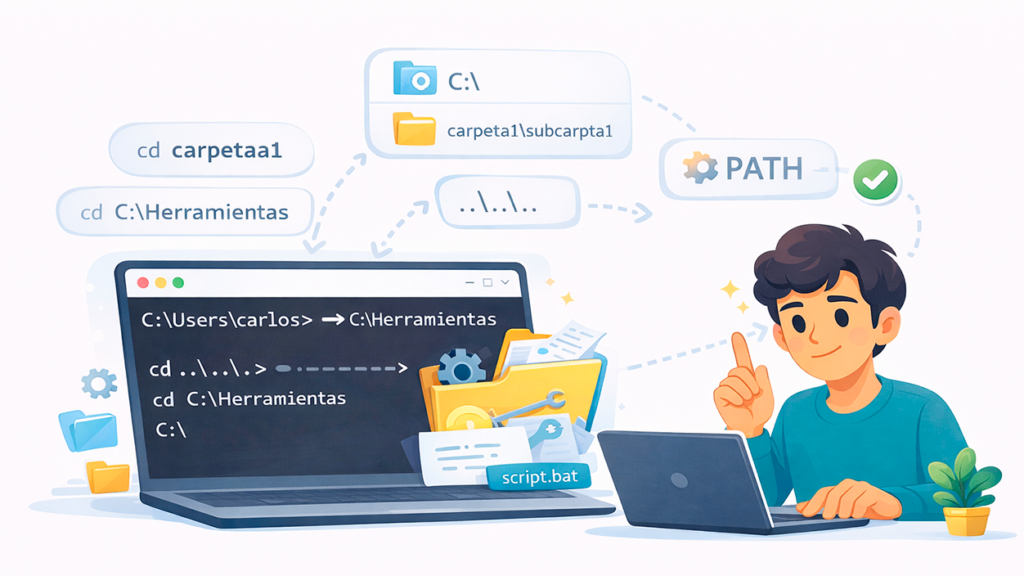
When you open the Windows 11 console, the famous command prompt, it usually appears in your user folder (something like C:\Users\your_username). If what you want is always work in a different path or move quickly through your foldersHaving to type commands over and over again can become quite tedious.
Throughout this article you will see, calmly and step by step, How to change directories in CMD in Windows 11, how to use relative and absolute paths, how to rename folders and files from the console, and what role the PATH plays In all of this, we'll also look at some important tips to avoid breaking anything on the system when tinkering with environment variables.
How the CD (CHDIR) command works in Windows 11
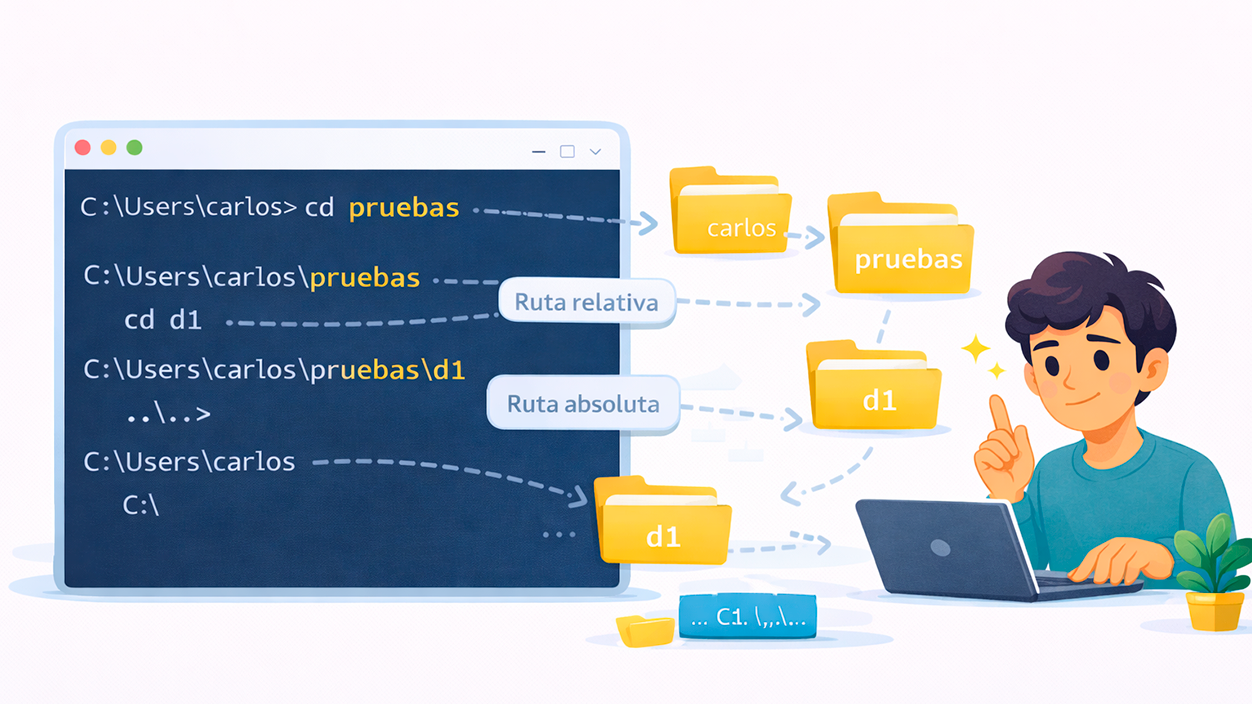
The command CD (or CHDIR) is the basis for navigating through folders from the Windows console. It's the equivalent of double-clicking folders in Explorer, but with text. You can see a similar guide for How to change directories in CMD in Windows 10.
Imagine your console opens in C:\Users\carlos and you want to access the test folder C:\Users\carlos\tests. You can do this in several ways using the CD command:
- Using a relative path: CD tests (because tests hang from where you already are).
- Using an absolute path: CD C:\Users\carlos\pruebasindicating the complete path.
If you later want to return to C:\Users\carlos from C:\Users\carlos\pruebas, you can type CD ..That pair of dots means "going up one level" in the folder tree. You could also go back using the full path: CD C:\Users\carlos.
When you use You are working with a relative pathbecause it's part of the current folder. However, when you type something like C:\Users\carlos, it's a absolute route that does not depend on your location then.
Another very typical example is moving to a nested folder. If you are in C:\Users\carlos and you want to get to C:\Users\carlos\pruebas\d1, you have these options:
- With relative path: CD tests\d1.
- With absolute route: CD C:\Users\carlos\pruebas\d1.
You could even go step by step with several CDs in a row:
- CD tests
- CD d1
And to return to the C:\Users\carlos folder from C:\Users\carlos\pruebas\d1 you can also use longer relative paths, for example CD ..\.., which raises you two levels at once, or you can simply type the full path with CD C:\Users\carlos if you prefer not to get confused with the levels.
Change the default directory that CD uses when opening CMD
Many people wonder if it's possible change the initial directory that CMD opens withTo avoid having to type CD repeatedly. By default, the command prompt opens in the user folder configured for that Windows account.
If you want it to always start, for example, in C:\Tools or in a specific working folder, you have several common options: create custom CMD shortcuts with a different "Start in"Use .bat scripts that automatically make directory changes, or open CMD directly from a specific folder using Explorer.
It is important to understand that the CD command It does not have a simple "global configuration" that will permanently change its behavior.What you can do is adjust the context in which CMD opens, or automate the initial CD using scripts, shortcuts, or even specific environment variables that you then invoke from a .bat file.
A very practical way is to open CMD from the folder where you want to work. In File Explorer, navigate to the desired folder, type cmd Type "j" in the address bar and press Enter. The console will open directly. in that directory as the initial location, without needing to manually use a CD at startup.
Special cases with the Desktop, OneDrive, and the user folder
In Windows 11 it is common for the Desktop is synced with OneDriveThis means the actual desktop path won't be the classic C:\Users\username\Desktop, but something like C:\Users\username\OneDrive\Desktop (or Desktop, depending on the language). If you need to change the profile name or its path, see how. change the user folder name.
If you navigate to your user folder from CMD and execute a CD to Desktop expecting to go to the local desktop, it might not work as you expect, because The folder structure changes when there is synchronization with OneDriveIn these cases, the safest option is to locate the exact route using the Explorer:
- Open Explorer and go to your Desktop.
- Click on the address bar and copy the full path.
- In CMD, use CDFor example, CD C:\Users\your_username\OneDrive\Desktop.
If you are familiar with your OneDrive structure, you can also use an absolute path: CD C:\Users\your_username\OneDrive\Desktop, without needing to use relative paths from your user folder.
Rename folders and files from the console (REN and MOVE)
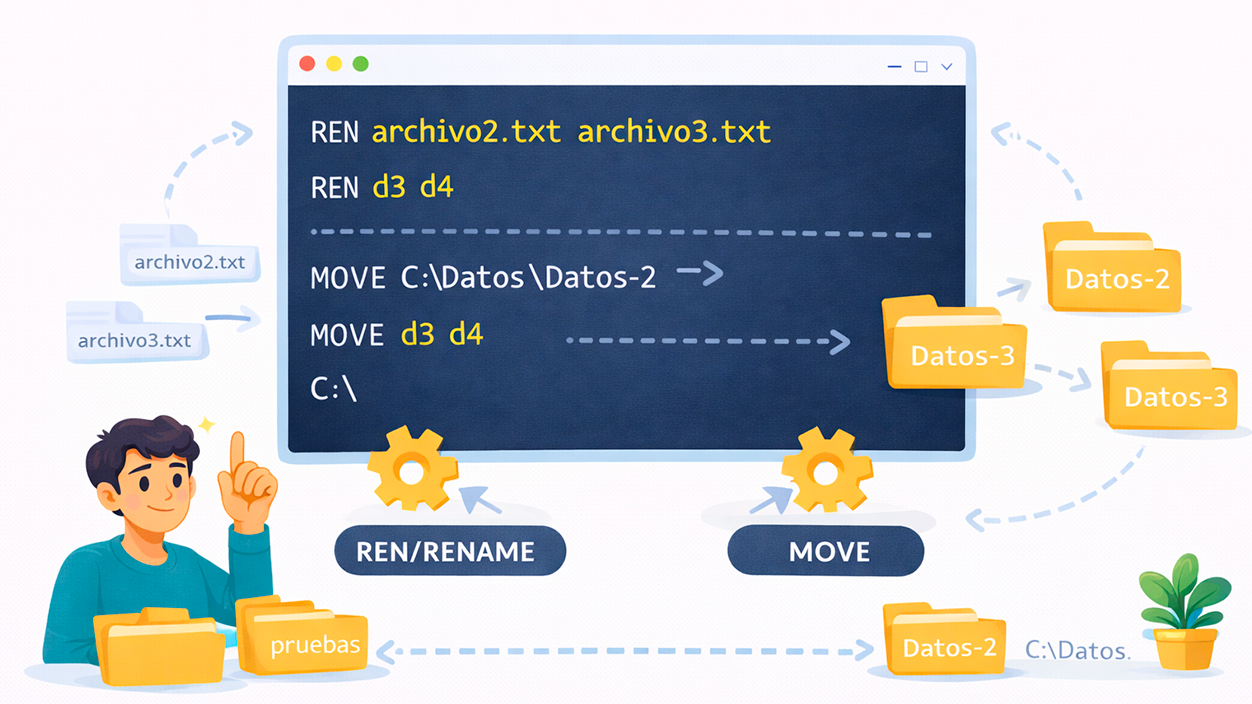
In addition to navigating the file system, CMD also lets you Rename directories and files without touching the mouseThis is great when you automate tasks with scripts or need to make bulk changes.
In Windows you have two key commands to rename folders from the console: REN (or RENAME) and MOVEBoth can change directory names, although their original purpose is not exactly the same.
To rename a file within a folder, for example, changing file2.txt to file3.txt in C:\Users\carlos\pruebas, simply navigate to that folder and use:
REN file2.txt file3.txt
If you do a DIR command right after that, you'll see that the file appears with the new name within the same folder, without having been moved to any other location.
It works just as easily with directories. If you have a folder d3 inside C:\Users\carlos\pruebas and you want to name it d4, from within pruebas you can run:
REN d3 d4
The REN command is limited to Change the name, without altering the content or location in the tree.Everything that was inside d3 will appear inside d4 after the change, keeping the internal structure intact.
The MOVE command, for its part, is used to move files but also has the ability to to change the name of a directory or file from the same pathIts basic syntax, as shown in the built-in help, is:
- Move files: MOVE filename1 destination
- Rename a directory: MOVE directoryname1 directoryname2
For example, if in C:\Data you have a folder Data-2 and you want to call it Data-3, you can use:
MOVE C:\Datos\Datos-2 C:\Datos\Datos-3
CMD will tell you that you've moved 1 directory, but in practice what you've done is Rename the folder, keeping it within C:\Data with all its contentsThe /Y and /-Y modifiers control whether you are asked for confirmation if you overwrite something.
What is the Windows PATH and why does it affect CMD?
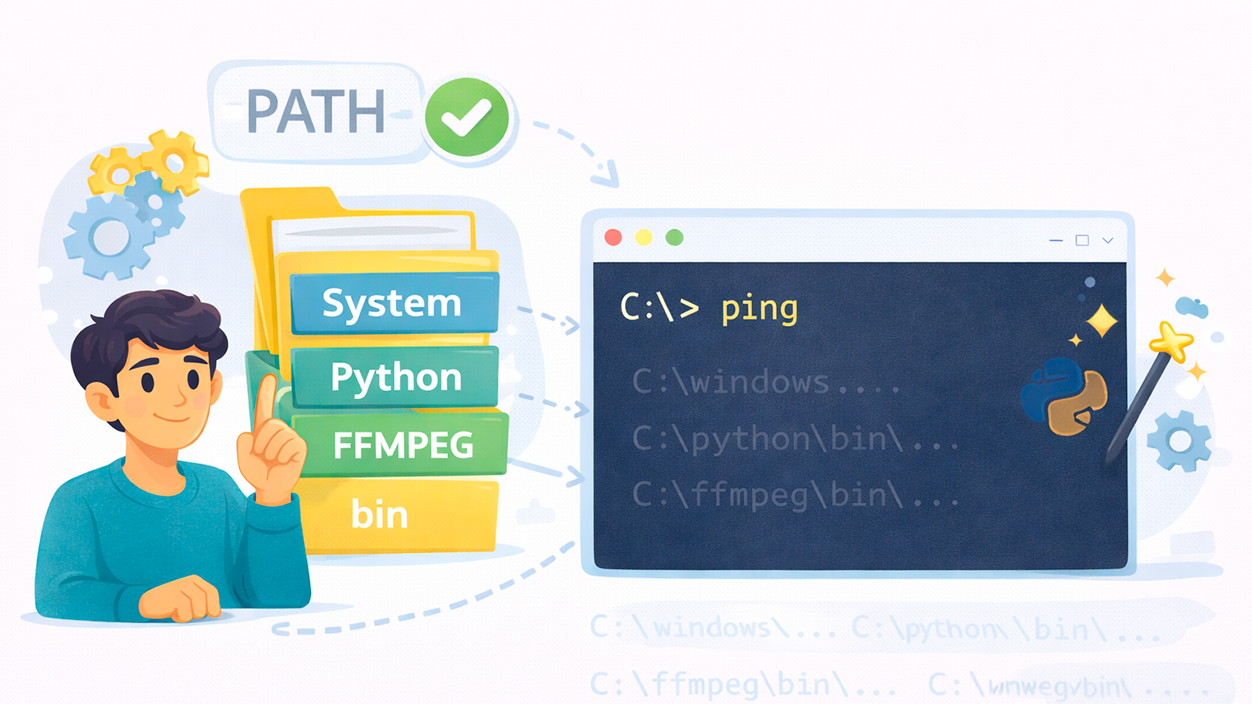
When you type a command in the console, Windows doesn't search for the executable at random. It relies on a series of directories listed in an environment variable called PATHIt's like a list of "trusted" sites where the system looks to locate programs.
The PATH contains paths separated by semicolons, such as the system folder, development tools, third-party utilities, and so on. Thanks to this, you can simply type ping In CMD and Windows, locate the executable without having to type something as long as C:\Windows\WinSxS\wow64_microsoft-windows-ping-utilities_…\ping.exe.
Many tools used on the command line, such as Python, FFMPEG, ADB, or other development utilitiesThey are added to the PATH so that they can be run from any folder, without having to move with CD to their installation directory.
In Windows, there are two types of environment variables: user variables and system variables. User variables apply only to your account; they are typically stored there. a custom PATH with tools that you installSystem settings are shared by all users and affect critical Windows components, so you should only touch them if you really know what you're doing.
Among the many predefined environment variables that Windows offers, some stand out as very useful for navigating from CMD without having to learn very long paths:
- %ALLUSERSPROFILE%: shared program information for all users (C:\ProgramData).
- %APPDATA%: user application data (C:\Users\UserName\AppData\Roaming).
- %HOMEDRIVE% and %HOMEPATH%: main drive (C:) and path to user profile (\Users\UserName).
- %USERPROFILE%: combination of the two previous ones to go directly to the profile (C:\Users\UserName).
- %SystemRoot% or %windir%: Windows installation folder, usually C:\Windows.
- %TEMP% and %TMP%: folders where temporary files are stored.
There are many more variables (ProgramFiles, PUBLIC, COMPUTERNAME, PROMPT, etc.), but the important thing is to understand that They allow you to write short names instead of full routesAnd, of course, PATH is what tells Windows where to look for executables when you type a command.
Practical example: adding FFMPEG (or another tool) to the PATH
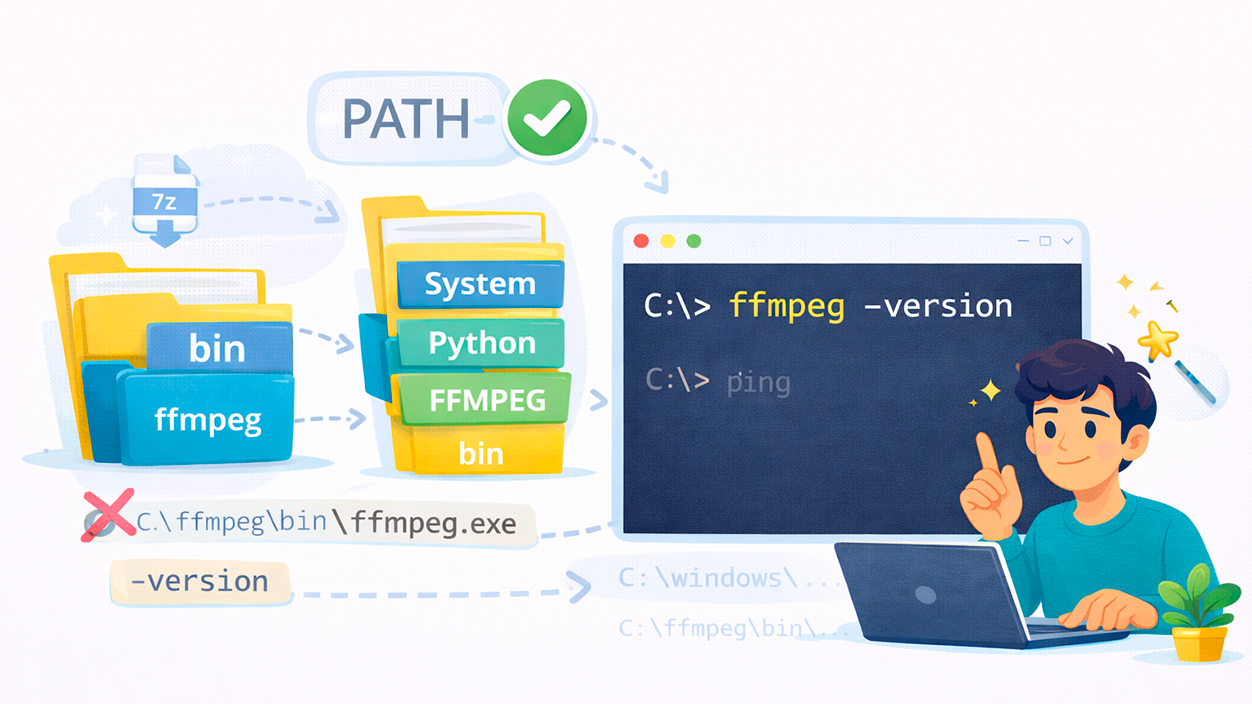
To see how useful the PATH is, nothing beats a concrete example. Imagine you use FFMPEG, a powerful command-line video tool, installed on your computer for editing or conversion tasks.
If it's not in the PATH, every time you want to use it you'll have to go to its folder (for example C:\ffmpeg\bin) or type the entire path to the executable, which is as impractical as:
C:\ffmpeg\bin\ffmpeg.exe -version
However, if you add C:\ffmpeg\bin to the user's PATH, you will be able to write ffmpeg -version, ffmpeg -codecs or any FFMPEG command directly from any folder you are in using CMD or PowerShell.
The basic flow for integrating a tool like FFMPEG into the PATH would be this:
- Download FFMPEG from its official website in compressed format (e.g., .7z).
- Create a simple permanent folder, close to the root, for example C:\ffmpeg, and extract the contents of bin there.
- Add that folder to the user PATH so that Windows always has it "at hand".
- Open a new console and check with ffmpeg -version that everything works correctly without complete routes.
You can apply this same principle to Python, ADB, custom scripts, compilers, network utilities and any tool you want to invoke from any disk path without having to use a CD.
How to change PATH paths from Windows 11
Although it may sound like advanced settings, the interface for Editing the PATH in Windows 11 is quite accessible. If you follow the steps carefully. However, it's crucial not to delete entries you don't recognize, because many programs will stop working.
In Windows 10, you could access the Environment Variables Editor through Settings > System > System information > Advanced settings. In Windows 11, the menu path is slightly different, so the quickest way is to use the Run dialog box.
Press Win + RType “environment variables” or “SystemPropertiesAdvanced” and press Enter. The System Properties window will open directly to the Advanced tab.
At the bottom you will see the button “Environment variables”Clicking it opens another window with two separate sections: user variables and system variables. Within each section, you will see the corresponding PATH variable.
To add a new route to the user's PATH (highly recommended for personal tools), select PATH in the user variables area and press “Edit”. A list will open with all the paths that Windows uses to locate commands.
Simply click "New", enter the path to your tool's folder (for example, C:\ffmpeg\bin or C:\Tools\CMD) and confirm. Accept all the prompts to save changes. Normally There's no need to restart your PC; simply open a new CMD or PowerShell window. for the change to take effect.
If your console doesn't recognize the new command for any reason, try restarting your computer. Sometimes, certain processes continue using the old version of the environment and don't pick up the changes until they are completely restarted.
Editing and using environment variables from PowerShell
In addition to the graphical interface, Windows lets you Manage environment variables from PowerShell using commandsIt is a very powerful option, designed more for advanced users who automate configurations or deployments.
To list the current contents of the PATH, you can open PowerShell (preferably as administrator) and run something like:
::GetEnvironmentVariable("PATH")
If you want to create a new route and add it to the PATH, you can assign it to a variable and concatenate it, for example:
$Variable_Name = "C:\New-Path"
::SetEnvironmentVariable(«PATH», «$env:PATH;$Variable_Name»)
With this, Add the path C:\New-Path to the end of the current PATHAfter applying the changes, it is recommended to log back in or even restart your PC to ensure that all processes start with the updated environment.
To verify that a new custom environment variable has been added correctly, you can use the following in CMD:
echo %YOUR_VARIABLE_NAME%
If the variable doesn't exist or the associated path is invalid, you'll see messages like "The system cannot find the path specified." This indicates that something It hasn't been configured correctly, and you should check the string you entered..
Risks and precautions when modifying PATH and variables
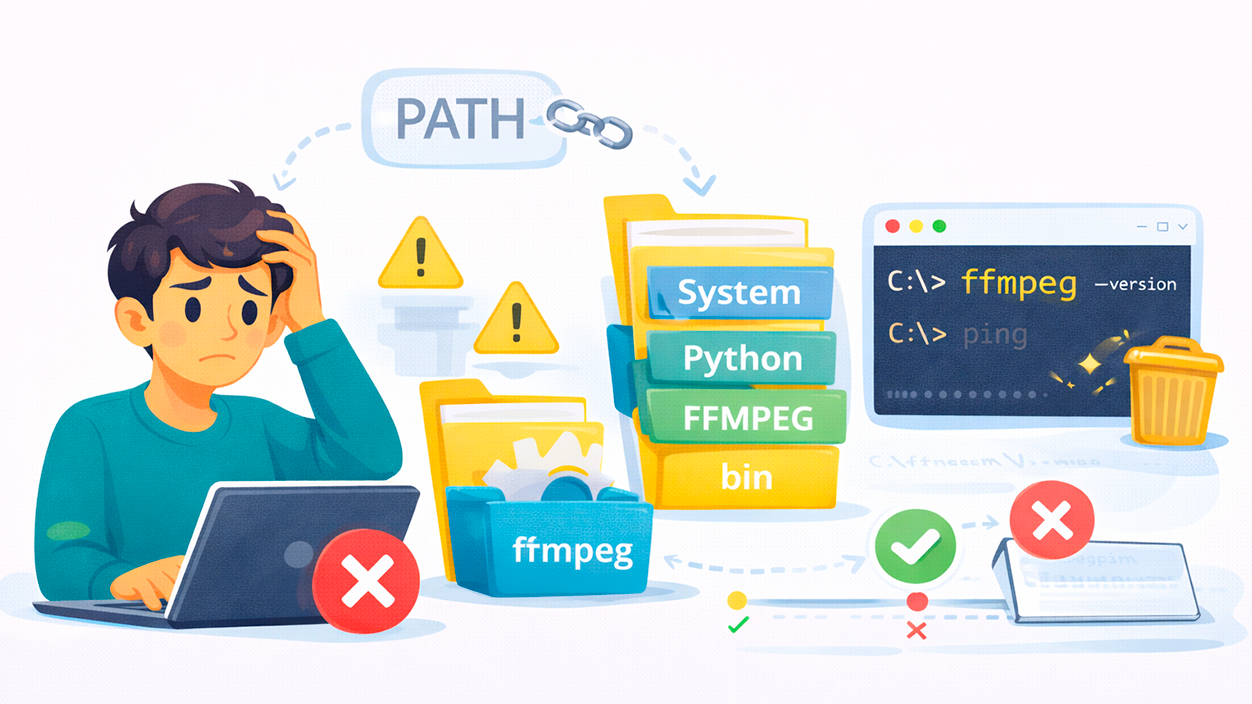
Touching the PATH without knowing exactly what you're doing can have unpleasant consequences. The most common problem is that certain programs or commands stop working because its directory no longer appears in the path list.
If you accidentally delete the entry where a program stores its binaries, that program It will simply stop running from the consoleSometimes it's fixed by reinstalling the application (which adds its path back to the PATH) or by adding the path manually if you know where the correct folder is.
In more serious cases, deleting or incorrectly modifying critical paths within the system PATH can cause application failures that depend on Windows tools or even the operating system itselfIf Windows stops finding essential files, it can become unstable and even refuse to start.
Therefore, before you start changing variables, it's highly recommended to create a system restore pointThis way, if something goes wrong, you can revert to a previous state. Search for "Recovery" in the search bar, go to System Restore settings, and create a manual restore point before making any changes.
Another sensible measure is copy the current contents of the PATH to a text file before modifying it. If you accidentally delete a path, you can always recover it by pasting the previous string back into the variable editor.
If you reach the point where Windows isn't working properly even after trying to revert the changes, you might have to resort to drastic measures like system restore or a clean reinstall. It's not usually the case, but it's a possibility if key variables that the system needs to operate have been corrupted.
Useful tricks with environment variables and scripts
Environment variables aren't just for helping the system find commands. You can also... Use them to simplify routes, create aliases, and automate repetitive tasks using batch scripts (.bat) or PowerShell scripts.
A very practical trick is to create batch scripts in a folder included in the PATH. That way, You can run the script from any directory by simply typing its name.without having to travel to its actual location. It's ideal for scripts you use daily.
You can also change the destination of variables such as TEMP and TMP so that temporary files are saved on another drive For example, a second hard drive would be less critical. This reduces the space occupied on the main drive and allows you to clean up temporary files more easily when needed.
Another possibility is to define new custom environment variables with paths you frequently use. Then, from CMD, you can use them enclosed in percentages, for example, %MY_PROJECT%, instead of typing a very long path each time. It's a shortcut that saves time and typing errors.
However, it's worth emphasizing: avoiding tinkering with unfamiliar system variables and not deleting PATH entries "just to test" is the best way to not to leave Windows or your usual programs limpingIt's best to do your research and make very measured changes.
Do you really need to modify the PATH?
Not everyone needs to delve deeply into the PATH. If you use your computer to browsing, office applications, games, or basic tasksYou probably won't gain much by changing these advanced variables, and instead you could mess things up if you delete something important.
The PATH and environment variables take on special meaning if You work a lot with CMD, PowerShell, development tools, or code compilation.Programmers, system administrators, and advanced users often rely on these configurations to streamline their workflow.
On the other hand, if you only use the console very occasionally, it's likely that with Use CDs when needed, open CMD from the correct folders, or launch programs using their full path. that's more than enough for you, without needing to touch the PATH.
Furthermore, although some applications are automatically added to the PATH upon installation, in many cases they don't even need to be there because You can use them perfectly from their shortcuts or graphical interfacesIt only makes sense to include them in the PATH when you depend on them in scripts or console processes.
Generally speaking, it's wise not to modify the PATH lightly. If you need a command-line tool to be accessible from any directory and you know what you're doing, then adding its folder to the PATH variable makes perfect sense. But doing it "just because" usually causes more problems than it solves.
Ultimately, understanding how Using CD to change directories in CMD in Windows 11, distinguishing between relative and absolute paths, renaming folders with REN or MOVE, and handling the PATH variable respectfully It will allow you to navigate the console with ease without compromising system stability. With a few clear commands and a little care when handling environment variables, the command line ceases to be intimidating and becomes a very powerful tool in your daily work.


I am a technology enthusiast who has turned his "geek" interests into a profession. I have spent more than 10 years of my life using cutting-edge technology and tinkering with all kinds of programs out of pure curiosity. Now I have specialized in computer technology and video games. This is because for more than 5 years I have been writing for various websites on technology and video games, creating articles that seek to give you the information you need in a language that is understandable to everyone.
If you have any questions, my knowledge ranges from everything related to the Windows operating system as well as Android for mobile phones. And my commitment is to you, I am always willing to spend a few minutes and help you resolve any questions you may have in this internet world.