- Configure Chrome's built-in translator to translate entire pages or just snippets into your preferred language.
- Adjust lists of languages that are automatically translated or that should never be translated according to your needs.
- Change the Chrome interface language on Windows and add preferred languages and additional input methods.
- Boost Chrome's spell checker with extensions like LanguageTool to improve grammar, style, and punctuation in multiple languages.
If you use Chrome daily, you've probably struggled with it at some point. language of the spell checker, automatic translations, or browser menusWhether it's everything being corrected to English when you write in Spanish, a website appearing in a strange language, or Chrome showing half in one language and half in another… Luckily, all of this can be calmly adjusted from the browser settings.
Throughout this guide you will see, step by step, how Change the spell checker language, configure page translations, add preferred languages, and even modify the Chrome interface language. on Windows. I'll also explain how to translate entire pages or just a portion of the text, and how to use advanced extensions like LanguageTool when Chrome's built-in spell checker falls short.
Translate entire web pages in Chrome

Chrome includes a integrated translator that allows Translate any web page into another language almost automatically.This feature is very useful when you visit foreign websites and want to read the content comfortably in your own language.
To translate an entire page from your computer, you just need to follow a very simple procedure: open Chrome, go to the page you want to translate and, when it loads, look at the right side of the address bar, where the icon usually appears. TranslateClicking there will prompt Chrome to offer to translate the page into your preferred language.
If you don't see the icon in the address bar, you can use another equally valid option: Right-click anywhere on the page Then, in the context menu, choose the "Translate to" option. Chrome will detect the original language of the page and convert it to your default target language.
In the box that appears when translating, you can select the language you want the page to be converted to. If Chrome isn't translating to the correct language, look for the option to change translation language within that box (usually with a "More" button or a down arrow) and choose another from the available list.
Sometimes, the built-in translator may fail or not load correctly. If you see that the page isn't translating or is frozen, the first thing to do is refresh page from the reload button or with the F5 key, or in persistent cases Reset ChromeOften that's enough for the translator to offer you the translation option again.
Translate only a fragment of text in Chrome
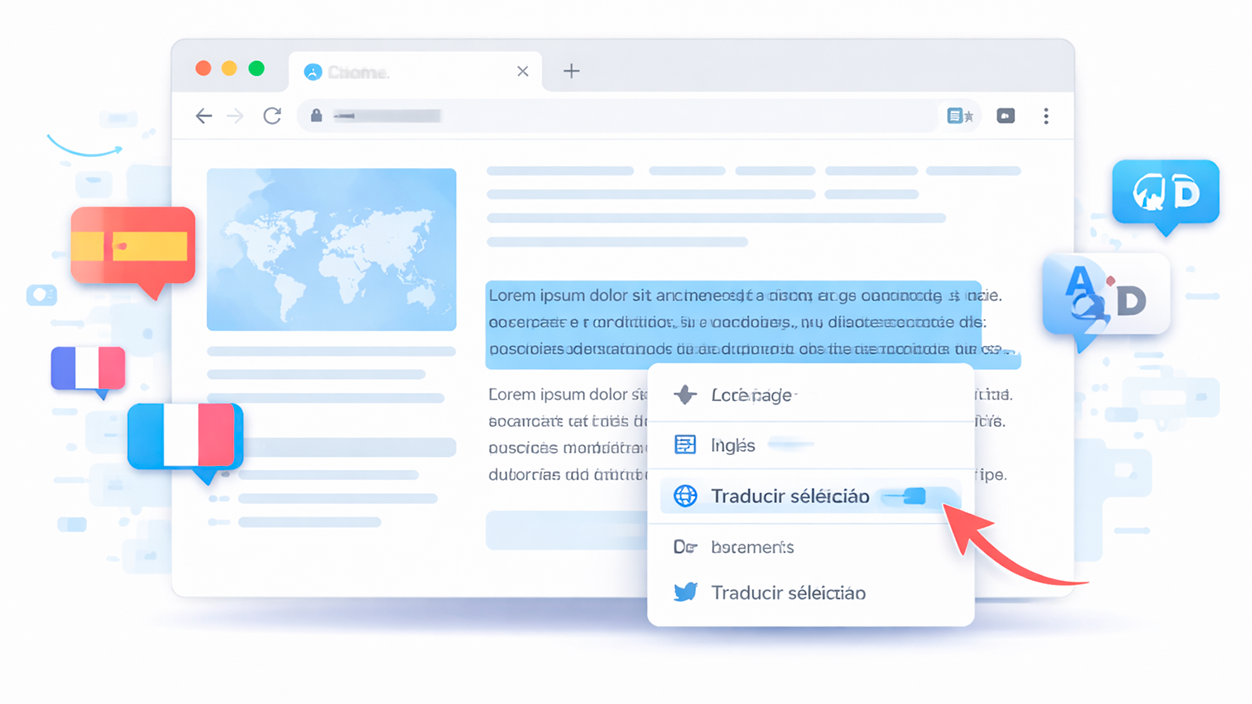
You don't always want to translate an entire page; often you just want to know what a specific paragraph, sentence, or a couple of lines says. For those cases, Chrome also allows you to do so. translate only the text you select.
The process is very straightforward: open Chrome on your computer, go to the page in question, and select the exact part of the text you want to translate with your mouse. Once you have it selected, Right-click on that selection and choose “Translate selection to”. Chrome will send only that fragment to the translator and show you the translated version.
If you want the translation of the fragment to be done in a language other than the one that appears by default, you can use the options menu associated with the translator again: there is usually a section for “Choose another language” with a drop-down arrow which allows you to select from different target languages for that specific translation.
Configure the behavior of the page translator
In addition to translating pages on a case-by-case basis, Chrome lets you decide how you want its translator to behave on a daily basis. In other words, if you prefer that always offer to translate certain languages, and have it do so automatically. without asking or, on the contrary, never bothering you with a language you understand perfectly.
These options are grouped under the languages section. On your computer, open Chrome, click the three-dot menu in the top right corner, and go to "Configuration"In the left-hand column you will see a section called “Languages”; click there to access all preferences related to languages and translations.
Enable or disable the translation function completely
You might not want Chrome to offer translations at all, or you might want to make sure the built-in translator is active. From the language panel, Chrome lets you globally turn the page translation function on or off.
Within “Languages”, look for the section called “Google Translator” or “Google Translator”, depending on the version. There you will see a toggle switch labeled “Use Google Translate"or similar. If you turn on that switch, Chrome will analyze the languages of the pages you visit and ask if you want to translate them; if you turn it off, it will stop showing you translation suggestions."
If you use a Chromebook and want to adjust how translation suggestions are displayed on that specific device, these options are handled slightly differently. In that case, you should go to your Chromebook's system language settings. Chromebook to control how and when translations are offered.
Choose your preferred language for translations
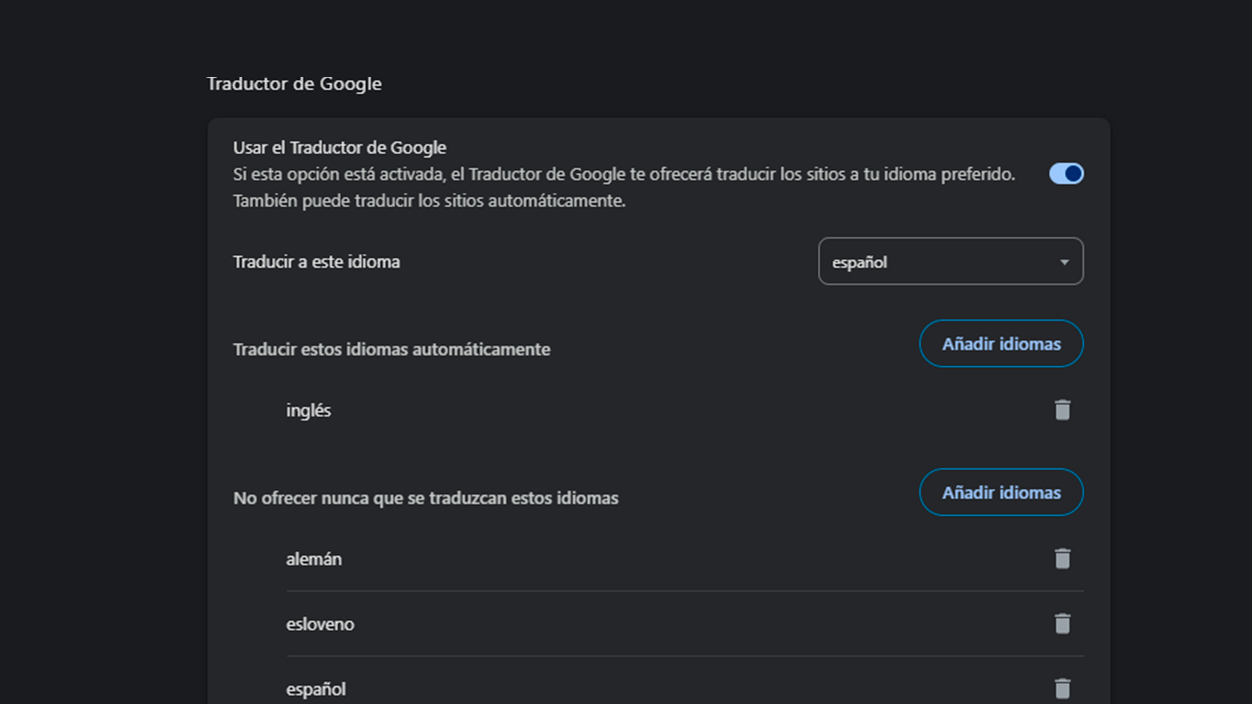
By default, Chrome usually uses the browser's primary language as the target language for translations. However, you may want to adjust this and specify a different language. Which language do you want Chrome to translate pages into?especially if you use the browser in one language but prefer to read content in another.
From your computer, open Chrome, go to the three-dot menu, and enter “Configuration"And select"Languages” in the left panel. Within the block “Google Translate”, locate the option “Translate to this languageClicking this will display a list of all available languages; choose from that list the language you want the pages to be translated into by default.
Once the change is saved, every time you visit a page in a foreign language, Chrome will suggest Translate it to the language you have selected in this settingYou can always change the target language on a case-by-case basis from the translator's own box in the address bar, but this option sets your overall preference.
Add preferred languages in Chrome
Chrome doesn't just work with one primary language; you can configure a list of preferred languages which influences both how some websites are displayed and the behavior of the translator and the spell checker.
In the "Languages" section within "Settings", you will see the "Preferred languages" section. There you can Add new languages that you understand or want to use. If the language you're interested in isn't already listed, use the "Add languages" button to search for and add it. This helps Chrome better manage multilingual content, decide when to offer translations, and, in some cases, Select the correct language for the spell checker.
Languages that are automatically translated
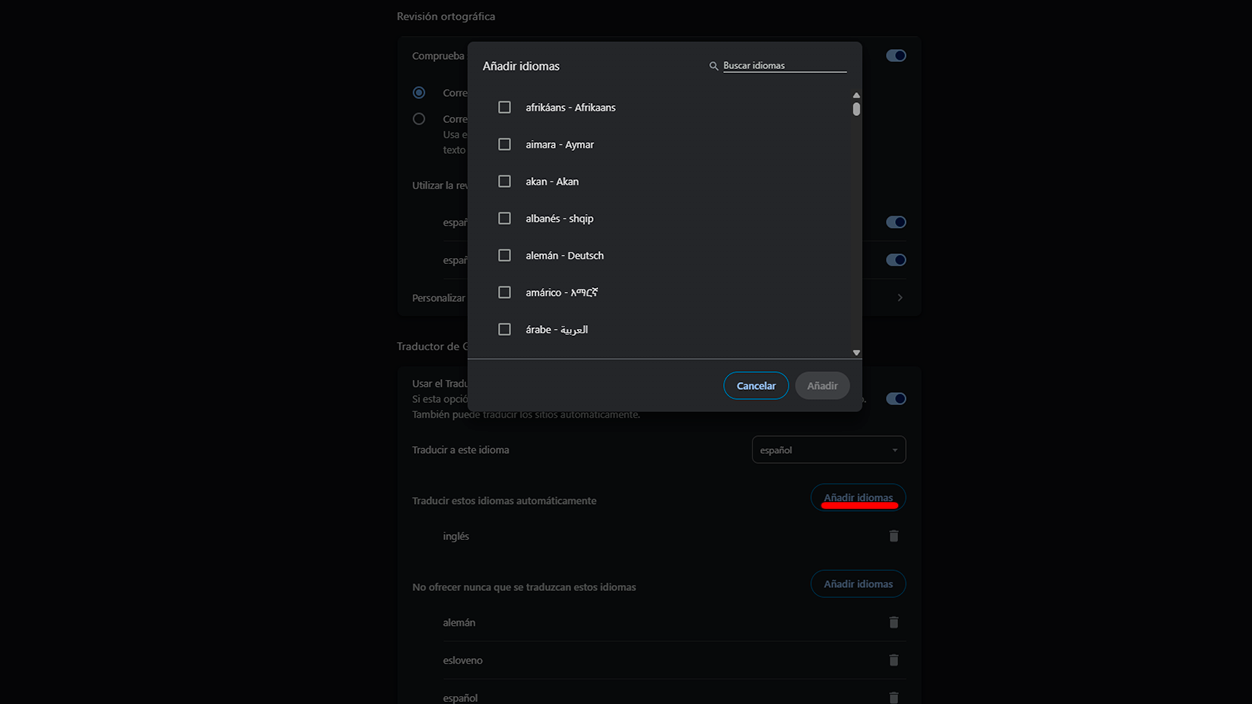
There are languages you might want Always translate without Chrome asking youFor example, a language you don't know at all but encounter frequently. For this, there's a list of "automatically translated languages."
Go back into “Settings > Languages and, within the Google Translate section, locate the option “Translate these languages automaticallyNext to that text you'll see a button for “Add languages”When you press it, a list will be displayed in which You can select as many languages as you want. include as automatic translation.
Once you've selected your desired languages, confirm with the "Add" button. From then on, when you visit a page written in any of those languages, Chrome will automatically add the language. It will translate directly to the target language you have configured.without first showing you the translation notification. If you later want a language to stop being translated automatically, return to this same list and use the "Remove" option next to the corresponding language.
Languages you never want to translate
The opposite can also happen: there are languages you understand perfectly and don't need translated, so it might annoy you that Chrome insists on offering a translation every time you visit a page in that language. For these cases, you can define a list of languages you never want Chrome to translate.
In the "Languages" section of the settings, under "Google Translate," look for the text "Never offer to translate these languages" or "Never offer translation of these languages." Tap on "Add languagesSelect the languages you don't want translated. Confirm with "Add" to save them to the list.
From that moment on, when you visit pages in any of those languages, Chrome will no longer display the translation notification. If you change your mind, you can return to the list and use the "Remove" button next to each language to remove it from the excluded languages and that the browser will again offer translations when appropriate.
Change the language of the Chrome browser on Windows
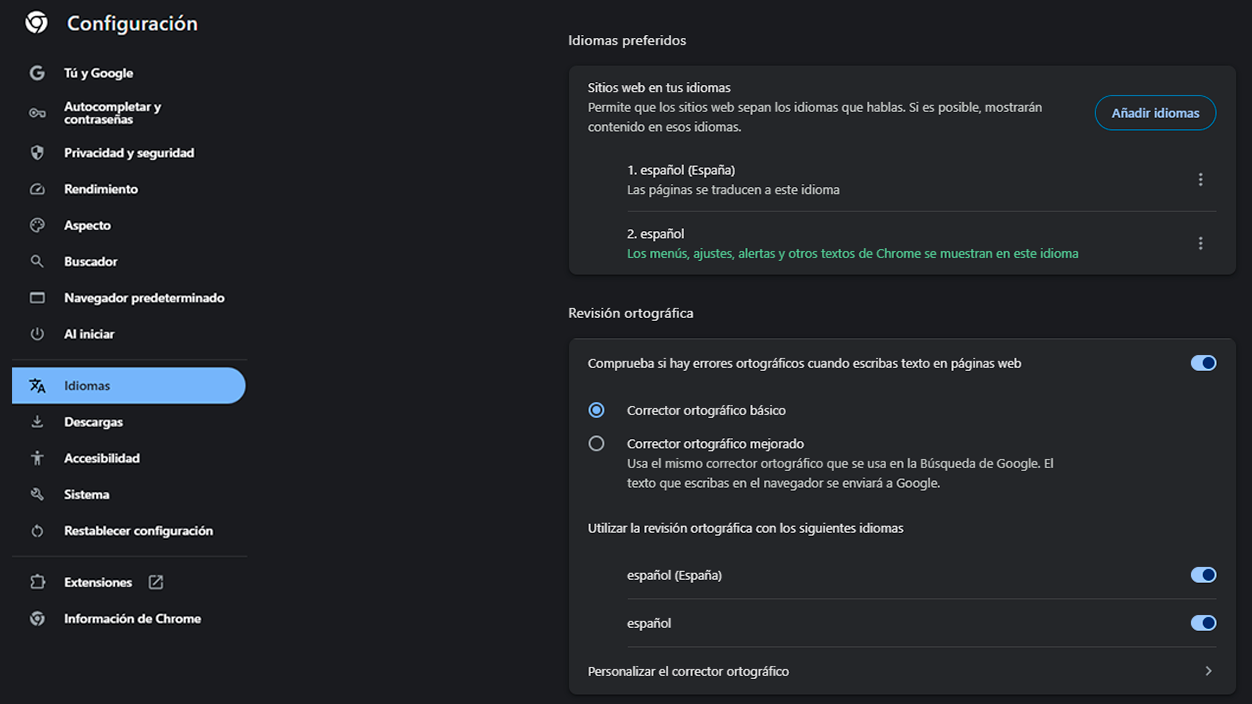
In addition to everything related to translations, Chrome lets you change the language in which the browser menus, settings, and interface are displayedThis option is currently available natively on Windows computers.
To change the interface language, open Chrome on your Windows computer and click the three-dot menu in the top right corner. Go to “Configuration” and then in the section “Languages" of the left sidebar. Inside "Preferred languages”, find the language you want to use for Chrome and click the “More” button (usually represented by three vertical dots) next to that language.
If you don't see your desired language in the list, you will first need to click on “Add languages”, search for it and add it to your preferred languages. Once it's in the list, open the “More” menu next to the language again and select the option “Show Google Chrome in this languageNote that this setting is only available on Windows computers; on other systems, the interface language is usually determined by the operating system's language.
After selecting the new interface language, Chrome will ask you to Restart your browser to apply the changes.Close and reopen Chrome, and you'll see all the menus, notifications, and settings in your selected language.
Writing in languages that your computer does not natively support
In some cases, you want to write in a specific language, but your computer doesn't have the necessary keyboards or input methods installed, especially when it comes to Asian languages or languages with complex writing systemsTo make this task easier, you can use additional tools built into Chrome.
Google offers the Chrome extension called “Google Text Input Tools"(also known in some translations as text capture or input tools). This extension allows you to enter characters and letters from languages that your system cannot handle by default, so you can write in many more languages directly from the browser."
If you use Windows, you may also need to... Adjust Windows language settings To add additional language packs, particularly for East Asian languages or other non-Latin alphabets, you can install specific keyboards for Chinese, Japanese, Korean, or other languages from your system language settings and combine them with Chrome to type normally in those languages.
Improve spelling and style with LanguageTool

Although Chrome's built-in spell checker is useful, it often falls short if what you're looking for is a finer control of style, grammar, and punctuationThat's where more advanced extensions like LanguageTool come into play.
LanguageTool is a Chrome extension designed to check your text much more thoroughly than a simple spell checker. This tool detects errors that Chrome doesn't usually seesuch as unnecessary repetitions of words, agreement errors, incorrect use of expressions, punctuation problems, or unnatural grammatical constructions.
One of the great advantages of LanguageTool is that It does not require you to register to start using itSimply install the extension from the Chrome Web Store, and as soon as you type in a compatible text field, it will begin reviewing your writing in the background. It also offers a sentence paraphrasing feature, which suggests alternative ways to rephrase a sentence to make it sound clearer, more natural, or more professional.
LanguageTool works in more than 25 languages, including English (in various forms such as US, UK, Australia, Canada, New Zealand or South Africa), Spanish, French, German (Germany, Austria, Switzerland), Portuguese (Portugal, Brazil, Angola, Mozambique), Italian, Russian, Polish, Dutch, Swedish, Romanian, Greek, Arabic, Japanese, Chinese, Catalan (including Valencian), Galician, Asturian, Slovak, Slovenian, Ukrainian, Tagalog, Tamil, Persian, Breton, Belarusian, Esperanto and othersThis makes it a very interesting solution for both native speakers and those who write in a second language.
In terms of compatibility, the extension can check virtually any text you enter into the browserEmails in Gmail, social media posts on platforms like Twitter, Facebook, or LinkedIn, web forms, online documents, and so on. There are some technical exceptions (for example, pages like chrome.google.com may have limitations), but overall it covers the vast majority of writing situations in Chrome.
Another strong point is that LanguageTool incorporates a personal dictionary Here you can add words you frequently use that don't appear in standard dictionaries, such as brand names, technical terms, or industry-specific vocabulary. Once you add a word to this dictionary, the tool will stop flagging it as an error in future reviews.
In terms of privacy, the text you write is sent by default to LanguageTool servers (languagetool.org) via a encrypted connectionYou don't need to create an account to use the extension, and the service states that it doesn't store your IP address. For full details, you can consult their complete privacy policy on their official website.
Compared to other well-known solutions like Grammarly, Ginger, or QuillBot, LanguageTool stands out precisely because of its multi-language support and its focus on grammar and style Beyond English. It's especially useful if you often write in different languages or if, as a native speaker, you want to refine your writing style and avoid typical mistakes that are missed by a basic spell checker.
Help video for changing the language in Chrome
If you prefer to see the language change process in action, a Video tutorial showing step-by-step how to change the default language of Google Chrome In Windows. This video visually explains where the "Languages" options are located within the settings and how to set a new language for the browser interface.
The tutorial, available on YouTube, is useful for those who need a quick and easy guide, because Replays all clicks and menus on screen which you need to follow. This complements the written explanations very well and can be very helpful if you're having trouble understanding the text alone or if you want to make sure you're accessing the correct settings sections.
By properly adjusting these language options in Chrome and combining the built-in translator with more advanced tools like LanguageTool, you can make the browser truly adapt to your workflow: Read websites in your preferred language, write with a suitable spell checker, control when pages are translated, and change the interface language when you need to., all without any headaches and with just a couple of visits to the settings.

I am a technology enthusiast who has turned his "geek" interests into a profession. I have spent more than 10 years of my life using cutting-edge technology and tinkering with all kinds of programs out of pure curiosity. Now I have specialized in computer technology and video games. This is because for more than 5 years I have been writing for various websites on technology and video games, creating articles that seek to give you the information you need in a language that is understandable to everyone.
If you have any questions, my knowledge ranges from everything related to the Windows operating system as well as Android for mobile phones. And my commitment is to you, I am always willing to spend a few minutes and help you resolve any questions you may have in this internet world.