- The Nintendo Switch 2 time can be set to automatic or manual mode from the console menu, with possible limitations if parental controls are active.
- The 12/24 hour format depends on the chosen language and region, so changing these settings modifies how the clock is displayed.
- Many games synchronize with the internal clock, and altering the date and time affects day/night cycles, events, and wait times.
- Changing the time is a common trick without direct penalty in most games, but it can significantly alter the experience intended by the developers.

Whether you've just gotten the console or you've had it for a while, it's quite likely that at some point you'll wonder How to change the time on Nintendo Switch 2Adjust the date, play the internal clock, or even change the 12/24-hour format. It might be for pure convenience, for travel, to align it with your work schedule, or, let's be honest, because tinkering with some game that depends on time and weather.
In addition to all this, many current titles, such as certain lifestyle Pokémon games or social simulator experiences, They operate in real time using the console's internal clock.This means that any changes you make to the system time can affect what happens in-game: creature spawns, building durations, daily events, and much more. Understanding this is crucial. How does the Nintendo Switch 2 clock work? Knowing what you can and can't play will save you from surprises.
How to change the date and time on Nintendo Switch 2 step by step
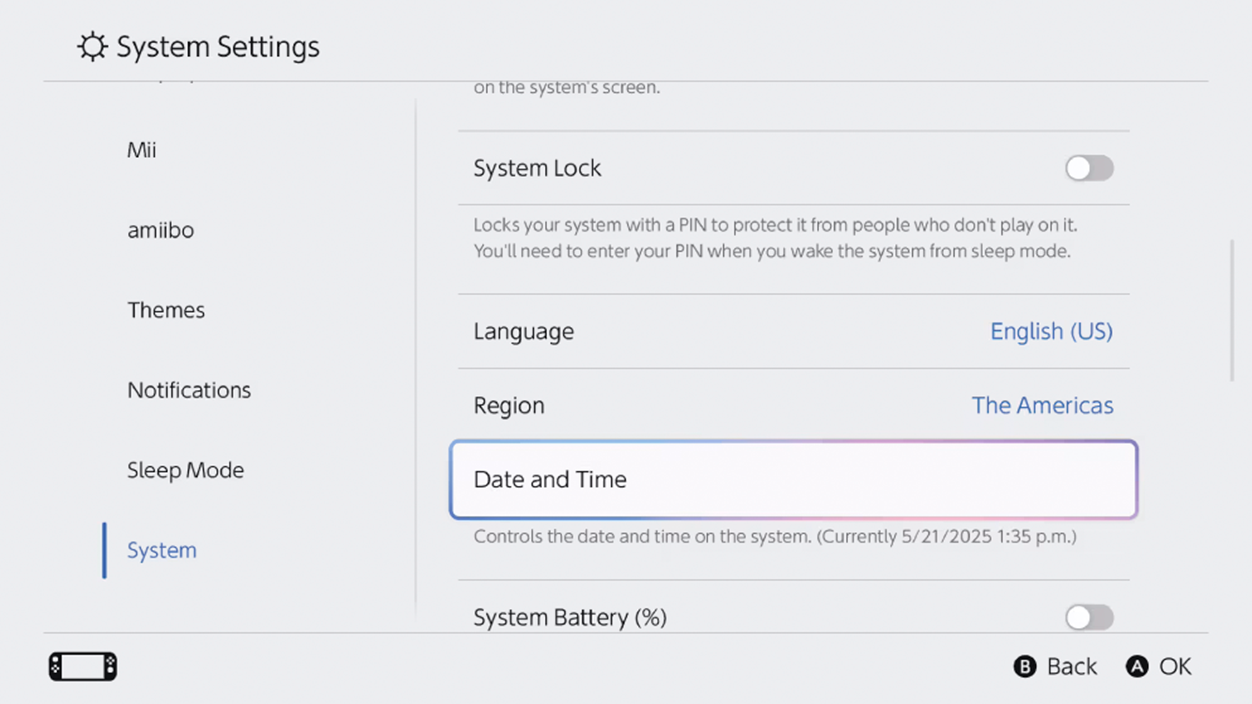
To start with the basics, on Nintendo Switch 2 you have a very clear menu from which you can Adjust the date, time, and time zone of the console. The process is simple, but it's best to follow it carefully to avoid misconfiguring anything, especially if you use parental controls or automatic internet synchronization.
From the main menu (HOME menu), the first thing you should do is enter the "Console Settings" sectionIt's the gear icon you'll see at the bottom of the home screen; from there you manage all the general system options.
Once inside the settings, you'll find different sections in the left column. You must scroll down until you find the "Console" category, which groups the options related to the hardware itself and the overall configuration of the device, including the internal clock.
On the right side, when you enter "Console", you will see the section among the first options "Date and time"By selecting it, it is possible that The system will ask you for your parental control password. If you have this feature active and protected by a PIN, then without that key, You will not be able to touch the time settings to prevent unwanted changes by minors.
Within the "Date and time" setting you can choose between Set the time automatically or manuallyIf you have the automatic option enabled, the console synchronizes directly with Nintendo's servers via the Internet and adjusts the clock according to your time zone, which is very convenient if you don't want to worry about anything, especially when there are time changes due to seasonal reasons.
Set automatic or manual time and parental control limitations
The option of "Automatic date and time" (or "Update date and time automatically") It is designed so that the console adjusts itselfWhen activated, Nintendo Switch 2 uses the internet connection to check the official time and adjust the clock to the time zone you have stored, without you needing to intervene every time there is a national time change or travel within the same region.
By selecting this automatic mode, simply press the Button A to turn synchronization on or offWhen it's turned on, the manual date and time fields are locked, precisely because the system will keep them updated. It's the best option if you just want everything up-to-date without any hassle.
If you prefer to have complete control over the watch, you can opt for the manual modeIn that case, the option to choose is enabled. exact time zone (for example, Europe, America, Asia, etc.) and adjust the date and time precisely, moving the day, month, year, and time zone as needed. Upon confirming with "OK," the system will save all these changes instantly.
There is an important detail that not everyone knows: Automatic date and time cannot be disabled if the Parental Controls app is linked to the console. and configured in a certain way. In that case, the console forces the clock to be kept synchronized to prevent time-related tricks that could affect the playtime limits set by parents or guardians.
If you find that the option to disable automatic time is grayed out or you cannot change it, you will have to Review parental control settings either through the associated application or with the corresponding PIN. Until these parameters are modified, the console will continue to block manual clock changes.
Adjust the time format (12/24 hours) by changing the language and region
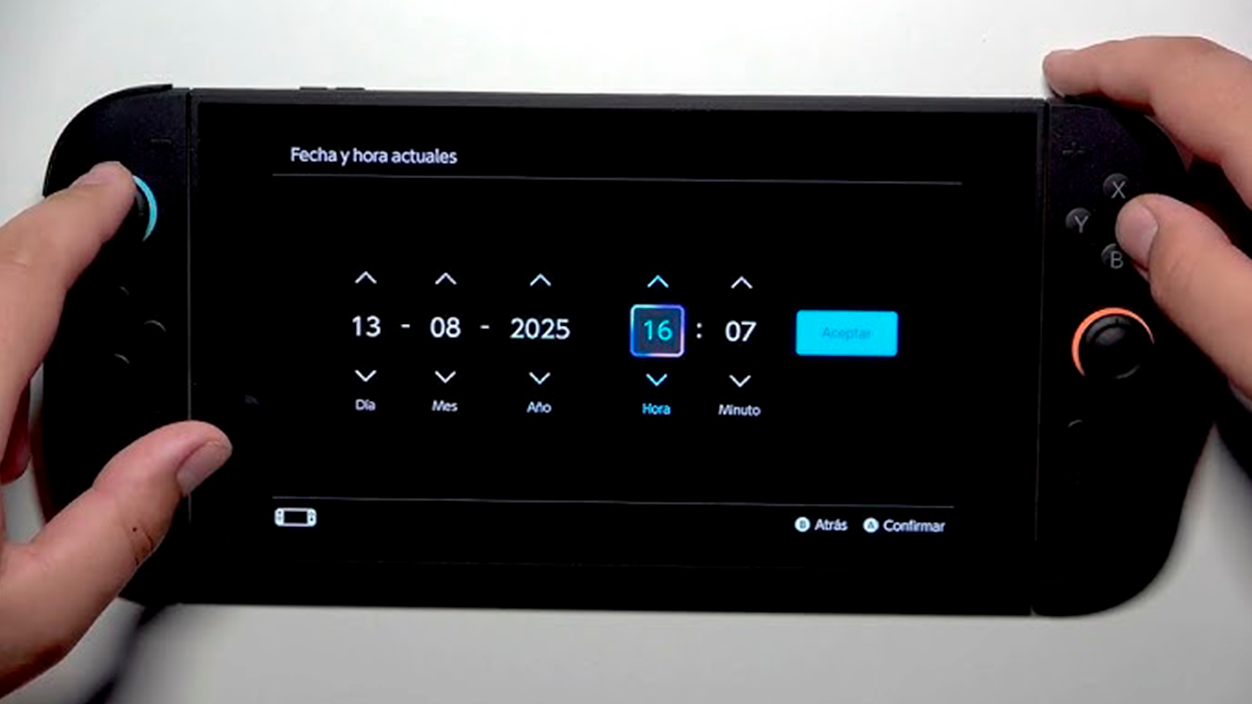
One of the curious details about the Nintendo Switch 2 is that, to this day, It does not offer a direct setting to choose between 12 or 24 hour format independently. Instead, the format you see on screen depends on the language and region you have configured in your system, something that isn't always obvious to the average user.
If what you want is use the 24-hour format (the typical "military" schedule from 00:00 to 23:59), the most practical thing is Change the console's language and region to a European settingFor example, selecting "English (UK/Australia)" or similar European settings will cause the console to display the time as 23:23, 14:05, etc., without using AM and PM labels.
If, on the other hand, you find the traditional format more convenient 12 hours with AM/PM indicationYou can choose to select "English (US)" or another American region, which uses this system by default. In that case, you'll see the time as 11:23 PM, 07:15 AM, and so on, which some people find more familiar.
Keep in mind that by making these changes you are modifying the system's main language and part of the localizationIn other words, if you switch from "Spanish (Spain)" to "Spanish (Latin America)" or any other variant of English, you might notice changes in certain menu texts, option names, or how some descriptions are displayed. It's nothing critical, but it's good to know before making any changes to avoid surprises.
Currently, the console does not include a separate setting like "choose 12/24 time format" within the date and time menu. The only real way to change the format is to play with the language and region combination.So if you're obsessed with having the clock in a specific format, you'll have to sacrifice some location in exchange for the time display.
Time change and its effect on games synchronized with the internal clock
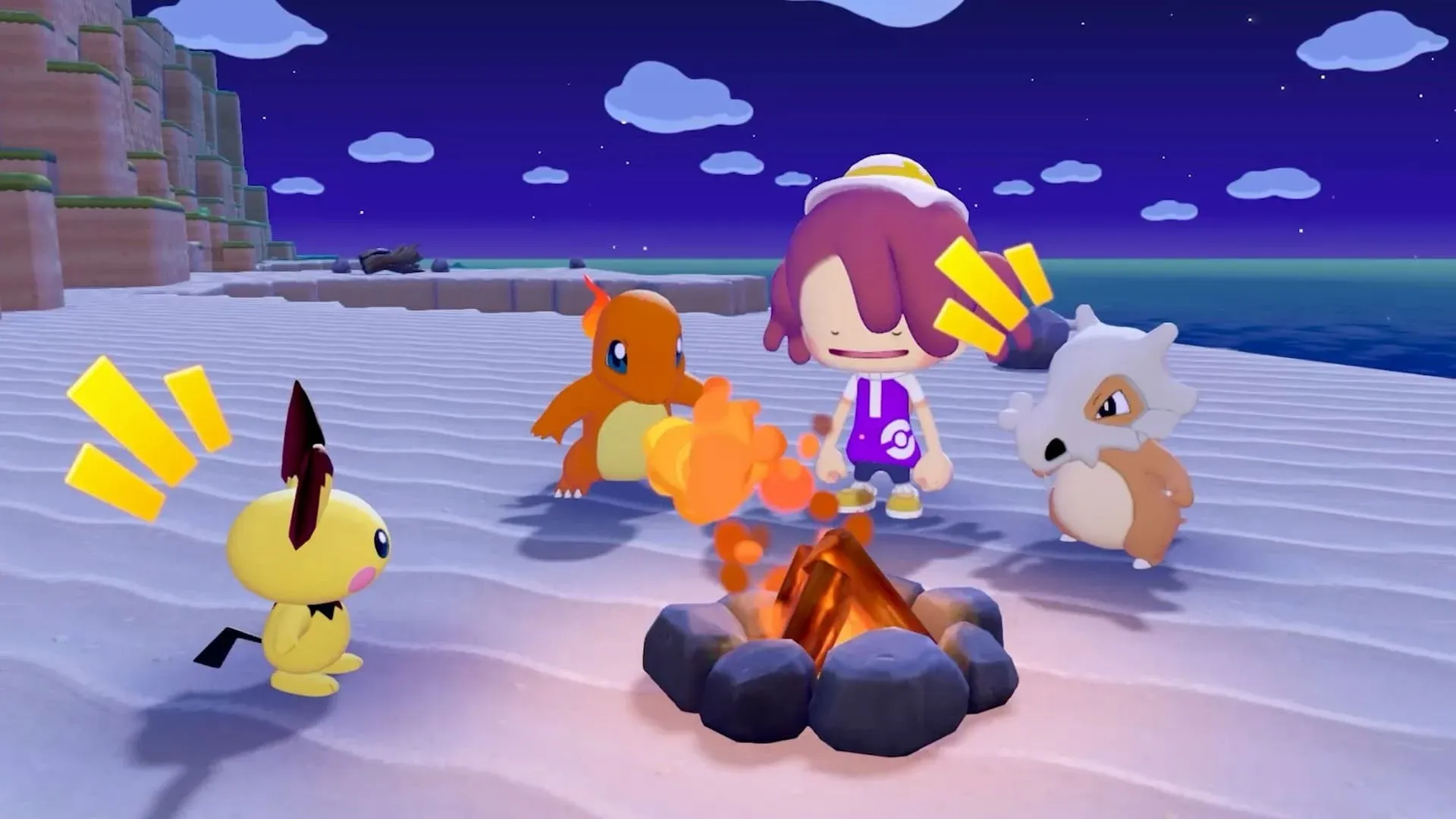
Many modern games like Pokémon Pokopia, especially those that resemble life simulatorsGames like farms or titles with day and night cycles use the Nintendo Switch 2's internal clock to synchronize what happens in the game with real timeThis means that if it is daytime in reality, it will also be daytime in the game; if it is nighttime, the game world will darken, events will change, other creatures will appear, etc.
A very clear example is that of certain social Pokémon games, where the world moves at your pace. In titles of this style, a cycle of time divided into morning, day, evening and nightFor example, morning can encompass from 06:00 to 08:59, day from 09:00 to 16:59, sunset from 17:00 to 18:59, and night from 19:00 to 05:59, so that Each stripe has its own characteristics.
This scheduling system is not just for aesthetics: There are Pokémon or creatures that only appear at certain times.Constructions that take hours or even days to complete, crops that grow over real time, and activities that depend on whether it's day or night. Everything is designed so that the player can experience the game at a relaxed pace, respecting the rhythms of the clock.
In these cases, changing the system clock directly affects what happens within the game. If you advance the console's internal clock So that it marks, for example, the next day at night, when loading the game the title will interpret that time has passed and adapt the world to that new circumstance: it will be night, perhaps crops will have grown, constructions will have been completed or night events will have been activated.
It is important to point out that most of these games do not offer an "official" method within the title itself to change the timeEverything always depends on the Nintendo Switch 2's clock. That's why many players resort to manually changing the system's date and time as a trick to progress faster or access specific content without waiting for real hours or days.
Trick to fast forward or rewind time from the console
If you are clear that You want to "travel through time" inside the consoleWhether it's to see how a particular game behaves or to speed up certain tasks, you can use a A well-known trick that involves manually changing the internal timeIt is a widespread practice among players of games with day and night cycles or crop growth systems.
The first thing to do before touching anything is Save the game manually and close the gameThis reduces the risk of problems if you change the time while the game is open and helps the game load the new time information correctly when you restart.
Then, from the HOME menu, you will need to open the section again. "Console settings" Then scroll through the side list of options until you find the "Console" section. It's the same process explained earlier for adjusting the date and time, as this whole trick relies on using that menu.
Within "Console", enter the option "Date and time"Here you'll need to disable automatic date and time synchronization, if you had them set up with the internet. Turning off this feature will allow you to manually adjust the time, changing the time zone, day, month, year, and the exact time you want to simulate.
Once you have chosen a new date and time, simply Confirm the changes and reopen the gameThe game will read the internal clock of the Nintendo Switch 2, assume that the time you have forced has passed, and adapt the world accordingly: buildings will advance, crops will grow, the time of day will change, or new creatures will appear, depending on the specific mechanics of the game.
In many cases, this procedure does not carry any direct penalty within the game itself. It's a trick allowed at the system levelSo you can even advance the clock several hours to gather resources or complete tasks, and then readjust it to the real date without losing anything you've gained during that "time travel." Even so, it's best to use it with some common sense so as not to completely disrupt the rhythm for which the game was designed.
Strict schedules and time management in Switch 2 events and experiences
Beyond the console's internal clock and what happens in games, the issue of time is also relevant. at Nintendo Switch 2 experience events held in various citiesIn these types of events, specific time slots are usually assigned to participants, either through direct booking or through waiting lists.
If you receive an invitation or ticket for a Switch 2 demo with a specific time, it's usually the organizers' responsibility. Be quite strict with the assigned schedule.They have to manage queues, attendee rotation, scheduled demonstrations, and limited equipment, so moving freely between hours is not usually something they allow easily.
For example, if you receive a confirmation indicating that your pass is for Sunday at 15:00 PM at a specific event, but you would like to move it forward a bit due to other commitments, Normally, they cannot modify it solely through individual request.There are many people in similar situations, and changing one person's schedule would affect everyone else's shift.
This does not mean that, on occasion, you cannot try consult the event staff They might let you in a little earlier if there are any free slots or if other people have canceled. However, it's not guaranteed, and it's not advisable to take it for granted, because the organizers usually plan these events quite precisely and have little room to improvise with the entry time.
In any case, it's best to assume that the schedules for these types of experiences are quite rigid and that it's better plan the rest of your day based on the time slot you have been assignedThis way you'll avoid clashes with other plans, such as birthdays or family commitments, and ensure you can enjoy the demonstration without rushing or stress.
Mastering how time works on Nintendo Switch 2, both in system settings and its impact on games and official events, allows you to get much more out of the console. Understanding the difference between automatic and manual adjustment, learning the trick of changing the format using language and region, and appreciating the consequences of "time travel" within the game It helps you decide with discernment what to play and what to leave as is, to adapt the experience to your liking without any surprises or missing anything important.

Index
- 1 How to change the date and time on Nintendo Switch 2 step by step
- 2 Set automatic or manual time and parental control limitations
- 3 Adjust the time format (12/24 hours) by changing the language and region
- 4 Time change and its effect on games synchronized with the internal clock
- 5 Trick to fast forward or rewind time from the console
- 6 Strict schedules and time management in Switch 2 events and experiences

I am a technology enthusiast who has turned his "geek" interests into a profession. I have spent more than 10 years of my life using cutting-edge technology and tinkering with all kinds of programs out of pure curiosity. Now I have specialized in computer technology and video games. This is because for more than 5 years I have been writing for various websites on technology and video games, creating articles that seek to give you the information you need in a language that is understandable to everyone.
If you have any questions, my knowledge ranges from everything related to the Windows operating system as well as Android for mobile phones. And my commitment is to you, I am always willing to spend a few minutes and help you resolve any questions you may have in this internet world.