- Using benchmarks like CrystalDiskMark, AS SSD, or ATTO allows you to measure sequential and random read and write speeds to verify if the SSD reaches the promised figures.
- Health tools such as CrystalDiskInfo, Hard Disk Sentinel, or manufacturer apps analyze SMART data and the remaining lifespan of the drive.
- Bottlenecks can be in the interface (PCIe, SATA, USB), the motherboard, or overheating, not just in the SSD itself.
- Regularly monitoring performance and SMART indicators helps detect degradation and protect your data before the drive fails.
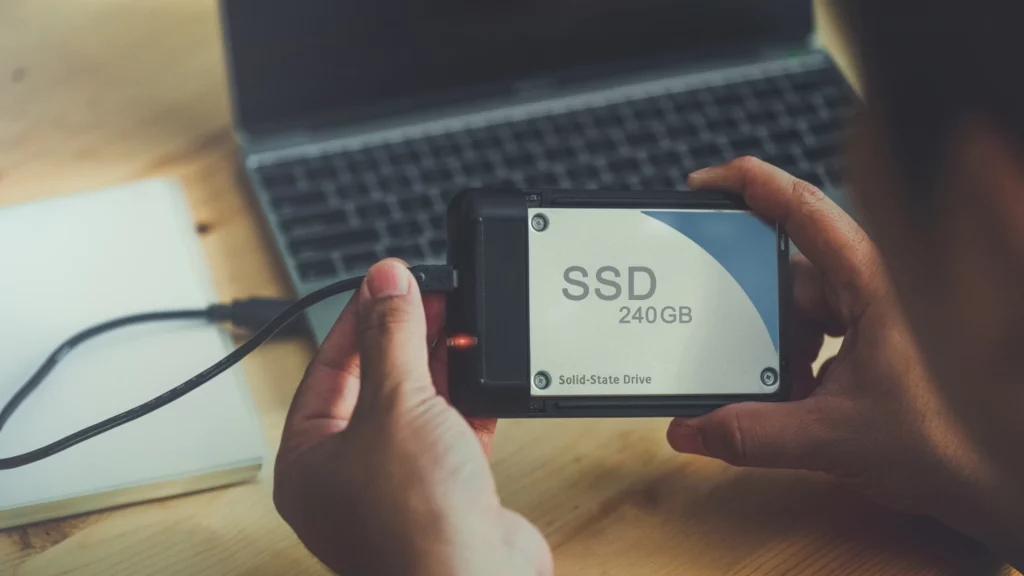
¿How to check if your SSD is running at its actual speed? Whether you've just bought a new solid-state drive or you've had one for a while, it's natural that you'd want to to find out if your SSD really performs at the speed promised by the manufacturerThe numbers you see on the box sound great, but until you do a serious test, you don't know if your computer, your ports, and your own SSD are up to the task.
Furthermore, with use and the passage of time, SSDs can lose performance and begin to show signs of wear.Slower loading times, reduced transfer rates, minor stutters in games or video editing, etc. Fortunately, there's a good range of free tools and system features that allow you to easily measure speed, IOPS, and health status (SMART), without needing to be a computer expert.
Why is it so important to check the actual speed of your SSD?
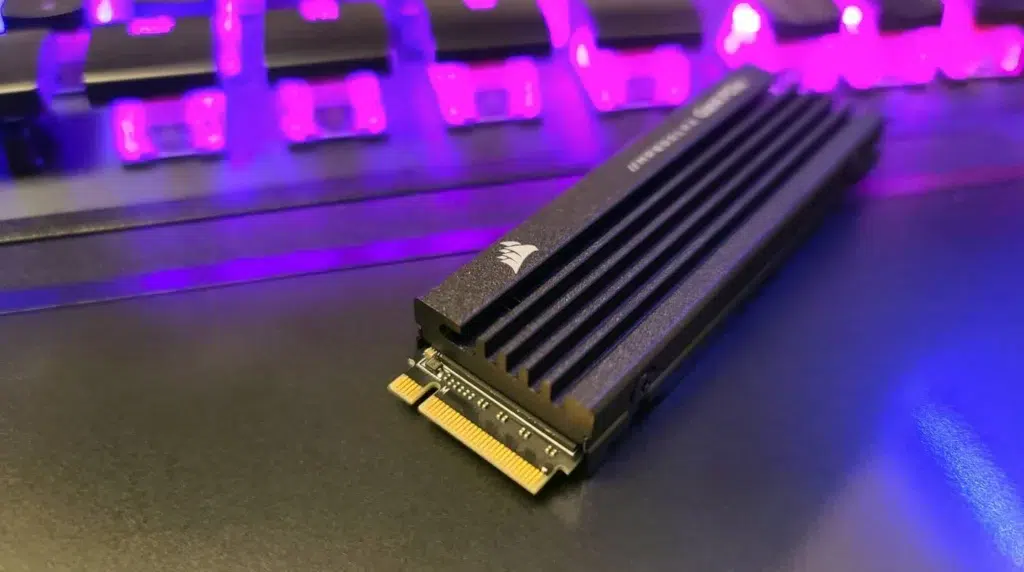
Before you rush to run benchmarks like there's no tomorrow, it's worth understanding why it's worthwhile. thoroughly measure the performance and health of your SSDIt's not just a matter of curiosity: this component largely determines how fast your PC feels on a daily basis.
To begin with, SSDs have almost completely replaced mechanical hard drives in consumer computers because They drastically reduce boot times, program loading times, and file access times.This applies to both powerful machines and old, modest computers: a simple SATA SSD can literally revive a PC that was crawling along with an HDD.
However, not all SSDs are created equal. There are SATA drives, NVMe PCIe 3.0, 4.0, or 5.0 drives, models with and without DRAM, better or worse controllers… and unfortunately, also Unreliable brands that advertise staggering figures that are not reflected in practiceTesting the disc upon receiving it is the easiest way to know if you have bought a good product or if you have been "sold a pig in a poke".
Another key point is that storage is a potential bottleneck in many configurationsYou can have a decent processor and a good graphics card, but if the SSD isn't up to par, you'll notice it when installing games, opening large projects, or moving large files. The same applies to fast networks (for example, 10 GbE or NAS): if the internal or server drive isn't up to par, the network will never reach its full potential.
Finally, performance tests, along with reading SMART data, allow detect early signs of degradation or impending failureReassigned sectors, sudden speed drops, strange temperatures… these are warnings to back up your data and plan a replacement before losing valuable information.
Differences between sequential speed, random speed and IOPS
When you start using tools like CrystalDiskMark, you'll see a jumble of numbers and acronyms that, at first, They may sound like Chinese: SEQ1M, RND4K, Q8T1, IOPS, µs…Understanding the basics will help you interpret the results correctly and focus on what really matters according to your use.
"SEQ" (sequential) type tests measure the speed when reading or writing large, contiguous filessuch as a 4K movie, an ISO file, or a huge video project. These are the figures that manufacturers usually display prominently because they are the highest and easiest to sell in marketing.
Randomized non-dissolved (RND) tests, especially those using 4K blocks, focus on many small files scattered throughout the driveThis is the typical pattern of the operating system, programs, libraries, etc. This is where you can tell if your PC opens Windows, Chrome, or a game smoothly or if it stutters.
Queues and threads, which you will see indicated as Q (queue) and T (threads), indicate How many simultaneous operations is the unit handling in the test?High values (Q32, Q8T1, etc.) simulate a heavy load; low values (Q1T1) are equivalent to simple tasks, such as opening a document or a photo.
On the other hand, IOPS (input/output operations per second) indicate How many small reads or writes can the SSD perform per second?For everyday use, a good 4K random IOPS count is just as, if not more, important than having spectacular sequential speed. An SSD with high IOPS feels "agile" in every way.
Check the SSD speed using built-in system tools
If you don't want to install anything right now, some operating systems include Command-line utilities that allow you to have a quick reference of how your SSD is performing. They are not as comprehensive or convenient as graphical benchmarks, but they serve as a first approximation.
Testing SSD speed in Windows (winsat and other tools)
Windows has the built-in performance diagnostic tool "winsat", which you can use from the Command Prompt to to measure the read and write speed of a specific unitIt's a simple method to get an approximate figure without installing extra software.
To use it, simply follow these basic steps and Always run the console with administrator privileges.:
- Open the Start menu and type CMD in the search bar.
- Right-click on "Command Prompt" and select "Run as administrator".
- In the window that opens, type the command winsat disk -ran -write -drive C (replace C with the letter of your SSD) and press Enter.
The command will analyze the specified unit and display different metrics related to random and sequential reading and writingIt's not as intuitive as CrystalDiskMark, but it helps you know, at least, if you're within the expected range for your type of SSD.
In addition to Winsat, Windows offers other console tools geared more towards health than speed, and background services such as SysMain service that can influence performance. CHKDSK, for example, allows find and repair logical errors and bad sectors on NTFS drives:
To use CHKDSK with deep repair, you can launch:
chkdsk C: /f /r /x
the modifier /f repairs file system errors, /r locates damaged sectors and attempts to recover the information, and /x forces the disassembly of the unit Before you begin. If you prefer a less intrusive check on NTFS drives, you can use:
chkdsk /scan
For its part, using WMIC you can easily consult the global SMART state returned by the disk itselfIt doesn't offer details, but it does offer a kind of "traffic light":
wmic

diskdrive get status
If the result is "OK", the system has not detected anything unusual at the SMART level. If "Pred Fail" or any message other than OK appears, It's time to worry, back up your data, and investigate further with other tools..
Testing SSD speed in Linux (dd, hdparm, etc.)
In Linux, you can also evaluate performance from the terminal using classic commands. They don't have a pretty interface, but They are very powerful and allow scripting and automation if you like that approach.
A simple method is to use dd to measure writing and reading to a temporary file. For example, for a typical write test you can run:
dd if=/dev/zero of=/tmp/tempfile bs=1M count=1024 conv=fdatasync
This command creates a 1 GB file in /tmp by writing data to zero, and at the end displays the time spent and the average writing speedTo measure readings more realistically, you should first clear the system page cache so you're not just measuring RAM:
sudo /sbin/sysctl -w vm.drop_caches=3
Then you can read the temporary file with:
dd if=/tmp/tempfile of=/dev/null bs=1M count=1024
Another common tool in Linux is hdparmwhich allows you to measure both the cache performance and the direct read performance of the device. And for more advanced tests, fio It is the de facto standard for customizable benchmarks, including very specific I/O patterns.
Limitations in macOS and alternatives
macOS does not have such a clear and direct system tool for measuring the speed of integrated SSDsEspecially since Apple integrates soldered storage into its SoCs and manages it as a unified unit. There's no native CrystalDiskMark-type utility with a graphical interface and adjustable parameters.
Therefore, on a Mac it is usually more practical to use third-party applications such as Blackmagic Disk Speed Test, designed specifically to check if your internal or external drives are suitable for intensive workflows (e.g., 4K or 8K video).
The best free tools to measure the real speed of your SSD
Beyond what the operating system offers, the easiest and most accurate way to know if your SSD is running smoothly is to use... storage-specific benchmarksThe good news is that most of them are free and very easy to use.
CrystalDiskMark: the standard for Windows
CrystalDiskMark has become the Reference tool for measuring reading and writing in WindowsYou'll see it in virtually every SSD review because it's free, fast, and offers comparable results across computers and drives.
With this tool you can measure sequential and random reading and writingChoose the size of the test file (from 64 MiB to 64 GiB) and the number of passes you want it to perform. If you don't want to complicate things, simply select the drive, leave the default values, and press the green "All" button.
At the end, you'll get four sets of results for reading and another four for writing, with metrics such as SEQ1M Q8T1, SEQ1M Q1T1, RND4K Q32T1 and RND4K Q1T1This allows you to see both the spike in large files and the behavior with small files, which is what you'll actually notice in daily use.
A good practice is to compare the SEQ1M value with the figures indicated by the manufacturer in the technical specificationsIf, for example, your NVMe PCIe 4.0 should be around 7.000 MB/s and you're seeing 3.000 MB/s, something is limiting it: the motherboard's PCIe version, bios settingscontroller, excessive heat, etc.
AS SSD Benchmark, ATTO, Anvil and other add-ons
CrystalDiskMark isn't alone. There are other programs that rate your SSD's performance with interesting nuances, and they're often used in combination to get a better understanding. a more complete picture of the unit's behavior.
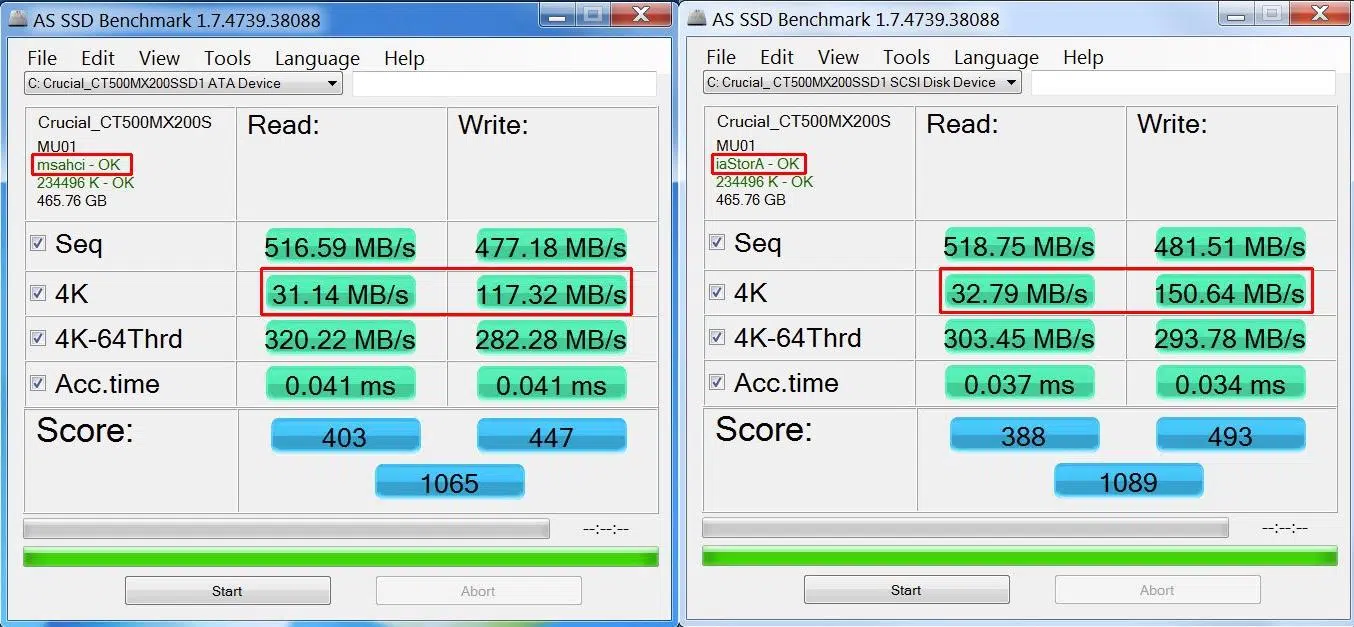
AS SSD Benchmark It's very similar to CrystalDiskMark, but includes an overall score and specific tests such as file copies in different scenarios and behavior with non-compressible data, which can expose the weaknesses of some controllers.
For their part, ATTO Disk Benchmark It is especially useful because it analyzes disk performance with block sizes ranging from a few bytes to several megabytesThis makes it very clear how the SSD behaves with tiny files, which is where many cheap models struggle.
Another veteran is Anvil Storage Utilitieswhich, in addition to the typical speeds, shows IOPS and access timeshelping to better understand the unit's ability to handle multitasking or server workloads.
On the suite side, tools like AIDA64 o HD Tune They also include read tests and, in some cases, write tests. HD Tune, for example, allows you to see in a graph how the speed varies across the entire logical surface of the disk, which helps to identify areas with problems or unusual drops in performance.
Blackmagic Disk Speed Test for video and macOS
If you work in video production or use a Mac, Blackmagic Disk Speed Test is practically a must-have. It's a highly visual utility, developed by Blackmagic Design, that Evaluate whether your SSD or external drive is capable of handling video streams at different resolutions and codecs..
The tool continuously writes and reads data to the disk, displaying two large indicators (read and write) and a table with video formats (2K, 4K, 8K, ProRes, DNxHR, etc.) where you can see at a glance. which modes are safe and which are not with your current storage.It is available for free on macOS and also has a version for Windows.
General-purpose benchmarks: Novabench, UserBenchmark, and others
If you prefer an overview of your PC's performance, you can use tools like Novabench o UserBenchmark, which they perform CPU, GPU, RAM, and storage tests all in one packageThey are not as precise or configurable for hard drives, but they are useful for comparing your equipment with similar ones.
In the case of UserBenchmark, its strength lies in its immense database of configurations, allowing users to see if your SSD behaves like those of other users with the same model or if something is clearly out of the ordinary. However, their method for weighting overall scores is questionable, so it's best to focus on the specific disc data rather than the final score.
Tools to check SSD health, SMART status, and lifespan
Knowing how many MB/s your SSD runs at is good, but equally or even more important is monitor their internal health statusAll modern hard drives, both mechanical and solid-state, implement SMART, a monitoring system that records usage hours, errors, reallocated sectors, temperature, and other critical metrics.
CrystalDiskInfo: simple and straightforward monitoring
CrystalDiskInfo is, so to speak, the health-focused sibling of CrystalDiskMark. It's a free utility that Reads and displays all SMART attributes of your drives in a fairly clear interface.
When you open it you will see a summary with the overall status (usually "Good" or "Careful"), the current SSD temperature, power-on hours, number of power-ups, transfer mode, etc.Below is the complete list of attributes with their current values and thresholds.
It's worth taking a look, in particular, at fields such as reallocated sectors, read/write errors, erase cycle count (on SSDs), and percentage of remaining lifeIf any of these begin to deviate from normal or warnings appear, it is a sign that the unit is degrading.
CrystalDiskInfo also has notification features and temperature graphs, so you can leave it installed and check it from time to time, especially if the SSD is old or works in a hot environment.
Hard Disk Sentinel, SSD Life, and other alternatives
If you want something more complete, Hard Disk Sentinel It offers advanced monitoring and highly detailed alerts. It analyzes SMART data and estimates the remaining useful life and the risk of failure and it can alert you by email if it detects anything concerning.
Another tool focused almost entirely on expected duration is SSD Lifewhich specializes in calculating how many approximate hours or years of use you have left, based on write cycles, capacity and other internal factors of the SSD.
For those who prefer free and cross-platform software, GSmartControl It's an interesting option: it allows launch short, long, and in-depth tests about the units, in addition to showing the details of all the SMART attributes. It's more technical, but very powerful.
Manufacturers' own applications
Almost all major storage manufacturers offer free suites specifically for your discswhich are usually the most accurate when it comes to interpreting the internal values of their controllers.
Commonly used examples are Samsung Magician, Seagate SeaTools, Crucial Storage Executive or the utilities from Kingston, WD, and others. With them you can:
- See health, shelf life and temperature from the SSD with information tailored to the specific model.
- Update the firmware if there are new versions that improve stability or performance.
- Configure special functions (OP, encryption, performance modes, cache, etc.).
If your SSD is from a well-known brand, that's a good idea. Install these tools along with the generic benchmarks, to have a dual view: standard (CrystalDiskInfo, HD Tune…) and manufacturer-specific.
Check the speed "manually" and detect bottlenecks
Beyond synthetic benchmarks, you can also run very simple real-life tests to Check if your SSD is performing as it should in everyday tasksThey are not very precise, but they help to confirm suspicions.
A quick way is to take a large file (for example, a 1 GB videoand copy it to and from the SSD itself, timing how long the process takes and noting the speed indicated by the file explorer. If, for example, it takes about 10 seconds to copy 1 GB, you're getting around 100 MB/s.
This method is very crude and depends on many variables (cache, other processes, origin/destination, etc.), so You shouldn't use it as your sole referenceHowever, if you see absurdly low figures compared to those you get in CrystalDiskMark, there may be a problem with the file system, fragmentation (on HDDs), free space, or some software hindering the process.
One of the most common mistakes when evaluating NVMe SSDs is not taking into account the PCI Express version of the motherboard and the drive itselfIf your motherboard only supports PCIe 3.0 and you buy a PCIe 4.0 SSD, the speed will be limited by the motherboard, even though the drive is theoretically faster.
External connectivity and cables can also be a bottleneck. A USB 3.2 SSD inside a USB 2.0 ports will never reach the promised hundreds of MB/sThe same applies to cheap external enclosures with weak controllers that stifle performance.
Gaming Special: DirectStorage and Game Performance
If you primarily use your PC for gaming, you'll be interested to know that Microsoft has introduced DirectStorage, an API designed to take full advantage of NVMe SSDs on Windows, similar to how Xbox Series S/X consoles do.
DirectStorage allows game data to be loaded much more efficiently between the SSD and the GPUThis dramatically reduces loading times and improves texture and open-world streaming. To assess whether your SSD is ready for this type of loading, you can:
- Search for games compatible with DirectStorage and compare loading times compared to a SATA HDD or SSD.
- Use the official DirectStorage benchmark, when available, which specifically measures the performance of the game-SSD-GPU data path.
In titles that don't take advantage of DirectStorage, the difference between a good NVMe Gen 3 and a SATA drive can be less dramatic, especially in moderately sized games (below 50-70 GB). When we're talking about huge worlds and 4K textures, NVMe technologies are starting to show a clear advantage..
How to tell if your SSD is losing performance or nearing the end of its lifespan
Over time and with write cycles, it's normal for an SSD to slightly reduce its performance, especially when The internal SLC cache fills up and the disk has to write directly to TLC/QLCHowever, if you notice sudden drops or strange behavior, it's worth investigating.
Typical signs that something is wrong may include:
- Increasingly slow transfers when copying large files or installing games.
- Applications that close randomly or they throw read/write errors.
- Unusual temperature increases in the SSD area, especially in NVMe drives without a heatsink.
- Un growing number of reassigned sectors and SMART "Predict Fail" alerts.
- Systems that take a long time to start up or directly They don't detect the hard drive when turning it on.
In the specific case of SSDs, many high-end drives fall into read-only mode When they detect that its lifespan is practically over. This allows you to recover the data, but you won't be able to write anything new. If you find yourself in this situation, the next logical step is to clone or copy the information to a new SSD as soon as possible.
For HDDs, symptoms can include strange noises (clicks, squeaks), drastically increased access times, and a gradual increase in bad sectors. Here, too, it is crucial back up and replace the disk before the failure becomes catastrophic.
Key tips when buying and testing a new SSD
Beyond testing tools, it's worth following a few practical guidelines before blindly trusting a newly purchased SSD, especially if it comes from little-known brands or offers that are too tempting.
To begin with, it is advisable to opt for manufacturers with a good reputation in storageSamsung, Kingston, WD, Seagate, Crucial, Corsair, etc. It's not that a niche brand is always bad, but in this field, experience and support count for a lot.
If the price is suspiciously low for the advertised capacity and speed, the most prudent course of action is be wary and thoroughly review opinionsIn large marketplaces there are also sellers who market counterfeit or refurbished units without declaring it, and unpleasant surprises come later.
Upon receiving the unit, it is advisable to:
- Verify its actual capacity and speed with tools such as H2testw, FakeFlashTest or CrystalDiskMark (in the case of SD and USB cards, also USBDeview, True SD Card Capacity & Speed on Android, etc.).
- Check SMART status with CrystalDiskInfo or the manufacturer's app.
- Make sure that is connected to the appropriate port (PCIe correct, SATA at 6 Gb/s, USB 3.x, etc.).
And, of course, it's a bad idea to rely entirely on a single SSD, no matter how new it is. The only real protection against hardware failure remains have up-to-date backupswhether on another local drive, on a NAS, or in the cloud.
In short, checking the speed and health of your SSD regularly, using the right tools and paying attention to MB/s, IOPS, and SMART parameters, is the best way to ensure that Your drive is performing as promised, it's not silently degrading, and it won't wipe out your data when you least expect it..


Passionate about technology since he was little. I love being up to date in the sector and, above all, communicating it. That is why I have been dedicated to communication on technology and video game websites for many years. You can find me writing about Android, Windows, MacOS, iOS, Nintendo or any other related topic that comes to mind.