- Android allows you to review and modify permissions for each app or by type, directly affecting the behavior of applications in Android Auto.
- Android Auto's developer mode unlocks advanced features such as forced wireless connection and the use of apps from unknown sources.
- Since Android 13, restricted settings tighten access to critical permissions such as accessibility, especially in apps installed outside of Google Play.
- Using permissions, third-party apps, and advanced settings judiciously improves security and privacy when using Android Auto on a daily basis.
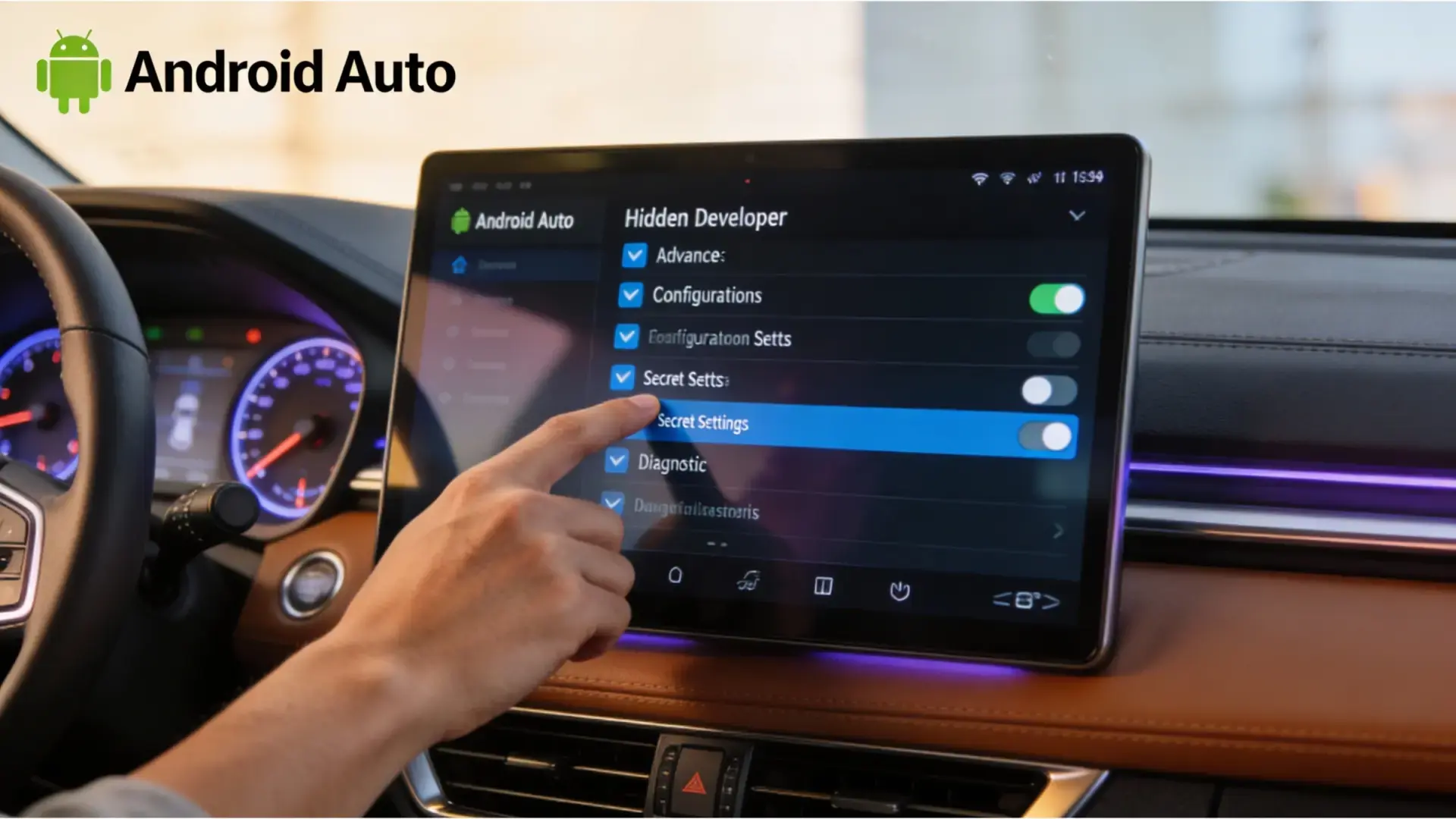
¿How do I check permissions and restrictions for apps in Android Auto? Controlling what each app on your phone can do when you connect it to your car isn't just a whim: it's a matter of necessity. Safety, privacy, and convenience when using Android AutoBetween camera permissions, microphone settings, accessibility options, restrictions on apps not from Google Play, and the famous developer mode, it's easy to get lost if you don't have a good guide.
In the following lines you will find a very complete explanation, in clear and approachable language, about How to review and adjust permissions and restrictions for apps you use with Android AutoWhat do these permissions really mean, how to unlock "forbidden" settings from Android 13 onwards, and what does enabling the developer menu or allowing apps from unknown sources entail?
App permissions on Android: the foundation of everything
Before we delve into the car, it's worth understanding how Android manages permissions in general, because What you configure on your mobile device directly affects what happens in Android Auto.Each app can request access to sensitive elements: camera, contacts, location, microphone, SMS, etc., and you decide whether to grant it permission or not.
Whenever an app tries to use a sensitive device feature for the first time, Android displays a pop-up window where you can select Allow or Deny the permission requested by the appIf you change your mind later, you're not stuck for life: all those settings can be changed from the device's settings menu.
To view and change the permissions of a specific app, the general process is very simple: go to Settings, access the applications section, choose the app in question, and enter its permissions section. Permissions to adjust what you can and cannot doThere you will find the permissions granted and those that are blocked, so you can review them at your leisure.
When you tap on a specific permission (for example, camera or location), Android offers several possible options, which may vary slightly depending on the system version, but usually include Allow, allow only when the app is in use, always ask, or don't allow at allThis gives you very fine control over what runs in the background and what only works when you're actually using the application.

How to change app permissions step by step
In everyday use, you might want to check exactly what an app you use frequently with Android Auto, such as a GPS navigation app or a music player, is doing. To do this, the standard way on most current Android phones is to go to System settings and enter the Installed Applications section.
Once you're in that list of apps, locate the application you want to check; if you have many installed, you might have to tap on something like View all apps to see the full listWhen you enter the app's details, you'll see several options such as uninstall, force stop, storage, and, what interests us here, the permissions section.
By accessing the permissions block of that app, Android shows you which permissions have already been granted and which are blocked, so you can Identify at a glance whether it has access to camera, microphone, location, contacts, or notifications.Changing a permission is as simple as tapping it and choosing the option you want from those offered by the system.
With certain particularly sensitive permissions, such as location, camera, or microphone, the menu usually gives you extra options: you can allow them constantly (in the case of location), only while you're using the app, have it ask every time it's opened, or Block them completely if you believe the app doesn't need that access.This is key to limiting what apps can do while you're driving and your phone is linked to Android Auto.
Permission manager by type: who has access to what
In addition to going app by app, Android includes a privacy panel where you can see permissions grouped by category, which is very useful when you want to know, for example, Which apps have permission to view your calendar or use your microphone?This approach is ideal for a quick security review.
To access this panel, you normally go to Settings, then to the Security and Privacy section, and within that, access the Privacy area and then to... Permission manager that displays the different available categoriesThe exact names may vary slightly depending on the manufacturer's layer, but the logic is similar.
When you tap on a permission category (for example, Location, Camera, Contacts, or Phone), a list appears of all the apps you've granted that access to, and sometimes also those that have been denied. From there you can Tap on each application to modify its permissions based on the level of trust you have for it..
If you frequently use Android Auto, this panel is invaluable for reviewing at a glance which apps are reading your GPS location, which can access your media files, and which have permission to display notifications or affect the... Android notification history which you will then see on the car's screen, something essential to minimize distractions while driving.
Most important types of permissions and what they allow
Android doesn't treat all permissions equally: some are relatively harmless, while others are extremely sensitive. When you talk about Privacy and security in apps that interact with Android AutoIt is important to be clear about the function of each type of permit.
Among the most common are those that allow access to your personal data, such as Calendar to read and manage your events and Contacts to consult your schedule of people.These permissions are usually required for features such as displaying appointments on the screen or facilitating calls from the car.
Other permissions focus on communication, such as Call Logs and Phone, which allow the app to read call history, initiate calls, or manage them. There is also the permission for SMS, which allows you to send and read text messages from your mobile phone.In the Android Auto environment, this is key to safely responding to messages using voice commands.
Camera and microphone permissions allow you to take photos, record video, and capture audio, respectively. The microphone is especially relevant for voice commands and assistants, but it also allows for other functions. a sensitive point in terms of eavesdropping and unwanted recordingsIf you're worried that an app might be listening, it's good to know If an app spies on your mobile phone and how to detect it.
Regarding stored content, Android distinguishes between several permissions: one for Files in general (all documents and data on the device), another for Photos and Videos, and yet another for Music and Audio. Granting these permissions authorizes applications to Explore and use your media library to play, upload, or manage files.This is something that many Android Auto compatible apps need, but it's important to keep it under control.
There are also special permissions related to connectivity, such as Nearby Devices, which allows you to search for and pair devices via Bluetooth or other technologies, and Location, which indicates your physical location. The latter is critical for Map, traffic, or fitness apps that can interact with the car.
Don't forget other unusual permissions such as Physical Activity (tracking steps, routes and movements), Health and wellness (health data and body sensors) and Notifications, which authorizes apps to send you alerts. This entire set of permissions, when properly configured, makes the difference between a secure Android Auto and one that is overly open..
Permissions that automatically revoke themselves in apps you don't use
To bring some order to the avalanche of apps we install and then forget about, Android includes a feature that allows Automatically pause apps you haven't opened in a while.By doing so, their permissions are revoked and they lose access to sensitive data.
To activate this protection in a specific app, simply go to Settings, enter Applications, select the app and locate the section of settings related to its behavior when it has been unused for a whileOn many phones it appears as "Pause app activity when not in use" or very similar text.
When this option is enabled, if you don't run that app for an extended period, Android freezes its activity and minimizes its ability to access your information. In this way, Forgotten apps stop tracking location, microphone, or files even when you don't remember having them installed..
This feature is especially useful for Android Auto, because sometimes we try out navigation, messaging, or music apps, leave them installed "just in case," and then never use them again. By automatically pausing these inactive apps, you reduce risks without having to check them one by one.
Completely block the device's camera or microphone
If you want to go a step further and radically restrict the most unusual apps, Android offers a master switch for block access to the camera or microphone system-wideThis affects both mobile apps and those that can be used with Android Auto.
To access these controls, you must again go to Settings, enter Security and Privacy, and then locate the section for Privacy controls where you'll see dedicated switches for camera and microphoneBy disabling them, no application, whatever it may be, will be able to use these sensors while the lock is active.
It's a very useful tool if you suspect that an app is abusing access to audio or video, or if you simply want to ensure that during a car journey No service can record images or sound without your knowledge.When you want to restore normal functionality, simply turn the switches back on.
Developer mode in Android Auto: advanced permissions and settings
Android Auto, by default, applies a fairly strict filter on what you can see and do on the car's screen. This limitation is not accidental: it's designed to reduce distractions, protect system stability, and comply with security standardsThe side effect is that many advanced options and some applications become inaccessible to the average user.
If you need to use wireless adapters, modify connection behavior, or enable unofficial features, you'll have to resort to what's called Android Auto developer mode, a hidden menu with advanced settingsIt's not immediately obvious, but it can be activated from the phone itself without needing a computer or in-depth technical knowledge.
To enable this mode, first open your phone's general settings and find the Android Auto entry, either by browsing the applications section or using the search bar. Once there, go to the Additional app-specific settings, where you'll see information such as the installed version.
Scroll to the bottom of the settings list and locate the version field. From there, you need to tap quickly and repeatedly on the version number (around 10 taps in a row) until a pop-up message appears asking if you want to... Enable developer settings in Android AutoBy accepting, developer mode is unlocked.
Then, from the three-dot menu in the upper right corner, you'll see a new entry called Developer settings. This hidden panel contains a number of technical options, most notably the control over... Wireless Android Auto, which allows you to force or disable wireless connections as needed..
This is especially useful if you're using third-party dongles or adapters to add wireless connectivity to a car that only supports USB. Many of these devices aren't recognized immediately, but enabling the corresponding option in developer mode will fix that. You force the app to search for wireless connections and accept the linkwhich can resolve very frustrating matchmaking issues.
Install apps from outside Google Play and display them in Android Auto

By default, the car's screen only displays apps that meet Google's requirements and have been installed from the Play Store. That means Many open-source tools, diagnostic apps, or alternative players are left out of the Android Auto launcher.even if they are installed on the phone.
In the Android Auto developer menu, there's usually a key option called something like "Unknown sources." Enabling this option removes the filter based solely on the app's origin, so that Applications installed from APKs, repositories like F-Droid, or platforms like GitHub may also appear in the car..
This change is especially relevant if you work with testing software, highly specific vehicle applications, or programs that, by their nature, do not pass Google Play's strict controlsFor many of these utilities, enabling unknown sources is the only realistic way to use them with Android Auto.
However, it's important to remember that the moment you decide to bypass the official filter, you leave the Google Play security umbrella, and it's worth understanding how it works. anti-theft system on AndroidFrom there, The responsibility for the stability and security of the apps you run while driving rests entirely with you.Choosing what you install and where you download it from becomes fundamental.
It's worth emphasizing that enabling developer mode and allowing unknown sources doesn't make Android Auto faster, improve map clarity, or add magical performance features. Its effect is purely operational: it expands what you can install and how you manage connectivityBut it doesn't magically optimize the system.
Restricted settings since Android 13: the case of accessibility
With the arrival of Android 13 and later versions, Google decided to focus on one of the most dangerous yet most powerful permissions: accessibility. This permission allows an application See and control virtually everything that happens on screen, including touches, text, and interface elements., which makes it easy prey for malware.
To curb abuse, the system began applying additional restrictions to apps installed from outside Google Play, so that when you try to activate the accessibility service of an app from outside the official store, you may encounter a message of “Restricted setting” indicating that this option is not available for security reasons.
This measure was designed to make it very difficult for Trojans, scams, and viruses that rely on accessibility permissions to steal data, intercept code, or automate fraudulent actions. However, It also affects legitimate and trusted applications downloaded from alternative repositories., forcing the user to take an extra step to unlock the settings.
In some versions of Android 13 and 14, the trick to lifting the restriction was to open the app info screen (from Settings > Apps), tap the three-dot menu, and tap an option called something similar to Allow restricted settings for that specific appAfter confirming your identity (often with a fingerprint or PIN), the lock disappeared and you could activate the accessibility permission.
Google continues to recommend that you only do this with apps you fully trust, as the system doesn't seek to completely prohibit the use of third-party apps, but Add a layer of friction so you don't grant sensitive permissions without thinking twice.It's a way of forcing you to think before opening the door wide to any program.
Android 15 and accessibility issues in third-party apps
In Android 15, the story gets more complicated for some users: on certain devices, such as some tablets or other models with manufacturer customizations, The option to allow restricted settings for apps from unknown sources appears to have disappeared. from the regular menu.
This leads to situations where a legitimate application, such as tools distributed on F-Droid or other free software repositories, cannot obtain the accessibility permission it needs to function properly. Even if the user wants to activate it and trusts the app, the system simply won't let them do so..
Currently, the exact solution depends heavily on the brand and the custom interface, and in some cases, there's no clear method without resorting to advanced tricks or rooting, something many users don't want to or shouldn't do. If that fails, you can also consider reset an Android phone as a last resort in very specific scenarios.
For those who use Android Auto and rely on third-party apps that require accessibility features (such as automation tools, alternative screen readers, or control tools), the landscape becomes somewhat more restrictive. In general, the sensible recommendation is prioritize apps available on Google Play when they need to handle such sensitive permissionsunless you are very clear about what you are doing.
Other ways to review and manage app permissions
Beyond the built-in Android menus, there's a small family of apps specializing in analyzing and managing permissions, though their availability and actual usefulness vary depending on the Android version you're using. They were very popular in older versions. Tools like ASpotCat, Gemini App Manager, or App Ops to thoroughly control what each app could do.
ASpotCat, for example, scanned the applications installed on the device and grouped them by permissions, making it easy to see at a glance which programs had access to each resource. It also helped find and uninstall forgotten apps, in addition to modify certain permissions centrally from a single interface.
Gemini App Manager went a step further and combined that permission control with additional features such as back up apps, move apps between internal memory and SD card and manage installed versions. For those who tinkered a lot with the system, it was a kind of Swiss Army knife.
App Ops, meanwhile, became quite well-known as a simple and straightforward permissions manager, focused on allowing or blocking access for each app without the need to navigate through endless menus. Its clear interface helped it to... Less technical users could curtail excessive permissions and strengthen privacy.
Today, many of those functions have been integrated into Android itself through the Permission Manager, automatic revocation, and more advanced privacy options, so that For most users, it is no longer essential to resort to third-party applications to control what each app does.Even so, if you like having a maximum level of detail, some of these solutions or their successors may still be useful to you.
With all of the above in mind, it is clear that Reviewing permissions and restrictions for the apps you use with Android Auto isn't just about tapping "accept" without looking; it's about understanding what you're granting, using the Android permissions manager, using developer mode wisely, and carefully considering when it's worthwhile to give advanced access to external apps..


Passionate about technology since he was little. I love being up to date in the sector and, above all, communicating it. That is why I have been dedicated to communication on technology and video game websites for many years. You can find me writing about Android, Windows, MacOS, iOS, Nintendo or any other related topic that comes to mind.