- There are multiple methods to view Google Photos on TV without Chromecast, depending on the TV and mobile system.
- Android TV, Google TV, and Apple TV allow you to mirror your screen or use apps like Google Photos and Web Video Caster.
- On TVs without Smart TV, HDMI cables, adapters, or intermediate devices such as Android TV Box can be used.
- Proper account, album, and network settings are key to ensuring Google Photos and Ambient Mode work well.

If you're wondering if you can View your Google Photos on your TV without using a ChromecastThe answer is yes, there are several ways to achieve this, although not all are equally simple or offer the same features. These days, almost all new TVs are Smart TVs or include a system like Android TV, Google TV, Tizen, or webOS, which opens the door to a multitude of options.
Throughout this guide you will see All the real options for connecting Google Photos (or your mobile gallery) to your TV without ChromecastWe'll cover what you need in each case and what limitations you might encounter. We'll look at methods for Android, iOS, Windows, macOS, TVs with and without Smart TVs, wired and Wi-Fi options, recommended apps, and helpful tips and tricks to ensure you don't miss a thing.
What you need to view Google Photos on your TV without Chromecast
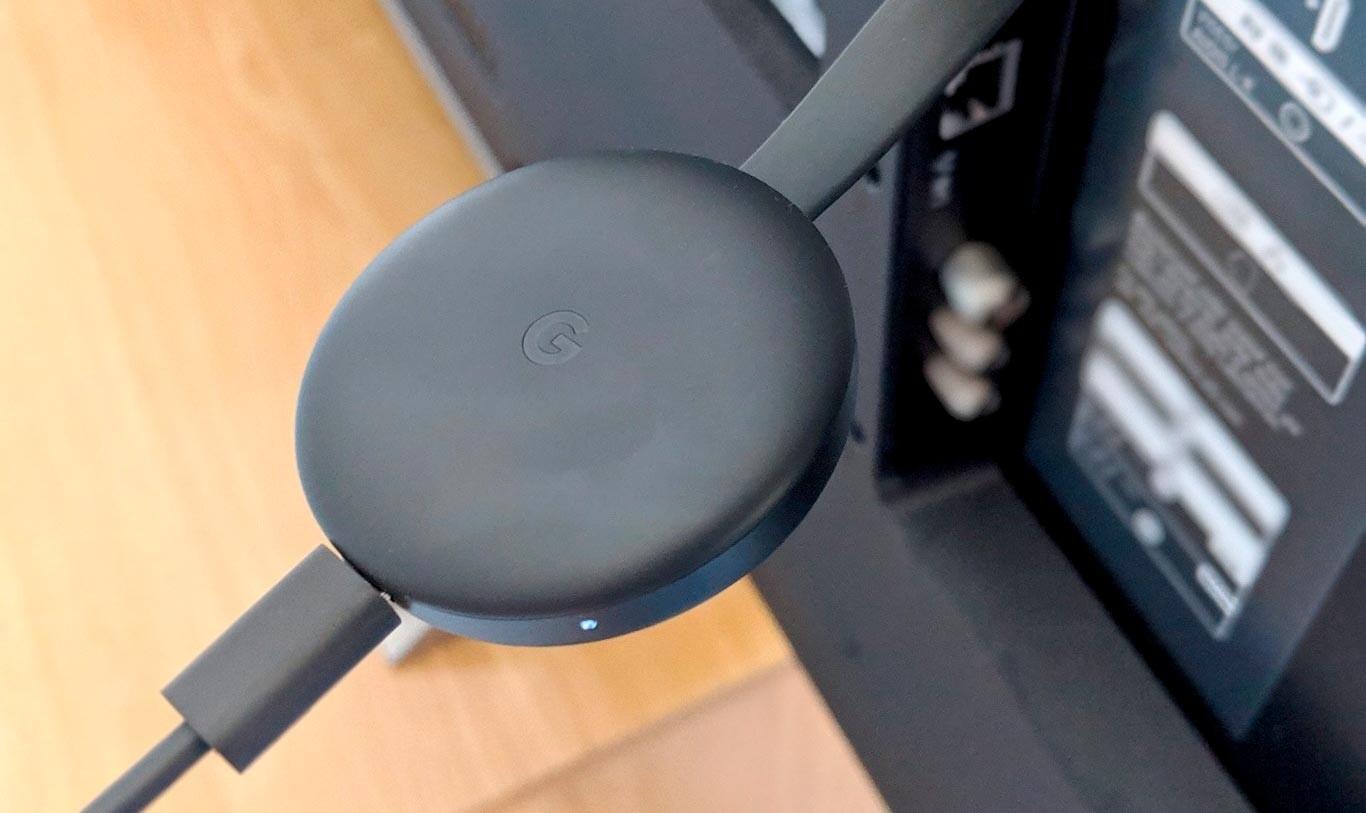
Before we get down to business, it's important to be clear that There is no single universal solution that works the same on all devicesThe ideal method depends on several factors: your TV system, the mobile phone you use, whether you have a good WiFi network, whether you accept using cables, etc.
In general, to connect Google Photos (or your photos in general) to your TV without Chromecast you will need at a minimum these basic requirements:
- A compatible TV: Smart TV (Android TV, Google TV, Tizen, webOS, Fire TV, Roku) or a "dumb" TV but with HDMI input and, in some cases, built-in casting support.
- A transmitting device: Android mobile, iPhone/iPad, Windows or macOS computer, or an Android TV Box.
- Active connectivityWiFi for wireless methods (you can Check if your network is experiencing invisible micro-outages); HDMI, USB-C or adapters for wired methods; or Bluetooth in some specific scenarios.
- Suitable applicationsGoogle Photos, Google Home, manufacturer gallery apps, casting apps like Web Video Caster, browsers or file explorers for the TV.
It is very important that Check the system and accessory requirements Before you buy anything: if your TV doesn't have Smart TV but does have a good HDMI input, you might be more interested in a cheap Android TV Box than getting bogged down with half-baked solutions.
Use Android TV or Google TV as a "bridge" for your photos

If your TV has Android TV or Google TV built-in, or you have a Android TV Box connected via HDMIIt's much easier for you. Although there isn't an official app that directly bridges Google Photos on your phone and TV without Chromecast, there are several effective ways to view your photos.
In these cases, the most direct way is usually to “Mirroring” or screen duplication of the mobile phone on the TVVirtually all Android mobile phone manufacturers include a screen sharing feature for compatible devices:
- On Samsung phones, the function is usually called Smart View.
- On Google Pixel you can do it from “Connected devices” in Settings.
- In other manufacturers, the name changes (Wireless Display, Cast Screen, etc.), but the idea is the same.
If you can't find the option, the easiest thing to do is Use the search function within your mobile phone's settings. and type “screen”, “cast” or “mirroring”. In many cases, you can also use the Google Home app to send the full screen to your Android TV-compatible television.
Another very interesting alternative is install specific apps on your Android TV to display photos and videos. One of the most versatile is Web Video Caster, which lets you create playlists with images stored on your phone and play them on your TV like a slideshow. It also handles video content very well, preventing buffering and bitrate issues.
When your photos aren't on your phone, but on a NAS or home server (For example, if you're using solutions like Immich or a server with SMB/CIFS or DLNA), the most practical approach is to use a web browser on your TV or dedicated apps to access those protocols. Some paid options, such as Photo Viewer for Android TV, allow you to connect to network servers and display your photo galleries there.
If your images are in a external hard drive or USB memorySimply connect them to the Android TV (if the TV or box has a compatible USB port) and use any gallery app or file explorer to browse the folders and display the photos on the big screen.
The most convenient option for most users is usually Google PhotosThe Android app allows you to easily project your photos onto any Android TV or Google TV device that appears as a compatible device, by tapping the typical "Cast to TV" icon when available, without needing a physical Chromecast.
Connect Google Photos and your mobile gallery to a TV without a Smart TV
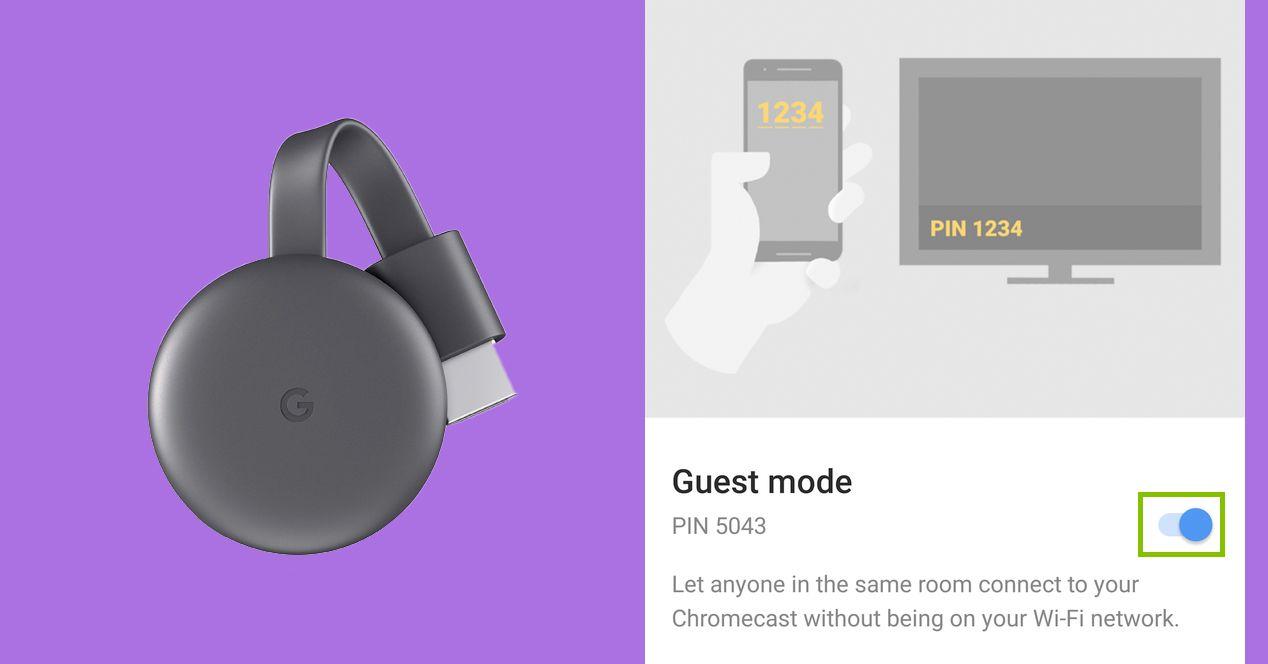
If your TV isn't a Smart TV or its system is very limited, don't lose all hope. There are several ways to transfer your photos from your mobile phone to a "dumb" TV without ChromecastAlthough in many cases it will be necessary to use a cable or some intermediate device.
Connect an iPhone or iPad using an HDMI cable
In the Apple ecosystem, one of the simplest and most reliable solutions is to use a Lightning to HDMI adapter (or USB-C to HDMI, if your iPad already has USB-C). It's a very straightforward system: you connect the adapter to the iPhone or iPad, connect it to the TV with an HDMI cable, and mirror the screen.
- Connect the official or compatible adapter. to the Lightning or USB-C port on your iPhone or iPad.
- Connect the adapter to the TV with a HDMI cable standard.
- Select the corresponding HDMI input on your TV and you will see your iPhone/iPad screen mirrored.
Thanks to this duplication, you can Open Google Photos on your iPhoneYou can use Apple's Photos app or any other gallery app, and everything you see on your phone will appear on your TV: photos, videos, slideshows, albums, etc. You don't need Wi-Fi for this, which is great if your home Wi-Fi connection is terrible.
Use Apple TV and AirPlay to send photos to your TV
If you prefer to avoid cables and your budget allows, Apple TV is the cleanest option on iOS. With an Apple TV connected to your TV via HDMI, you can use AirPlay and the “Screen Mirroring” function to mirror the screen of your iPhone or iPad without complications.
- Connect the Apple TV to TV via HDMI and configure it on your home WiFi network.
- On your iPhone or iPad, swipe to Control Center and tap on “Screen Mirroring”.
- Select the Apple TV that appears in the AirPlay device list.
- Enter the pairing code if it is displayed on the TV and from then on, the mobile screen will be displayed in large format.
Once the screen is duplicated, you can Open Google Photos or the Photos app on iOS and display your memories on your TV without needing a Chromecast. It's fast, very stable, and usually causes fewer headaches than many third-party solutions.
Solutions with Android phones and TVs without Smart TV
On Android, if your TV doesn't have Smart TV, you have two main options: use an intermediary device (such as an Android TV Box) or take advantage, where available, of the built-in casting function of some recent digital televisions, even if they are not "smart" in the classic sense.
A cheap Android TV Box connected via HDMI turns virtually any TV into a media center: you can install Google Photos, file explorers, casting apps like Web Video Caster and even browsers to access online galleries or NAS.
Furthermore, some digital televisions, despite not having a full Smart TV system, are compatible with Google's casting functionIn these cases, even if you don't have a Chromecast plugged in, the TV may accept content from compatible apps when both devices share the same Wi-Fi network.
To take advantage of this built-in feature, it is usually necessary Install the Google Home app on your Android phoneYou can link your TV as if it were a casting device and then send photos, videos, or apps that support the "Cast to Device" function. It's not as universal as a Chromecast, but when support exists, it works surprisingly well.
When Google Photos and Ambient Mode Resist
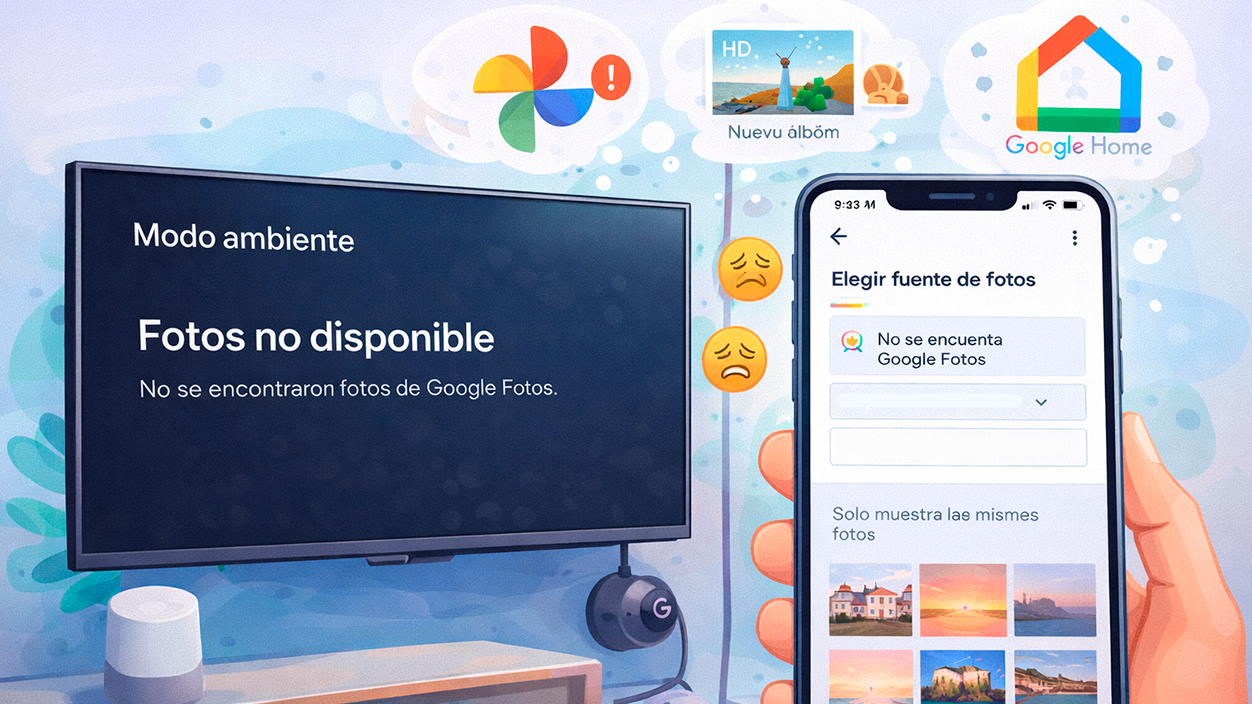
One point that often generates a lot of frustration is when you try to use Google Photos as a “screen saver” or ambient mode on the TV (thinking of Chromecast or compatible devices) and Google Photos simply doesn't appear as an option, or it only shows a few images and always repeats the same ones.
The experience of many users makes it clear that Google is quite demanding with ambient mode requirements.For Google Photos to appear as an image source, it is essential that:
- The device account (Chromecast, Android TV, etc.) is the same Google account that uses Google Photos.
- There is at least a recent and well-populated album with high-quality photos (Low-resolution images can be ignored).
- The device is working correctly assigned to a room in the Google Home app, which sometimes goes unnoticed.
In real-world cases, users who upgraded from a basic Chromecast to a Chromecast Ultra encountered issues such as ambient mode screen empty, with no options or completely blackAfter multiple attempts and factory resets, the solution involved:
- Link the Chromecast to a specific Google account during the initial setup.
- Make sure assign it to a room on Google Home.
- Create a new Google Photos album with several high-resolution images (for example, PNG 1920×1080) to use as the basis for ambient mode.
Even when everything is done correctly, sometimes Google Photos doesn't immediately appear as an option. Ambient mode takes days or weeks to appear in the Google Home app menu. Its behavior is somewhat unpredictable, but once it "wakes up," it usually works reliably.
Another common problem is that ambient mode only takes the same few photos over and over. In that case, it usually works to go to Home > Ambient Mode > Google Photos > Personal Photo Curation y Change from “all albums” to “live albums only” Or you can manually select the specific albums you want to display. This limits the image source to the folders you're actually interested in, avoiding random or repetitive content.
Common mistakes and tricks to make everything work

Regardless of the method you choose, there are a number of Typical problems when connecting mobile and TV which you can save yourself if you know how to fix them beforehand. Most can be resolved with simple adjustments, but if you don't know where to look, you can waste hours.
The first classic is that the The device does not appear in the list for pairing or sending content.If you don't see your TV or box in the Google Home app, on your mobile's casting panel, or via AirPlay, make sure of the following:
- Both devices are connected to the same WiFi network (if possible, on the same 2,4 GHz or 5 GHz band).
- El Bluetooth is on, if the system requires it for the initial discovery.
- You are not using VPN or other network filters that might block local traffic (if you suspect, learn to detect DNS manipulation).
A basic but incredibly effective trick is restart both the TV or receiving device and the mobile phone or PCRestarting your router can also help if you suspect the problem lies with your network. These aren't glamorous steps, but they resolve a large number of detection issues.
If the pairing is done via Bluetooth (for example, to use speakers or send audio), it can be useful Reset Bluetooth or WiFi settings on your mobile phone or even your computer. On Windows, for example, going to Settings > Devices > Bluetooth > Add a device and, if necessary, restarting the Bluetooth service usually fixes most connection errors.
When the problem is that There is no audio on the TV When mirroring your screen or sending content, check the sound output on both ends: on the TV, make sure the output is set to HDMI/internal speakers as appropriate, and on the mobile/PC, make sure it is not linked to another Bluetooth device or clipping at the lowest volume.
In the case of macOS computers, if you're going to use Bluetooth or AirPlay, a good practice is Check network permissions and firewall (There are cases where the firewall blocks device discovery) and, if all else fails, reset the network interfaces from System Preferences.
One last detail: many users are getting desperate because They cannot find certain menu options. which are indicated in tutorials (for example, “Cast to TV” or “Cast screen”). Customization layers (Samsung's One UI, Xiaomi's MIUI, etc.) change the names and positions of the options. In these cases, use the search engine integrated into Settings Updating the system and apps to their latest version is usually the fastest way to locate them.
When is it worth buying an extra device and when is it not?
Ultimately, the big question is whether it's really worth it. buy a Chromecast, an Apple TV, or an Android TV Box Just to view photos on TV, or if you can manage with what you already have. The answer depends on how you plan to use it and how demanding you are about the experience.
If your only intention is show photos from time to time For family or friends, screen mirroring solutions (via cable or Wi-Fi) from your phone will likely suffice, even if it requires a few extra steps. In those situations, spending money on a new device might not make much sense.
On the other hand, if in addition to photos you want use the TV as a media center For streaming, apps, light gaming, NAS content, and more, an Android TV Box or a device like Apple TV can truly be a game-changer. Built-in Smart TVs, especially older models, tend to have a rather limited and slow implementation, and many users end up preferring a "good TV without Smart features" and a separate box for all the smart functions.
It should also be remembered that, although a basic Chromecast is relatively inexpensive, It's just another gadget hanging off an HDMI cable.If you can view your photos without too much trouble with your current combination of mobile phone, TV, and apps, it might make more sense to get the most out of what you already have before adding more devices to your living room.
Among the options seen, we could stick with this realistic comfort scale: for photos saved on the phone, the simplest is usually Use the sharing function to Android TV or an Apple TVIf the photos are on a NAS server, the ideal solution is a specialized app for the TV; and if everything is centralized in Google Photos, the most practical thing in most cases is to use the Google app itself and its "send to TV" button, provided your TV or device supports it.
With all this on the table, it's clear that Connecting Google Photos to your TV without using a Chromecast is perfectly possible.But the specific path will depend on your combination of devices: from wired screen mirroring with an iPhone, to taking advantage of built-in casting features on some digital TVs, to Android TV, Google TV, Apple TV, NAS, third-party apps, and the ever-useful Google Home. With a little patience to adjust accounts, permissions, and albums, it's easy to end up enjoying your memories on a big screen without needing to add yet another dongle to the HDMI input.

Index
- 1 What you need to view Google Photos on your TV without Chromecast
- 2 Use Android TV or Google TV as a "bridge" for your photos
- 3 Connect Google Photos and your mobile gallery to a TV without a Smart TV
- 4 When Google Photos and Ambient Mode Resist
- 5 Common mistakes and tricks to make everything work
- 6 When is it worth buying an extra device and when is it not?

I am a technology enthusiast who has turned his "geek" interests into a profession. I have spent more than 10 years of my life using cutting-edge technology and tinkering with all kinds of programs out of pure curiosity. Now I have specialized in computer technology and video games. This is because for more than 5 years I have been writing for various websites on technology and video games, creating articles that seek to give you the information you need in a language that is understandable to everyone.
If you have any questions, my knowledge ranges from everything related to the Windows operating system as well as Android for mobile phones. And my commitment is to you, I am always willing to spend a few minutes and help you resolve any questions you may have in this internet world.