- The Model Context Protocol (MCP) acts as a universal standard for connecting language models with external data and tools.
- LibreChat allows the integration of MCP servers both at the general chat level and through the creation of custom agents.
- The configuration is flexible, allowing manual management via YAML files or through an intuitive user interface.
- Advanced support is offered for OAuth authentication and individual credential management for secure multi-user environments.

If you've ever felt that your artificial intelligence is trapped in a bubble and unable to interact with external services, the Model Context Protocol (MCP) can help you overcome that limitation. This open protocol is often compared to the USB-C of artificial intelligence because it establishes a common interface to connect AI applications with specialized tools, data sources, and services.
LibreChat leverages this standard to extend the capabilities of the models available in its interface. Using MCP servers, a model compatible with the tools can query files, interact with enterprise APIs, automate a browser, or execute actions on other systems.
In this guide we will see How to connect LibreChat to MCP servers using the file librechat.yaml or from the interface, how to use its tools in conversations and agents, and what you should keep in mind when setting up OAuth, Docker, and timeouts.
What you need to use MCP in LibreChat
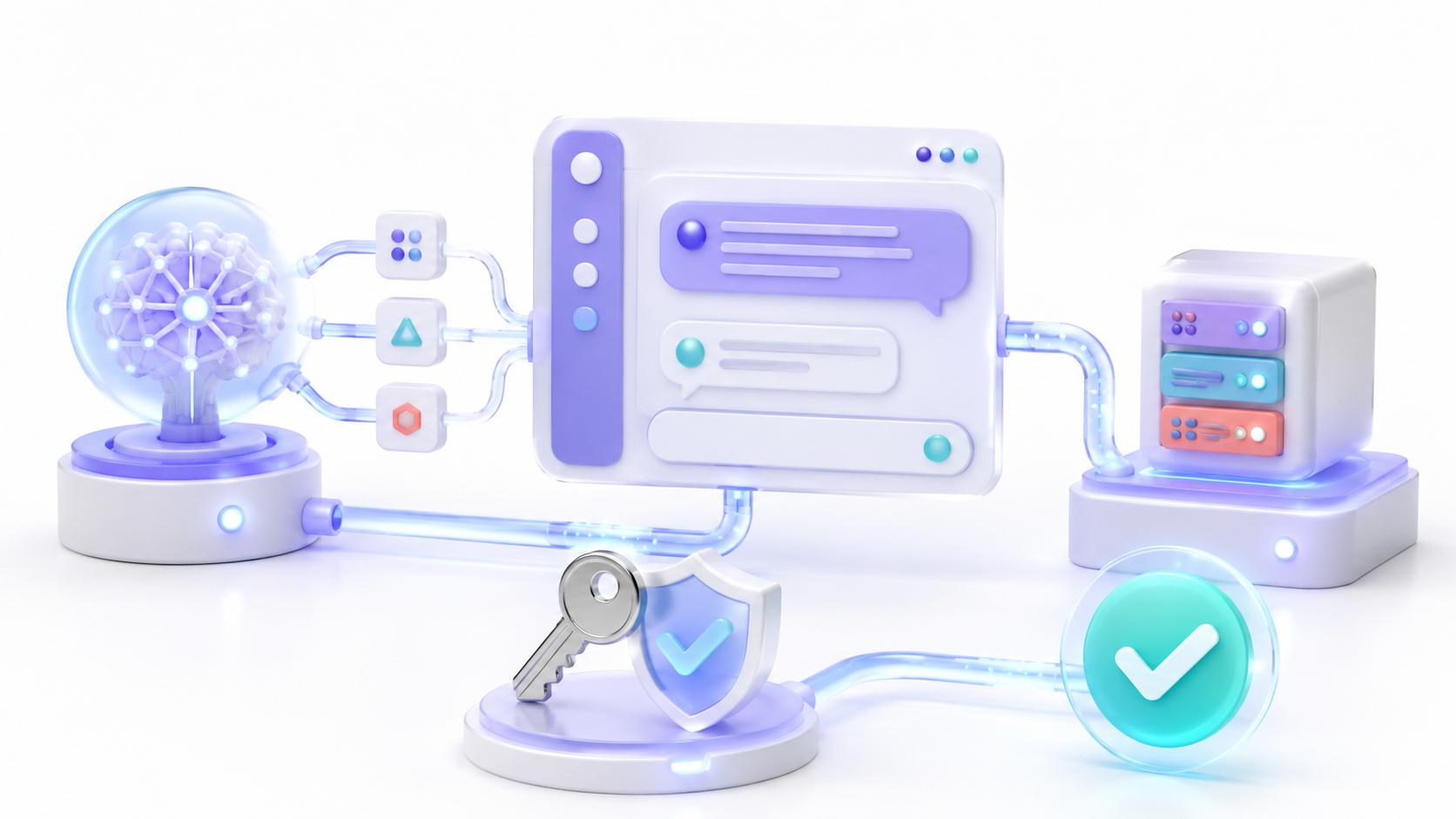
Before configuring a server, it's important to clarify that MCP doesn't automatically turn any model into an agent capable of performing actions. To use the server's tools, you need to select a model compatible with tool calling and a LibreChat endpoint that enables this function.
The MCP server is the component that publishes the tools. LibreChat acts as the client: it discovers these tools, displays their parameters to the model, and transmits the calls when the model decides to use them.
Some tools only query information, while others can modify files, send messages, or perform external operations. Therefore, you should only connect to trusted servers and limit their permissions to the minimum necessary.
Ways to add MCP servers in LibreChat
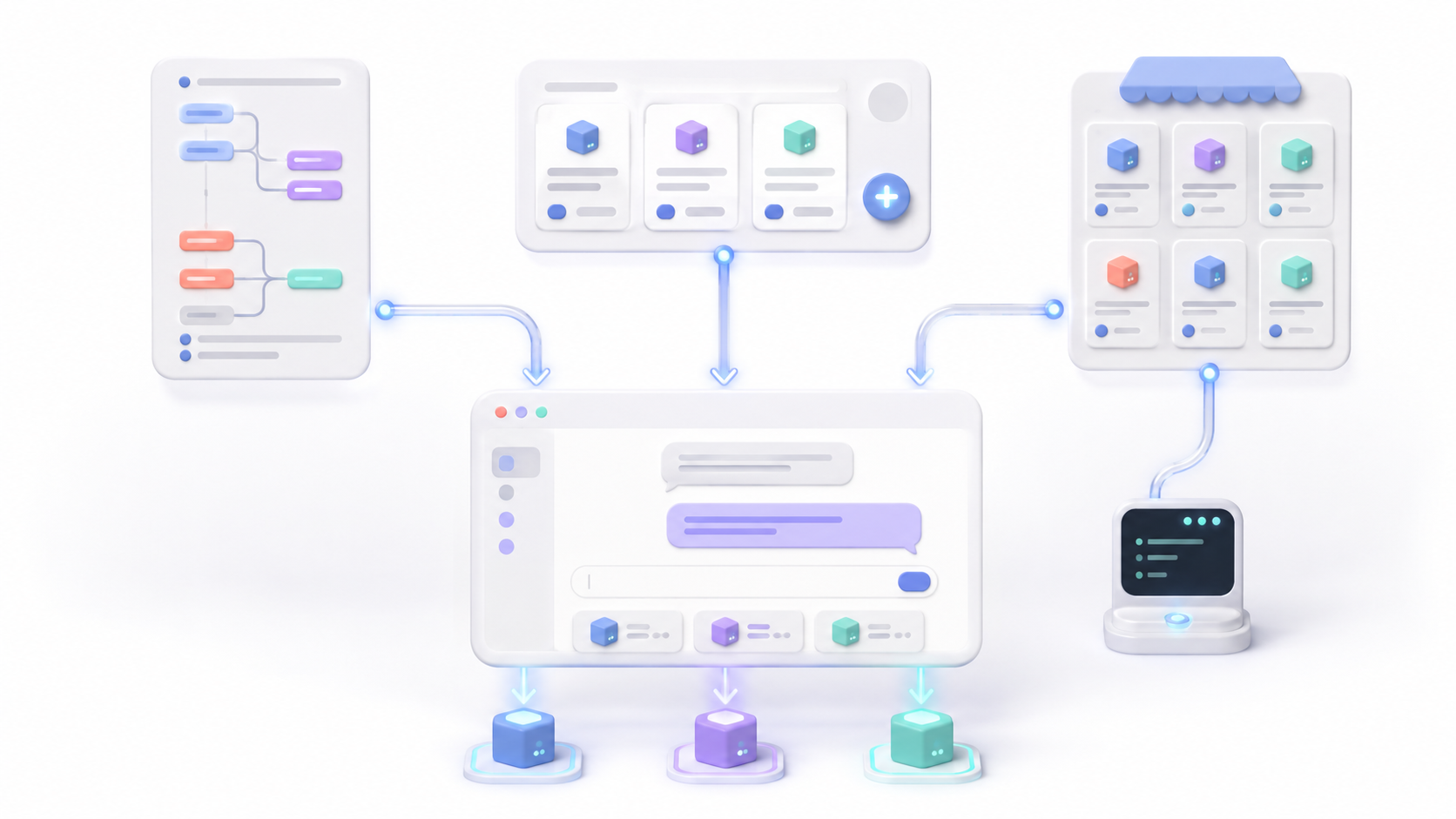
LibreChat allows you to incorporate MCP servers using three methods: by editing the file librechat.yaml, using the interface settings panel or generating the configuration from Smithery.
Configure a server in librechat.yaml
The file librechat.yaml It provides the greatest control. Within it, you can define local servers based on STDIO, remote connections, HTTP headers, environment variables, user-supplied credentials, and timeouts.
This example declares a remote server using Streamable HTTP:
mcpServers:
  herramientas-remotas:
    type: streamable-http
    url: "https://mcp.example.com/mcp"
    initTimeout: 15000
    timeout: 60000
The value initTimeout It establishes how long the initial connection may take. Meanwhile, timeout determines the maximum time allowed for server operations.
You can also start a local server using a command:
mcpServers:
  documentos:
    command: npx
    args:
      - "-y"
      - "@modelcontextprotocol/server-filesystem"
      - "/documentos"
After adding or modifying a server in librechat.yaml, you must Restart LibreChat to load the new configuration. If you use Docker Compose, you can usually do this using:
docker compose restartIf the file was not mounted correctly or you have changed the container's configuration, it may be necessary to recreate it:
docker compose up -d --force-recreateAdd a server from the interface
Current versions of LibreChat allow you to create remote servers from the panel MCP Settings Located in the right sidebar. Click the add button and enter the name, description, URL, transport, and authentication method.
Servers created in this way are saved without needing to edit files or restart LibreChat. Furthermore, they remain available in both compatible conversations and the Agent Builder.
This option depends on the access permissions configured by the administrator. A user needs authorization to create MCP servers and, if applicable, to share them with other users or groups.
The configuration from the interface is primarily geared towards remote MCP servers accessible via a URLIf you need to execute STDIO commands, use server environment variables, or apply advanced configuration, it is preferable to declare the server in librechat.yaml.
Install servers using Smithery
Smithery is a directory where you can find MCP servers and generate commands for different clients. After choosing a server, open the automatic connection section, select LibreChat, and review the provided command.
This procedure incorporates the corresponding configuration in librechat.yamlTherefore, you must Restart LibreChat after installation to initialize the connection.
Do not automatically run any command published in a community catalog. Before installing it, review the project, the permissions requested, the required variables, and the actions its tools will be able to perform.
How to use MCP servers in a conversation
LibreChat can display the configured servers below the text box when you use a conventional endpoint, such as OpenAI, Anthropic, Google, or Amazon Bedrock. You must first select a compatible model.
From the MCP menu, you can activate one or more servers. The tools of the selected servers will be available to the model during the conversation.
Enabling all tools indiscriminately is not advisable. An overly large catalog can make it difficult for the model to choose the appropriate function, increase the amount of context sent, and lead to unnecessary calls.
If a server should be available to agents but not in the chat menu, you can hide it by:
mcpServers:
  herramientas-internas:
    type: streamable-http
    url: "https://mcp.example.com/mcp"
    chatMenu: false
How to add MCP tools to an agent
To use MCP within an agent, open the Agent BuilderGo to the tools section and select MCP. Each server appears as an entry that can be expanded to show its functions.
LibreChat allows enable or disable individual toolsThis granular selection is especially useful when a server publishes many operations and the agent only needs a few.
For example, an enterprise server might allow users to query customers, modify invoices, and delete records. A dedicated support agent would likely only need the query tool. Excluding the rest reduces the risk of accidental actions and makes it easier for the model to correctly interpret its function.
The names and descriptions provided by the server also influence the outcome. Each tool should clearly explain what it does, what parameters it accepts, and in what situations it should be used.
How to configure OAuth on an MCP server
LibreChat supports MCP servers protected by OAuth 2.0. The Authorization Code flow with PKCE This is the recommended option when supported by the provider. You can also use customer discovery, automatic renewal via refresh tokens, and endpoint detection.
When LibreChat detects that the server requires authorization, it displays an indicator in the interface. The user initiates the process, completes authentication with the provider, and returns to LibreChat via a callback URL.
The address must follow this format exactly:
${DOMAIN_SERVER}/api/mcp/<nombre-del-servidor>/oauth/callbackThe name must match the key declared within mcpServers or with the name assigned from MCP Settings. For example:
https://chat.example.com/api/mcp/salesforce/oauth/callbackIn a local Docker installation, the base is usually:
http://localhost:3080The full URL must be registered unchanged with the OAuth provider. Generic paths such as /api/oauth/callback They are not suitable for MCP connections.
LibreChat stores tokens in encrypted form and can automatically renew them when the provider delivers a refresh token. Each user maintains their own OAuth session, which avoids sharing a single authorization among all members of an instance.
How to allow each user to provide their API key
If the server does not use OAuth, you can use customUserVars so that each user enters their own credentials. This way, the password is not written directly into the configuration file.
mcpServers:
  api-empresa:
    type: streamable-http
    url: "https://api.example.com/mcp"
    headers:
      Authorization: "Bearer {{MCP_API_KEY}}"
    customUserVars:
      MCP_API_KEY:
        title: "Clave de API"
        description: "Introduce tu clave personal para este servicio"
The entered value is saved and associated with the user and the corresponding server. After entering it, the user can reset the connection from the MCP panel without restarting the entire application.
When creating a server from the interface, you can also select the option for the user to provide their key. LibreChat internally generates a variable called MCP_API_KEY and prepare the chosen heading.
Servers created from the interface can only resolve these user variables. For security reasons, they cannot directly access server environment variables or other users' private fields. If you need those functions, configure the server using YAML.
Types of transport supported by LibreChat
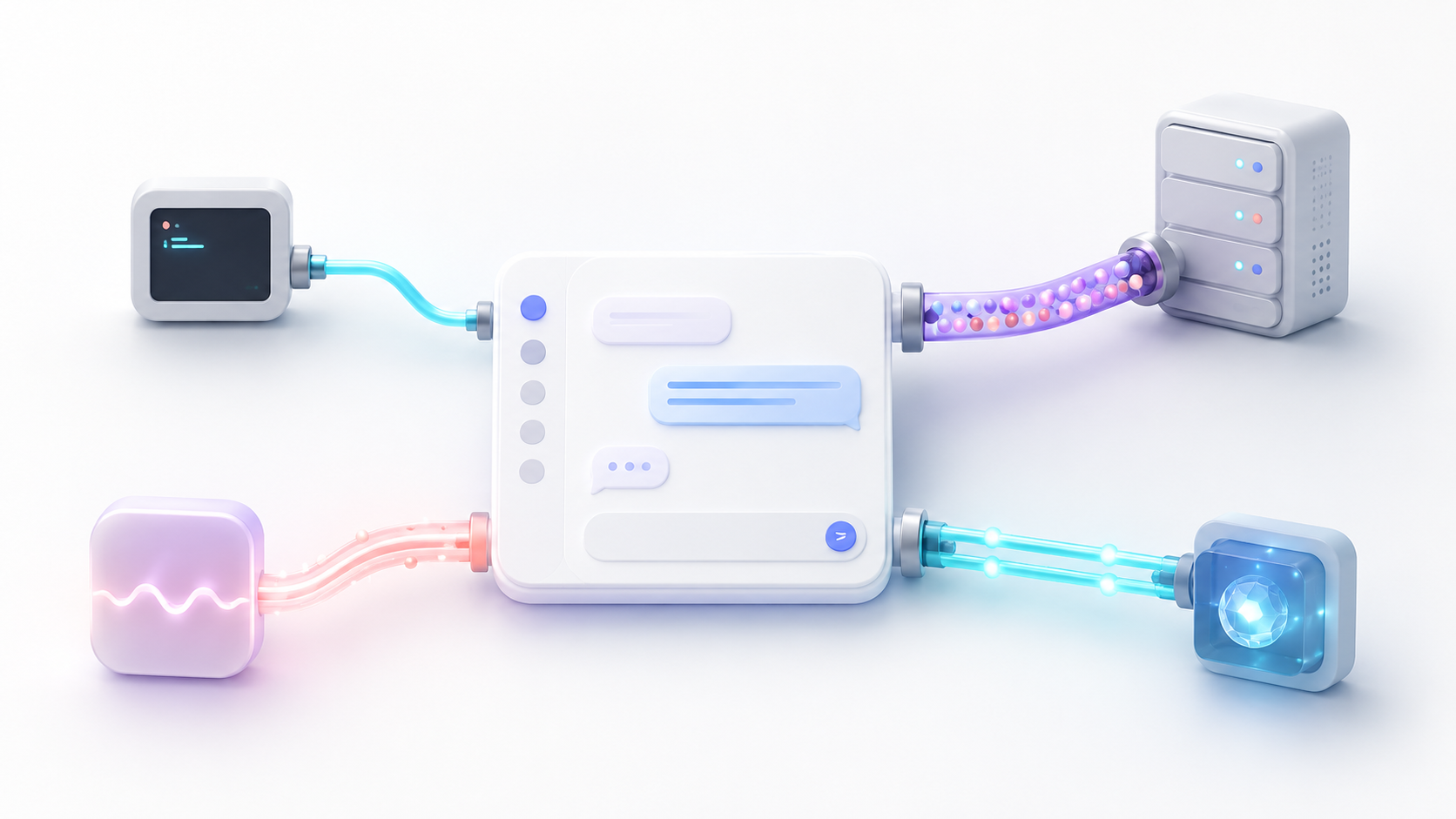
LibreChat supports four main types of MCP transport:
| Transport | Recommended use | Considerations |
|---|---|---|
| STDIO | Local servers started using commands | The executable and its dependencies must be available in the same environment as LibreChat. |
| Streamable HTTP | Remote servers and current deployments | It is the modern HTTP transport recommended for new remote integrations. |
| SSE | Compatibility with legacy remote servers | It remains supported, although many newer implementations use Streamable HTTP. |
| WebSocket | Servers that maintain a bidirectional connection | It should only be selected when the server publishes this transport. |
Streamable HTTP should not necessarily be described as a stateless system. Session behavior depends on the specific server implementation. Its main advantage is that it is part of the current MCP HTTP transport and is well-suited for remote services.
How to connect MCP servers when LibreChat uses Docker
STDIO servers run as child processes of LibreChat. If the application runs within Docker, commands like npx, uvx or the server executable must be installed inside the containernot only on the host system.
You must also mount any folders the server needs inside the container. A file server cannot automatically access all directories on the host machine.
For multi-tenant deployments, it can be simpler to run MCP servers as independent services and connect them using Streamable HTTP. This architecture allows for updating and isolating each service separately, although it requires securing the network and authentication between containers.
Remember that localhost within the LibreChat container, it points to the container itself. If the MCP server is defined as another Docker Compose service, you must use its service name:
mcpServers:
  herramientas:
    type: streamable-http
    url: "http://servidor-mcp:8000/mcp"
Both services must belong to a common Docker network. Avoid publishing the MCP server port on the internet if you only need to receive internal LibreChat connections.
How to adjust wait times correctly
LibreChat differentiates between the time available to complete OAuth and the MCP server execution times.
These variables control only the authorization process:
MCP_OAUTH_HANDLING_TIMEOUT=600000
MCP_OAUTH_FLOW_TTL=900000
By default, LibreChat allows approximately ten minutes to complete OAuth and maintains the flow state for fifteen minutes. Increasing these values does not prevent a slow tool from time out.
To initialize and run tools, you must use the server fields:
mcpServers:
  procesador:
    type: streamable-http
    url: "https://mcp.example.com/mcp"
    initTimeout: 30000
timeout: 120000initTimeoutcontrols how long the server can take to initialize.timeoutcontrols how long an operation or call to a tool can last.
If the connection continues to close prematurely, also check the limits of your reverse proxy, load balancer, or hosting platform. Nginx, Traefik, or a cloud provider may apply their own maximum timeouts.
How to protect LibreChat MCP servers
An MCP tool can access sensitive information or perform actions with real-world consequences. Before enabling it, apply these recommendations:
- Connect only servers from trusted developers or repositories.
- Review the code and commands before installing community packages.
- Grant access only to the necessary folders, APIs, and operations.
- Use OAuth or individual credentials instead of sharing a global key.
- Disable the tools that the agent does not need.
- Avoid exposing internal MCP servers directly to the Internet.
- Protect LibreChat using HTTPS and configure its permissions correctly.
- Review the logs to detect unexpected calls or authentication errors.
- Request confirmation before performing destructive or irreversible actions.
You should also be aware of instruction injection attacks. A document, web page, or external response could contain text designed to manipulate the agent. Tools capable of writing files, executing commands, or modifying data require particularly strict limits.
LibreChat incorporates protections against requests directed to internal addresses. If you need to connect to a server located on a private network, you will have to explicitly authorize its domain or address using mcpSettingsLimit that exception to the necessary host and port, instead of allowing entire ranges without justification.
Common errors when connecting LibreChat with MCP
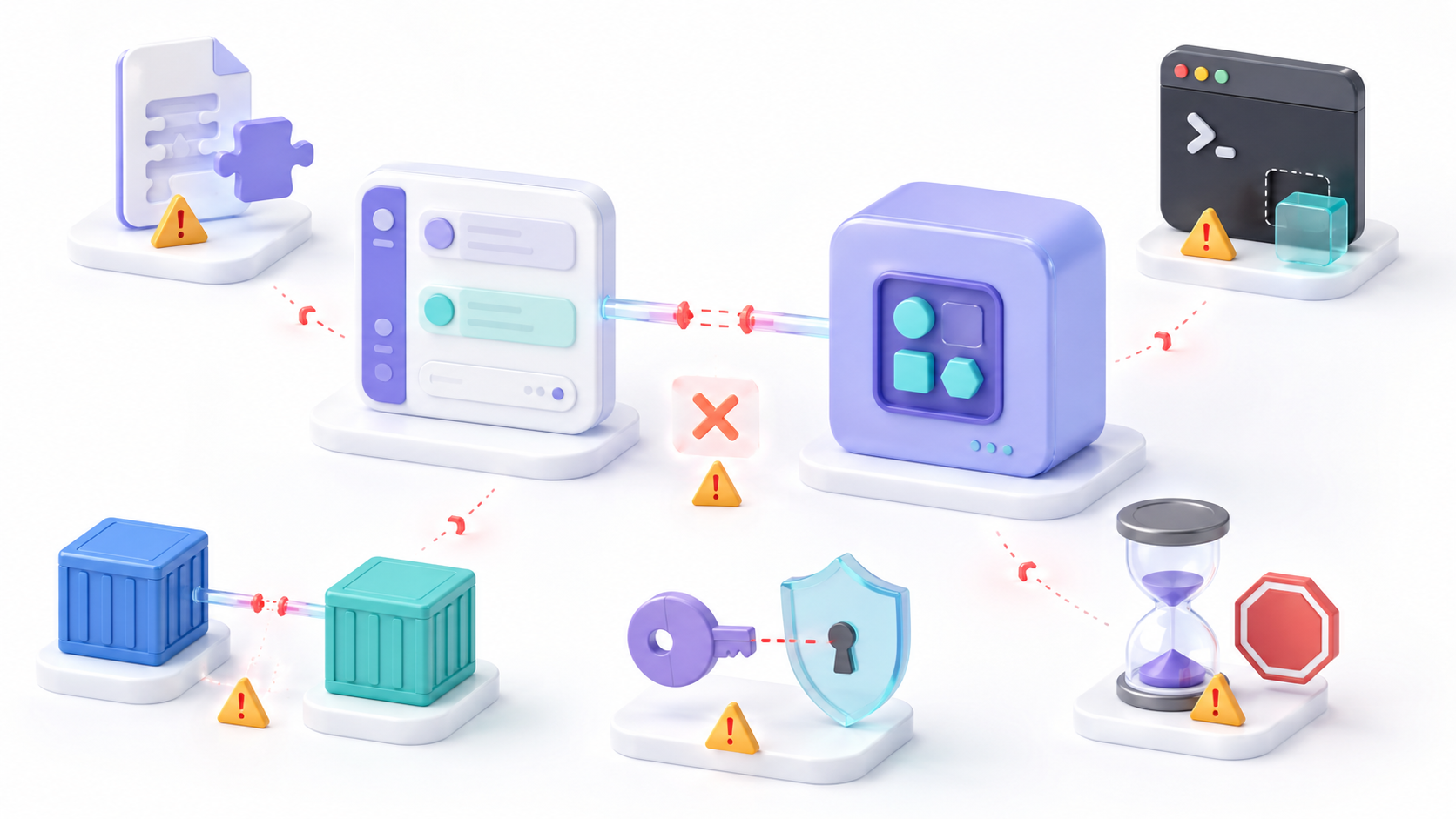
The server does not appear after editing librechat.yaml
Check the YAML indentation and restart LibreChat. In Docker, also verify that the correct file is mounted inside the container.
The npx or uvx command was not found
The executable must be installed in the environment where LibreChat is running. If you are using Docker, installing it only on the host is not sufficient.
An address with localhost doesn't work
Within Docker, localhost This refers to the current container. It uses the Docker service name, an accessible address on the internal network, or the corresponding configuration to reach the host.
The server does not appear in the chat
Select a non-agent endpoint and a model compatible with the tools. Also, verify that the server is not configured chatMenu: false.
OAuth returns a redirection error
Verify that the URL registered with the provider exactly matches the LibreChat domain, MCP path, and server name.
The tool terminates before completing the operation
Increase the field timeout from the server and check the proxy limits. The variables MCP_OAUTH_FLOW_TTL y MCP_OAUTH_HANDLING_TIMEOUT They do not control the lifespan of the tools.
The connection to an internal server is blocked
LibreChat may block private destinations as protection against SSRF. Explicitly authorize the necessary domain or address in mcpSettingswithout opening access to more destinations than are essential.
Connecting LibreChat with MCP allows you to incorporate external tools into conversations and agents through a standardized interface. Configuration can be done from librechat.yaml, from the MCP Settings panel or with the help of catalogs such as Smithery.
To achieve reliable integration, choose the appropriate transport, configure credentials correctly, use tool-compatible templates, and differentiate OAuth timeouts from execution timeouts. In production environments, limit the available functions and treat each MCP server as a component with potential access to sensitive information and actions.

I am a technology enthusiast who has turned his "geek" interests into a profession. I have spent more than 10 years of my life using cutting-edge technology and tinkering with all kinds of programs out of pure curiosity. Now I have specialized in computer technology and video games. This is because for more than 5 years I have been writing for various websites on technology and video games, creating articles that seek to give you the information you need in a language that is understandable to everyone.
If you have any questions, my knowledge ranges from everything related to the Windows operating system as well as Android for mobile phones. And my commitment is to you, I am always willing to spend a few minutes and help you resolve any questions you may have in this internet world.