- Choosing the right combination of Zepp Life and Mi Fitness is key to linking the Xiaomi Smart Band to your new mobile phone and keeping your data.
- Granting all permissions for notifications, calls, and battery prevents synchronization interruptions and loss of alerts on the bracelet.
- Updating the firmware and customizing watch faces, menus, and sports modes improves accuracy and makes the Mi Band much more useful on a daily basis.
- Knowing the typical pairing errors and their solutions allows you to quickly resolve connection and notification problems.

If you've just gotten a new phone and you have a Xiaomi bracelet, you're probably wondering how Connect your Mi Band or Xiaomi Smart Band to a new phone without messing it up.Changing smartphones is very convenient, but all the wearables you had set up need to be re-linked so that notifications, sports records and time are properly synchronized.
In this comprehensive guide you will see in detail how Configure and pair any Xiaomi Smart Band (Mi Band) with an Android or iPhone mobile phone.Which app to choose (Zepp Life or Mi Fitness), how to adjust notifications, permissions, sports modes, and what to do when something goes wrong (syncing, language, updates, etc.). All explained in simple terms, with a few tips and clear steps to get everything working perfectly the first time.
Which app to use to connect your Xiaomi Smart Band to your new phone
The first thing you need to be clear about is which application you are going to use for Sync the bracelet with your new phoneXiaomi has been changing names and that generates a lot of confusion, but in reality the operation is very similar in all of them.
The official app used to be called Mi Fit, but now it's called Zepp LifeIf you had Mi Fit installed on your old phone, updating it will automatically transform it into Zepp Life, maintaining practically the same interface and options; only the name and icon change.
In addition to Zepp Life, Xiaomi offers another app called My Fitnesswhich also allows you to connect the Xiaomi Smart Band to your phone and manage almost the same functions. Both share a very similar design, have similar menus, and are used in virtually the same way.
In terms of popularity, Zepp Life has accumulated over 100 million downloadsWhile Mi Fitness has over 10 million users and boasts a very positive rating, Zepp Life is the most widely used app in practice. Therefore, we'll focus our explanations primarily on Zepp Life, although the steps are virtually the same for Mi Fitness.
Regardless of whether you have a Xiaomi Smart Band 9, Smart Band 8 Pro, an older Mi Band, or any other compatible model, The initial mobile pairing process is very similarYou will only need to install the appropriate app from Google Play (Android) or the App Store (iOS) and log in with your account.
First steps: Log in and create your Xiaomi account

Once you decide which app you're going to use (Zepp Life or Mi Fitness), the next step is Log in with a compatible accountAs soon as you open the app, a login screen will appear.
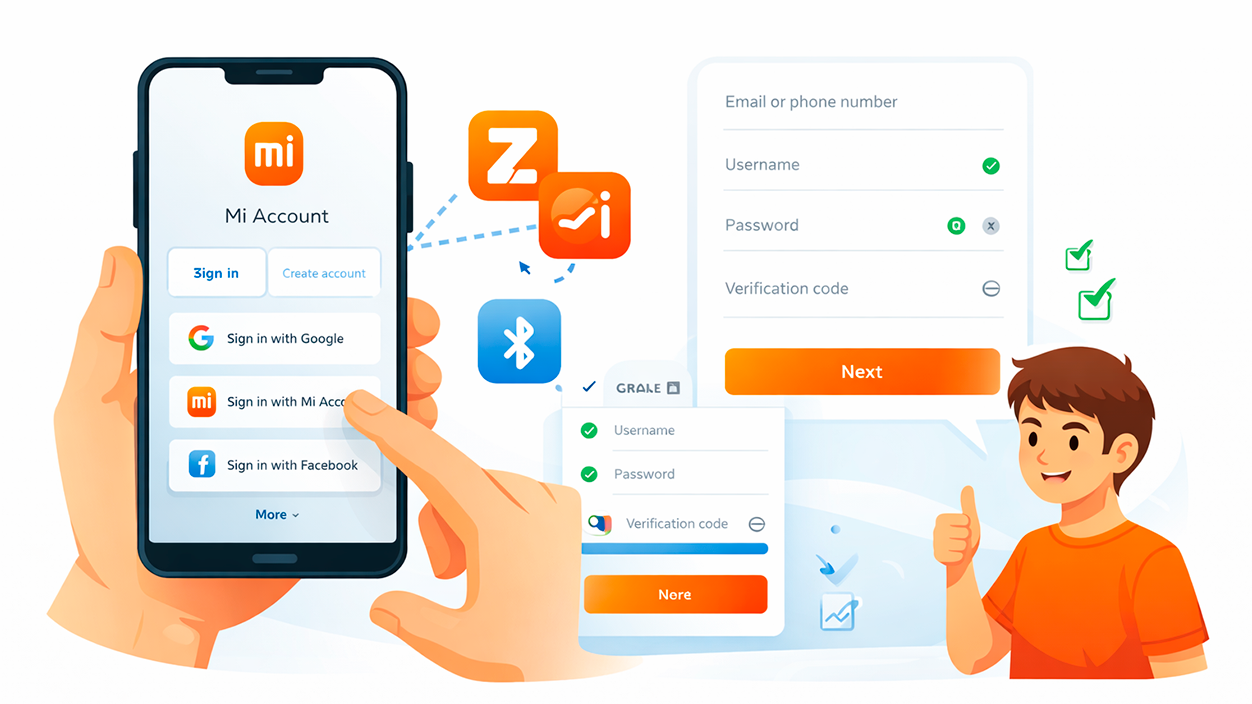
You can enter with your Xiaomi Mi account, your Google account, or even FacebookIf you have a Xiaomi mobile, the most convenient option is to use your Mi account, but any option will work as long as you remember your username and password.
If this is your first time using a Xiaomi bracelet and you don't have an account, you can Register from the app itself using the "Create new account" button.You just need to follow the steps on the screen: enter your email address or phone number, choose a username, set a password, and complete the verification process.
After creating your account, the app will ask you for some basic information to personalize your experience, such as your weight, height, date of birth, and activity goalsThis data is important so that the step, calorie, and distance metrics are more accurate when you start using the band. If you're concerned about privacy, you can Review and delete diagnostic data from the app.
Keep in mind that when transferring your Mi Band from an old phone to a new one, It is essential that you log in with the same account you had before.This way you can keep part of your training history and settings, and it won't seem like you're starting from scratch.
Essential app permissions: what you absolutely must accept
Before pairing the bracelet with your new phone, the app will ask for several permissions. It might seem tedious, but if you don't grant them, The Xiaomi Smart Band will not display calls, notifications, or certain key settings..
Among the most important permissions you will find access to call logThis permission allows the bracelet to notify you when a call comes in on your mobile phone. If you deny it, you won't receive any call alerts on your wrist, no matter how many settings you configure afterward.
You will also need to grant permission to read app notificationsThis is the only way for the Mi Band to show you notifications from WhatsApp, SMS, email, and the rest of the apps you choose within the Zepp Life or Mi Fitness settings.
Another relevant permit is the one for access to mobile storageThis permission will be necessary if you want to use a photo from your gallery as the watch face on the band, or if you download custom watch faces from other apps and apply them to the Smart Band.
At some point you will also see that the app asks for permission to manage Do Not Disturb modeThis allows the bracelet to detect when the phone is in this mode and adjust its notifications accordingly, preventing it from vibrating when the phone is completely silent.
How to pair the Xiaomi Smart Band with an Android phone
Once you have accepted the initial permissions, it's time to Pair the bracelet with your new Android phoneMake sure Bluetooth is turned on and that the Mi Band has some battery; if it doesn't turn on, charge it for a few minutes.
To begin pairing from the Zepp Life app, you will need to go to the tab Profile which appears at the bottom of the screen. There you will see the devices section and the option to add a new one.
Click on Add device Then choose the product type, in this case, Bracelet or Smart Band. The app will automatically start searching for nearby devices that are in pairing mode and not yet linked to another mobile device.
At this point it is important to have the Xiaomi Smart Band near the phone For quick detection, when the app finds your bracelet, it will appear in the list with its name and the last digits of the Bluetooth address, so you can verify that you are selecting the correct device.
When you tap on the bracelet in the app, you'll see a [image/image] appear on the Mi Band screen. confirmation message to accept the pairingSimply press the button on the bracelet (or tap the screen, depending on the model) to accept and complete the linking with your account and your mobile phone.
In Mi Fitness, in addition to the standard search method, you have different pairing modes available on Android: Search to add, add by model, scan QR code or proximity detectionThey all work similarly, but the end result is the same: your Smart Band will be paired with your mobile phone.
With the search option to add, you enter My Fitness > Device > "+" button y You select Add device to scan nearby wearablesChoose the one that matches the last four digits of your band's Bluetooth address, and confirm the pairing on both your mobile phone and the bracelet.
If you prefer to add by model, in My Fitness you will go to Device > "+" > Add by model And you choose, for example, Xiaomi Smart Band 8. The system will search for that specific model nearby and display the device on the screen for you to confirm. Upon accepting, you will again have to press the verification mark on the band to complete the process.
With the scanning method, instead of searching manually, you can go to My Fitness > Device > "+" > Scan Point your camera at the QR code that appears on the band's screen when it's in pairing mode. It will be paired in seconds.
Finally, some phones with MIUI support the discovery by proximityWhen the new, unpaired Mi Band is brought near the phone, a system pop-up window appears indicating that a nearby Xiaomi band has been detected, displaying the model, image, and the last digits of the Bluetooth address. You will need to tap on "Connect this device" to start the linking from My Fitness.
How to pair the Xiaomi Smart Band with an iPhone
On iOS the procedure is similar, but there are some nuances when it comes to Pair and unpair the Mi Band with your iPhoneAgain, you will need to have Bluetooth turned on and the bracelet charged and switched on.
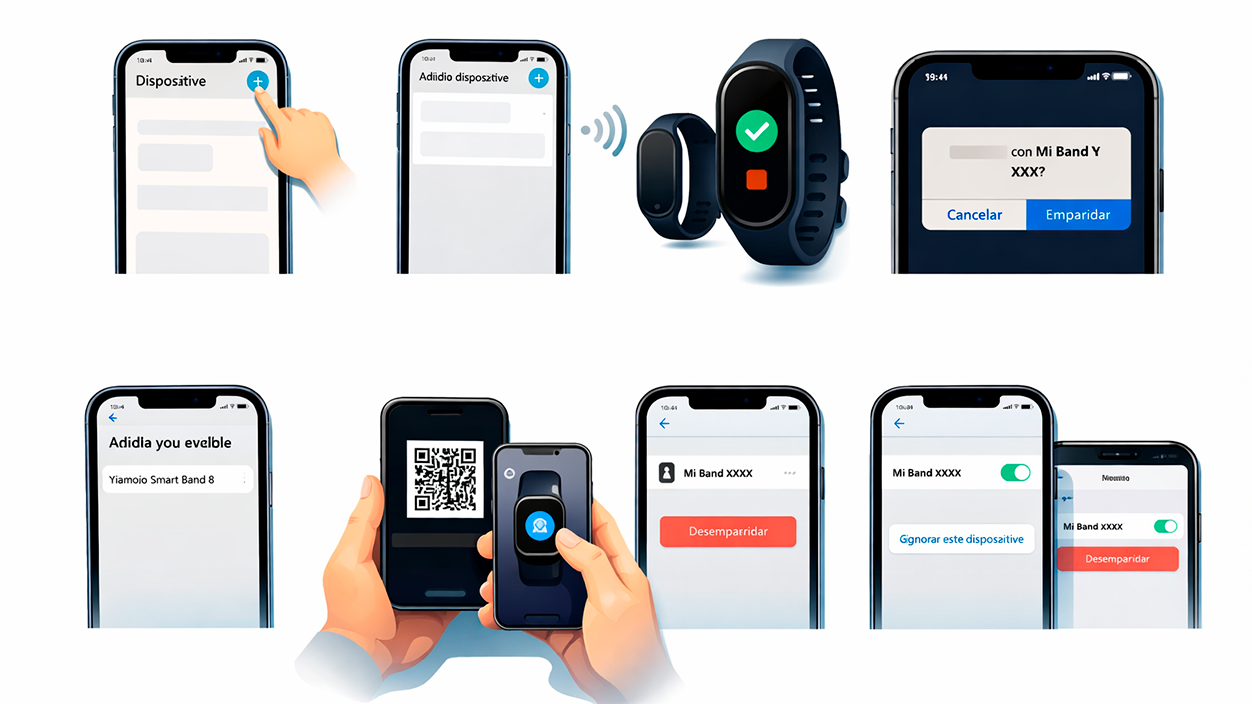
For the standard search method, go to My Fitness, then to the section Device Then tap the "+" button in the upper right corner. Select Add Device and place your iPhone near the band so it can be detected.
When the app finds the band, you'll see the device with the last four digits of its Bluetooth address. Tapping it will display a... Check mark icon to confirm pairingTap that icon on the band, and then on your iPhone, tap "Pair" in the Bluetooth pop-up window. Tapping "Cancel" will abort the process.
If it's more convenient for you, you can also choose the option in My Fitness Add by modelYou follow the route Device > "+" > Add device > Add by model > Xiaomi Smart Band 8 (or the corresponding model), and the app will search for the nearby wearableOnce it's detected, you'll just need to repeat the double confirmation: on the band and on the iPhone.
As with Android, the third method is to scan the QR code. My Fitness > Device > "+" > ScanYou point the iPhone camera at the QR code on the band's screen, and once connected, you'll need to tap the checkmark on the bracelet and then tap "Pair" in the iOS alert.
For Unpair the bracelet on iOS From My Fitness, there are two common ways. The first is to go to My Fitness > Device > Wearable deviceslide left on the band and tap on Unpair, confirming the action to return the Smart Band to factory settings.
The second way is to go to My Fitness > Device, scroll to the bottom and tap on Unpair (Unpair) within the current device. Once you confirm, the band will be factory reset and will no longer be associated with the iPhone.
Very important: after unpairing from the app on iOS, before re-pairing the bracelet You'll need to go to Settings > Bluetooth on your iPhone, search for the device, and tap "Ignore This Device." If you don't do this, the system may prevent the Smart Band from pairing correctly again.
Updating the bracelet and initial settings after pairing
Once your Xiaomi Smart Band has been paired with the new mobile phone, it's common for a notification to appear as soon as it connects. firmware update pendingIt's best to install it as soon as possible to get bug fixes and recent improvements.
Before starting the update, make sure that the The bracelet's battery is at 100%. or at least a fairly full battery. If it shuts down mid-installation, the wearable system could malfunction.
During the process, the app will show you your progress, and you'll also see a bar or percentage on the band's screen. It's vital that you keep the mobile phone and the bracelet very close togetherSince the update is sent via Bluetooth, and if the signal is unstable you might encounter "Update failed" messages.
Once the update is complete and the Smart Band restarts, the app will ask you to Configure notifications and some basic parametersFrom Zepp Life or Mi Fitness, by entering your Profile and selecting the bracelet, you will access all the customization options.
If for some reason you see part of the app or the bracelet in another language (for example, Chinese or English), you can usually just go to Profile > Settings > Language within the app and select Spanish, so that after a short restart the translation is applied correctly.
Key settings for Zepp Life and Mi Fitness for your Smart Band
Within the specifications of your Xiaomi Smart Band on Zepp Life, you'll find a number of parameters worth reviewing. One of the most important is the heart rate monitorwhich allows you to monitor your heart rate during the day and especially during sleep.
In the heart rate detection section, you can choose whether you want the measurement to be continuous, only during sleep, or automatic at intervalsThe higher the measurement frequency, the more accurate the data, but also slightly more battery consumption, so you can adjust the balance that best suits you.
Among the other notable options is the function of Locate bracelet, which makes the Mi Band vibrate from your mobile phone to help you find it if you've left it in another room or between the sofa cushions.
The option of Visible This feature determines if your band is detectable by other Bluetooth devices. It's recommended to keep it disabled at all times to prevent other phones from accidentally trying to connect to it; you should only enable it when you're going to perform a new pairing.
In the same menu you can decide the location of the bracelet, that is, on which wrist you wear it (left or right). This can improve the interpretation of some motion data, such as steps or detecting when you get up from the table.
The functions of Raise your wrist to activate the screen Night Mode and other features are also very interesting. The former allows the screen to turn on automatically when you turn your wrist to look at it, and you can limit it to certain times of day so it doesn't dazzle you at night.
Night mode, meanwhile, reduces brightness or adapts the screen's behavior based on a schedule that you define or automatic sleep detectionThis will prevent unnecessary glare in the early hours of the morning while you sleep.
In the options of Screen settings You can rearrange the quick access options and menus that appear when you swipe across the Smart Band screen. Additionally, the Vibration section lets you configure the intensity and pattern of vibrations for calls and notifications.
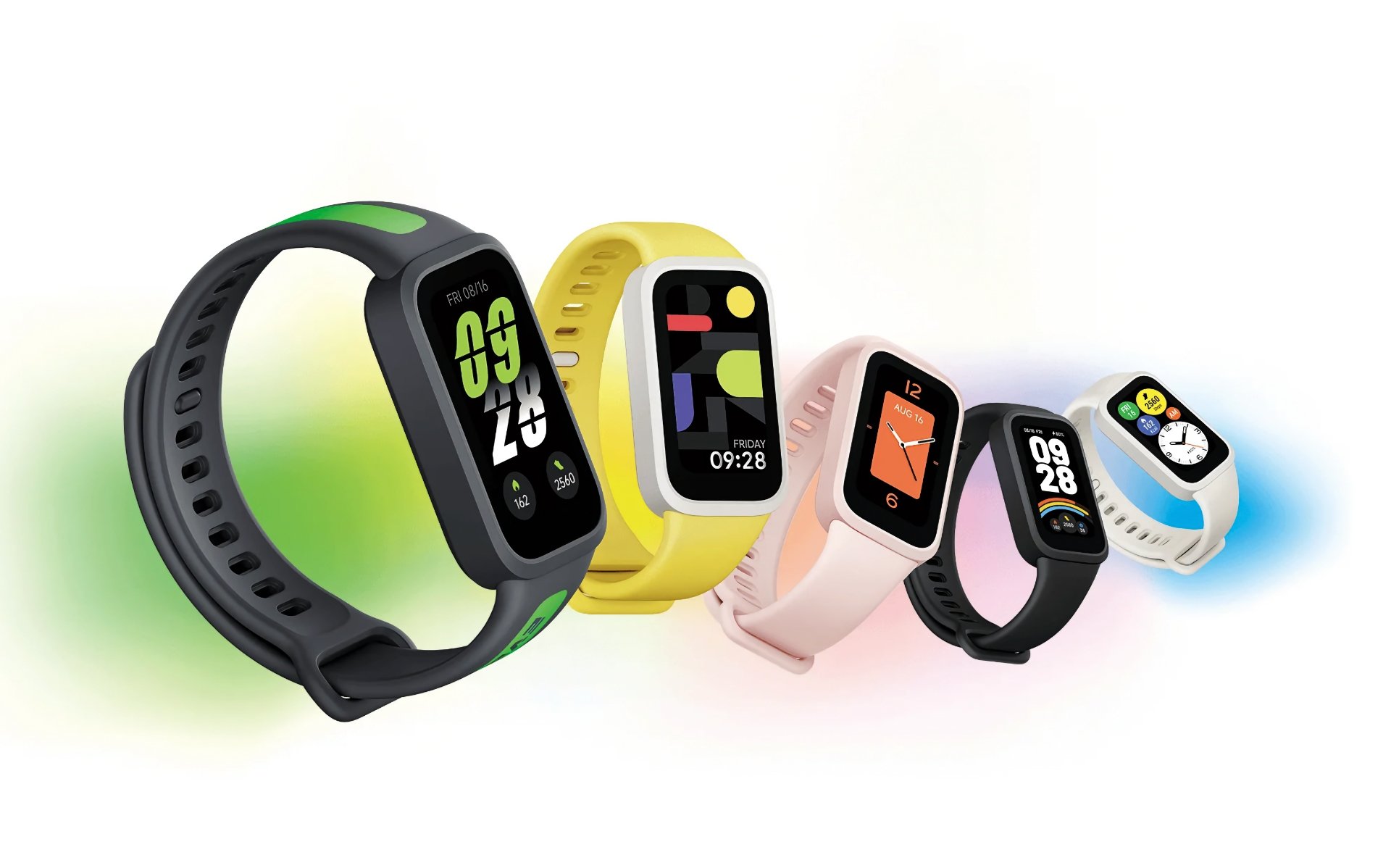
One of the most practical things is customizing the icon layout on the band to your liking. Depending on the model and firmware, the arrangement may vary slightly, but you'll almost always be able to find what you're looking for. customize which elements appear and in what order.
From Zepp Life, open the app and make sure the bracelet is connected to your phone via Bluetooth. Go to the section Profile y select the Xiaomi Smart Band that you have linked to access its specific configuration.
Within the bracelet's menu, locate the section for Home screen or similar. From there you can see all the icons and shortcuts that appear on the bar. By pressing and holding on any of them, you can drag it to change its position and place the ones you use most frequently at the top.
In addition to moving icons, the app will let you Add new shortcuts or remove those that are not useful to you.This way you can have a cleaner menu, where only the sports modes, tools and measurements you use on a daily basis appear.
When you're finished ordering, don't forget to apply or save the changes before leaving the menu. As soon as the app syncs with the bracelet, You will see the new organization reflected on the screen. while navigating through the Smart Band menus.
Personalize the watch face and set photos as the background.
The Xiaomi Smart Band stands out for its extensive aesthetic customization options. If you keep pressed the main screen for a few secondsThe watch face menu will open, from where you can quickly change the watch face design.
By swiping to the sides, you'll see the available watch faces on the band itself, and selecting one will apply it instantly. Many of them display different types of information, such as steps, battery level, heart rate, or time, so you can choose the one that best suits your daily needs.
If you want to go a step further, you can use the Zepp Life app. Download additional spheres or create one with a photo from your galleryWithin the spheres section of the app, you will find the option to choose an image from your mobile or even take a new photo with the camera.
By selecting the image, you can adjust the cropping and some basic details, and then send it to the bracelet to become the main wallpaper. In this way, You can have a photo of your family, your pet, or a landscape as the background of your Mi Bandgiving it a totally personal touch.
Remember that, in order to use your own photos, the app needs permission to access your phone's storage. If you encounter an error when trying to change the watch face with an image, Check the app permissions in your mobile settings. to make sure it can read your files.
Configure sports modes and training plans
Most people buy a Xiaomi Smart Band to monitor their physical activity, so it's worth spending a few minutes on... properly configure sports and exercise plans that you will use frequently.
From Zepp Life or Mi Fitness, you will need to enter data such as your weight, height, sex and ageIn addition to your daily step goal or activity level, this data is used to make your calorie burn and other metrics as accurate as possible while you exercise.
Within your Profile, by entering the section for your Smart Band, you will see a section called Sport modesThere you can enter "Managing sports" and select which disciplines you want to have available directly on the bracelet.
Xiaomi's smartband doesn't just record steps or basic running; it also has Advanced exercise modes for Pilates, HIIT, climbing, skiing, and many other activitiesYou can mark the ones you practice most often so they appear first in the band's workout list.
Once the chosen sports are synchronized, simply swipe on the wristband to the menu of Training and choose the activity you want to do. During the session, you'll see metrics on the screen such as exercise time, approximate pace, and estimated calories burned in real time.
In addition to the individual modes, the application includes a section for free training plansThese programs typically focus on running and other popular goals. At Zepp Life, you can go to the Workouts > Free Plans section and subscribe to routines that usually last between 4 and 12 weeks.
These plans set a schedule with progressive goals. While you're training, the Smart Band It will alert you with vibrations when to speed up, maintain the pace, or reduce the intensity for stretching.so you can follow the plan without constantly looking at your phone.
At the end of each session, the app will show you a detailed graph of your performancewith times, heart rate zones, calories and other relevant data, and can suggest adjustments for the following sessions of the plan, helping you to improve little by little.
How to configure notifications on your Xiaomi Smart Band
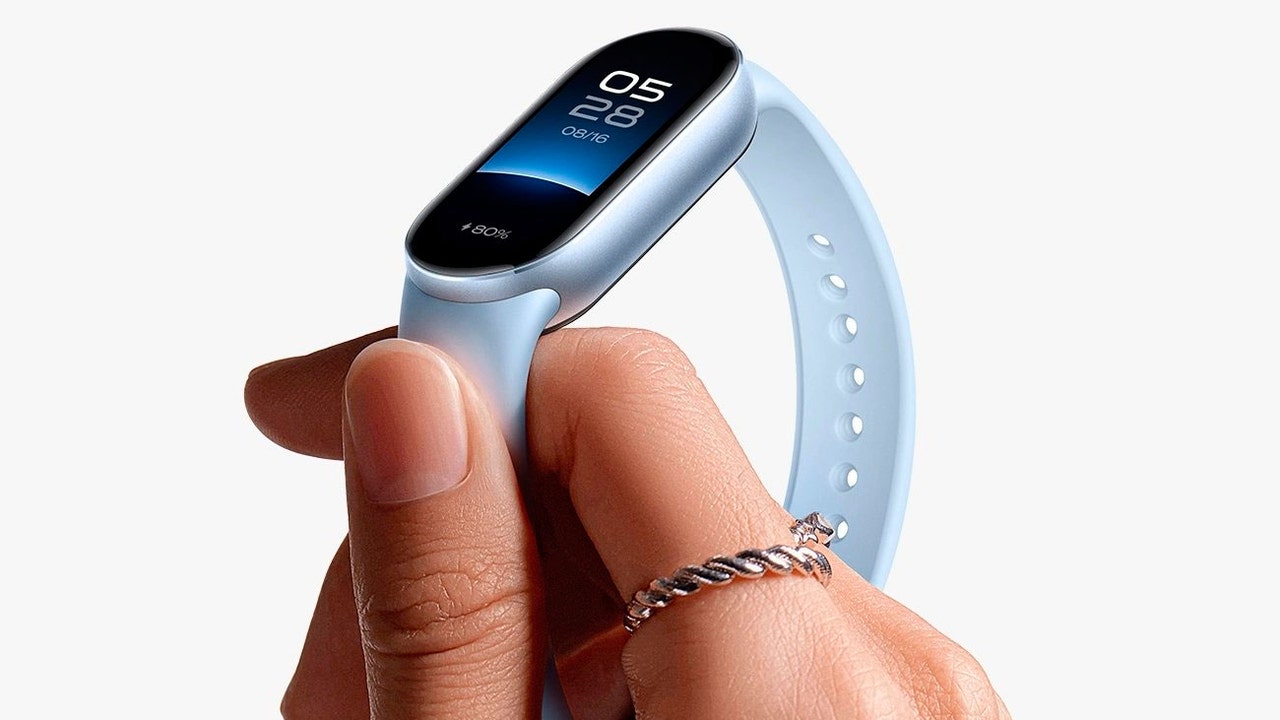
Once the bracelet is paired and updated, it's time to decide which notifications you want to see on it. This step can be a bit tedious, but it's essential for a truly useful experience. You'll only receive important notifications on your wrist..
In Zepp Life, go to your Profile, select your Xiaomi Smart Band and look for the menu of Application alertsInside you'll see the "Manage applications" option, where you can choose one by one the apps from which you want to receive notifications on the band.
You can select, for example, WhatsApp, calls, SMS, email, and a specific messaging app or social media platform. You can also define whether The alerts should be displayed even when the mobile screen is on. Or if you only want the bracelet to vibrate when the phone is locked.
Once you have set up the apps in Zepp Life, you will need to go to your mobile's system settings to grant all necessary permissions to the applicationOn Android, this involves entering Settings > Apps > Zepp Life > Notifications and make sure they are enabled.
Within the same app menu in your phone's settings, go to Permits y Verify that Zepp Life has access to the location, phone, and storage and any other relevant permissions. Without these permissions, the bracelet may stop displaying notifications even if everything appears to be configured correctly in the app.
Additionally, it is highly recommended to adjust the system's battery options to prevent Android from Restrict Zepp Life's background activityOtherwise, after a few hours or days the system may cut the connection and you will stop receiving notifications on your Mi Band.
To avoid this, go to Settings > Apps > Zepp Life > Battery and select "No restrictions" mode or equivalent. This way, the system won't close it automatically to save power, and the app can continue running in the background.
Within Zepp Life you will also find an option called Run in background On the bracelet's settings page, activate it and follow the on-screen instructions to grant it all the necessary permissions. This way, the app will always be attentive to new messages, calls, and notifications.
Possible problems and solutions when connecting the Mi Band to a new mobile phone
Although the entire setup process for the Xiaomi Smart Band is relatively simple, in practice some issues may arise. Typical mistakes and errors when changing mobile phonesKnowing them will help you solve them faster.
One of the most common problems is that the bracelet doesn't sync correctly with Zepp Life or Mi Fitness, showing you messages like «Device not found» or by ceasing to update step, sleep, or heart rate data.
This type of error is usually related to Bluetooth interference or invisible micro-cutswith the band still linked to another mobile phone or with the application itself blocked by the system. A simple first solution is Turn the phone's Bluetooth off and on again, and even restart the mobile phone and the bracelet to force a new connection.
Deleting the application cache and check that the Mi Band is not yet paired with the old phone. In some cases, it may be necessary to unpair the band from the app, perform a factory reset, and then add it again as if it were new on the new phone.
Another common problem is that WhatsApp notifications, calls, or SMS messages don't reach the band, even after everything seems to be set up correctly. This is most often due to battery limitations or because the Do Not Disturb mode is on on the phone or on the bracelet itself.
Check your phone's battery settings to ensure Zepp Life or Mi Fitness are unrestricted, and verify in your phone's settings that the app has permission to show notifications. Also, check if any features are enabled on your Smart Band. Silent mode that blocks vibrations.
It is also not uncommon to find messages like «Update failed» when you try to install new firmware, or see part of the interface in a language other than Spanish, especially if you bought the bracelet from an international store.
In these cases, it's best to keep your phone and the device very close together for at least 10 minutes, ensure you have a good internet connection, and that both devices are sufficiently charged. If the update continues to fail, Try closing and reopening the app, and even try the update at another time.
If during the year your Mi Fitness device is added it cannot find the band or connect, you can swipe up and down on the band's interface and look for the option to factory reset and, after the band restarts, try the matchmaking again from scratch.
In the case of iOS, always remember, after unpairing from Mi Fitness, to go to Settings > Bluetooth and tap "Ignore This Device" in the band's entry before pairing it again. If you skip this step, your iPhone may refuse to connect. establish a new clean Bluetooth connection with the Smart Band.
If you carefully follow all the pairing, permissions, and setup steps we've outlined, your Xiaomi Smart Band should work seamlessly with your new phone, allowing you to enjoy Instant notifications, precise sports tracking, and extensive customization both in appearance and in health and activity options.

Index
- 1 Which app to use to connect your Xiaomi Smart Band to your new phone
- 2 First steps: Log in and create your Xiaomi account
- 3 Essential app permissions: what you absolutely must accept
- 4 How to pair the Xiaomi Smart Band with an Android phone
- 5 How to pair the Xiaomi Smart Band with an iPhone
- 6 Updating the bracelet and initial settings after pairing
- 7 Key settings for Zepp Life and Mi Fitness for your Smart Band
- 8 Organize the menus and icons of the Xiaomi Smart Band
- 9 Personalize the watch face and set photos as the background.
- 10 Configure sports modes and training plans
- 11 How to configure notifications on your Xiaomi Smart Band
- 12 Possible problems and solutions when connecting the Mi Band to a new mobile phone

I am a technology enthusiast who has turned his "geek" interests into a profession. I have spent more than 10 years of my life using cutting-edge technology and tinkering with all kinds of programs out of pure curiosity. Now I have specialized in computer technology and video games. This is because for more than 5 years I have been writing for various websites on technology and video games, creating articles that seek to give you the information you need in a language that is understandable to everyone.
If you have any questions, my knowledge ranges from everything related to the Windows operating system as well as Android for mobile phones. And my commitment is to you, I am always willing to spend a few minutes and help you resolve any questions you may have in this internet world.