- Access the training session menu through the "More" section of the mobile application.
- Ability to structure routines through warm-up steps, customized repetitions, and cool-down.
- Direct synchronization of the training designed in the app to the watch via the send icon.
- Limitation in the creation of strength exercises by not allowing the manual naming of activities that do not exist in the list.

¿How do I create custom workouts in Garmin Connect? If you've recently acquired a Garmin watch, like the Fenix 6X Pro or any other compatible model, you've probably already realized that the device is a real beast. But to get the most out of it, simply pressing the home button isn't enough; the real magic happens when you start to tinker with personalized training programs from the Connect app.
The idea is simple: instead of wrestling with the watch buttons while panting in the middle of a speed set, you let Garmin Connect manages the structure of your session. This way, the heart rate monitor will tell you exactly when to change pace or move on to the next exercise, allowing you to focus solely on giving your maximum effort.
How to access the session creator
To start setting up your routines, the first thing to do is open the Garmin Connect app on your phone. Once inside, you'll land on the "My Day" screen, which is where you'll find a general summary of your activity. To access the settings menu, you need to find the button for "Plus" (represented by three dots) located in the lower right corner of the screen.
Upon entering that menu, you will see an option called "Training sessions"Click there and you'll enter the panel where all your routines are managed. If it's your first time, the space will be empty, but if you already have some, you can edit, rename, or delete them without any problem. To create one from scratch, just press the plus sign (+) icon which appears at the top left.
Configuring your activity details
The first thing the app will ask you to do is choose the type of sport for which you will design the session. Although Garmin offers a predefined list (such as running, cycling, pool swimming, cardio, or strength), keep in mind that once the session is created, you can often adapt it to other similar sports. The "Custom" option It's ideal if you do something that doesn't quite fit into the standard categories.
Once you have selected the activity, you will see the design screen where you can add the following elements:
- Grades: A very useful space to write reminders or the goal of the day, such as a "10K Test".
- Heating: You can define how much time you want to dedicate to preparing your body, based on time, distance, heart rate or simply by pressing the LAP button.
- Cooling: Like the warm-up, it serves to return to a calm state by configuring the duration or intensity.
- Add Step: It serves to insert a new phase into training, such as a cycling transition in a triathlon.
- Add Repeat: It's the key tool for creating sets. It allows you to group several steps and repeat them as many times as you want.
Setting up a series training program step by step
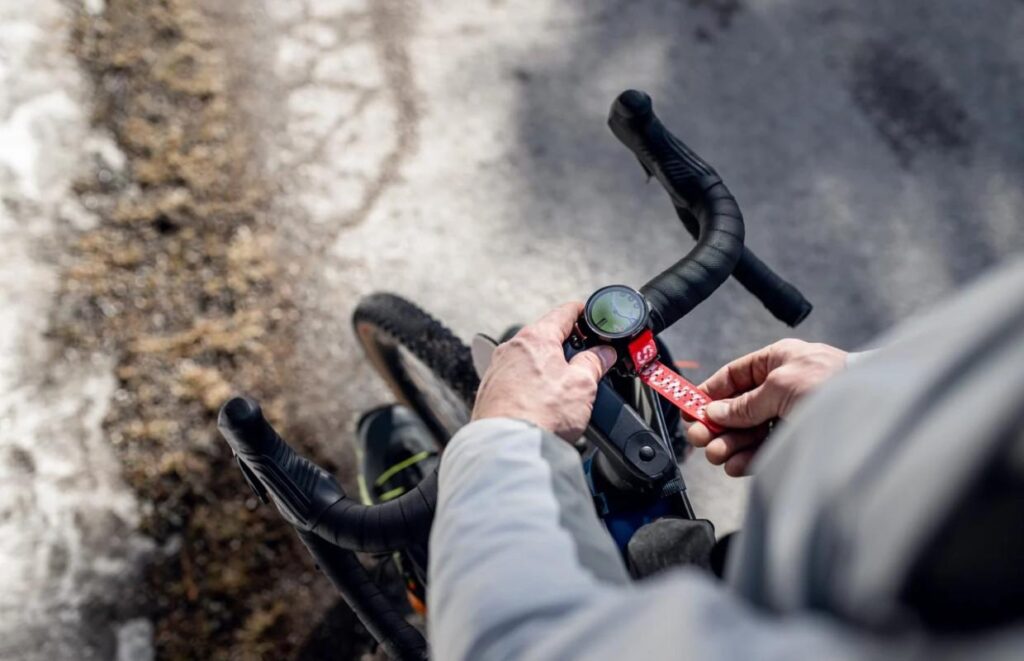
Imagine you want to do a Fartlek workout with intervals of varying paces. First, you press on "Add a repetition"Within this section, you configure the first part (for example, 2 minutes at a medium pace). To do this, go to the "Race" section, select the "Duration type" as time and you mark the 2 minutes.
To add the next phase of the series (for example, 1 minute fast), you must go back by pressing the arrow symbol and select "Add Step"A key detail is that, for this step to be integrated into the repetition loop, you must press and hold and drag physically within the "Repetitions" box. You repeat the process for the last segment (1 minute slow), also dragging it into the block.
Finally, you adjust the number of rounds. If the system defaults to "Repeat 2 times," simply click there and change the number to 8 or as many as you need. If you don't want to do recovery periods between sets, remember to remove the "Recovery" step that Garmin usually adds by default, by moving it outside the repetition block or deleting it.
The challenge of strength training and personalization
Many users of models like the Fenix 6X Pro try to create flexibility and strength routines. Here a common problem arises: although Garmin has a very extensive drop-down list of exercises, Not all movements exist in their database. Unfortunately, currently It is not possible to manually type the name of an exercise that is not on the list, which can be frustrating if you follow a very specific program and want the watch to record the exact name of each movement.
Final synchronization with the device
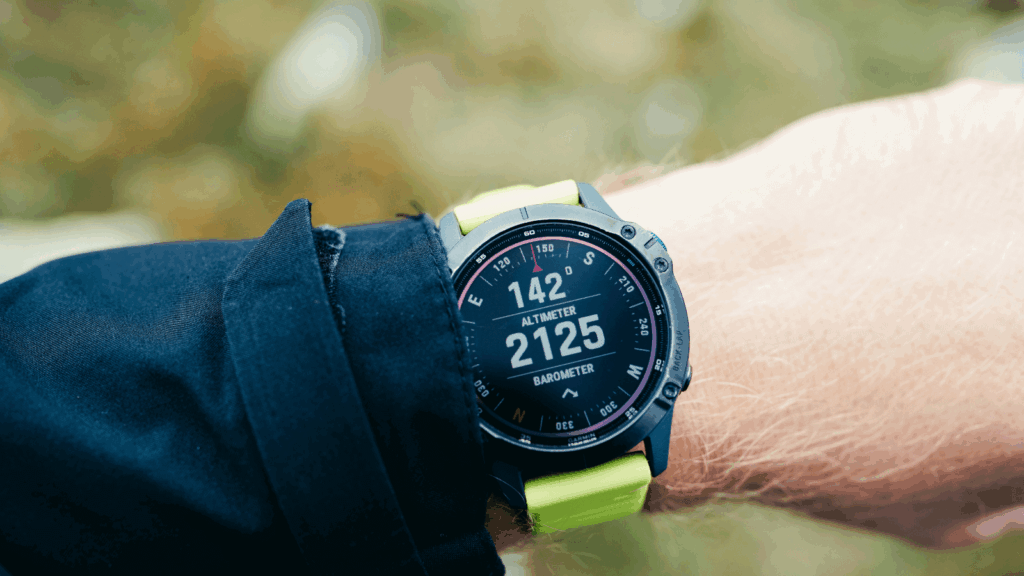
Once you have the entire diagram assembled and you like how it looks, press the button "Keep" and give it a descriptive name (like "Tuesday Speed Sets"). To get the workout to your wrist, you need to press the phone icon which appears in the top right corner. After synchronization, the workout will be available on your watch, ready to be run.
Setting up these routines in Garmin Connect lets you automate your training, eliminating the need to constantly monitor the stopwatch and allowing you to... manage rhythms, times and repetitions professionally from your mobile phone and then simply follow the instructions on the watch.
Index

Passionate about technology since he was little. I love being up to date in the sector and, above all, communicating it. That is why I have been dedicated to communication on technology and video game websites for many years. You can find me writing about Android, Windows, MacOS, iOS, Nintendo or any other related topic that comes to mind.