
Creating your Google Play Games player profile directly from the Play Store without installing anything extra is possible and very easy. You can do this through the Play Store itself or from your Android settings. Configure your avatar and username in just a few minutes.Doing so will allow you to activate cloud saves to protect your progress and sync your games quickly, directly, and completely securely.
How to create your player profile on Google Play Games from the Play Store without installing anything extra
To create your player profile on Google Play Games No additional applications need to be downloaded.You don't even need the separate "Google Play Games" app to get your profile. You can do it directly from the app. Google Play Storewhich comes pre-installed on your phone or can be accessed through Android settings. Below, we explain how to do it using these two simple methods.
Method 1: From the Google Play Store app
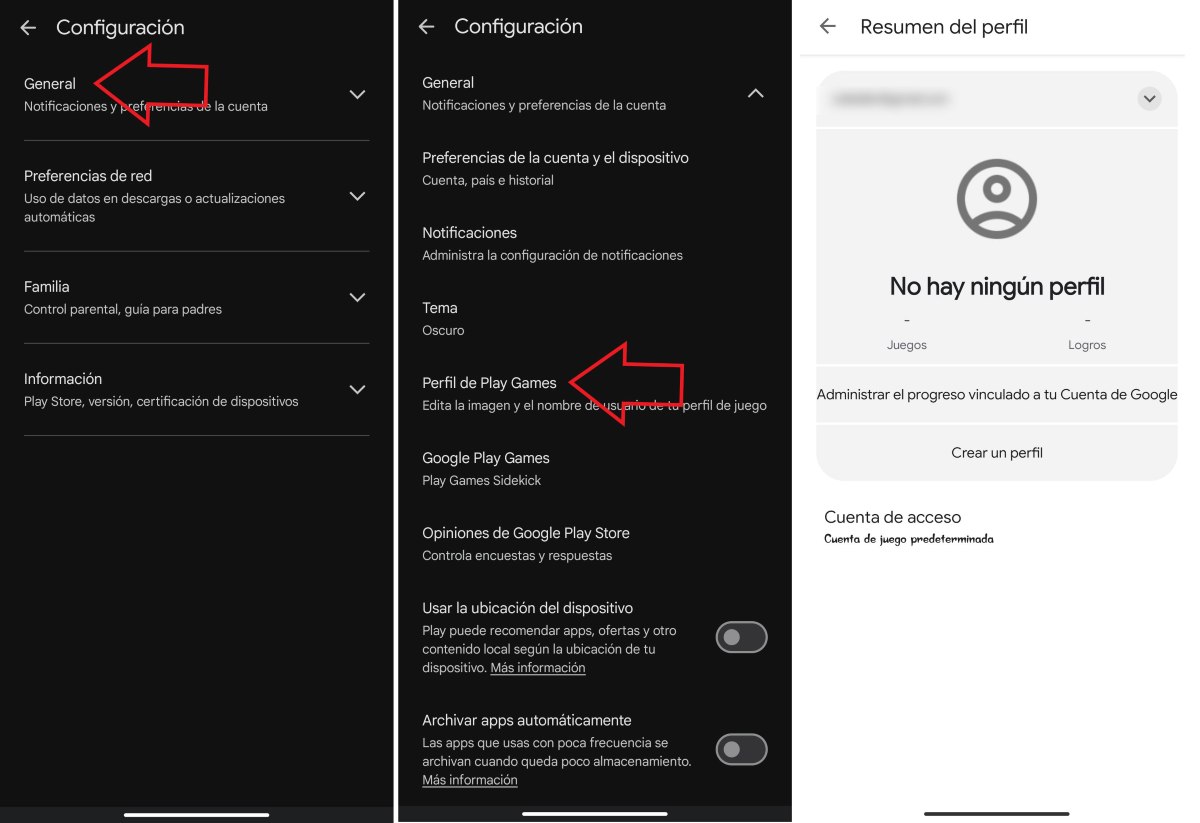
These are the Steps to create your player profile on Google Play Games from the Play Store without installing anything extra:
- Open Google Play Store.
- Touch the profile picture in the upper right corner.
- Go to Configuration – General.
- Select Play Games Profile (or Play Games Profile).
- Personalize your player name (which will be your Gamer ID) and your avatar.
- Tap Save or Join to complete the process.
- And that's it. You now have your player profile on Google Play Games.
Note: You may see the "Join Google Play Games" option when you tap your profile picture. If so, select it and follow the on-screen instructions.
Method 2: From the phone's settings (Android)
Another way to create your player profile on Google Play Games is through your phone's settings. This procedure It will take you to the same interface as the Play Store.But, if you prefer to do it with this method, here are the step-by-step instructions.
- See Settings or your Android phone settings.
- Enter Google or Google Services.
- Tap the tab All services and search Play Games (or Play Games).
- Follow the on-screen instructions to choose your username and avatar to create your Play Games profile.
- Finally, tap Save or Join to complete the process.
- Done. This is also how you can create your player profile on Google Play Games.
Other available options
Once the profile has been created, in that same settings menu you will be able to make other important adjustmentsFor example, you can link progress: select your Google account to automatically save your progress in the compatible games linked to your account. And, if you also tap on Privacy and settings, you can do the following:
- Make your profile private: If you enable this option, you will need to approve new followers before they can view your player profile.
- Decide if you want "Allow other people to find your profile using your email address" or not.
- Visibility of the list of video game communities: With this option, you choose whether you want other players to see your activity, achievements, or friends list. This includes gamer names, but not email addresses (which is good, for security).
- Delete profile and game data: This option allows you to delete both the progress of a specific game and your entire Google Play Games profile.
- In the "Delete specific game data" sectionYou can search for the title you want to reset and tap Delete. This will erase the scores, progress, and settings of the selected game.
- Delete your profile and all Play Games data: The "Permanently delete" option permanently removes all linked game data, including your Experience Points (XP), achievements, level, and Gamer ID.
Important notice: If you ever decide to permanently delete your player profile on Google Play Games, keep in mind that the data the game developer has saved on their servers will not be deleted. For a complete reset, you must delete your account from the game's settings menu.
Advantages of creating your player profile on Google Play Games
Creating your player profile on Google Play Games offers several advantages for managing your gaming experience on Android devices. Thanks to this profile, you can save your saved games and the level you have, make purchases and access your history in the Google cloud.
And if you change or lose your phone and reinstall a game, you can restore all your data simply by signing in with the same Google account. But that's not all; these are Other advantages of creating your player profile on Google Play Games:
- Automatic and cross-platform login: With your Google Play Games player profile, you can access hundreds of compatible games without having to create an individual account, password, or secondary profile for each game or developer.
- Experience Points (XP): Each achievement you unlock within games grants you Experience Points (XP) to raise the overall level of your play Games profile and record your feats.
- Global and friends leaderboards: By having a profile, you can compare your high scores and records with those of other players around the world or specifically with your contacts.
- Unique player ID and privacy: You can play online and appear in public lists using your Gamer ID and custom avatar. This keeps your real name and the email address linked to your Google account protected.
- Google Play Games compatibility on PC: By creating your player profile on Google Play Games, it's easier to switch between your mobile and PC when playing games supported by Google's official PC platform on a Windows computer.
In short, create your player profile on Google Play Games from the Play Store It's the easiest way to support your progressWithout unnecessary downloads or complex setups, you can secure your games in the cloud, keep your achievements safe, and enjoy a seamless Android experience. Set up your Gamer ID and play with the peace of mind that you'll never lose your progress.
Index

From a young age, I've been fascinated by all things scientific and technological, especially those advancements that make our lives easier and more enjoyable. I love staying up-to-date on the latest news and trends, and sharing my experiences, opinions, and tips about the devices and gadgets I use. This led me to become a web writer a little over five years ago, focusing primarily on Android devices and Windows operating systems. I've learned to explain complex concepts in simple terms so my readers can easily understand them.