- PikPak uses a two-step trash can: first, it moves the files there, and only when it is emptied does it actually free up space.
- Creating and deleting an extra folder can force a quota update when the space is not reflected instantly.
- Air Live Drive integrates PikPak as a drive in Windows and offers very detailed cache control and local erase.
- To completely remove the PikPak 2.8.9 desktop client, you can use advanced uninstallers in Windows.

If you use PikPak daily to manage your downloads, torrents, or cloud files, sooner or later you'll run into the question of how delete a file in PikPak without leaving a trace and freeing up spaceAlthough the interface seems simple, the trash system, cache, and integration with other apps (such as Air Live Drive or even uninstallers in Windows) can sometimes mean that you delete something... but the space still doesn't update.
In the following lines you will find a very complete guide that explains, in detail, How does deleting files and folders work in PikPak, and what happens to the recycle bin?How to force an update of available space, what to do if you manage PikPak from external tools like Air Live Drive, or if you want to go a step further and completely uninstall the desktop client from your PC.
How file and folder deletion works in PikPak
When you delete something in PikPak, the file or folder It doesn't disappear from the server immediately, but is moved to the Trash first.This behavior is similar to that of the Windows Desktop or the Recycle Bin of other cloud services: it serves as a layer of security to prevent you from accidentally deleting important content.
In the PikPak interface you can easily identify which elements are files and which are foldersbecause they are displayed with distinct icons. This is key because, if you delete an entire folder, PikPak will also send all subfolders and files within it to the trash, respecting the internal structure but marking everything for deletion.
To delete content, the general flow is very simple: first you select what you want to delete and then you indicate that it should be sent to the trash. You can select one or more items at a time and manage them in bulk.This is very useful when you want to clean up large amounts of material, for example, old torrents that you have already downloaded.
Once the content is selected, in the part of the interface near the Upload button you will see that A counter of available actions appears on the selected elements.Among these icons will be the classic trash can symbol; when you tap it, PikPak moves the files or folders to the Trash section of your account.
When you delete a folder, not only does the parent directory disappear from the file view, but All its subfolders and internal contents are also moved to the recycle bin.It's important to keep this in mind, because if you later want to recover something specific, you'll have to search through that folder already in the recycle bin or restore the entire set.

The PikPak Trash Can and space freeing up
The most confusing detail is that when you delete a file or folder for the first time, Storage space is NOT released instantlyThat content is temporarily stored in the PikPak Trash section, and until that trash is completely emptied, the gigabytes will still count against your quota.
Therefore, the actual process for completely eliminating something is twofold: First you send it to the Recycle Bin and then you delete it again from that Recycle BinOnly after that second deletion does the system consider the content as permanently removed from the server, and that's when your free space should reflect the change.
In practice, this means that if you see your PikPak account is full even though you've been removing things, it's very likely that your Recycle Bin is still full of large files, old torrents, or entire folders that you haven't finished deleting. It's a good idea to check that section from time to time and review its contents carefully.
Once inside the Trash, you can select the items again just as you did in the main view. When you confirm the deletion in the Recycle Bin, PikPak permanently deletes the data and proceeds to free up space.This step is irreversible, so make sure you don't delete anything you might want to recover in the future.
You may notice that after emptying the Recycle Bin The available space counter doesn't change instantly.In most cases, it's simply a matter of internal refresh: the servers take a little while to recalculate the quota and display it correctly on your dashboard or in the app.
What to do if you empty the Recycle Bin and the space is still occupied
It can happen that, even after deleting the files again from the Recycle Bin, The free space is still not being reflected correctly in your account.This situation is usually due to PikPak not updating the storage quota immediately or to the client you are using (web, app or external tool) not having refreshed the data yet.
A simple solution to force that update is to Create any folder, delete it, and then empty the Recycle Bin again.With that sequence, PikPak recalculates the space used and, generally, the counter ends up adjusting to reality, suddenly showing the gigabytes you had freed up before.
It's not so much a hidden trick as a practical way to force the system to run the disk space update process againIt works especially well when you've deleted very large files or many items at once and the interface seems stuck showing the old quota.
If after trying that method you still see inconsistencies, it is advisable Log out of your PikPak account and log back in, or even switch devices or browsers.Sometimes the problem isn't so much with the server as it is with the local cache of the app or browser, which has become outdated.
In any case, the experience of many users confirms that the space eventually updates, even if it takes a few minutes or needs that little push. While the content has been permanently deleted from the Recycle Bin, sooner or later the gigabytes should reappear freed up. in your account panel.
Downloads with PikPak: magnet links and torrents with few seeders
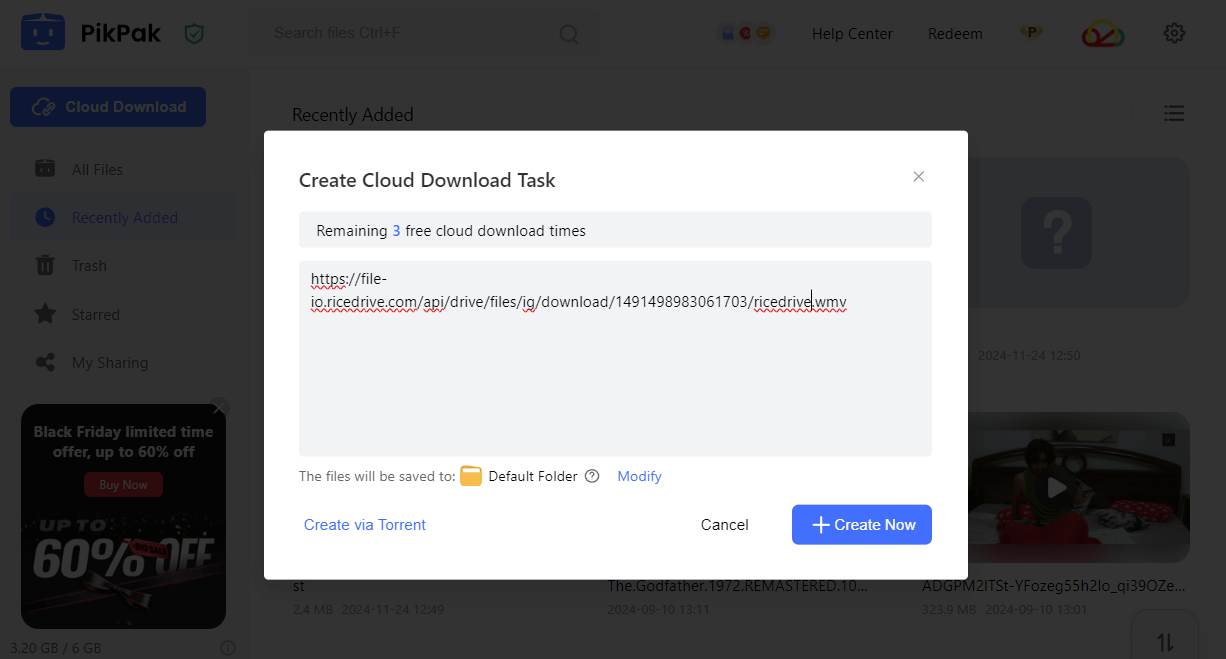
One of PikPak's strengths is that it allows Manage files from magnet links or torrents without relying so much on seeds that has the original torrent. For those who have spent years suffering with slow or stopped downloads, discovering this can completely change the way they download content.
The process is really simple: just copy your magnet link and paste it into PikPak, register or log in, and In a few moments the file will be ready to download at a fairly stable speed, commonly around 2-3 MB/s in typical cases described by experienced torrent users.
This way of working makes it so that even torrents with zero or very few seeds They can be downloaded, delegating the "complicated part" of the P2P connection to PikPak. For the end user, the experience is more like downloading from a direct server than the classic torrent download with its spikes and drops.
However, everything you download via magnet links or torrent files is stored in your PikPak account, which means that Using the Recycle Bin and deleting files properly becomes even more importantOtherwise, you could quickly fill your space with previously viewed material that continues to take up space unnecessarily, and it's worth checking. if a file has been uploaded incomplete to the cloud.
In short, if you've spent years dealing with slow torrents, PikPak lets you Simplify the process and centralize your downloads in the cloudprovided you are clear on how to manage those files afterwards: moving, organizing, deleting and emptying the Recycle Bin to keep the space under control.
How to delete files from PikPak when using it with Air Live Drive
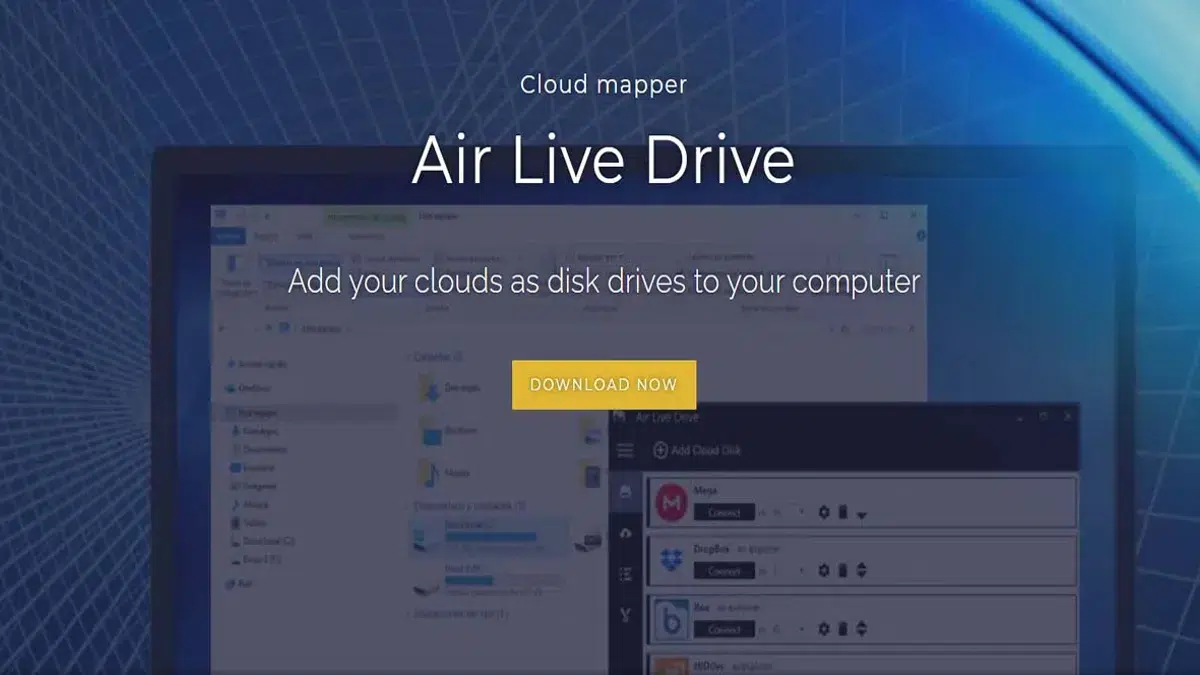
Many users integrate their PikPak account with third-party software such as Air Live Drive, a tool for Mount cloud storage as drives in Windows and work with it from File ExplorerSince version 2.5.0 of Air Live Drive, specific support for PikPak was added, which opened the door to much more convenient use from the PC.
In version 2.5.0, in addition to incorporating compatibility with PikPak, overall stability was improved, He added more information in case of errors when adding accounts.A problem uploading some files to Azure was fixed, and region and signature parameters for S3 clouds were adjusted, improving compatibility with multiple servers. Translations, such as Traditional Chinese, were also updated.
Later, with version 2.6.0, Air Live Drive gained the ability to Use Google Drive with a custom API ID, edit the FTP, SFTP, and S3 connection settingsSFTP's compatibility with more protocols was improved, and more information about connection errors was displayed. In the same version, a specific issue with some PikPak accounts that prevented file uploads in certain cases was fixed, resulting in a more polished PikPak integration.
Version 2.6.1 added improvements such as displaying the email associated with the account in the drive name, Fixes for Excel files in SharePoint, file name issues in Backblaze B2 and adjustments to limit the log window to no more than 3000 lines. A significant improvement was also included: clearing the root cache folder upon disconnection, which means that when working with PikPak via Air Live Drive, it's now even easier to prevent cache remnants from remaining on your PC.
Version 2.6.3 continued to refine the application with Specific fixes for some Google Drive accountsThis reinforces the developers' focus on stability and compatibility with various services. While PikPak isn't the only focus, all these improvements are noticeable when working daily with cloud services running on Windows.
Cache management, deletion, and versioning in Air Live Drive
Air Live DriveThroughout its many versions since 1.0.0, it has incorporated a good number of features designed to Working with remote files (including those from PikPak) is almost as convenient as working with local files.but maintaining control over what is actually saved to your disk and what isn't.
Even from the earliest versions, a configurable cache system and cache profilesOptions included read-only disk mounting, background uploads, automatic startup with mounted disks, and the ability to view a list of active downloads or minimize the application to the notification area. This allowed services like PikPak, Google Drive, Dropbox, or Mega to be treated as if they were system "disks."
Over time, very practical functions for erasing were added, such as Option to clear disk cache upon disconnection (already available in versions around 1.9.2) or, later, the deletion of the root cache folder upon disconnection in recent versions. Both features help ensure that, when working with PikPak files mounted on Windows, no unnecessary local copies remain taking up space.
Version 2.0.0 introduced a very important change: Air Live Drive switched to using the Dokan 2.0 library. improving compatibility, speed and stability in the mounting of cloud drives. In addition, options were added to mount a cloud drive as a folder within Windows (for example, C:\MyCloudDrive1), mount it as a network drive, or as a private disk only for the current Windows user, and an indicator of available free space.
Another key new feature in that same version was the Explorer's context menu options: “Download local copy” to cache the selected files and “Delete local copy” to remove them from the computer's cache. For deletion purposes, this means you can have PikPak files accessible as if they were local, but decide at any time whether the temporary copy is kept or completely removed from the PC.
In later versions such as 2.4.1 and 2.4.2, the operation with different clouds was improved, correcting problems accessing Dropbox Team folders, errors when saving Office files, cases in which some clouds showed 0 free bytes or incidents with WebDAV servers. All of this indirectly benefits the PikPak experiencebecause the connection engine is the same and benefits from those stability improvements.
Extensive cloud support and continuous improvements to Air Live Drive
Since its first public version (1.0.0, back in June 2018), Air Live Drive has become a very complete tool for Centralize dozens of cloud services into a single access pointSupported cloud services include OneDrive and OneDrive for Business, Google Drive, Box, Dropbox, Mega, Yandex, HiDrive, Mail.ru, WebDAV servers, Mail.com, Adrive, Magenta Cloud, Stack Storage, Datto Drive, and SFTP connections, among many others added over time.
Subsequent updates added support for Google Team Drives, files shared with me on Google Drive and OneDriveNextcloud, ownCloud, Backblaze, Koofr, Opendrive, Amazon S3-based services (including generic S3, Wasabi, and other compatible S3 providers), Azure Blob Storage, Alibaba Cloud, IDrive e2, Jottacloud, Nutstore, onlime.dk, Orange Flexible Cloud, Huawei Drive, pCloud, and more. PikPak was officially added to this list in version 2.5.0.
Over time, many advanced features have also been added, such as Play online video without fully downloading the files to the cache.Faster uploads of large files, improvements in handling 429, 403 and 50x errors in services such as OneDrive for Business, Google Drive or SharePoint, optimization of the number of API calls to avoid blocking, and support for very long paths on some servers.
In the automation and command-line control section, versions such as 2.4.1 added commands for Mount or unmount drives, force a folder update, add items to the cache, remove items from the cache, or clear the entire cache of a diskThese commands are especially useful for anyone wanting to integrate PikPak into backup scripts or scheduled tasks in Windows.
The development team has shown special care with the issue of languages and translations: Air Live Drive is translated into a large number of languages (Spanish, English in different variants, French, German, Portuguese, Italian, Polish, Hungarian, Japanese, Korean, Chinese in different variants, Russian, Arabic, Slovak, Czech, Danish, Indonesian, Vietnamese, Malay, Turkish, Ukrainian, Bulgarian, Lithuanian, Armenian, Finnish, Thai, Catalan and others), always with the collaboration of the community.
In terms of stability, virtually every version includes explicit mention of “Improved stability” or specific bug fixesWhether on Mega, Naver, Mail.ru, Magenta Cloud, Synology NAS with WebDAV, or various S3 providers, this translates to fewer problems when deleting, moving, or renaming files on services like PikPak when they are mounted via Air Live Drive.
Completely uninstall PikPak 2.8.9 on Windows
If in addition to managing file deletion in the cloud you want Remove the PikPak program itself from your Windows computer.It's helpful to know how it's installed and what files it leaves scattered throughout the system. Version 2.8.9 for Windows is usually installed in the C:\Program Files (x86)\PikPak folder, although this path may vary if the user has customized the installation.
The main executable PikPak.exe is located in that folder, which in version 2.8.9 occupies approximately 122,60 MB (128.552.832 bytes)In addition to that file, the package includes other executables such as CrashReport.exe, Uninstall PikPak.exe, yamdi.exe, elevate.exe, DownloadServer.exe, FileHelper.exe and upnp.exe, totaling about 125,75 MB (131.853.631 bytes) on disk.
The standard way to uninstall PikPak 2.8.9 is to run the file Uninstall PikPak.exe from the installation folder or use the Windows Uninstall Programs option.This launches the uninstaller included by the manufacturer (PIKCLOUD PTE. LTD.) and should remove most of the associated files and registry entries.
However, as is often the case with many Windows programs, it is possible that There may be traces of PikPak left in the form of empty folders, configuration files, or registry entries.For inexperienced users, cleaning all this up manually can be tedious and risky, especially if they don't know exactly what to delete in the registry editor.
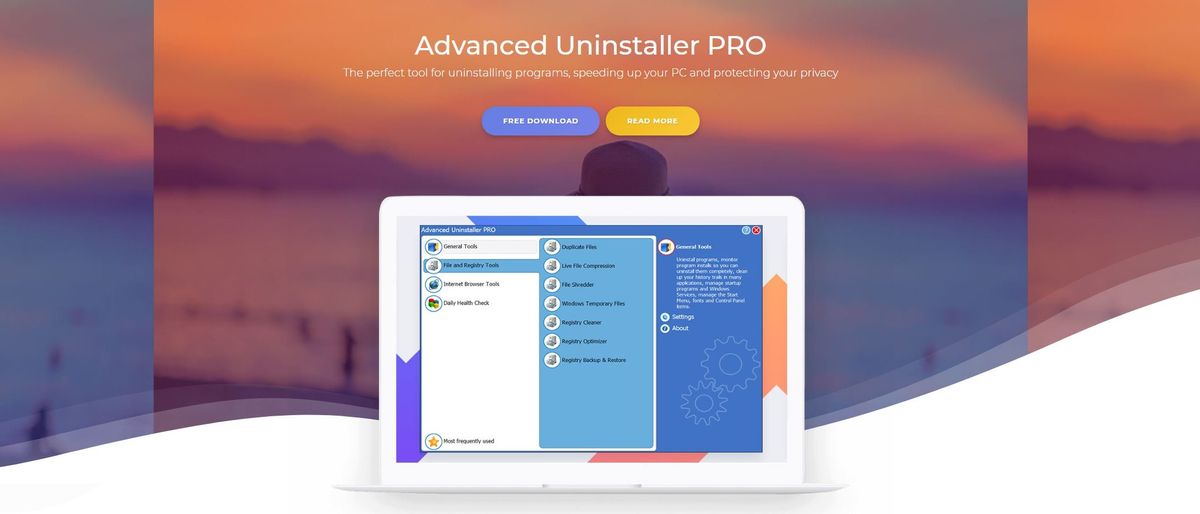
For this reason, some guides recommend using third-party tools such as Advanced Uninstaller PRO, which is presented as an "easy" solution for Completely uninstall PikPak 2.8.9 and clean up any traces of it from your system.While not essential, it can be helpful if you want to leave your Windows as clean as possible after removing the software.
Using Advanced Uninstaller PRO to remove PikPak 2.8.9
Advanced Uninstaller PRO It is a management and maintenance program for Windows that offers, among other functions, a Advanced uninstaller that detects residual files and registry entries after the normal uninstallation of an application. Many users use this to ensure that no "junk" remains on the system after removing programs like PikPak.
The typical procedure suggested by this type of guide consists first of download and install Advanced Uninstaller PRO If you don't already have it on your PC, after installation, open the application and go to the "General Tools" section, where you'll find the "Uninstall Programs" option.
Upon entering that section, the program displays a list of everything installed on your computer. You can Search for PikPak 2.8.9 using the search box or manually browse the list until it is found. Once located, additional information such as other users' ratings, reviews, and technical details of the application are presented, accessible from specific buttons.
To begin the removal process, you just need to Click the uninstall button and confirm the operation When the confirmation window appears, Advanced Uninstaller PRO will run the official PikPak 2.8.9 uninstaller and, once that first step is complete, will offer to perform an additional system cleanup.
In that extra phase, the tool It scans for any leftover residual files, folders, and registry entries.You'll see a list of items you can review and mark for deletion. Once finished, the program ensures your system is free of any remaining traces of PikPak 2.8.9, helping to keep your computer more stable and organized.
It is important to clarify that these types of guides usually include a warning: This is not a recommendation on whether PikPak is good or bad for your team.but simply a detailed explanation of how to uninstall it if you decide you no longer want it. The decision to use Advanced Uninstaller PRO is entirely personal, and you can always opt for a normal Windows uninstallation if that's sufficient for you.
The information available about PikPak 2.8.9 and its uninstallation methods has been updated over time. including references to specific content review dates This ensures the user knows the data is up-to-date. Even so, it's always a good idea to personally verify the installation paths and components present on your own system, as they may vary slightly from one computer to another.
By combining good use of PikPak's Recycle Bin system, cloud management tools like Air Live Drive, and, if needed, An advanced uninstaller to clean up your WindowsYou can have pretty complete control over your files: from how they are downloaded and organized to how they are actually deleted from the server and computer, without leaving unnecessary traces or taking up extra space on your drives.


Editor specialized in technology and internet issues with more than ten years of experience in different digital media. I have worked as an editor and content creator for e-commerce, communication, online marketing and advertising companies. I have also written on economics, finance and other sectors websites. My work is also my passion. Now, through my articles in Tecnobits, I try to explore all the news and new opportunities that the world of technology offers us every day to improve our lives.