
Notifications Telegram They are a very practical feature, but for some users they can be annoying and even disruptive. In this post we are going to see how to delete all notifications from Telegram.
However, as much as many users end up deciding to do without them, the truth is that Telegram notifications are a very useful tool to be conveniently connected and informed. Through them we receive alerts on our device about new messages, calls and any other activity that has to do with this application.
There is no doubt that Telegram notifications can be a very practical tool in certain cases. Telegram is a way to save time, as it offers us the possibility of briefly viewing a message without having to open it, in order to be able to respond (or not) later. The bad thing is that, sometimes, this help can become a nuisance or even a problem, as we will see below:
Reasons to delete Telegram notifications
Despite being a very practical feature in principle, there are a number of reasons or situations why a user may decide to delete or deactivate Telegram notifications. These are some of them:
- Avoid distractions that can interrupt our concentration while we work or study.
- Reduce stress which causes an excess of notifications, many of which are irrelevant, but which we are forced to read and respond to.
- Save battery and data, which are inevitably consumed with each notification.
- Rest better, without notifications interrupting our hours of sleep or disconnection.
- Avoid annoying interruptions during work meetings, family parties, private moments, etc.
- Preserve our privacy, removing personal data that is sometimes displayed in the preview and that can attract the prying eyes of anyone nearby at the time.
Delete all notifications from Telegram

There are several ways to disable Telegram notifications: either generally or through custom alerts for specific chats, groups or channels. This can be easily done both on mobile devices and from the desktop version.
From the mobile app
The steps to follow to delete all Telegram notifications from the mobile application (which is the one most frequently used by its users) They are basically the same, whether it is from an iPhone or an Android phone. They are as follows:
- For a start, We open the Telegram application on our phone.
- Then we click on the icon of the three horizontal lines (on Android, at the top left of the screen; on iOS, the option to Configuration (shown at the bottom right).
- Next, we select «Notifications and sounds».
- After this, a screen opens with a menu* in which we can Choose which notifications to disable:
- Private chats.
- Groups.
- Channels.
- Telegram calls.
(*) In addition, from this same menu it is also possible to silence Telegram notifications or modify the message preview, two very convenient options.
Optionally, it is also possible to delete all Telegram notifications from the System Settings:
- On Android, through the Settings > Applications > Telegram > Notifications route, where we can deactivate them.
- On iOS, with the route Settings > Notifications > Telegram. There we can deactivate the “Allow notifications” box and thus block all alerts from the application.
From the desktop version
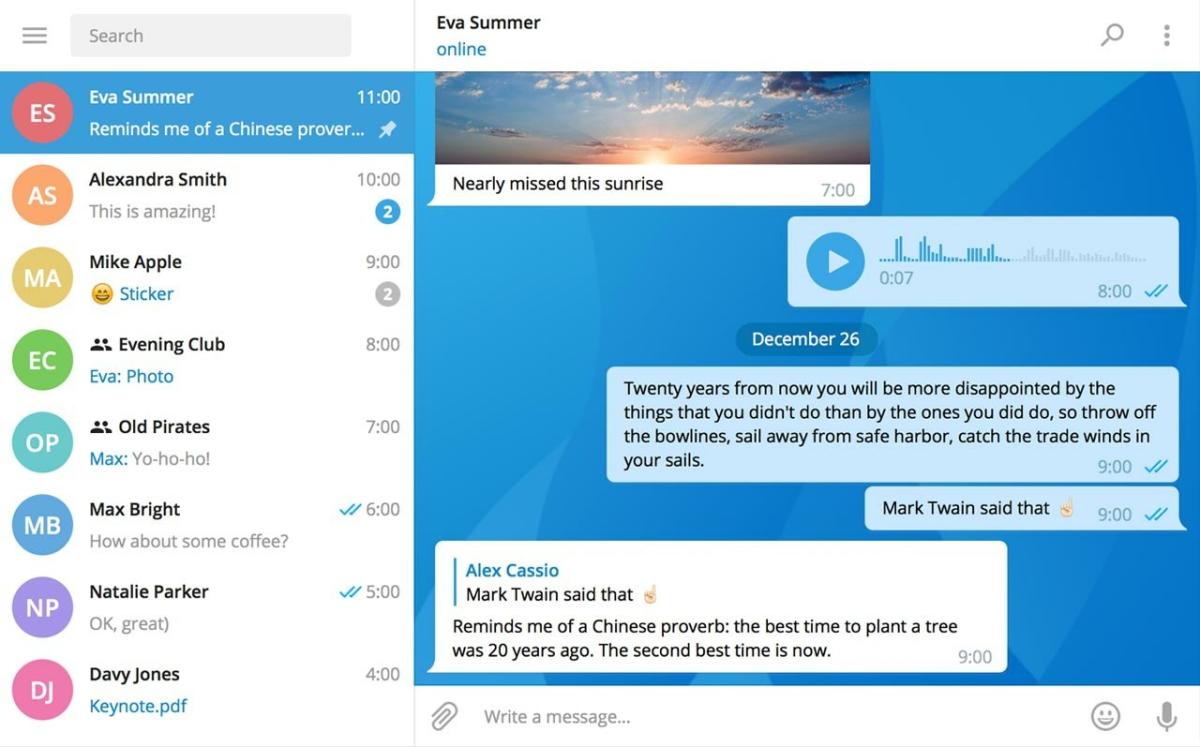
Many users use Telegram from their computers through the desktop versionIn this case, the steps to follow to delete all Telegram notifications are as follows:
- First We open the Telegram application on the computer.
- Then we click on the icon with three horizontal lines that appears at the top left of the screen.
- In the menu that opens, we select "Configuration".
- Then we'll Notifications, where we find several options to disable alerts:
- Private messages: to disable notifications for individual chats.
- Groups: to mute all groups.
- Channels: to remove notifications from channels.
- Message preview: to disable the message preview in the notification.
Mute specific groups or chats
Finally, we must mention the possibility of disabling notifications only for a specific chat or group. Here is how we can use this option:
- First we go to group or chat that we want to silence.
- Then We click on the name of the contact or group at the top, which opens a new window with all the details.
- There we selected Notifications, where we will find different options:
- Mute chat. Options: for 1 hour, 8 hours, 2 days or forever.
- Personalized notifications, you can disable them completely or adjust some details such as sound or vibration.
As you can see, there are many different options to remove all Telegram notifications, or at least adjust and manage them to best suit your own preferences.
Index

Editor specialized in technology and internet issues with more than ten years of experience in different digital media. I have worked as an editor and content creator for e-commerce, communication, online marketing and advertising companies. I have also written on economics, finance and other sectors websites. My work is also my passion. Now, through my articles in Tecnobits, I try to explore all the news and new opportunities that the world of technology offers us every day to improve our lives.