- Downloading your Facebook data allows you to preserve memories and review what information the platform stores about you.
- The "Download your information" tool is managed from the Account Center and allows you to choose profiles, data types, dates, format and quality.
- The generated file includes posts, photos, messages, activity history and logs, and is downloaded within a limited time after requesting it.
- Having this copy improves your control over your privacy and makes it easier to decide whether to keep, deactivate, or delete your account.

If you've been using Facebook for years, it's very likely you have there. Half of your digital life stored: photos, videos, messages, contacts, and memories that you don't want to lose. Before considering deactivating or deleting your account permanently, it's a good idea to... request a full copy of everything the social network stores about youNot just for nostalgia, but also because pure data protection.
Facebook (or rather, Meta) has long offered a tool for download all your personal information or transfer it to other servicesThe problem is that it's somewhat hidden among menus and privacy options, and it's not always clear exactly what's being downloaded, in what format, or how long it takes. Here you'll find a very detailed guide to help you. so you can take your data with you without leaving anything important behind. along the way.
What information exactly can you download?
Facebook doesn't just store what you see at first glance on your profile. By requesting your archive, you can access a very extensive list of categories that cover virtually everything. all the activity you've had within the platform.
Among the data you can include in the download are your posts, photos, videos, comments, reactions, stories, and groups to which you belong. This also includes photos in which you have been tagged, even if you did not upload them yourself, as long as they remain visible on the platform.
The file can also include your list of friends and contacts, invitations sent or received, events you have attended or those you've shown interest in, as well as the pages you follow and your interactions with them. It's a pretty comprehensive snapshot of your social life on Facebook.
Another important section is the information relating to the activity with advertisers and advertising partnersIn the archive you can see ads you've clicked on, advertising themes that Facebook associates with you, companies that have uploaded lists in which you appear, and data related to advertising targeting.
Finally, there is the less visible but very sensitive part: the so-called “data records” or “logs”Meta defines these logs as additional information it collects and stores that can be linked to you: device connections, sessions, password changes, logins, etc. This data isn't always generated instantly; sometimes Facebook warns that they may take up to 15 days to complete..
Where can I find the option to download my data on Facebook?
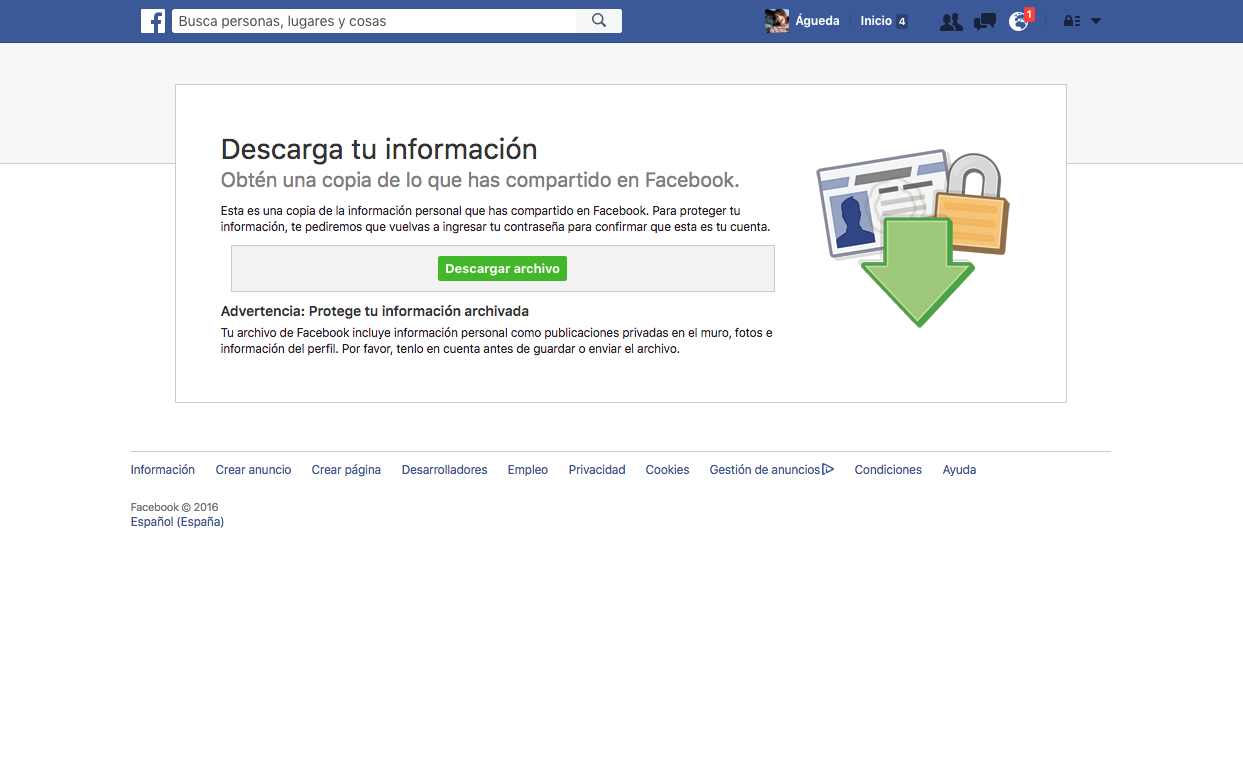
The download option can be found in two ways, as Facebook has been changing the route with the arrival of Meta Account CenterCurrently, it is most common to access both Facebook and Instagram from there.
First you must Log in to your account from a computerAlthough it can be accessed from a mobile device, the download experience is much more convenient on a PC, especially if the file is going to be several gigabytes in size and you want to save it to a hard drive or a specific folder.
Once you're inside, click on your profile picture or personal icon located in the upper right corner From the screen. A menu will appear where you'll see the "Settings and Privacy" section. Go there to access the options panel.
Within “Settings and privacy”, selects “ConfigurationIn the most recent versions of the interface, you should find a block on the left called “Accounting Center”, which is where Meta centralizes the management of data and permissions for Facebook and Instagram.
If your account still shows the classic structure, you may see the option directly. “Your Facebook information” on the side. In that case, you can also access the download section through that menu, within the "Access your information" section.
Access to “Your information and permissions” and types of downloadable data
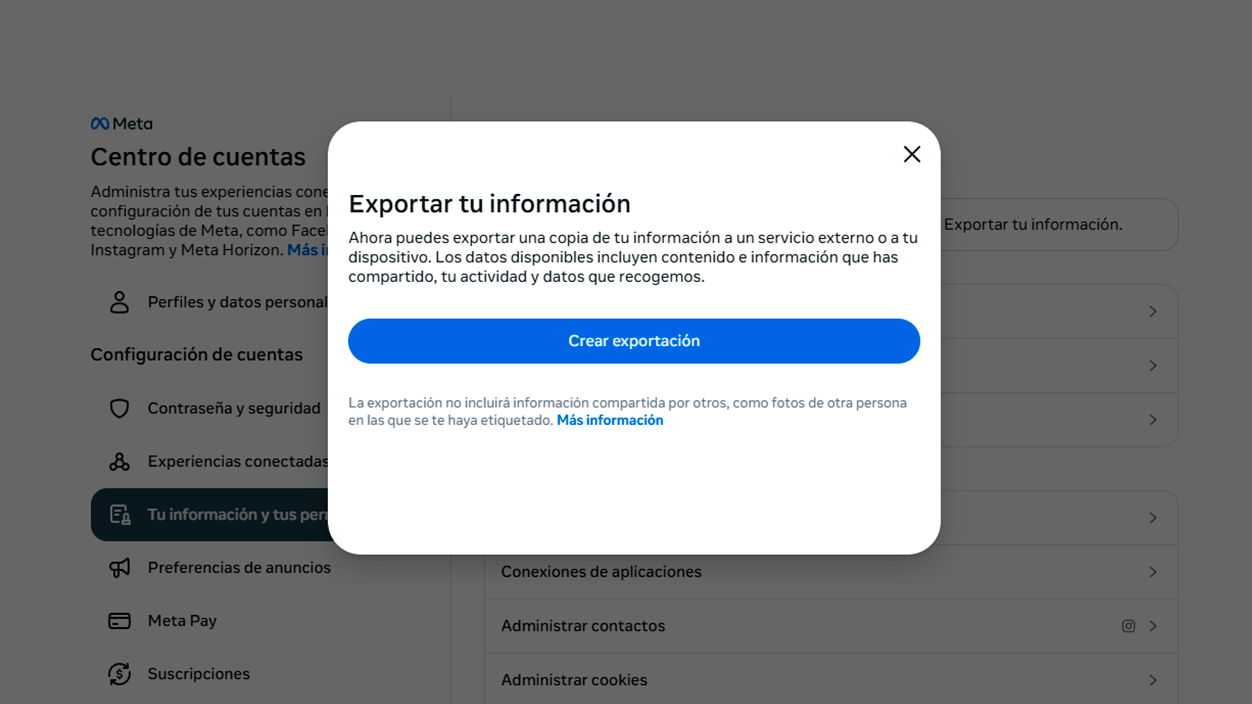
From the Accounts Center, locate the section called “Your information and permissions”This is where Meta groups the tools to view, download, or transfer data from your linked profiles.
Once inside, you'll see the option “Download your information” or “Download or transfer information”Clicking this will open a summary screen where you can choose which profiles you want to back up: only your Facebook account, only your Instagram account, or both at the same time, if they are connected to the same Accounts Center.
In this phase the platform will ask you How much information do you want to download?You'll have two main paths: "Available Information" or "Specific Types of Information." The first includes virtually everything except data records, while the second allows you to be much more precise about what you include.
If you choose the specific types option, you'll see a fairly long list of categories: posts, stories, friends, friend requests, photos, albums, videos, saved items, collections, messages, events, groups, reactions, pages, search history, security information, and logins, among others. You can Check and uncheck each section as needed.
It's important to keep in mind that not all of the account's lifetime content will necessarily be available. Depending on how and when Facebook stored certain data, There may be gaps in very ancient periodsAdditionally, anything you've deleted (messages, photos, posts) will no longer appear in the download, because it's assumed to have been removed from the servers.
How to select the content and prepare the file
Once you're clear on which profiles you're going to include and what type of information interests you, it's time to refine the selection and configure the file that Facebook is going to prepare for you.
On the data types screen, you'll see a button labeled "Select All." It's useful if you want to download absolutely all available informationBut be careful: in some interfaces you have to click "Select all" in each category or block, not just once globally. If you don't check carefully, you might miss some sections without realizing it.
When you're happy with your selection, tap "Next" or a similar option. Facebook will then ask if you want to... “Download to device” or “Transfer to destination”Direct download generates a compressed file that you download to your computer, while transfer allows you to automatically send certain data (such as photos or videos) to other compatible services.
You will also need to define the date rangeYou can download the entire account history or limit the archive to a specific period (for example, from 2015 to 2020). This is useful if you only want to recover a particular period or if you want to reduce the download size.
In this phase, the Data format: HTML or JSONThe HTML format is designed so you can open the file with any browser and browse your memories in a way similar to how you would on the Facebook website itself. JSON, on the other hand, is a more technical format geared towards advanced uses, analysis, or importing into other systems.
Format, file quality, and approximate download size
In addition to the format, you will need to establish the quality of multimedia files (low, medium, or high). This setting mainly affects photos and videos and has a direct impact on the total size of the file you will receive.
If you choose high quality, you will get Images and videos in better resolutionThese are more suitable for keeping as a serious backup or for printing important photos. In return, the file size increases significantly. Meta indicates that a typical download is around 2,5 GB, but if you are very active and have been on the social network for many years, your file is likely to be considerably larger.
Medium quality is a reasonable middle ground if you want balancing quality with file sizeThe low quality, on the other hand, falls short for demanding uses, but it might work for you if you're just looking for a lightweight and easy-to-manage file, or if Your internet connection is limited.
In this step you can also enter a email address You'll receive a notification when the file is ready. It's usually the same email address linked to your Facebook account, but it's important to make sure you have access to it, because the notification and download links will be sent there.
Once you have filled in all the options (data types, period, format, and quality), you will see a button like this: “Create file” or “Create files”By clicking it, your request will be sent to Facebook's servers and the preparation process will begin.
Application process, waiting times, and file download
Once submitted, the status of your file will change to “Pending” or similarFrom that moment on, Meta takes care of collecting everything you have requested, packaging it, and making it ready for you to download or transfer.
The time it takes to generate depends on the amount of information you have accumulated and whether you have included data recordsIn many cases, creating the file is quite quick, but when full logs are requested or there is a lot of multimedia content, it can take longer. Facebook advises that some logs may take up to 15 days to become fully available.
On certain accounts, instead of starting the download immediately, Facebook displays a message indicating that you must “request a copy of your information”In other words, the request is sent first, and when the file is ready, you receive a notification with the download link. This isn't a bug; it's simply another way of managing the process.
When the file is ready, you'll receive an email and see a notification within Facebook. You'll have a limited time (usually four days) To download the file, go to the "Download your information" page. If you don't do this in time, you may have to repeat the request from scratch.
For security reasons, the download is protected. Facebook will usually ask for your password again before allowing it. Download the ZIP file with all your dataThis prevents someone with temporary access to your session from taking your information without your consent.
With all this, downloading your Facebook account data becomes more than just a simple technical procedure: it's a way to Bring order to your digital life, save your memories, and regain control. about what one of the world's largest social networks knows about you.


I am a technology enthusiast who has turned his "geek" interests into a profession. I have spent more than 10 years of my life using cutting-edge technology and tinkering with all kinds of programs out of pure curiosity. Now I have specialized in computer technology and video games. This is because for more than 5 years I have been writing for various websites on technology and video games, creating articles that seek to give you the information you need in a language that is understandable to everyone.
If you have any questions, my knowledge ranges from everything related to the Windows operating system as well as Android for mobile phones. And my commitment is to you, I am always willing to spend a few minutes and help you resolve any questions you may have in this internet world.