- AI dubbing allows you to translate and replace the audio of a video while maintaining tone, emotion, and lip-sync.
- CapCut on PC combines a professional video editor with a video translator, text-to-speech, automatic subtitles, and voice changers.
- Tools such as Dubverse, Speechify, Synthesys, Maestra AI, and ElevenLabs expand the options for dubbing and synthesizing speech in many languages.
- These solutions drastically reduce time and costs, improve accessibility, and make it easier to scale content to global audiences.

If you're tired of your videos only working in one language, the good news is that AI-powered voice acting in CapCut and in other similar tools It's no longer a matter of professional studiesToday anyone can translate and dub a video in minutes, with voices that sound natural and synchronized with the image.
In this guide you will see How to use AI for voice dubbing in CapCut Step by step, what advanced features it offers (translation, lip-syncing, subtitles, text-to-speech, voice changers…), and also a review of other AI dubbing platforms such as Dubverse, Speechify, Synthesys, Maestra AI or ElevenLabsso you know what each one brings to the table and when you might want to combine them.
What is AI voice dubbing and why is it taking the world by storm?
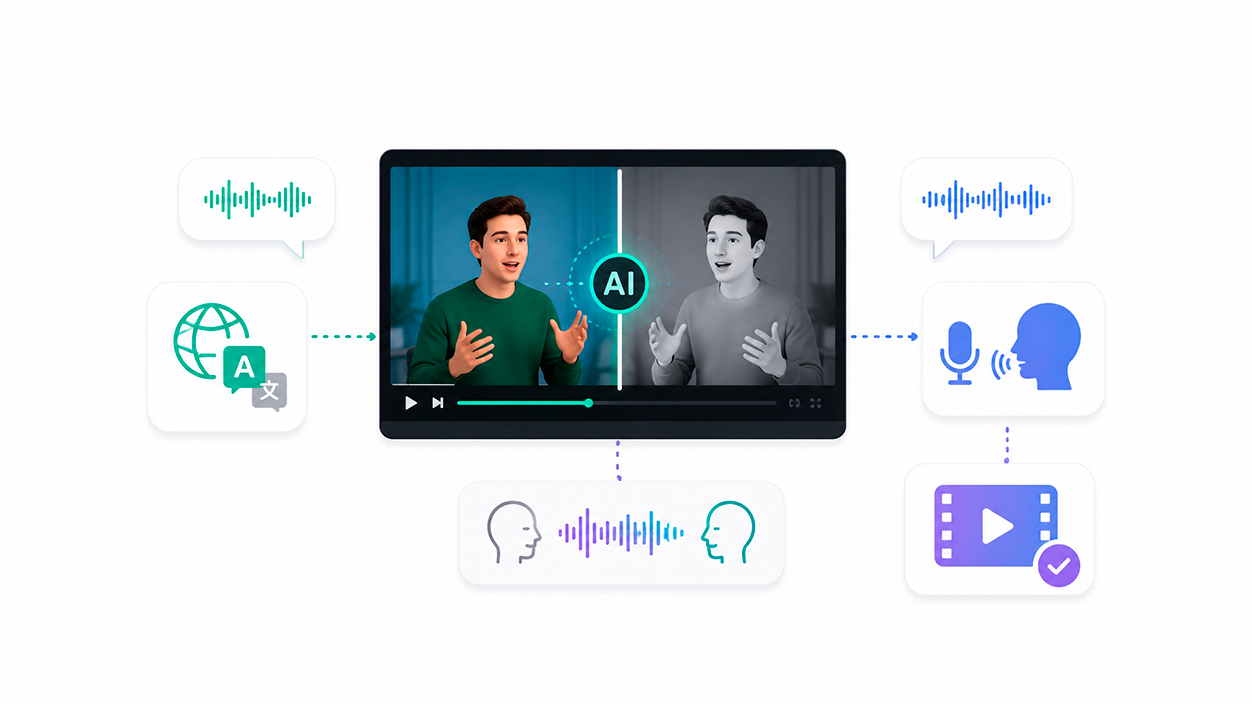
When we talk about AI video dubbing, we mean using advanced algorithms to translate and replace the original audio of a video with a new track in another language, maintaining as much as possible the tone, emotion and rhythm of the original speaker.
Unlike older techniques, these solutions don't simply involve pasting a generic voiceover onto the video. AI analyze the timbre, cadence, and pauses of the speaker and generates a new voice adapted to the content, often even adjusting the mouth movements so that the result seems recorded that way from the beginning.
The goal is for the public to have a natural viewing experience: that you don't notice strange cuts or mismatches between lips and audio, and that the message maintains the same emotional charge as the original even when reproduced in another language.
Thanks to this, creators can break down language barriers without going through studios, voice actors, or endless processes. And this is where CapCut and the other tools we'll see play a key role.
CapCut on PC: the nerve center for AI voice dubbing
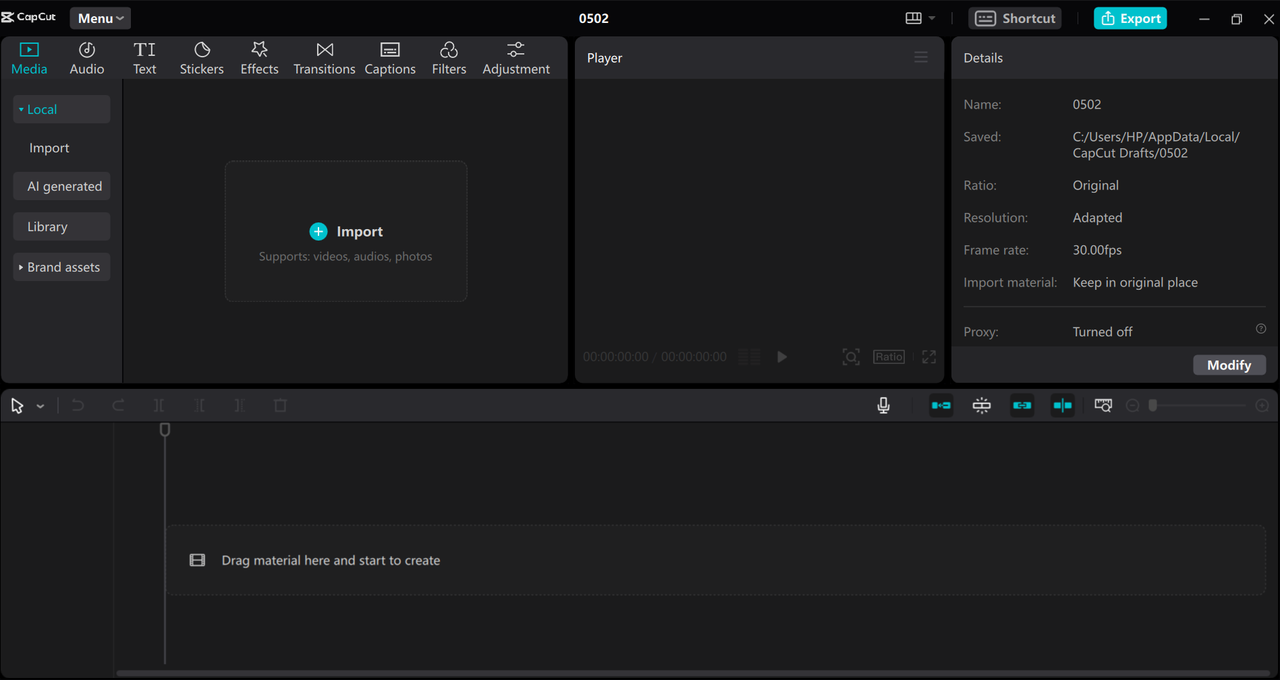
CapCut in its desktop version has become one of the most powerful options for those looking for edit and dub videos with AI Without complicating things. It works on both Windows and macOS and combines a video editor, dubbing module, subtitle generator, and text-to-speech functions into a single program.
Its great advantage is that it combines a professional editing environment (multiple tracks, filters, effects, color correction, etc.) with finely tuned AI tools for dubbing, lip-syncing, voice changing and audio enhancement, all within the same interface.
Most basic features are available for free, although some advanced capabilities (such as certain AI models or premium resources) are unlocked with a subscription. paid membership within the desktop application itself.
How to dub a video with AI in CapCut step by step
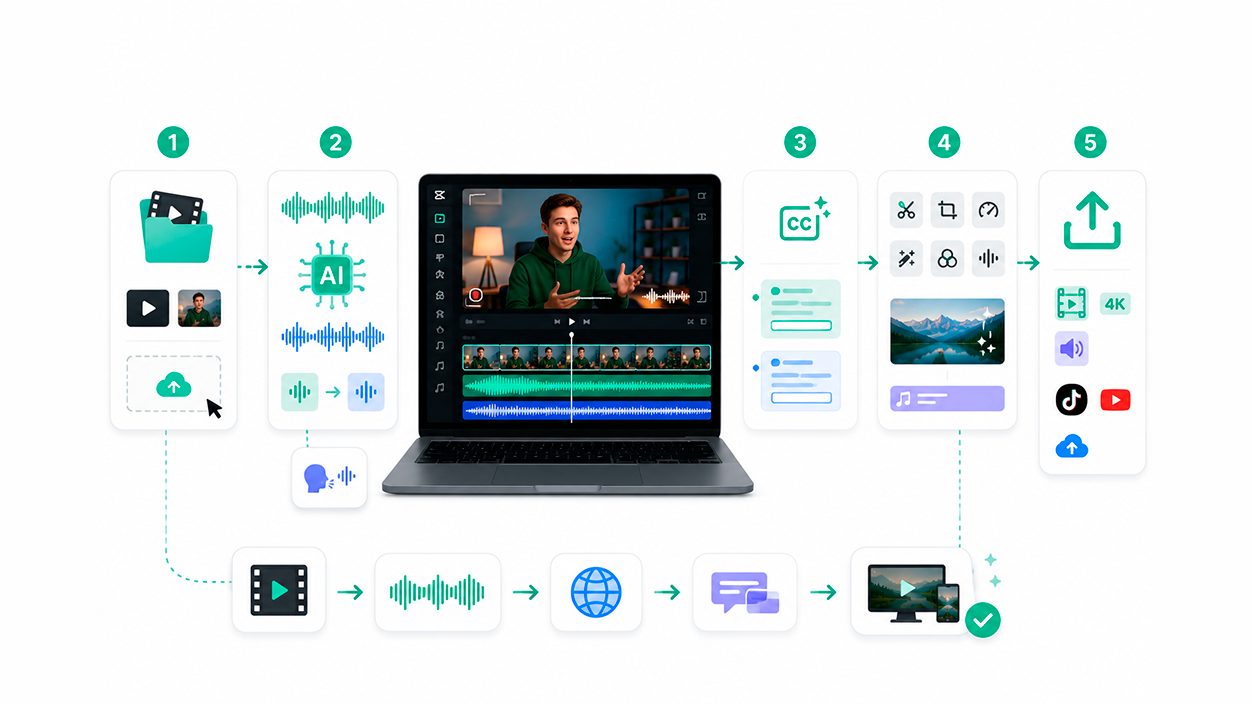
Let's look at the complete flow for AI voice acting in CapCut PCFrom importing the video to exporting it ready for TikTok or YouTube, the process is very similar whether you want to translate the audio into another language or simply re-record the voice in the same language but with a different voiceover.
Step 1: Create a project and import the video
Once you have installed CapCut on your computer, log in with your account and click on “New project” From the main screen. This opens the editing interface with an empty timeline and media panel.
In the media panel you can Import your video There are two ways to import: by pressing the "Import" button to locate the file on your device, or by dragging and dropping the clip directly into the media area. If you already work with the CapCut ecosystem, you can also go to the "Spaces" section to import videos saved in your cloud storage.
Once you have the file in the library, drag it to the timelineFrom this point on, everything you do (cuts, filters, dubbing, subtitles) will be applied to that clip.
Step 2: Activate the video translator and dub with AI
Select the clip in the timeline and look at the right panel, where the tab appears. editing settingsGo to the “Audio” section and, within “Basic”, scroll down until you find the “Video Translator” option. Check the box to turn on the AI dubbing feature.
In the drop-down menus of this tool you configure the original language of the video (“Translate from”) and the language you want to translate the audio to (“Translate to”). For example, if the video is in Spanish and you want an English version, you choose “Spanish” as the source and “English” as the destination.
CapCut then generates a new audio track using its AI dubbing engineIt maintains the character of the original voice (tone, timbre, and intention) while creating a new voiceover in the selected language. At the same time, it adjusts lip-sync and mouth movements to best match the new voice.
This process usually only takes a few moments, depending on the duration and complexity of the video. When it finishes, you'll see the dubbed track on the timeline and you can listen to the result directly in the player.
Step 3: Generate automatic subtitles and translations
In addition to audio, CapCut PC incorporates a feature of automatic subtitles which is very useful for combining dubbing with bilingual subtitles or for making your content accessible to people with hearing problems.
In the top left, go to the “Text” tab and select “Automatic subtitles”. A panel will open where you choose the spoken language of the video and, if you want, the "Bilingual Subtitles" option to generate subtitles in two languages at the same time (for example, audio dubbed in English with subtitles in English and Spanish).
Press “Generate” and in a few seconds CapCut will create a synchronized subtitle track. Then you can customize the appearance: font type and size, color, outlines, alignment, even applying predefined templates to match the style of the channel or brand.
All of this can be adjusted segment by segment, so if you wish edit a specific sentenceYou just have to select it in the subtitles line and change the text in the corresponding panel.
Step 4: Polish the video with the editing tools
Once you have the dubbing generated, the rest of CapCut PC's features come into play: you can cut and trim Remove unnecessary parts, divide scenes, rearrange shots, apply video effects, adjust color, add transitions, or integrate background music.
CapCut also incorporates AI tools such as automatic reframing, flicker elimination, voice enhancer, noise reduction and specific filters to give it a more cinematic finish or one in line with social networks such as dub on TikTok and Reels.
If you want to add a more creative touch, you can use the resource library Integrated features include stickers, sound effects, royalty-free music tracks for use within the platform, video backgrounds, and more. All of these are dragged and dropped onto the timeline, just like the main clips.
Step 5: Export the dubbed video and share it
When you are satisfied with the result, click the button "Export"A window opens where you can define the file title, destination folder, and technical parameters: resolution (up to 4K), frame rate (e.g., 30 or 60 fps), codec, format (MP4 or MOV), and bitrate.
CapCut PC also allows you to perform a copyright verification Before exporting, this is useful if you're going to upload the content to platforms like YouTube (if needed, you can Disable automatic dubbing on YouTube) and you want to minimize surprises with automatic claims.
If you only need the dubbing audio, you have the option to “Export audio” and download the generated track in a standard audio format. And if you intend to publish the video on TikTok or YouTube, you can connect your accounts and share directly without leaving the editor.
Other AI features in CapCut for voice, audio, and subtitles
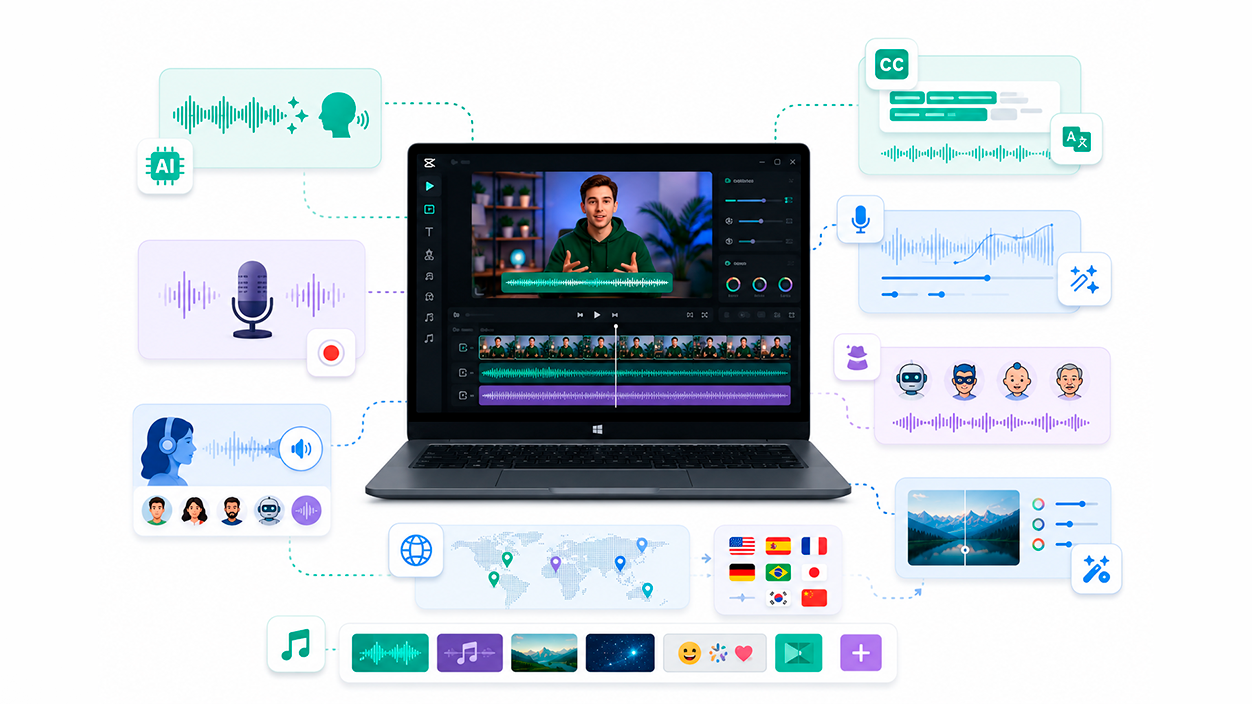
The dubbing module doesn't come alone. CapCut for desktop has positioned itself as a all in one to work with audio and voice using different AI models. These are some of the key voice-related features.
Text to speech: create voiceovers without recording
With the function of text to speech You can write a script and let AI read it aloud in a high-quality artificial voice. To use it, add a text box in the "Text" tab, type or paste your content into the right panel, and go to the "Text to Speech" section.
There you will find more than a hundred voices, classified by gender, accent and style (male, female, narrator, energetic, etc.). You can listen to a preview before applying the voice to the text, and when you click "Start Reading," CapCut will generate a new audio track aligned with that text snippet on the timeline.
Then you can combine that voice with music, sound effects, audio filters and the rest of the editing tools, just as if it were a real recording.
Built-in recorder and voice enhancer
If you prefer to use your own voice, CapCut PC has a integrated audio recorder which allows you to record narratives directly within the project, without needing to open external programs.
After recording, you can enhance the track with the voice enhancerIt adjusts parameters such as volume, clarity, presence, and equalization to make the voiceover sound cleaner. You also get a one-click noise reduction system that automatically eliminates fan hum, traffic noise, and room echo.
These features are especially useful when dubbing videos recorded in different environments or with different microphones, because they help to unify the sound and that everything looks like it came from the same studio.
Voice changers and AI characters
CapCut offers a collection of voice changers To distort and modify your audio: you can sound like a robot, a cartoon character, change your tone to simulate another age, etc. There are more than 20 voice-changing effects designed for creative videos, sketches, or humorous content.
In addition, it has more than one hundred AI characters These characters can be used as virtual narrators. They not only provide a distinct voice, but can also be visually represented, allowing you to adjust their position and framing within the video if you want them to appear on screen as digital presenters.
Automatic subtitles in multiple languages
The automatic subtitles feature is not limited to one language. CapCut allows Generate subtitles in more than 20 languages, making your content accessible to deaf or hard-of-hearing people and international audiences who prefer to read rather than listen to dubbing.
This is especially useful when combined with the AI video translatorYou can dub the audio into a different language, keep subtitles in the original language, and add a second track of translated subtitles, all in the same project and with just a few clicks.
Professional-level video editing tools
Beyond the audio aspect, CapCut PC behaves like a professional multitrack editorwith features such as advanced color correction, AI motion effects, multi-layer video and audio editing, fine sound mixing and many more resources designed for vlogs, short films, promotional pieces or educational content.
Added to this is a huge resource library with music, stock clips, animated stickers, transitions, and filters. The key advantage is that all of this integrates directly with the dubbing workflow, so you don't have to jump between programs to complete your final piece.
Other AI tools for voice dubbing and video translation
Although CapCut PC covers virtually all the dubbing needs of an average creator, there are specific dubbing and speech synthesis platforms that can complement your workflow or serve you when you only want to transform the audio without editing video.
Dubverse: Fast dubbing in dozens of languages
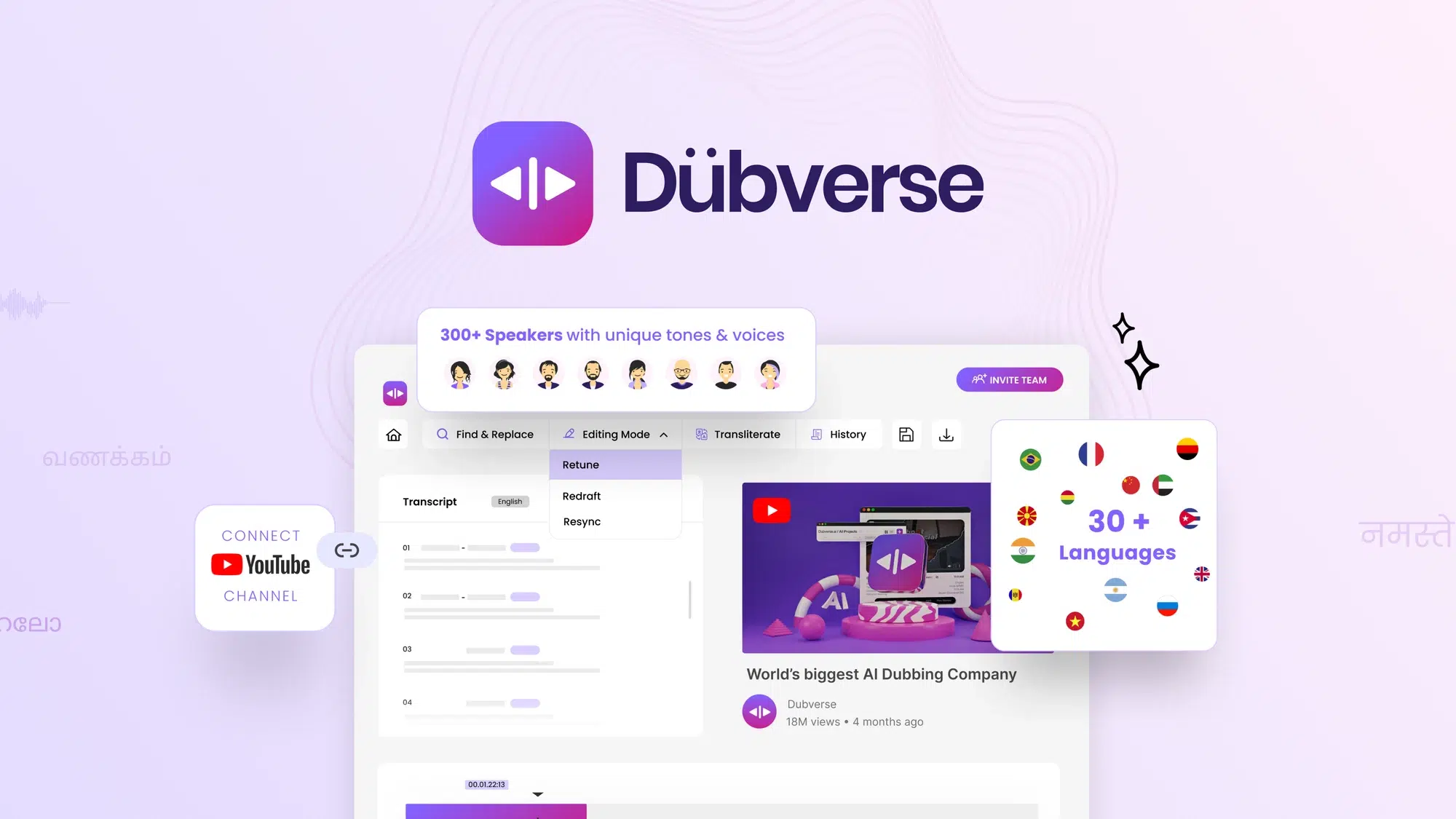
Dubverse is an online tool focused on the automatic video dubbing Powered by AI. It allows you to dub clips into more than 60 languages, with a catalog of more than 450 voices and a script editor with real-time translation.
Its main advantage is speed: it promises to make video production up to ten times faster than traditional methods. It works with links from platforms like TikTok, YouTube, Vimeo, X, or Facebook, as well as with files you upload from your computer.
The basic flow is simple: you register, go to the “Video Dubbing” option, paste the link or upload the file, choose the speakers and the target languageYou select whether you want a male or female voice and press "Let's dub" to start the process.
It has a free version with 20 monthly credits, and paid plans with more credits and extra features.
Speechify: dubbing and voice-over from your mobile phone
Speechify is known for its focus on reading aloud, but it also includes a tool for AI-powered video dubbing designed to generate natural voices in different languages.
It is available for Android and iOS and supports approximately 30 languagesAmong its features are Chinese, Arabic, English, and German. Its capabilities include an AI voice generator, voice cloning, and the ability to upload videos up to 15 minutes long.
To use dubbing, you register, click on “Dub video”, upload or select the video, indicate the number of speakers, choose the language of the content, and submit the assignment. The free plan offers 10 minutes of voice generation but without downloading the results. Paid plans, such as Basic and Professional, extend to 50 or 100 hours of voice generation per user per year.
Synthesys: highly precise lip synchronization
Synthesys focuses on the voice cloning and translation With highly accurate lip-syncing, it's ideal for projects where the visual naturalness of the dubbing is critical. It supports more than 29 languages It's designed for high-quality, multilingual content. It offers two main modes: directly translating the video or adding a virtual "actor" over the video.
The basic usage consists of uploading the video, choosing the type of translation (dubbing only or added actor), Choose language and voice and click on “Generate”It has a very limited free version (about 2 minutes of audio/video) and Personal and Creator Unlimited paid plans.
Maestra AI: Mass translations into more than 80 languages
Maestra AI is designed for those who need translate videos into a large number of languages quickly, maintaining the tone and nuance of the original.
It allows Dubbing and subtitling in more than 80 languagesWith a fairly straightforward workflow: from the voiceover section, you create a "New Voiceover," upload the video, select the source and target languages, and submit. Once the video is processed, you choose the narrator's voice. You press “Synthesize audio” and adjust the levels between the voice-over and the source audio..
It has a free version with restrictions and several payment models: payment option pay-per-use at $10 per hour, premium subscription with an effective cost of $5 per hour of content per month and a negotiable Enterprise plan for large volumes.
ElevenLabs: Advanced Voice Synthesis and Dubbing
ElevenLabs is a very popular web platform in the field of high-quality speech synthesisAlthough it's not a video editor per se, it does allow you to dub content, generate voices from text, and change voices using filters.
Its engine is based on deep learning models trained with many hours of human speech in different accents, languages, and styles, allowing it to create very realistic artificial voices and customizable. It currently offers more than 100 voices in about 29 languages.
One of its strengths is its ability to clone voicesYou can record your voice, let the system analyze it, and use that profile to generate voiceovers that mimic your nuances, intonation, and rhythm, so that the result is almost indistinguishable from your real voice.
To convert text to speech in ElevenLabs, simply go to the Text to Speech section, paste your text (up to 5.000 characters per block), choose a voice or create your own, adjust parameters such as stability, similarity, or style exaggeration, and click "Generate Voice." You can then integrate the resulting file into CapCut or another video editor.
Advantages of AI-powered video dubbing versus traditional dubbing
Beyond comfort, the AI-assisted dubbing It offers a range of benefits that explain why more and more creators, brands, and institutions are switching to this model.
First comes saving in time and costsTraditional dubbing involves hiring voice actors, renting studios, coordinating schedules, and dealing with lengthy mixing and editing processes. With AI tools, you can have a functional dubbed version in minutes, opening the door to publishing much more content or testing different languages without breaking the bank.
Secondly, AI makes it easier scalabilityIt is perfectly feasible to dub large volumes of content into multiple languages simultaneously, something that would be a logistical nightmare with human teams working in parallel.
It also wins consistency of qualityAI-generated voices maintain a consistent tone and presence across languages, which is key for brands seeking a uniform global image. You're less dependent on each actor's performance style or the conditions of each recording session.
Finally, the accessibilityBy eliminating the language barrier and combining dubbing with automatic subtitles, you can reach global audiences, people with hearing difficulties, and users who consume videos without sound (common on social media) without remaking all the material from scratch.
Who benefits most from these AI-powered dubbing tools
The AI dubbing ecosystem doesn't just serve individual creators. There's a whole range of groups and sectors that can greatly benefit from it.
On the one hand, there are global audiences, who gain access to educational, informative or entertainment content in their native language, without having to depend on a high level of the original language or constant subtitles.
Then come the creators and producers Content creators: YouTubers, online teachers, trainers, media outlets, brands… By localizing their work in several languages, they expand their reach, improve the performance of their campaigns, and generate new monetization avenues from audiences that were previously practically off-limits.
The streaming platforms and TV networks They benefit by adding series, documentaries, and films dubbed into more languages, attracting subscribers from different linguistic backgrounds and increasing user satisfaction.
The marketing and advertising agencies They can adapt global campaigns with messages much closer to each local market, which translates into better recall rates, more engagement and, ultimately, more profitable campaigns.
In the educational field, the possibility of double courses and training Multilingual support allows you to reach students all over the world and offer them content in their native language, which usually improves comprehension and results.
Finally, governments and NGOs They can communicate key messages about public health, safety, or rights in different languages with relative ease, reaching communities that are often left out of traditional communication channels.
Overall, AI-powered voice dubbing on CapCut and the other platforms mentioned has transformed something that previously required studios, large budgets, and weeks of work into a a process manageable for almost any creatorIf you know even the basics of video editing, today you can translate, dub, subtitle, and publish it in several languages from your own computer, with a level of quality that a few years ago was reserved for large production companies.
Index
- 1 What is AI voice dubbing and why is it taking the world by storm?
- 2 CapCut on PC: the nerve center for AI voice dubbing
- 3 How to dub a video with AI in CapCut step by step
- 4 Other AI features in CapCut for voice, audio, and subtitles
- 5 Other AI tools for voice dubbing and video translation
- 6 Advantages of AI-powered video dubbing versus traditional dubbing
- 7 Who benefits most from these AI-powered dubbing tools

I am a technology enthusiast who has turned his "geek" interests into a profession. I have spent more than 10 years of my life using cutting-edge technology and tinkering with all kinds of programs out of pure curiosity. Now I have specialized in computer technology and video games. This is because for more than 5 years I have been writing for various websites on technology and video games, creating articles that seek to give you the information you need in a language that is understandable to everyone.
If you have any questions, my knowledge ranges from everything related to the Windows operating system as well as Android for mobile phones. And my commitment is to you, I am always willing to spend a few minutes and help you resolve any questions you may have in this internet world.