- There are official extensions in the Microsoft Store to enable native HEIC support in Windows 11.
- It is possible to perform indirect conversions using the print to PDF function from the Draw application.
- NAS systems allow you to automate the conversion of HEIC to JPG during backup.
- Using third-party software facilitates the mass processing of images without relying on the cloud.

If you've ever downloaded a bunch of photos from your cloud to your PC and suddenly found that Windows 11 does not recognize HEIC filesDon't worry, you're not alone. It's a common headache, especially for iPhone users, since Apple uses this format to halve the file size without losing any quality, but Microsoft doesn't always make it easy to open them on the first try.
The point is that, although we want to do things in the simplest way, sometimes we run into a wall of incompatibility. Whether it's because you're looking for a native solution without installing strange programs Or because you manage a business environment with many devices, there are several ways to tame these files and WebP, from quick tricks with tools you already have on the system to more advanced automations.
How to view HEIC files natively in Windows 11

For the Windows Photos app to open these files without errors, it's best to have the correct file extensions. This usually involves downloading the appropriate extensions. Official codecs from the Microsoft StoreThere's an important distinction here: while some extensions are free, the HEVC codec typically has a minimal cost (around €0,99). For those running businesses, this can be a licensing issue, so some choose to configure iPhones in [unspecified mode]. "More compatible" so that the photos are saved directly in JPG format.
Homemade tricks to convert HEIC to JPG without external software
If you urgently need to convert a photo to JPG and don't want to spend a penny or download anything, there's a rather ingenious "shortcut" using the tool Windows drawingThe process is a bit convoluted but effective: you open the image in Draw, go to the print option and, instead of using a physical printer, you choose Microsoft Print to PDFOnce you have the PDF, all that's left is to save it as an image. However, keep in mind that this method is more of a... emergency rescue a professional solution, since the quality can drop a little and it's tedious if you have a hundred photos.
Third-party tools and bulk conversions

When the volume of images is very large, performing the process manually is a complete waste of time. This is where local converters like [insert converter name here] come in. Local HEIC Converterwhich lets you drop a bunch of files, choose JPG as the destination, and hit convert in the blink of an eye. It's the ideal option if you prefer that the processing be local and you don't want to upload your private photos to an online conversion website.
Automated solutions and professional management with NAS
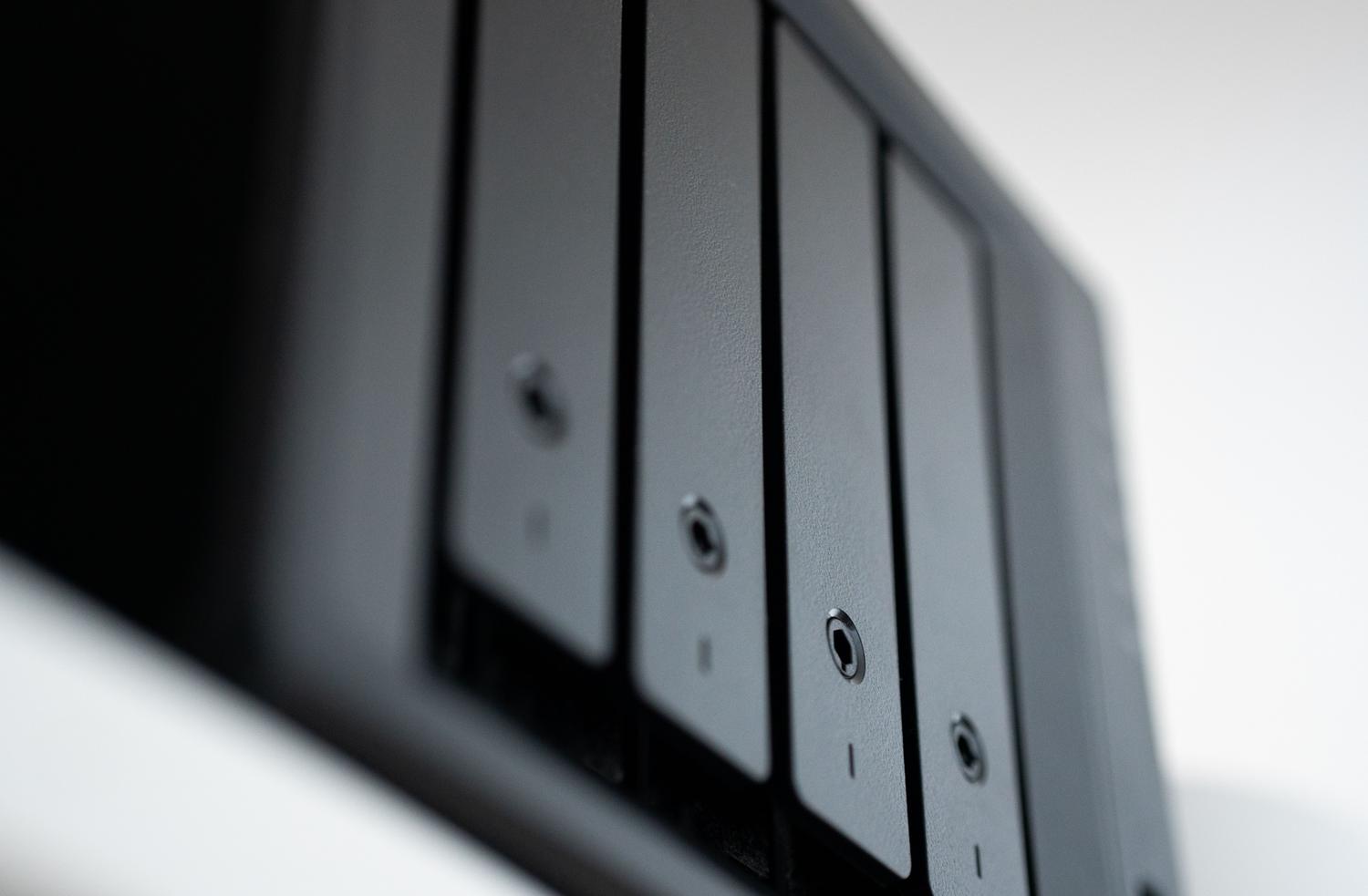
For those looking to forget about the problem forever, automation is the way forward. For example, using a QNAP NASYou can configure a workflow where the Qfile Pro app does the dirty work: while the photos are uploaded from the mobile device, the system... It automatically converts to JPG in the backgroundSo, when you get to your PC, the photo is already ready and compatible with any device, even old TVs or office printers that don't understand HEIC.
Another powerful alternative is to keep the original file to save server space and use the software CAYIN Media ViewerThis tool allows the NAS to decode the image on the fly, so you can view your HEIC photos in the Windows 11 browser. without needing to install extensions on every computer in your home or office. Plus, with QuMagie's AI, you can organize your memories by faces or places, mimicking the Google Photos experience but with the privacy of your own hardware.
Comparison of methods according to need
- Occasional use: The trick of printing to PDF from Draw is sufficient.
- Frequent personal use: Installing extensions from the Microsoft Store is the most convenient.
- Large volumes: Local batch conversion programs.
- Professional environments: Automation via NAS or changing settings on the iPhone camera.
Having control over image formats in Windows 11 means choosing the tool that best suits our needs, whether that means accepting the small cost of official codecs, using the versatility of local converters, or implementing intelligent storage systems that handle compatibility seamlessly so we can focus on enjoying our photos. Now you know how to edit HEIC and WebP files directly with Windows 11 Photos.

Passionate about technology since he was little. I love being up to date in the sector and, above all, communicating it. That is why I have been dedicated to communication on technology and video game websites for many years. You can find me writing about Android, Windows, MacOS, iOS, Nintendo or any other related topic that comes to mind.