- Error 3002 occurs when Discord cannot capture microphone audio input.
- The main causes range from denied permissions in Windows to outdated drivers.
- This can be resolved by adjusting privacy settings, checking volume levels, or clearing the browser cache.

There's nothing more frustrating than logging into a game with friends or having an important meeting and realizing that Discord has gone silentSuddenly, you stumble upon the blessed Error 3002, a fault that basically tells you that something is wrong with your microphone, but doesn't bother to explain exactly what's happening.
The strangest thing is that this problem usually appears out of nowhere, without you having touched a single cable or setting. But don't worry, because This error does not mean your hardware is dead.It is generally a software conflict or permissions issue which can be solved in a few simple steps if you know where to look.
What exactly is Discord Error 3002?
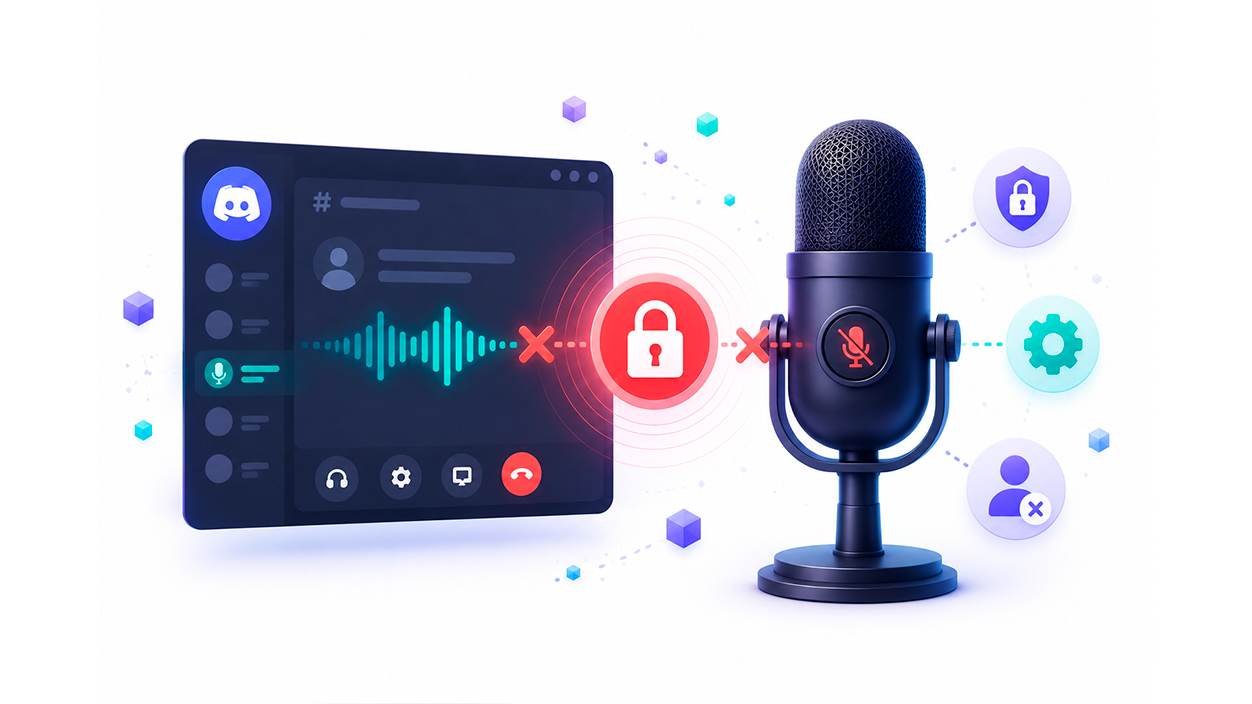
To put it simply, error 3002 is an audio input failure. This occurs when the application cannot access the microphone or it can't process the audio signal it sends. Basically, Discord tries to "listen" but hits a wall, preventing other users from hearing you in real time.
This problem can occur whether you use the program installed on your PC or access it through a web browser. The reasons are usually varied: from a Windows update that has reset your privacy preferences, even corrupted temporary files that are causing system noise.
Steps to fix microphone problems on Discord
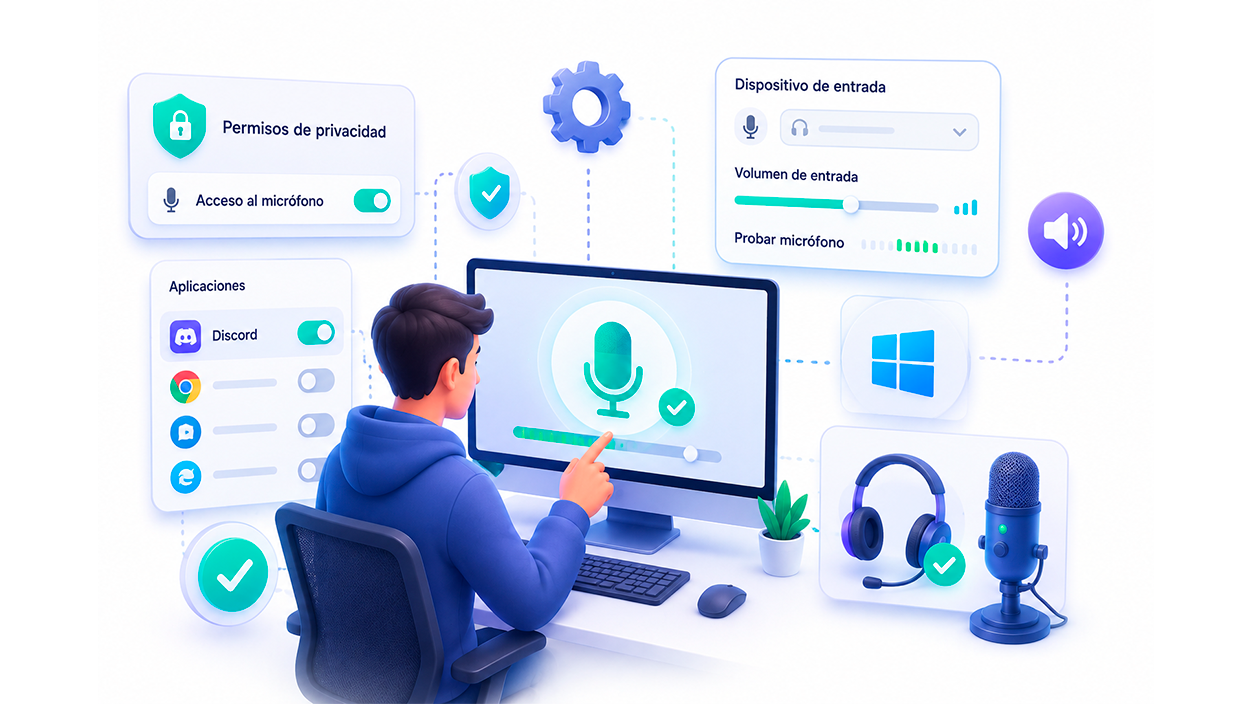
If you want to stop guessing, it's best to follow a logical order of checks. First, the most obvious: check if Windows is granting Discord permission to use the microphone. Sometimes, after an update, the system decides that Privacy comes first and disables access to external applications.
To fix it, press the Windows key + I, go to Privacy and security, and look for the Microphone sectionMake sure the main switch is turned on and that Discord has been granted permission in the list of applications. If you're using the web version, remember to grant permission specifically to the browser you're using.
If the permissions are correct but you're still having no sound, the input volume might be too low. Go to System Settings, then Sound, and check that the correct input device is selectedSometimes Windows chooses a cheap built-in microphone instead of your gaming headset; turn up the volume and restart the app to see if that fixes it.

Internal Discord settings and hardware
Let's not rule out that the problem lies within the application itself. It's very common that we've accidentally activated silent mode or that the Discord input device It doesn't match the system's. Go to the User Settings gear icon, then to "Voice and Video," and verify that the selected microphone is yours and that the volume bar is turned up.
If this doesn't work, try disable noise suppression Discord's built-in sound card or any external program like VoiceMeeter might be causing a conflict. Sometimes, these tools try to clean up the sound but end up blocking the signal completely, causing the system to throw error 3002.

As for the hardware, don't hold back. change the USB port Check the port where your microphone is connected. An unstable or dusty port can cause micro-cuts that confuse Discord. Unplug the device, wait a few seconds, and plug it into a different port to force Windows to recognize the hardware from scratch.
Advanced solutions and system maintenance
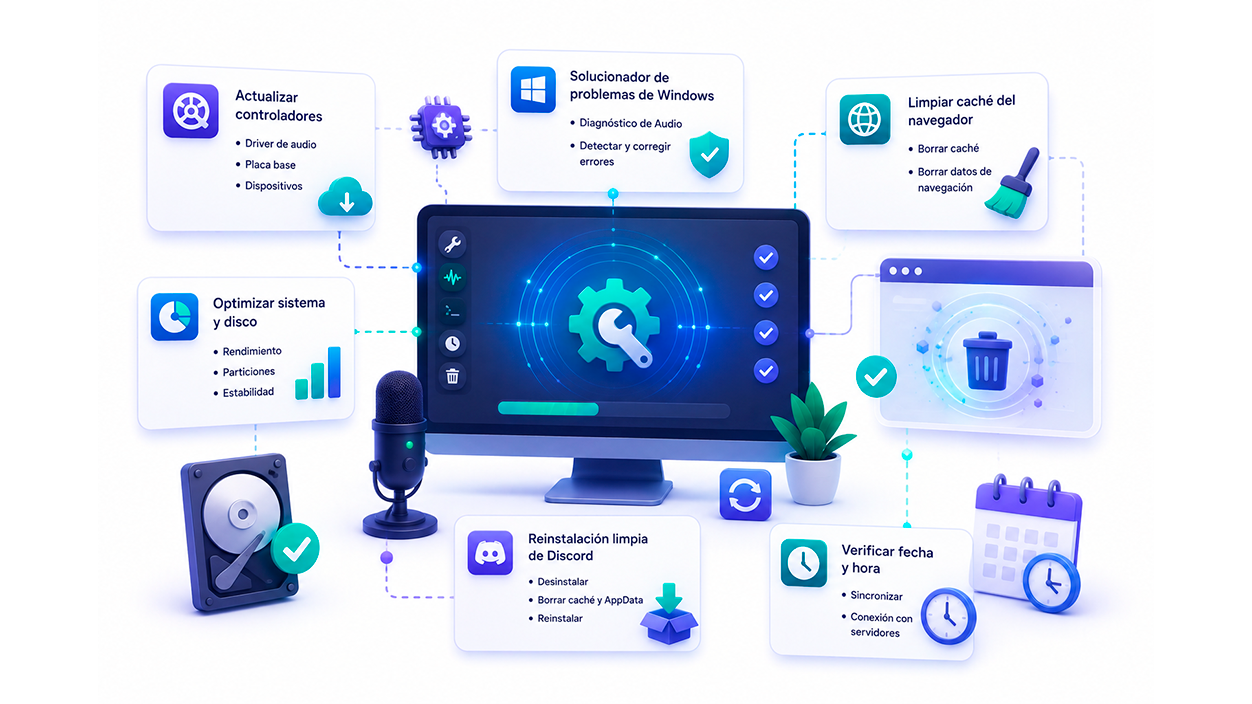
If you've already tried the above and still haven't had any luck, it's time to look at your drivers. An outdated or corrupted audio driver is like a broken bridge between your microphone and the software. You can update drivers manually from your motherboard manufacturer's website or use automatic tools like Driver Easy to avoid technical complications.
Another very useful thing is to run the Windows TroubleshooterGo to Settings > System > Troubleshoot and run the Audio diagnostic. This tool can detect hidden conflicts that we might otherwise miss and usually fixes registry errors in no time.
For those using Discord in a browser, the culprit is usually the cache. Accumulated temporary files can corrupt audio permissions. Go into your browser's privacy settings and Clear browsing data and cache of all time. This refreshes the session and usually clears the microphone lock.
Furthermore, it's always a good idea to optimize the overall performance of your PC. If the hard drive is full or the partitions are poorly managed, the system can become unstable. Tools like 4DDiG Partition Manager help ensure that operating system breathes betterpreventing real-time applications like Discord from experiencing lag or strange communication errors.
If the problem persists after trying all these solutions, the best course of action is to completely uninstall Discord. Clear Discord cache on Windows 10 and the AppData folders to perform a clean installation. Remember also verify the date and time on your computer are synchronized, as this affects the connection to the servers and can trigger random errors.
Error 3002 is usually a simple misunderstanding between Windows permissions and Discord settings, which can be resolved by checking your privacy settings, updating your drivers, or clearing your browser cache, thus ensuring that the audio stream is restored without complications.
Index

I am a technology enthusiast who has turned his "geek" interests into a profession. I have spent more than 10 years of my life using cutting-edge technology and tinkering with all kinds of programs out of pure curiosity. Now I have specialized in computer technology and video games. This is because for more than 5 years I have been writing for various websites on technology and video games, creating articles that seek to give you the information you need in a language that is understandable to everyone.
If you have any questions, my knowledge ranges from everything related to the Windows operating system as well as Android for mobile phones. And my commitment is to you, I am always willing to spend a few minutes and help you resolve any questions you may have in this internet world.