- Most sticker failures in WhatsApp are due to download settings, full storage, or outdated versions.
- Updating the app, checking the automatic download, and clearing the cache usually resolves gray sticker issues.
- External sticker apps and battery saving features can cause errors if they are not configured correctly.
- Reinstalling WhatsApp and properly managing sticker packs ensures stable and widespread use of stickers.
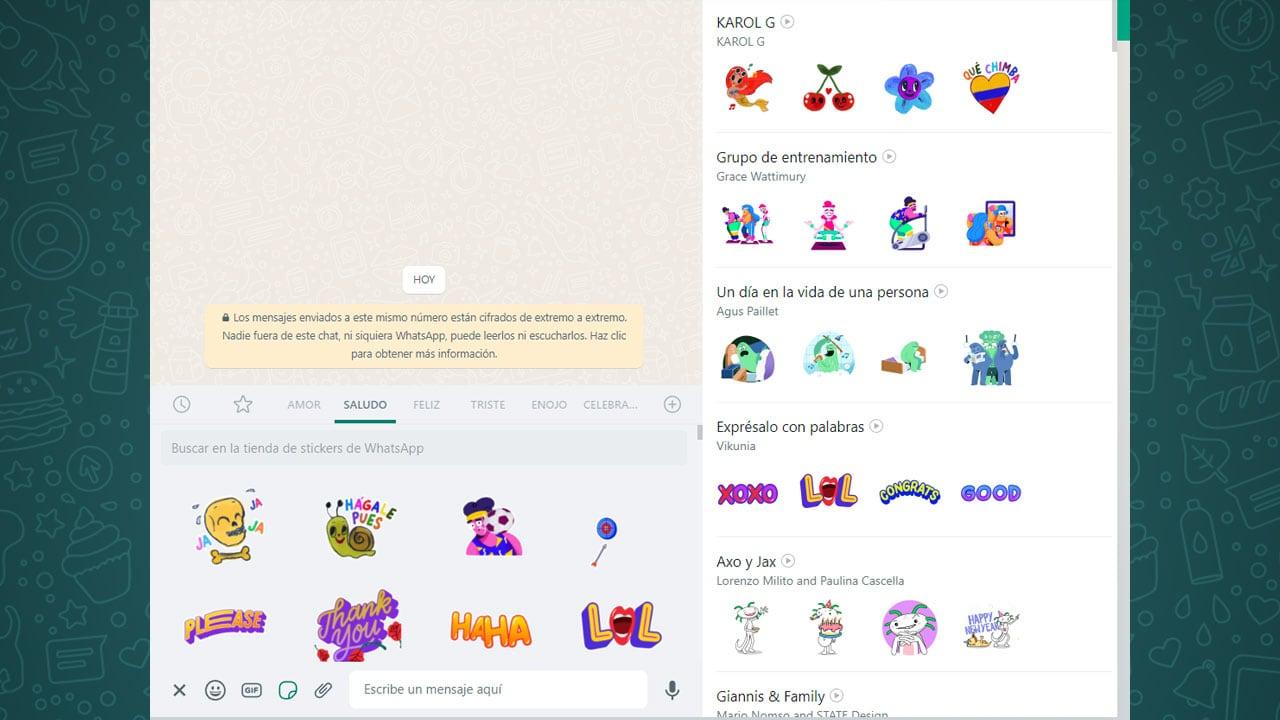
¿How to fix WhatsApp not automatically downloading stickers? If when someone sends you a sticker on WhatsApp it gets stuck gray, blurry, and with the download icon If it never loads, you're not the only one experiencing this. Many users report that, no matter how many times they press the download button, the sticker never finishes downloading, even though they see a small, blurry preview in the chat.
This error is especially frustrating when you've already tried everything: clear cache, restart phone, update WhatsApp…and the stickers still aren't downloading automatically. This guide compiles, neatly organized, and explains step-by-step all the solutions currently working to fix sticker problems on WhatsApp, both on Android and iPhone.
Most common reasons why WhatsApp doesn't automatically download stickers
Before going into detail about each solution, it's helpful to understand what's usually behind this problem. Typically, when a sticker remains grayed out with the size and download button displayed, the issue is related to pending updates, download settings, storage, or permissionsBut it could also be due to external apps or the phone's own battery.
In many cases, stickers stop loading correctly after an app or system update, or when WhatsApp introduces an internal change that affects how it handles stickers. Some users even notice that, patch after patch, The stickers become more unstableFortunately, it can almost always be fixed by adjusting the appropriate settings.
Update WhatsApp to the latest version on Android and iPhone
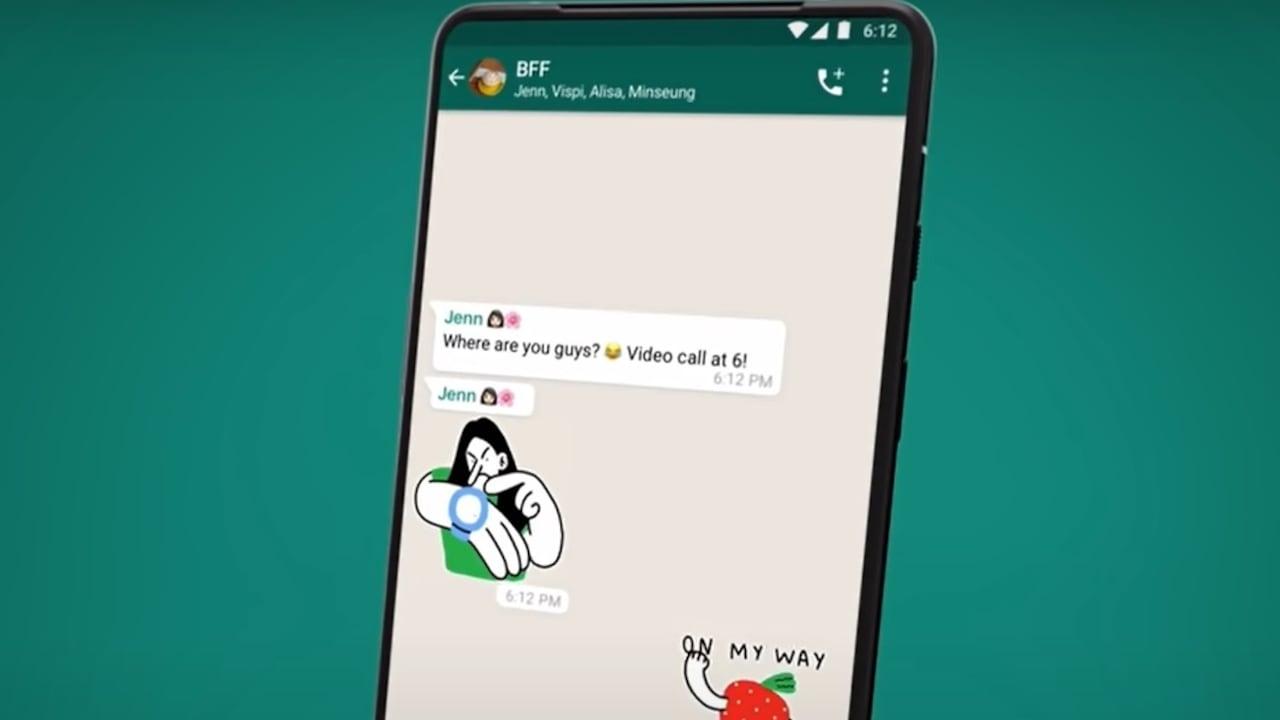
The first thing you should check is whether you are using the latest version of WhatsAppMeta frequently releases updates that fix performance bugs, improve stability, and sometimes address specific sticker issues.
If it's been a while since your last update, that's probably the problem. Even if you have automatic updates enabled, sometimes they get stuck or delayed, so it's worth checking manually.
On AndroidFollow these steps:
- Open the app Google Play Store on your mobile.
- Type "WhatsApp" in the search bar at the top.
- Go to the application's page.
- If you see the button "Update"Tap it to download and install the latest version.
On iPhone (iOS), do the following:
- Access the App Store of your iPhone.
- Click the "Updates" tab or your profile icon in the upper right corner (depending on the iOS version).
- Search for "WhatsApp" in the list of pending apps or use the search bar.
- If the option appears "Update"Tap to install the latest version.
Once the app is updated, reopen WhatsApp and try downloading any stickers that were previously blocked. Often, this alone solves the problem, especially if it was a sticker issue. internal application bug.
Adjust automatic downloads in WhatsApp settings
If the stickers don't download automatically and remain grayed out until you tap them, you may have incorrectly configured the settings. automatic download settingsWhatsApp groups photos, videos, and stickers under the same options, so if you disable one, it will affect the others.
To have stickers automatically download again upon receipt, go into the app settings and check these options. Keep in mind that this change will also affect... Photos and videos received are saved automatically depending on what you configure.
On any device, the steps are very similar:
- Open WhatsApp and go to the menu of Settings (three-dot icon in the upper right corner on Android or "Settings" tab on iPhone).
- Enter the section "Storage and data".
- Locate the section "Automatic download".
- There you will see two key options: "Download using mobile data" and "Download using WiFi".
- Enter each one and make sure the boxes of "Photos" and "Videos" They are activated.
Although not explicitly stated, sticker management is linked to these types of content. By allowing automatic downloads of photos and videos over both mobile data and Wi-Fi, you ensure that the Incoming stickers are downloaded without having to touch anything.
Clear WhatsApp cache
Another common reason why stickers stop displaying correctly is that the app accumulates too much temporary data. WhatsApp cache memory It fills up with use and, sometimes, becomes corrupted, causing loading failures, previews that don't update, or stickers that don't download.
Clearing the cache doesn't delete your chats or saved media files; it simply removes temporary data so the app can regenerate them from scratch. It's one of the fastest and safest solutions you can try.
On Android, do the following from the system settings:
- Open the Settings from the phone.
- Go to "Applications" or "Applications & notifications" (the name may vary depending on the customization layer).
- Search and click on "WhatsApp".
- Tap on "Storage".
- Select the option "Clear cache".
On some models, you can also clear the cache from within the WhatsApp app itself:
- Open WhatsApp and go to "Adjustments".
- Go to "Storage" or "Storage and Data".
- Look for a similar option to "Cached data".
- Press and confirm on "Accept" to empty it.
On iPhone, the system doesn't offer such a clear option to clear only the cache of a specific app; in many cases, the alternative is to reinstall the application if the error persists, something we will discuss later.
Check available storage space
Sticker download problems can also occur when your phone is almost full. If the device has very little free spaceWhatsApp may have difficulty saving new stickers, sticker packs, photos, or videos, resulting in download errors.
To rule out this problem, check how much storage you have available and check where the stickers are stored And free up some space if you're really short on space. The goal is to leave enough room for WhatsApp to save incoming content without any problems.
On Android and iPhone the procedure is very similar:
- Open the Settings from the phone.
- Go to the "Storage" or "Device Storage" section.
- Check the available free space.
- If you're close to the limit, delete. Unnecessary files, apps you don't use or heavy content (videos, duplicate photos, old downloads…).
You can also use WhatsApp's own "Manage storage" tool (in Settings > Storage and data > Manage storage) to delete large files and items forwarded many timeswhich tend to take up quite a bit of space.
Check the privacy settings related to stickers
Some versions of the app include privacy settings that affect the use of certain content or features. While not all users will see exactly the same options, it's worth taking a look at the relevant section. account privacy in case there's something deactivated that's causing problems.
To review these options:
- Open WhatsApp and go to "Settings" or "Settings".
- Enter the section "Account".
- Click on "Privacy".
- Review the options related to shared content and, if any reference to stickers or multimedia content, make sure it is enabled.
This section usually doesn't block the receipt of stickers, but if you've thoroughly adjusted privacy settings or restored an old backup, it's worth checking to rule out that the problem originates from there.
Check the compatibility of stickers and external apps
The world of WhatsApp stickers has exploded in recent years. There are external applications such as Sticker Studio, Sticker Maker, Sticker.ly, Stickers WhatsApp or similar that allow create your own stickers, install theme packs or import collections created by other users.
However, not all stickers you find online are fully compatible with WhatsApp. Some are designed for other messaging apps or don't meet the expected format, so they can cause errors when sending or receiving them. In these cases, you'll often see a message like this: "An error occurred" when trying to open a sticker or the sticker simply doesn't download.
To minimize problems:
- Only install sticker packs designed for WhatsApp, either from the app's own sticker section or from recognized applications.
- Avoid downloading stickers from dubious sources or from apps that ask for them. Excessive permissions about your WhatsApp account.
- If you notice that the problem started right after installing a third-party sticker app, consider uninstalling it.
If the problem persists after uninstalling the external sticker app, go back to the original source from which you downloaded the sticker. problematic packageRemove that package and reinstall it from scratch. Sometimes the installation becomes corrupted, and reinstalling the package quickly fixes the errors.
Turn off battery saver if you encounter sticker errors
In several Android mobile phone models, the aggressive systems of battery saver These restrictions can interfere with WhatsApp's normal operation. When the system excessively limits background activity, notification problems, file download delays, and, in some cases, specific sticker errors can occur.
If opening a sticker displays a message such as "an error occurred" or you notice that they only download correctly when you manually enter the conversation, the power saving mode may be slowing down the app.
To test if this is the source of the failure:
- Enter the Settings from the phone.
- Look for the "Battery" or "Battery Saver" section.
- If you have any extreme power saving mode activated, temporarily disable it.
- On some devices you can also exclude WhatsApp from battery optimization so that it has complete freedom in the background.
After making this change, restart your phone and try receiving stickers again. If the error disappears, you've confirmed that the problem originated in the system energy management.
How to clear cache and restart the app when errors persist
If you've already checked your download settings, updated WhatsApp, and checked your storage and battery, but the stickers still aren't downloading properly, it's a good idea to repeat a short "combo" of steps: clear cache and restart application.
On Android you can do it like this:
- Clear the WhatsApp cache as explained in previous sections.
- Close WhatsApp completely (also remove it from multitasking to be sure).
- Turn your phone off for a few seconds and then turn it back on.
- Open WhatsApp again and try downloading stickers.
This process forces the app to rebuild much of its temporary data and re-establish connections, which very often corrects strange behavior with stickers without the need for more drastic measures.
When is it advisable to reinstall WhatsApp?
If, after all the previous steps, your WhatsApp still isn't automatically downloading stickers, the problem might be with the app installation itself or a corrupted internal file. In that case, the most effective option is usually to... Uninstall WhatsApp and reinstall it.
Before doing so, it is essential that you save a backup of your chatsYou can save your conversations to Google Drive (Android) or iCloud (iPhone), or locally, whichever is more convenient for you. This way, you can recover your conversations when you reinstall the app.
In general, the process would be:
- In WhatsApp, go to Settings > Chats > Chat backup and create an updated backup.
- Uninstall the app from the system (press and hold the icon and choose "Uninstall" or do it from Settings > Applications).
- Restart your phone.
- Reinstall WhatsApp from Google Play or the App Store.
- Log in with your number, verify the code, and restore the backup when prompted.
After this clean reinstallation, most persistent errors with the stickers disappear, as you have completely reset the application's internal settings and system files.
How to download new stickers and manage them correctly
Once you've resolved the automatic download issue, you might be interested in expanding your sticker collection. There are several ways to do this. Download additional stickers both within WhatsApp and using specific applications, always taking care not to install anything suspicious.
From within the WhatsApp interface itself, you can add many official and third-party packages:
- Open any chat and tap the icon of stickers in the writing bar.
- Tap the symbol «+"which usually appears to go to the sticker shop."
- Explore the available collections and click "Download" on the ones you like.
On Android you can also use apps like Sticker.ly or “wasticker” packs available on Google Play:
- Go to Sticker.ly and grant the necessary permissions; you can log in with your Google account.
- Use the magnifying glass icon to search for topics or keywords that interest you.
- Choose a package and tap "Add to WhatsApp".
- Wait until the advertisement finishes if it appears.
- When finished, WhatsApp will open and the sticker pack will be available in your sticker list.
Another possibility for Android is to go to Google Play and search for terms like "wastickers" or "wastickerapp"Once you have downloaded these apps, you can choose the packages you like best and integrate them into WhatsApp following their instructions (usually also through an "Add to WhatsApp" button).
On iPhone, sticker downloads are primarily done through the App Store, using tools like Top Sticker Maker Studio Memes or Emojidom Stickers & Smileys. You just have to Install the app, select your favorite packages and follow the process to add them to WhatsApp.
Custom stickers and new features powered by artificial intelligence
Stickers have become one of the most popular ways to express yourself on WhatsApp. Stickers offer dynamism, humor and expressiveness They enhance conversations, allowing for quick and fun responses, and even adapt to very specific moods.
In addition to the classic packages, tools have appeared that allow Create fully customized stickers Using photos, memes, or your own images, apps like Sticker Studio, Sticker Maker, or Sticker.ly make it easy to cut out silhouettes, add text, and create unique collections for your chats.
WhatsApp developers are also experimenting with features based on artificial intelligenceespecially in iOS 16. The idea is that the user can generate stickers from photos saved on the phone without needing to use external apps or complicated processes, for example, creating stickers for WhatsApp on iPhone.
According to expert information, it works very simply: you open an image, select the person, object or animal To turn an item into a sticker, press and hold on it, and the system will highlight it. Then, simply drag that selection directly into a WhatsApp chat.
The result is that the cropped part of the photo automatically becomes a sticker that you can Share with your contacts as if it were any other sticker from the catalog, making the creation of original stickers much easier.
The key, whether you use these native methods or third-party apps, is to always keep the application updated and control which permissions you grant to avoid conflicts that could affect the Download and correct display of the stickers.
With all of the above, you have a full range of solutions and best practices to stop stickers from getting stuck in gray, ensure they download automatically, and let you enjoy your favorite packs again without errors or endless waits. Ultimately, by properly adjusting download options, managing storage, checking battery saver settings, and using only reliable sources for your sticker packs, it's unlikely that WhatsApp stickers will continue to cause problems for long.
Index
- 1 Most common reasons why WhatsApp doesn't automatically download stickers
- 2 Update WhatsApp to the latest version on Android and iPhone
- 3 Adjust automatic downloads in WhatsApp settings
- 4 Clear WhatsApp cache
- 5 Check available storage space
- 6 Check the privacy settings related to stickers
- 7 Check the compatibility of stickers and external apps
- 8 Turn off battery saver if you encounter sticker errors
- 9 How to clear cache and restart the app when errors persist
- 10 When is it advisable to reinstall WhatsApp?
- 11 How to download new stickers and manage them correctly
- 12 Custom stickers and new features powered by artificial intelligence

Passionate about technology since he was little. I love being up to date in the sector and, above all, communicating it. That is why I have been dedicated to communication on technology and video game websites for many years. You can find me writing about Android, Windows, MacOS, iOS, Nintendo or any other related topic that comes to mind.