Would you like to have a private AI assistant that analyzes your documents without sharing your data? Installing AnythingLLM on Windows is the ideal solution to turn your computer into a personalized AI hub. In this guide, we'll show you how. How to install AnythingLLM on Windows step by step and how to start taking advantage of it in minutes.
What is AnythingLLM and what is it used for?
Before explaining how to install AnythingLLM on Windows, let's briefly see what it is and what it's used for. AnythingLLM is a free application for your computer that It works like your own private and personalized ChatGPT.What differentiates AnythingLLM from ChatGPT is that it runs directly on your computer and allows you to feed it with your personal files and documents.
What is the purpose of installing AnythingLLM on Windows? Basically, it's a tool that lets you have your own virtual assistant based on your files and documents, making it easier to search through them. These are Some of its main functions:
- You can “chat” with your documents: The tool lets you upload your PDF files, documents, folders, links, or notes. It then reads that content and answers your questions based solely on that information.
- Greater privacy: Si You connect AnythingLLM to a local AI model like Ollama All processing takes place on your own computer. No one will be able to access your data or files.
- Better organization of your work: The tool allows you to create different workspaces, which will help you keep everything organized and categorized.
- Freedom of choice: With AnythingLLM you can choose which AI engine to use. For example, free and local models (like Ollama or LM Studio) or use OpenAI (ChatGPT engine), Anthropic (Claude) or Gemini.
How to install AnythingLLM on Windows step by step
Install AnythingLLM on Windows It's very easy and you don't need any technical knowledge. Advanced. You don't even need to open the command prompt on your PC. Below, we explain step by step how to install AnythingLLM on Windows.
1. Download the official installer
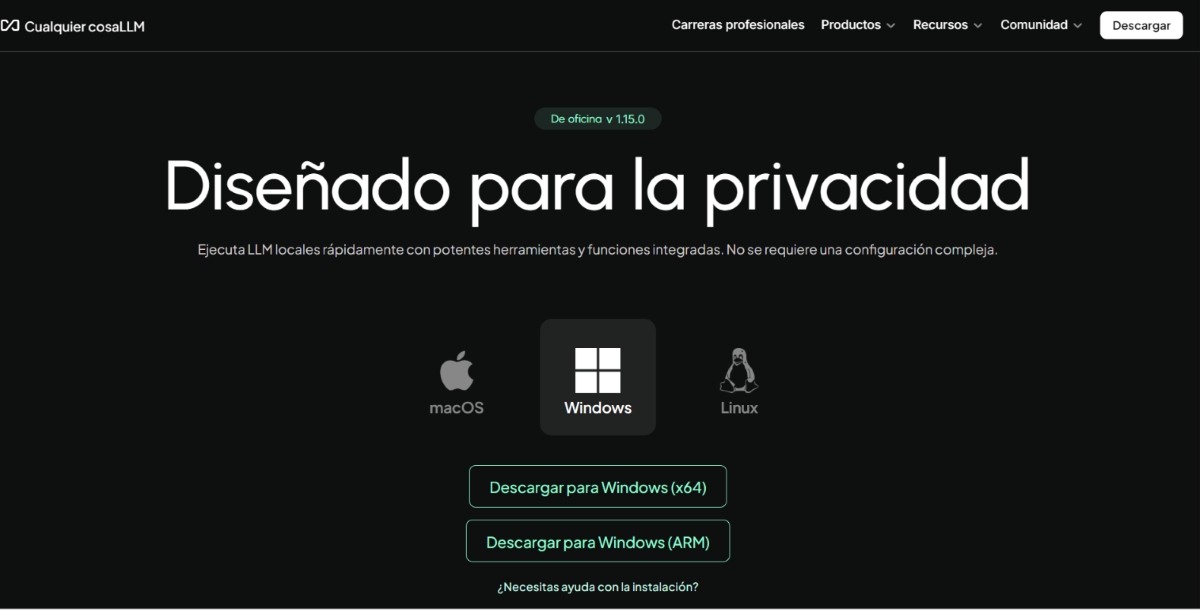
The first thing you should do is Download the official installerTo do this, follow these steps:
- Visit the official website anythingllm.com.
- Click on Download.
- Make sure Windows is selected.
- Choose whether you want to download it for Windows (x64) or download it for Windows (ARM).
Si You're not sure which version to downloadRight-click the Windows Start button and select System. Look for the System type or Processor section. If it says "64-bit operating system, x64-based processor," download the one that says "(x64)"; if it says "ARM-based processor," download the one that says "(ARM)".
2. Run the installer on Windows
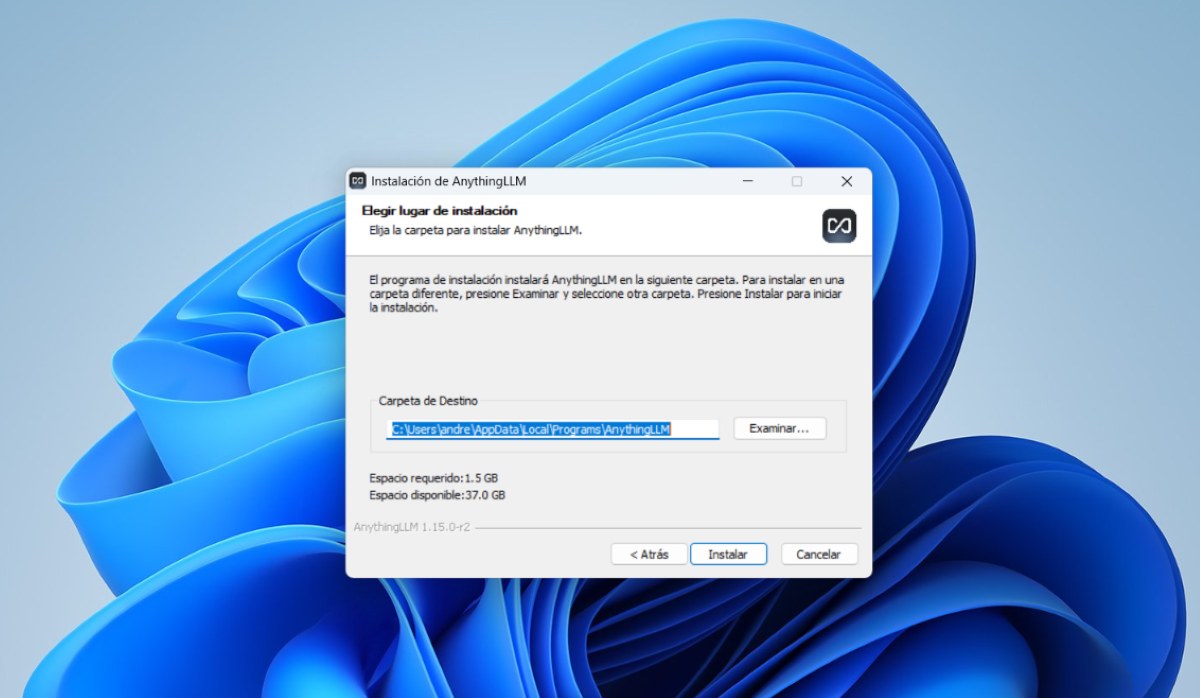
Once you have the executable .exe file, it's time to install AnythingLLM on WindowsFollow these steps:
- Open the file you just downloaded.
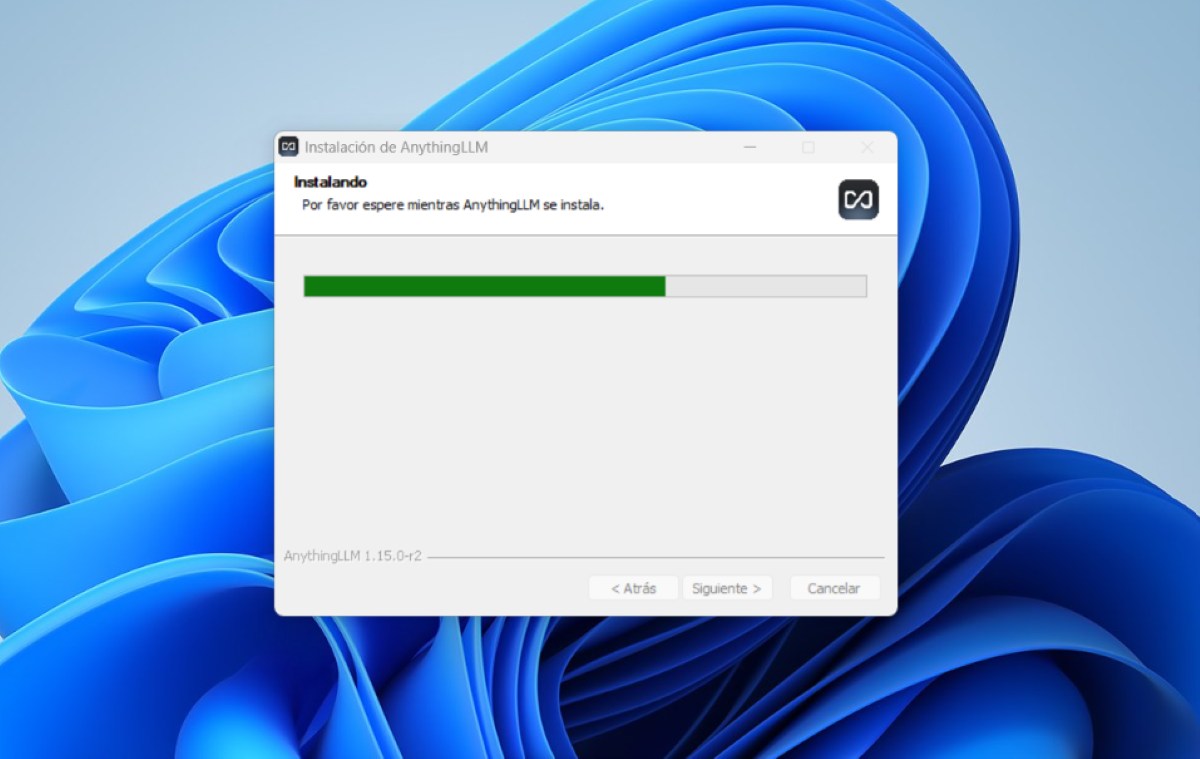
- Click Install and wait patiently for the process to finish. Do not close the window until it has completed.
- You may see a Windows Defender warning. If this happens, click More info and then Run anyway.
- Complete the wizard by installing it only for your current user.
3. Initial AI Configuration
When you open the application for the first time, the assistant will ask you to select the artificial intelligence engine of your choice These are the different options you have when installing AnythingLLM on Windows:
- Local models (100% private and free): You can select Ollama or LM Studio if you already have them installed on your PC.
- Cloud-based models: You can select options such as OpenAI (ChatGPT), Anthropic (Claude) or Groq and enter your API key.
- Default native engine: If you don't want to complicate things, you can let AnythingLLM download a lightweight native template.
4. Create your first Workspace
After completing the initial setup, you can Create your first workspaceYou can give this space a name, such as Work, Studies, Research, Projects, etc. And that's it, you'll have your own AI assistant running on your computer.
Practical tip: If you want to get the most out of it with your own files (PDF or Word), you can upload the documents to the workspace you created and click Move to Workspace / Embed so that the AI can analyze them and answer your questions based strictly on them.
Advantages of installing AnythingLLM on Windows
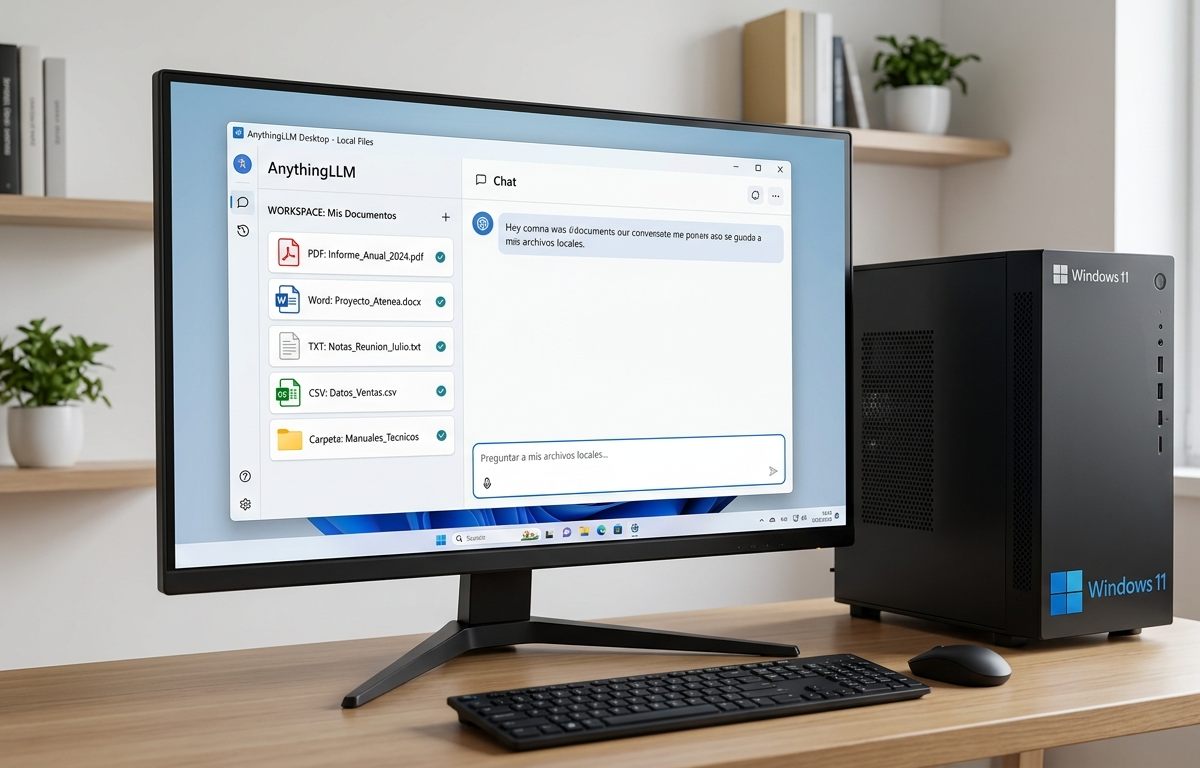
Installing AnythingLLM on Windows offers several key advantages, especially if you're interested keep your data under control And you want to save time when consulting your documents, files, and personal notes. We could summarize its main benefits as follows:
- 100% local processing and storage: You don't need a constant internet connection to access your files. Nor are you dependent on cloud service outages or changes to its usage policies.
- Simple interface and native installation: Unlike other AI tools that require the Windows command line, AnythingLLM installs like any other regular program. Furthermore, it has a modern and very simple graphical interface, making it very easy to use.
- Saving time (and money): On the one hand, you get the benefits of a private virtual assistant, so you don't waste time manually reading and reviewing all your files and documents. On the other hand, you don't need to pay recurring monthly subscriptions to enjoy its services.
In short, installing AnythingLLM on Windows is an excellent idea if you want to have the The power of an advanced chatbot, while also protecting privacy. of your documents. Furthermore, you have the freedom to choose which AI you want to use.
Go ahead and install AnythingLLM on Windows
Install AnythingLLM on Windows It's the ultimate solution if you want to take control of all your information and boost your productivity. As you can see, installation is really simple and doesn't require complicated technical knowledge.
Thanks to this tool, you can transform your computer into a private artificial intelligence centerIt's capable of analyzing your own documents. Now that you know the step-by-step process for its installation and basic configuration, go ahead and create your own workspaces within the tool and get the most out of your custom AI.

Index