- Integration of Continue.dev and Cline to transform VS Code into an open-source AI-assisted IDE.
- Custom configuration of models using the config.yaml file and the use of API keys from providers such as Groq and OpenRouter.
- Implementation of autocomplete functions, contextual chat, quick editing, and autonomous agents to optimize development.
- Ability to run language models locally to ensure privacy and work offline.

I'm sure it's happened to you: you're coding and suddenly the AI assistant you're using slows down, loses context, or starts suggesting changes that have nothing to do with the project. Editors like Cursor Windsurfing and other similar products include these features as standard, but You don't need to leave Visual Studio Code to have contextual chat, autocomplete, and agents capable of modifying code..
Continue and Cline are two open-source extensions that allow you to incorporate different AI models into VS Code. Both can work with cloud providers, gateways like OpenRouter, and certain local model servers.
Although they can be installed together, Continue and Cline are not necessarily a required combination.Their functions overlap in several areas, especially since Continue incorporated its own Agent mode. The right choice depends on whether you're primarily looking for autocomplete and contextual editing, or an agent focused on completing multi-step tasks.

Continue or Cline: Which extension should you use?
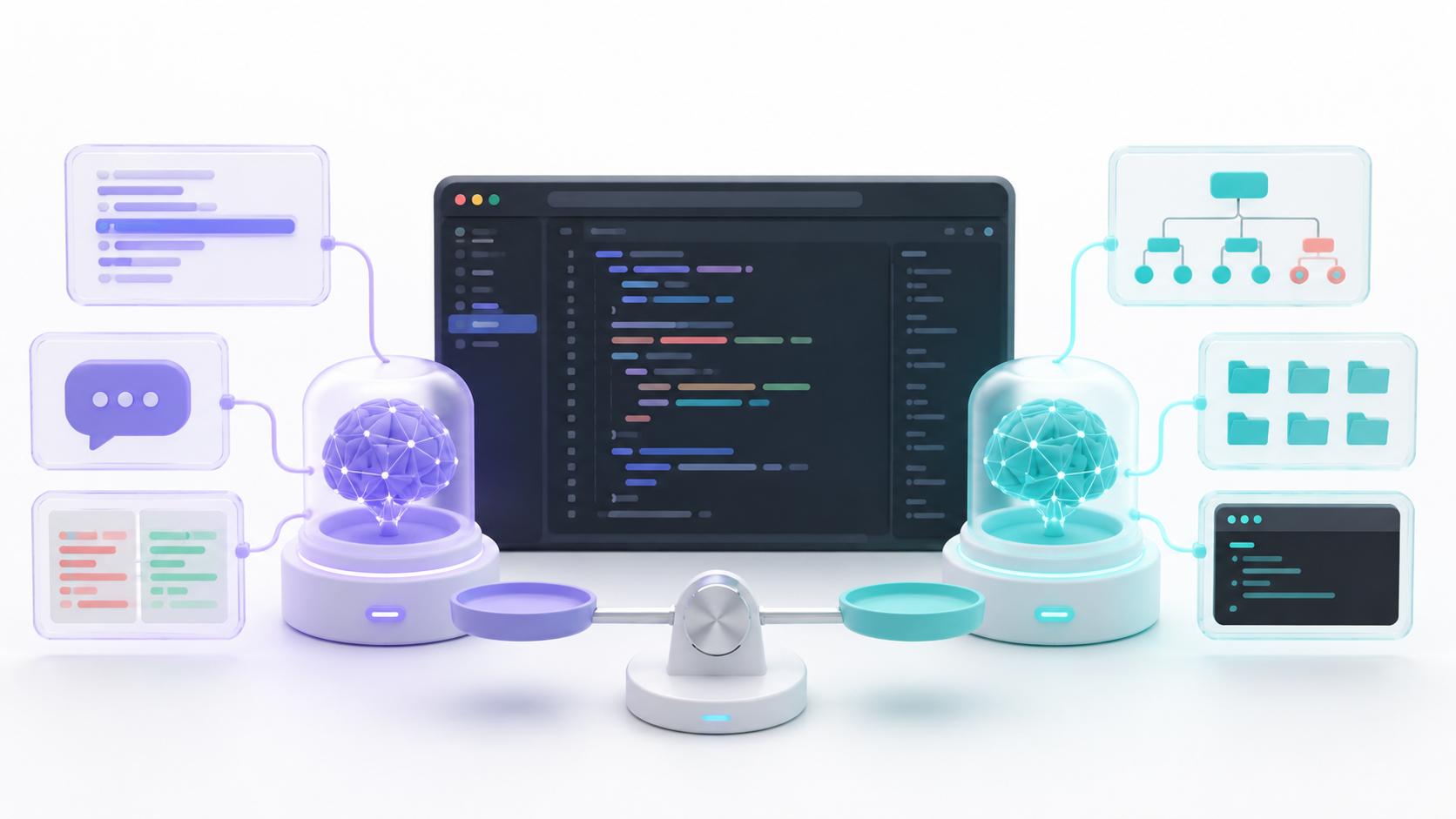
Continue offers a fairly comprehensive experience within the editor. It includes autocomplete, chat, snippet editing, scheduling, and an Agent mode capable of reading files, modifying code, and running tools.
Cline is more agent-oriented. You can explore a project, prepare a plan, modify various files, execute terminal commands, and check the results of a task.
| Feature | Continue | Cline |
|---|---|---|
| Autocomplete as you type | Yeah | That is not its primary function |
| Contextual chat | Yeah | Yeah |
| Editing using instructions | Yeah | Yeah |
| Planning mode | Yeah | Yeah |
| Agent with tools | Yeah | Yeah |
| Command execution | Available in Agent mode | One of its main functions |
| Configuration using YAML | Yeah | The usual configuration is done from your panel. |
| Local models | Ollama, LM Studio, and other compatible providers | Ollama, LM Studio and other compatible endpoints |
If you mainly want autocomplete, chat, and minor editsContinue can cover the entire workflow. If you prefer to delegate complete tasks and monitor how the agent creates files or executes commands, Cline is particularly convenient.
You can also install both and use Continue for autocomplete and Cline for agent tasks. In that case, avoid keeping two agents open on the same files at the same time, as this could generate conflicting changes.
How to install Continue in Visual Studio Code
Open the VS Code extensions section using Ctrl + Shift + X and search ContinuePlease verify that you are installing the official extension before clicking the corresponding button.
After installation, a new icon will appear in the activity bar. You can move the panel to the secondary sidebar to keep the file explorer on the left and the assistant on the right.
The local Continue settings are saved in the user profile. The usual paths are:
- Windows:
%USERPROFILE%\.continue\config.yaml - Linux and macOS:
~/.continue/config.yaml
Therefore, the folder .continue It is not normally created in the root of each project. It is located within the user's home directory.
You can open the settings from the Continue panel itself. Press Ctrl + LOpen the selector located above the conversation box and use the gear icon corresponding to the local settings.
The startup process recommended by Continue uses an account to access your platform's settings and resources. However, it's also possible to set up a local installation and work offline using a template hosted on your own computer.
How to configure Continue using config.yaml
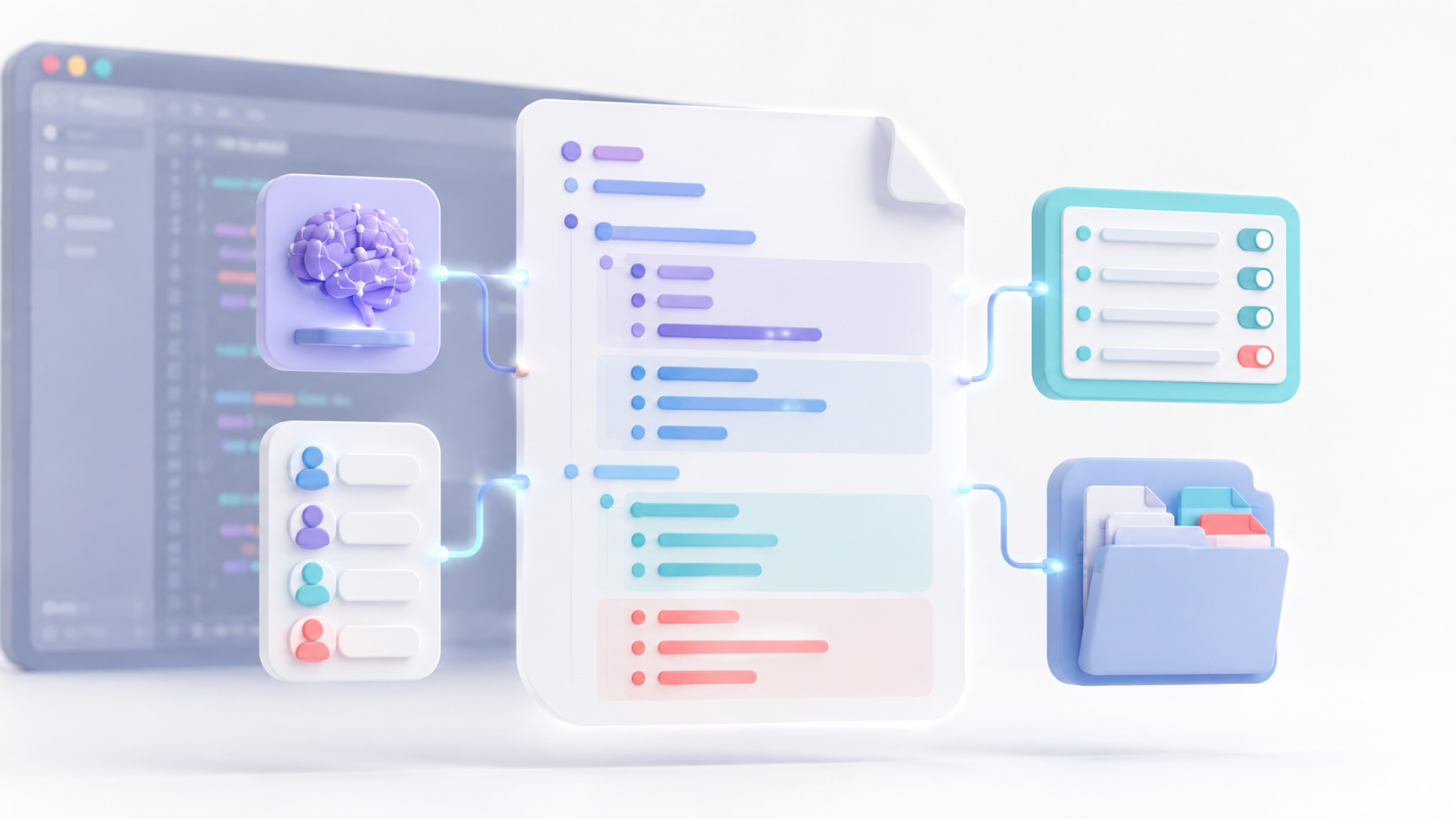
The file config.yaml It determines the available models, rules, tools, and context sources. The old format config.json It is obsolete, so it is advisable to use YAML in new installations.
A basic configuration for OpenRouter might follow this structure:
name: Mi asistente
version: 1.0.0
schema: v1

models:
  - name: Modelo de programación
    provider: openrouter
    model: <ID_DEL_MODELO>
    apiKey: <TU_API_KEY>
    roles:
      - chat
      - edit
      - apply

rules:
  - Responde en español.
  - Respeta el estilo y la estructura existentes.
  - No modifiques archivos que no estén relacionados con la tarea.
Replaces <ID_DEL_MODELO> Use the exact identifier published by OpenRouter and add a valid key. Do not upload the file with credentials to GitHub or share it publicly.
The main properties of each model are:
name: name that will appear in the Continue selector.provider: supplier used, such asopenrouter,groq,ollamaolmstudio.model: exact model identifier at that supplier.apiKey: credential required to use the API.roles: functions assigned to the model.
Continue allows you to use different models for each task. The available roles include: chat, edit, apply, autocomplete, embed y rerank.
For example, you can reserve a specialized and fast model for autocomplete:
models:
  - name: Autocompletado local
    provider: ollama
    model: qwen3:4b
    roles:
      - autocomplete
    requestOptions:
      extraBodyProperties:
        think: false
    autocompleteOptions:
      debounceDelay: 250
      maxPromptTokens: 1024
      onlyMyCode: true
The model shown is just an example. Always check which models Continue recommends for the version you have installed and which ones your computer can run correctly.

How to add rules and context to Continue
The old parameter systemMessage It is not part of the current scheme of config.yamlTo provide permanent instructions, you must use rules.
rules:
  - Utiliza TypeScript en lugar de JavaScript cuando sea posible.
  - No añadas dependencias sin pedir autorización.
  - Escribe pruebas para cada función nueva.
  - Mantén las respuestas breves y explica los cambios importantes.
These rules are incorporated into Chat, Edit, and Agent requests. They can also be loaded from separate files if you want to maintain different instructions for each work environment.
The section context allows you to declare additional sources:
context:
  - provider: file
  - provider: code
  - provider: diff
  - provider: terminal
Continue also allows you to manually add files, selected code, and other sources using its context controls. The more information you send, the higher the token consumption can be, so it's best to include only what's necessary to complete the task.
Groq or OpenRouter: Which provider to choose?
Groq and OpenRouter serve different functions. Groq is an inference provider characterized by offering low-latency responses for the models it maintains. OpenRouter is a gateway that provides unified access to models from numerous providers.
| Feature | Groq | OpenRouter |
|---|---|---|
| Catalog | Limited selection of compatible models | Very extensive catalog of suppliers |
| Speed | One of its main strengths | It depends on the model and supplier selected. |
| Free level | Available with usage limits | Free templates and variations :free with limits |
| Business models | They depend on the Groq catalog | Access to numerous business models |
| Availability | Subject to the model's quotas | It can offer routing between different providers |
It's not advisable to list Mixtral, Gemma, or other models as if they were a permanent Groq offering. The catalog and its limitations may change. Before configuring Continue or Cline, check the available models in the supplier's console.
Groq's free tier is useful for testing and lightweight projects, but it's subject to request and token limits. It shouldn't be considered a free and unlimited service for continuous workloads.
OpenRouter offers both paid and free versions. It also provides a free router that automatically selects a compatible model, although its availability, latency, and limitations may not be suitable for all programming tasks.
For code autocompletion, a small, fast, and specialized model is usually preferable. For complex refactoring or multi-step agents, a model with better reasoning, a sufficient context window, and tool compatibility is typically more suitable.

How to use the main functions of Continue
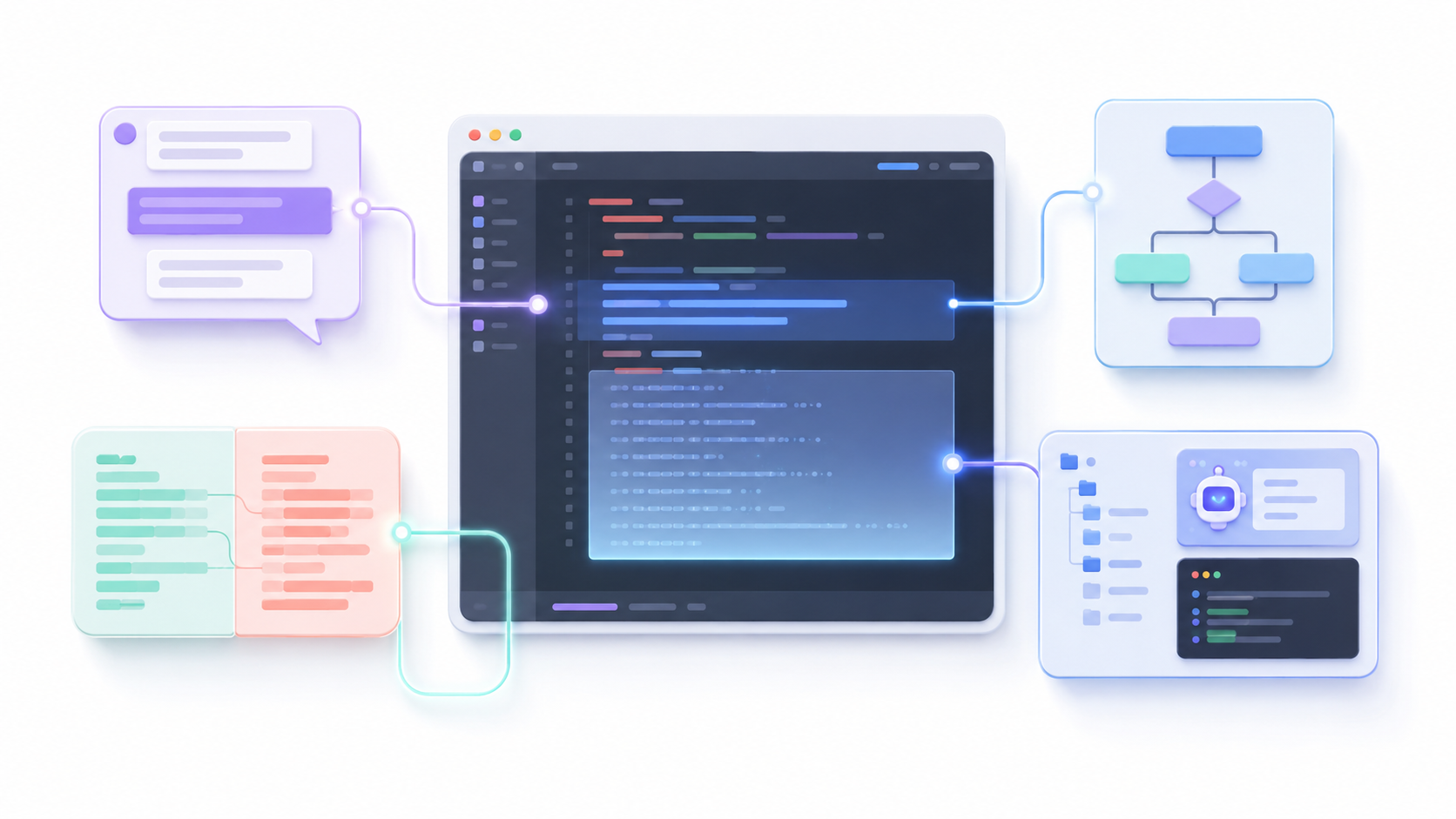
Autocomplete
Continue shows online code suggestions as you type. Press Tab to accept the full proposal and Esc to rule it out.
You can also set up a VS Code shortcut to accept the next line of a suggestion, but this should not be confused with a built-in function to automatically accept word by word.
Contextual chat
Press Ctrl + L To start a new conversation. If you have a code selected, Continue can add it directly to the chat.
The shortcut Ctrl + Shift + L This allows you to add the selection to the current chat. You can also attach files and other context sources from the interface.
Edit Mode
Select the code you want to modify and press Ctrl + IWrite a statement, such as "extract this logic into a function and add types," and Continue will show a comparison before applying the changes.
This mode is appropriate for limited refactoring, documentation, bug fixing, or conversion between languages.
Plan Mode
Plan allows you to analyze the project and prepare a strategy without authorizing modifications. It is recommended to use it before a migration, a major refactoring, or any task whose scope is not yet clear.
Agent Mode
Agent mode can read files, create code, modify the project, and run tools. To use it correctly, the selected model must have the necessary capabilities, especially compatibility with tool calls.
Continue requests authorization before performing certain actions. Always review proposed changes, especially those affecting dependencies, configuration files, databases, or system commands.
How to install and configure Cline in VS Code
Open the extensions using Ctrl + Shift + X, seeks Cline and install the official extension. Then open its panel from the sidebar.
Cline's documentation recommends moving the panel to the right sidebar to keep the project browser on the left. This step is optional, but it makes it easier to monitor the files the agent modifies.
In Cline's settings you can choose from several ways to access the models:
- Cline: integrated access with billing per use and credits.
- ClinePass: subscription for certain models.
- Proprietary API key: Direct connection with OpenRouter, Groq and other providers.
- Local models: connection with Ollama, LM Studio or other compatible endpoint.
Cline periodically publishes promotions with free models for users with an account. These offers are rotating, have a limited availability, and may change at any time. Therefore, it should not be assumed that a free trial of a specific model, such as Claude 3.7, will always be available.
To use OpenRouter, open Cline's settings, select the corresponding provider, paste your API key, and choose one of the available models. The process with Groq is similar.
How Cline works in Plan and Act modes
En Plan ModeCline analyzes the project and proposes a strategy, but it doesn't modify files. You can use it to clarify requirements and review scope before starting.
En Act ModeCline can create and edit files or execute commands. By default, it displays each operation and waits for you to approve or reject it.
There's also an Auto Approve feature that lets you skip confirmations for certain actions. Use it with caution: automatically authorizing terminal commands or modifications outside the project significantly increases the risk.
Checkpoints make it easy to revert to a previous state if a task produces unexpected results. However, they are not a substitute for Git or a project backup.
How to use local models with Continue and Cline
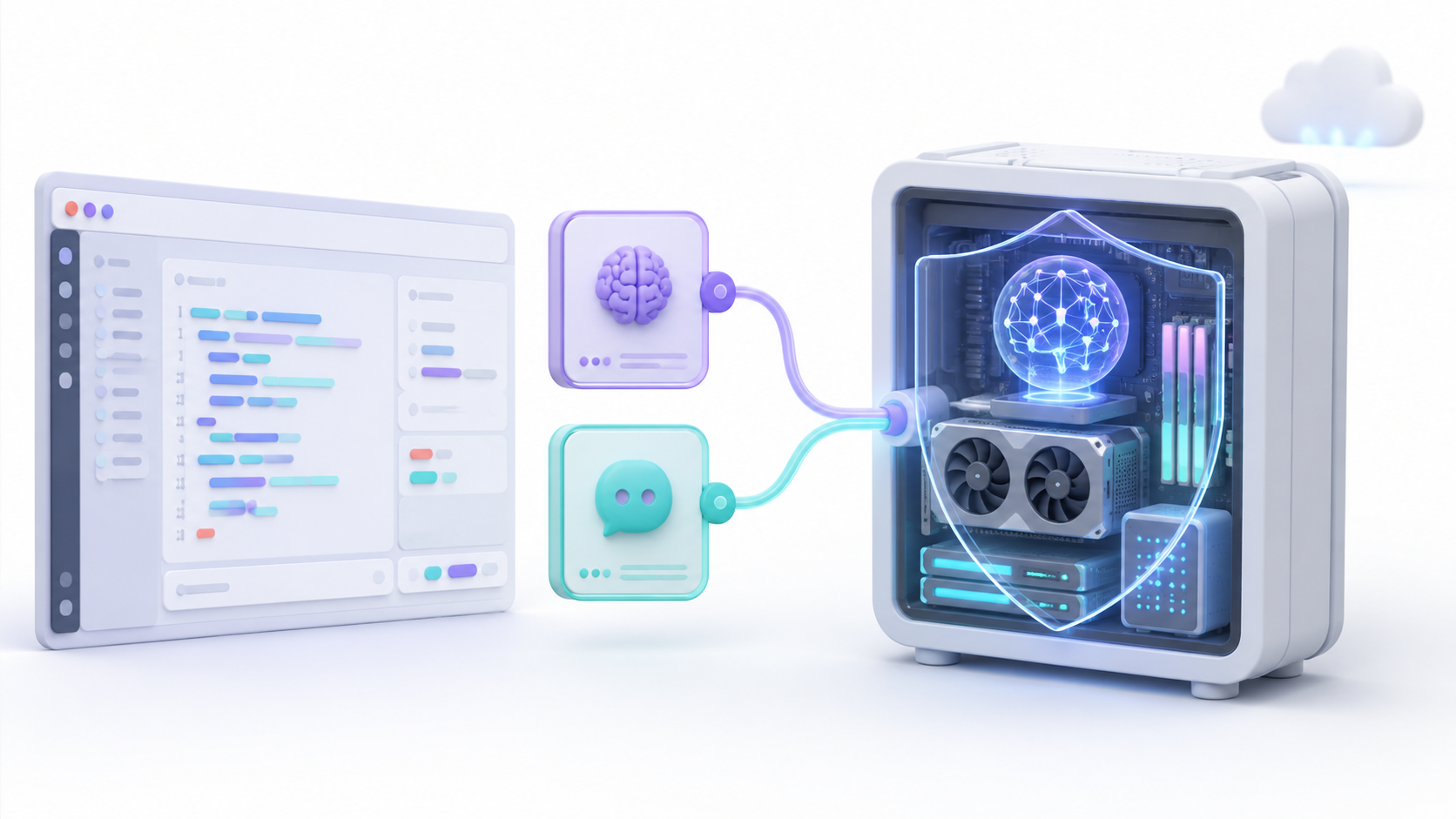
Continue and Cline can connect to local servers like Ollama and LM Studio. This reduces reliance on external services and allows you to work without submitting code to a cloud API.
At Cline, the general procedure is:
- Install Ollama or LM Studio.
- Download a suitable programming template.
- Start the local server.
- Open Cline settings.
- Select Ollama or LM Studio as your provider.
- Check the URL and the detected model.
The default addresses are usually:
Ollama: http://localhost:11434
LM Studio: http://localhost:1234
In Continue, LM Studio typically uses:
http://localhost:1234/v1Running a local agent requires more resources than simply holding a conversation. As a guideline, Cline places small or quantized models on systems with approximately 16–32 GB of RAM, intermediate models on systems with 32–64 GB, and larger models above that amount.
The GPU and VRAM also significantly impact speed. Furthermore, the model must follow instructions, generate reliable code, and use tools correctly. A model that performs well as a chatbot may not perform well within a human agent.
Privacy doesn't depend solely on the model being local. Review telemetry, installed extensions, and any external tools that might send information outside the computer.
Ollama is one of the most used options for running local modelsHowever, you must choose the size and quantization according to the available hardware.

How to control the costs of scheduling agents
An agent typically consumes more tokens than a conventional chat. To complete a task, it may read numerous files, generate a plan, run tools, review the results, and repeat several calls to the model.
To avoid unexpected expenses:
- Configure limits in OpenRouter or with the corresponding provider.
- Use economic models for simple tasks.
- Don't attach the entire repository when you only need to analyze one file.
- Break down large tasks into verifiable goals.
- Review the estimated cost before using intensive reasoning models.
- Avoid correction loops that continuously repeat the same commands.
- Start in Plan mode and switch to Agent or Act when the objective is clear.
Safety precautions before using Continue or Cline
These extensions can access the source code and, in their agent modes, execute actions within the computer. Before using them in a real project:
- Do not paste keys directly into files that will be uploaded to the repository.
- Use environment variables or the available secrets system whenever possible.
- Review the excluded files and avoid sharing credentials, databases, or private settings.
- Check each command before approving it.
- Do not activate Auto Approve for all operations.
- It works on a separate Git branch.
- Review the diff before accepting a large modification.
- Run the tests after each block of changes.
Common errors when configuring Continue and Cline
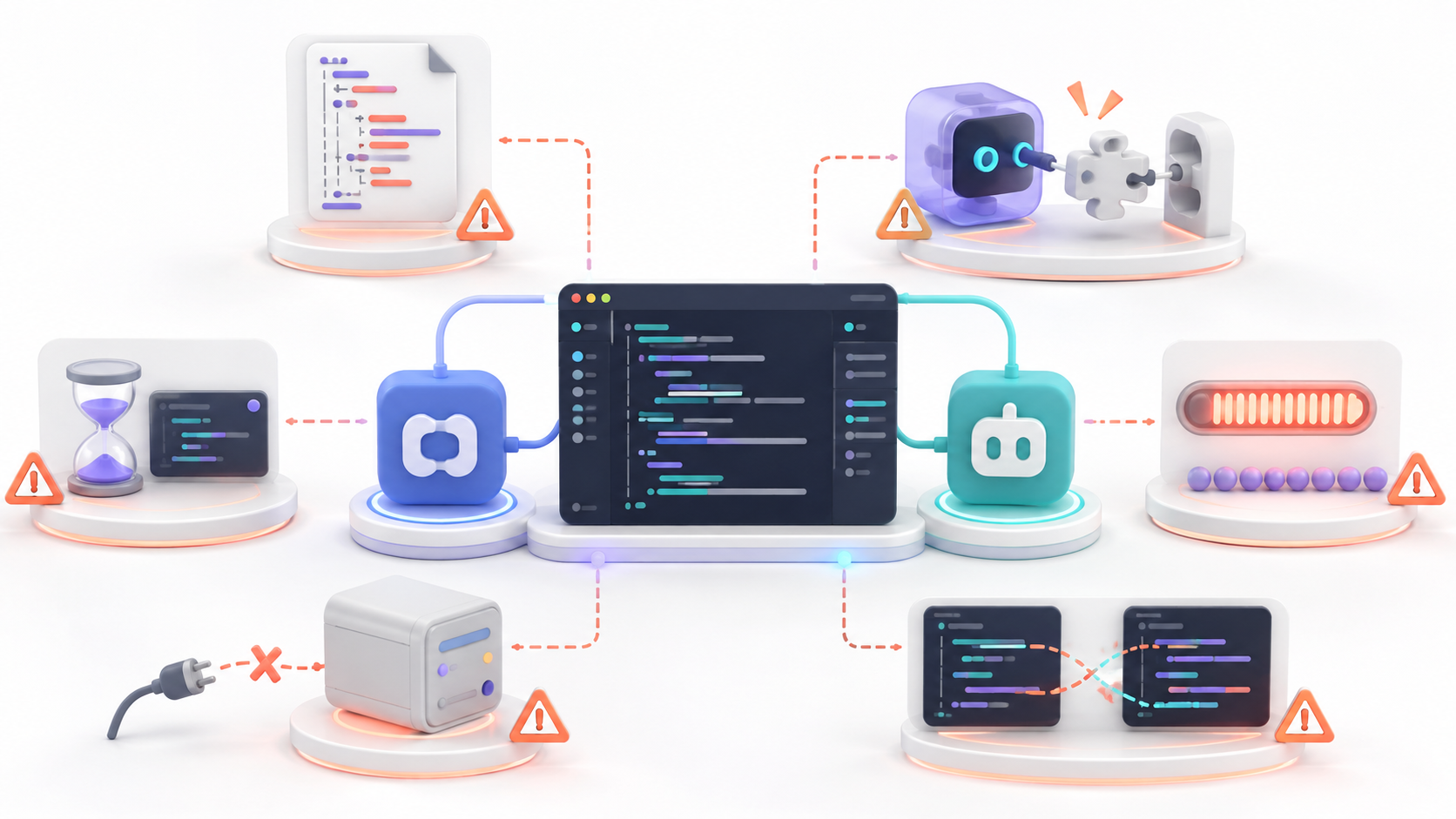
Continue does not detect config.yaml
Check that the file is in %USERPROFILE%\.continue\config.yaml on Windows or on ~/.continue/config.yaml on Linux and macOS. Also check the YAML indentation.
If the changes don't appear, use the option to reload the configuration or run Developer: Reload Window from the VS Code command palette.
The model appears, but Agent Mode doesn't work
The model or vendor may not support tools. Select a model that supports tool calling and verify that Continue has correctly detected its capabilities.
Autocomplete is too slow
Use a specialized, low-latency model. Large reasoning models are not usually the best choice for generating suggestions as you type.
Cline uses up too many credits
Reduce the amount of context sent, use Plan mode before acting, divide the task, and select a more cost-effective model. Agents can make multiple calls during a single operation.
Ollama or LM Studio do not appear
Verify that the server is running, the URL is correct, and the template has finished downloading. Also check if the firewall is blocking the local connection.
Continue and Cline modify the same file
Do not run both agents simultaneously on the same task. Terminate or cancel one of the processes, review the pending changes, and continue with only one extension.
Continue and Cline allow you to transform Visual Studio Code into an AI-assisted development environment without having to migrate to another editor. Continue stands out for combining autocomplete, chat, editing, and configurable agents, while Cline offers a workflow focused on task planning and execution.
You can install both extensions, but for many users, one will suffice. The outcome will depend more on the chosen model, the quality of the context, the permissions granted, and cost control than on the number of assistants installed.

I am a technology enthusiast who has turned his "geek" interests into a profession. I have spent more than 10 years of my life using cutting-edge technology and tinkering with all kinds of programs out of pure curiosity. Now I have specialized in computer technology and video games. This is because for more than 5 years I have been writing for various websites on technology and video games, creating articles that seek to give you the information you need in a language that is understandable to everyone.
If you have any questions, my knowledge ranges from everything related to the Windows operating system as well as Android for mobile phones. And my commitment is to you, I am always willing to spend a few minutes and help you resolve any questions you may have in this internet world.