
Do you usually keep your ASUS laptop plugged in all day? This practice drastically reduces its battery life due to chemical wear and heat. The good news is that it can be prevented. Limit battery charging on ASUS laptops This article will teach you how to easily configure this limit using native tools. You can do so using MyASUS, Armory Craig, and lightweight alternatives.
How to limit battery charging on ASUS laptops
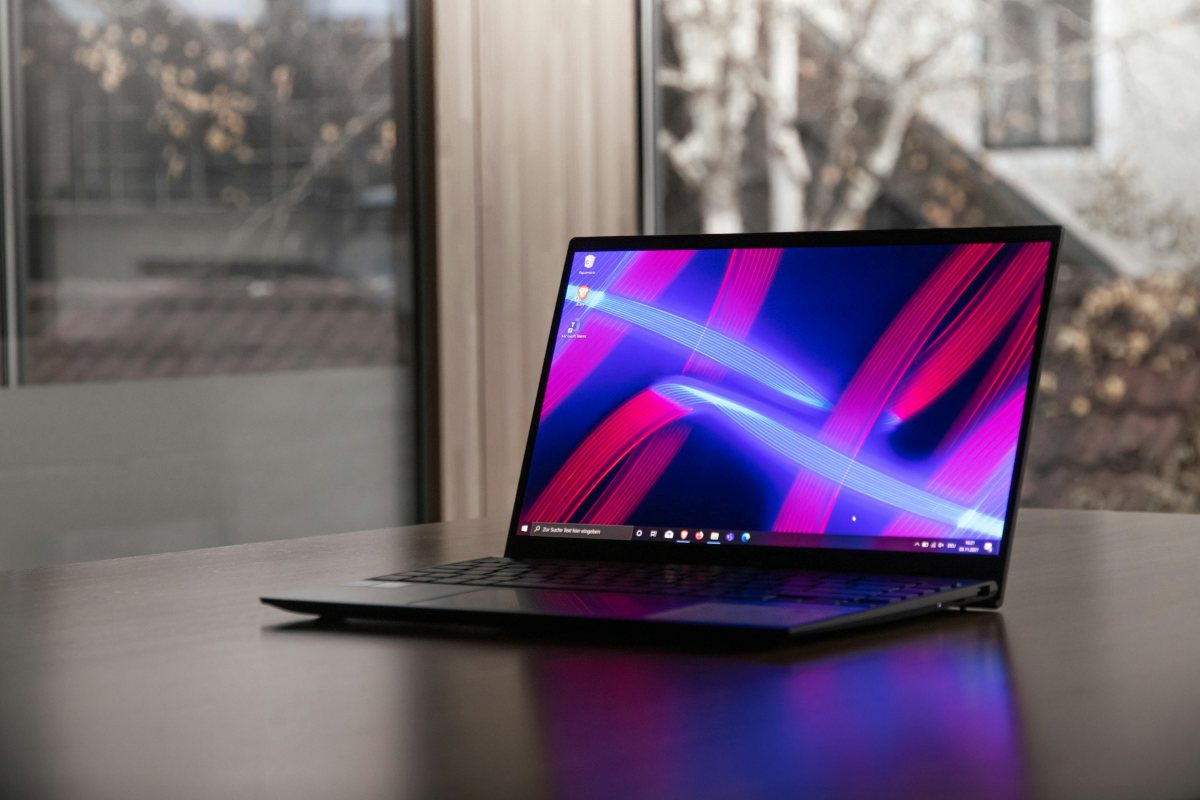
Limit battery charging on ASUS laptops (and any laptop) to 80% or 60% That's a very good idea if you like extend its useful lifeIn fact, if you tend to use it plugged in most of the time, this is the best decision you can make. ASUS laptops have an official tool that allows you to manage the battery's charging limit. However, the tool's name may vary depending on the model and year of your laptop.
Next, let's see How to limit battery charging on ASUS laptops through the following tools:
- MyASUS (The brand's official software).
- Armory Crate (For gaming laptops).
- G-Helper (A lightweight, open-source alternative).
1. Through MyASUS (The standard method)
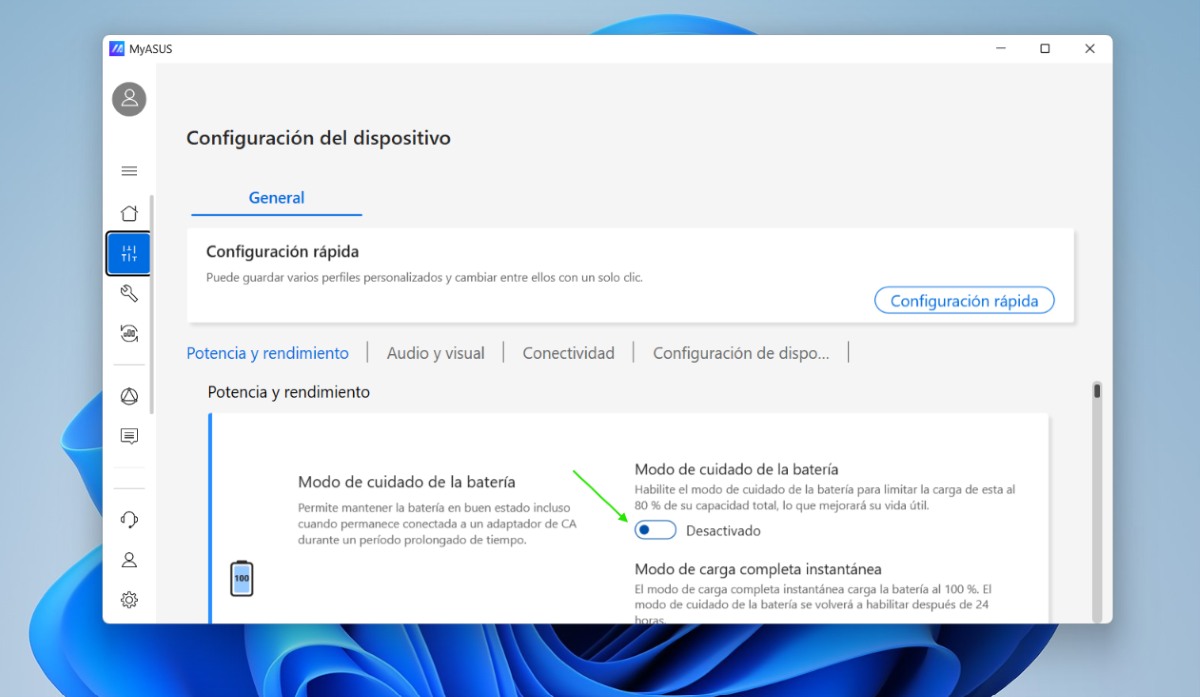
Most modern ASUS laptop models (such as ZenBook, VivoBook, or ProArt) come with a pre-installed application called MyASUS. In the "Battery Care Mode" section, you can select the mode that best suits your routine. Follow these steps. Steps to limit battery charging on ASUS laptops from MyASUS:
- Open the Windows Start menu and search MyASUS.
- In the left sidebar select Device settings.
- Now go to the tab Power and performance.
- There you will see the tool Battery care modeTouch the switch to activate this mode.
- You can select 100%, 80% or 60%.
Keep in mind that Some models only allow a care mode that limits charging to 80%.This is recommended if you frequently move your laptop between home and work. Others offer up to a 60% charge, which is best if your laptop is always plugged in. And all have a maximum capacity (100%) option, ideal if you travel and need your laptop's full battery life.
2. Using Armoury Crate (If you have a gaming laptop)
Now then, if you have a gaming laptop (like ASUS ROG or TUF Gaming), you can limit battery charging from its own control center. To do this, follow these steps:
- Open the app Armory Crate.
- In the menu on the left, go to Device (Device) and then select System (System).
- Locate the tab Energy Echo o Battery.
- Activate the option Battery health care (Battery Health Charging), which will automatically limit the maximum charging limit to 80%.
3. Limiting battery charging on ASUS laptops with G-Helper (Lightweight Alternative)
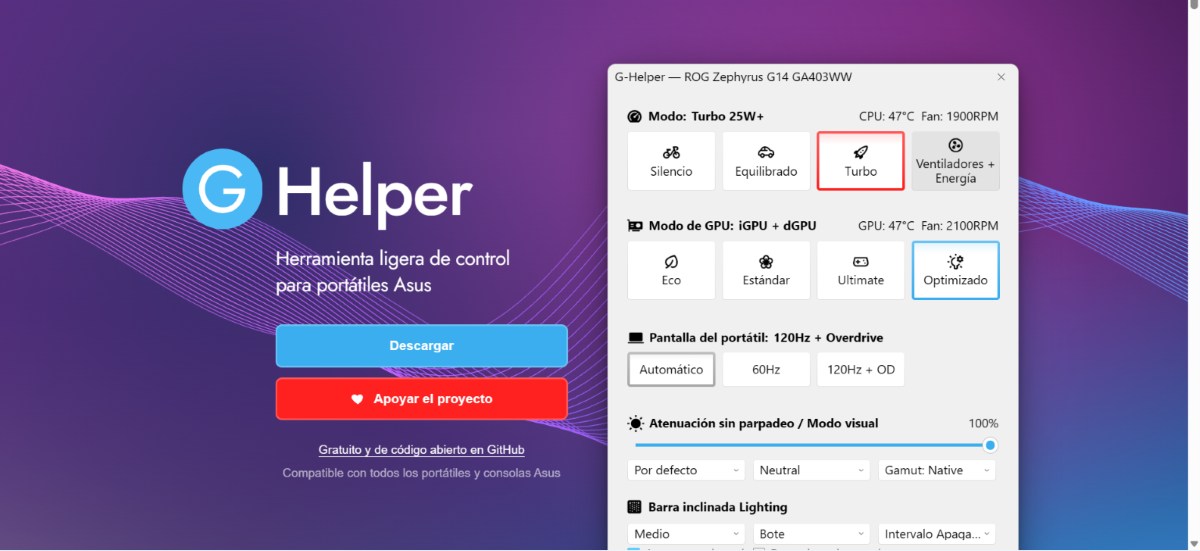
A lightweight and advanced alternative if you have a gaming laptop and want to limit its battery usage is G-Helper. It's a open-source tool that will work perfectly for you If you find Armoury Crate resource-intensive or resource-intensive, follow these steps to limit battery usage on ASUS laptops with G-Helper:
- Discharge G-Helper from its official website (It does not require installation, as it is a portable executable).
- Open the application.
- You will come across a slider called Battery Charge Limit.
- Adjust the exact percentage you need, for example, to 75% or 80%. You'll notice the change is applied immediately.
Reminder: If at any point you start to notice that the battery "stops" at 60% or 80% and doesn't charge any further, don't worry, it means the system is doing exactly what you've asked it to do. Of course, if you need the battery to charge to 100%, Simply return to the tool you used and temporarily change it. to its maximum capacity.
How to limit battery charging on older ASUS laptops?

If your ASUS laptop is from 2017 to 2020, you've probably seen or heard about an application called ASUS Battery Health ChargingThis was released as a standalone application; sometimes it came pre-installed, and other times users had to download it separately. Either way, this tool It worked exactly the same as MyASUS Battery Care Mode.
However, if you ever formatted your laptop or upgraded to Windows 11, You probably noticed that this application stopped workingIt stopped updating or simply disappeared. The reason? ASUS fully integrated this tool into MyASUS. Let's see how to limit battery charging on ASUS laptops from those years.
Forget ASUS Battery Health Charging
What can happen if you have both applications installed on your ASUS laptop? They can conflict. As a result, the battery may not respect the limits you've set. So, what should you do to limit battery charging on ASUS laptops? The best thing to do is Uninstall the old standalone version and configure everything directly from MyASUS.
What if the new MyASUS app doesn't automatically install on your laptop? Just... Search for it in the Microsoft Store and install it independently and for free.However, the application may appear empty, meaning without the power options. In that case, you need to activate or download a specific ASUS driver that acts as a bridge. To do this, follow these steps:
- Right-click the Windows Start button and open the Device Manager.
- Expand the category System device.
- Look for a component called ASUS System Control Interface.
- If it appears ready, you just need to install the MyASUS application and use it.
- If it doesn't appear, go to the official ASUS support page, find your exact laptop model, go to the Drivers & Utilities section, select Windows 11, and download the driver. Install it and restart your laptop. Then install the MyASUS app, and you're all set.
In conclusion, protecting the health of your ASUS laptop is a simple yet vital process. Whether you use MyASUS, Armoury Crate, or alternatives like G-Helper, Limiting battery charging on ASUS laptops will make a difference In the long term. If you configure your equipment this way today, you'll ensure years of optimal battery life.

From a young age, I've been fascinated by all things scientific and technological, especially those advancements that make our lives easier and more enjoyable. I love staying up-to-date on the latest news and trends, and sharing my experiences, opinions, and tips about the devices and gadgets I use. This led me to become a web writer a little over five years ago, focusing primarily on Android devices and Windows operating systems. I've learned to explain complex concepts in simple terms so my readers can easily understand them.