- Windows allows you to automate login with netplwiz or even use local accounts without a password, although security is reduced.
- It is possible to disable Windows Hello, adjust the Registry, and configure it so that no password is requested when starting up or resuming from sleep.
- Access recovery involves using a Microsoft account, security questions, or ultimately, specialized recovery software.
- It is advisable to review the team's users and carefully assess the risks before completely removing the password request.

Is it possible to start the PC without having to type the password every time? Whether it's because you turn on your computer many times a day, because it's at home and you're not too concerned about privacy, or because you want to turn it on with a controller and have Steam Big Picture load directly, Logging into a PC without a password in Windows It can be very convenient.
At the same time, it's important to remember that the password exists for a reason: it's the basic barrier that prevents just anyone from accessing it. snooping through your files, email, and personal accountsIn this article we'll look at all the ways to log into a Windows PC without a password or without being constantly prompted for it, but we'll also review what each method entails and what risks you take so you can make an informed decision.
What types of accounts and logins exist in Windows?
Before touching anything, it's important to understand what type of account you're using, because that determines what options you'll have. Remove, automate, or change your login passwordWindows essentially differentiates between a Microsoft account and a local account, and can also use systems such as PIN, fingerprint, or facial recognition through Windows Hello.
On one hand we have the Microsoft account, linked to an email address (Outlook, Hotmail, Live, etc.). This is the account used to sync settings, install apps from the Microsoft Store, and access online services. Your password is the same one you use on the Microsoft website and is usually required for recent installations of Windows 10 and Windows 11.
On the other hand, there are the local accounts, which do not depend on an email address Nor do they connect directly to the Microsoft cloud. They are the classic, traditional accounts: username and password saved only on the computer. With this type of account, it's much easier to leave the PC without a password or with completely automatic access.
On top of all this is Windows Hello, which includes methods such as PIN, fingerprint, or facial recognitionAlthough they may seem to replace the password, they are actually a layer on top: the account password still exists and in many cases is the one you will have to use to change settings or log in to other services.

Disable Windows Hello and revert to the classic password
If you have Windows Hello set up, the first thing you need to do before considering passwordless login is Disable PIN, fingerprint, or face authentication This will allow Windows to revert to using the traditional account password. Otherwise, certain options will remain locked.
To do this, open the app Configuration using the Windows + I combinationGo to the "Accounts" section and then to "Sign-in options". There you will see all the methods you have configured, including Windows Hello for PIN, fingerprint, or facial recognition, depending on your device.
Within "Windows Hello PIN" you can Remove the PIN and change the login method to a password.Windows will insist that the PIN is more secure, but if your goal is to have more control over when and how your password is requested, this step is essential to stop the system from forcing you to use Hello.
Once you remove the PIN, your user account will log in again using the local password or your Microsoft account passwordAt that point you will be able to apply the methods to automate login or eliminate the password request at startup, which we will see in detail below.
Allow Windows to be used without a password prompt (internal setting)
In recent versions of Windows, especially Windows 10 and Windows 11, Microsoft has hidden some of the options for removing the login password. On many computers, you'll see that the checkbox to disable the password prompt doesn't appear directly because the system It forces the use of Windows Hello and "password-free" methods.
To recover that classic user account option, you first need to activate an internal setting that disables the mandatory “PasswordLess” mode of the device. This setting is changed from the Windows Registry, so it should be done carefully and only if you are sure of what you are doing.
Start by using the key combination Press Windows + R to open the "Run" dialog boxType regedit and press Enter to open the Registry Editor. Then, navigate to the following path:
HKEY_LOCAL_MACHINE\SOFTWARE\Microsoft\WindowsNT\CurrentVersion\PasswordLess\Device
In that section you will see an entry called DevicePasswordLessBuildVersionDouble-click on it and change its value to 0 (zero). With this change, the system stops forcing Microsoft accounts to work in traditional passwordless mode and displays options that were previously hidden.
After modifying the registry, close the editor and, for added security, Restart your computer for the changes to take effect.Now you can move on to the next step: Tell Windows to stop asking for a username and password when starting the computer.

Configure automatic startup with netplwiz (without entering the password at startup)
The most common method for logging into Windows without typing the password is to use the classic tool of user account management «netplwiz»With it, you can have your user log in automatically with your credentials without you having to type them.
To open it, press again Press Windows + R to launch the Run dialog box and type netplwiz. Press OK or Enter. The "User Accounts" window will open with a tab called "Users" where the accounts available on the computer are displayed.
In that window, select your user with the mouse and uncheck the box «Users must enter their name and password to use the equipment»This field forces the system to manually request credentials at each startup.
When you uncheck the box and click "Apply," a new window called "Automatically Log In" will appear. There you will see the "Username" field already filled in. It is important that Don't touch the name that appears in that boxbecause it corresponds exactly to the account you want to configure for automatic startup.
Below you will have to write the Enter the current password for that account twice to confirm it.This password doesn't disappear: what changes is that Windows will use it in the background at startup to log in without you having to type it, and thus go directly to the desktop.
When you're finished, click "OK" in the automatic login window and again "OK" in the user accounts window. Finally, Restart your computer to check that it no longer asks for a password when you turn it on. and that you go directly to your Windows desktop.
Important: the password still exists and you can still request it.
By configuring automatic startup with netplwiz, all you achieve is that the system It will fill in the password for you when you start upThe password itself is not removed from the user; it remains the same and maintains its function in other contexts within the system and in associated services.
That means Windows can still ask you for that same password, for example, when you want to sign in to other Microsoft services, when you are going to make significant changes to the configuration or when additional identity confirmation is required for security.
If you use a Microsoft account, you'll still need this password for things like Access your Outlook email, OneDrive, and the Microsoft Store or to log in on other devices. Even if you don't type it every time you turn on your PC, it's a good idea not to forget it.
Also note that automatic startup only affects the moment when the system It starts from scratch and takes you to the desktop.If you manually lock the session (for example, with WIN + L), depending on your settings, Windows may ask you for credentials again to unlock it.
If what you're looking for is, for example, to wake your PC from sleep using a controller, have it go through the lock screen without stopping, and boot directly into Steam Big Picture, you'll need to combine this automatic startup with adjustments in the lock and suspend settings which we will see later.

Avoid entering the password when resuming from sleep or standby.
Something that confuses many users is that, even if they configure automatic startup, Windows keeps asking for a password when waking from sleep.This is because the system handles starting from scratch and unlocking after a low-power state differently.
To change this behavior, go back into the app. In Windows settings, go to "Accounts" and then to "Sign-in options"Within this section, look for the "Require sign-in" section or something similar, which may vary slightly in name depending on the version of Windows.
In that section, choose the option "Never" in the menu for when to request a login After waking from sleep mode. With this setting, the system should not prompt for a password when the computer wakes from sleep or power-saving mode.
This change is key if you use devices like a controller, gamepad, or wireless keyboard for Activate your PC from the sofa and enter the game environment directly.However, it also means that anyone who presses a key can wake the computer and find the session open.
If convenience is your top priority, this setting will make your life much easier. However, if you share the computer or use it in a public or work environment, it might be better to enable the password prompt after sleep and limit the shortcut to startup only.
Switching from a Microsoft account to a local account
There is a significant limitation when your user is linked to a Microsoft account instead of being localEven if you configure automatic startup, the password remains deeply embedded in the system and it is not possible to completely eliminate its use as long as that account remains online.
If you want to have a completely password-free account (or one with an empty password), you will have to Convert your Microsoft account to a local accountThis is done from the account settings, without needing to create a new user from scratch.
Go to Settings, then to "Accounts," and then to the "Your Information" or "Your Account" section. There you should see a link or button similar to this: "Log in with a local account instead"When you click it, Windows will guide you through a wizard to unlink the Microsoft user and create local credentials.
During the process, you will be asked to Confirm your current Microsoft account password and set up a new local username and password. When you're finished, your session will become completely local and will no longer rely on Microsoft cloud authentication.
Once you have your local account set up, return to Settings > Accounts > Sign-in optionsClick the "Change" button under the password section, enter your current password, and when prompted for the new password you can leave all fields blank.
By accepting, you will be converting your local user into an account no password definedThis means that Windows will no longer ask you for a password when you start up, when you resume from sleep, or when you lock your session, because there simply isn't a password to enter.
The cost of this convenience is obvious: Anyone with physical access to your PC can log into your session with just a simple switch-on or the press of a key. With this in mind, it's a very useful option for living room computers, secondary equipment, or machines that are only used in highly controlled environments.
Remove the requirement for Windows Hello for Microsoft accounts
On some computers, especially those that come with Windows pre-installed, you may find that you cannot remove the password because the system It forces you to use Windows Hello with a Microsoft account and it does not allow the use of other methods to disable the key request.
In these cases, it's crucial to check again in Settings > Accounts > Sign-in options if the option that says something like "To improve security, only allow Windows Hello sign-in for Microsoft accounts on this device."If that box is checked, it severely limits what you can do.
Uncheck this option to allow Windows to once again enable traditional password-protected login methods. Once unchecked, you'll be able to use the tool without any problems. netplwiz to configure automatic startup And, if you want to go even further, you can consider switching to a local account and leaving it without a password.
He believes that Microsoft is pushing these kinds of adjustments for security reasons, especially on laptops or computers that can be easily moved and lost. By disabling these protections, you are prioritizing convenience over security.So you must do it with full knowledge of the facts.
What to do if you've forgotten your password and can't log in
Another fairly common situation is not so much wanting to remove the password, but directly forgetting the one you set and being unable to access your PCHere the approach changes: we are not looking for a passwordless login, but to recover or reset the current password so we can log in again.
If you use a Microsoft account, fortunately the process is relatively simple. From another device with an internet connection, access the official Microsoft account recovery page, the classic section Recover your accountThis is the central point for regaining access to your user account.
On the recovery page you will see a form where you can enter your email address, your username, or even your Skype nameAfter completing that step, the assistant will guide you to verify your identity using an alternate email, SMS, or other data you have configured.
Once you have passed the verification, you will be able to Reset your Microsoft account passwordThis new password will be the one you use to log in to Windows 10, Windows 11, and all services associated with that account on any device.
If you're using a local account, things get a bit more complicated. Windows 10 and 11 allow reset local password only if you had previously configured security questionsOn the login screen, you'll see a "Reset Password" link that will give you access to those questions if they are available.
If you remember the correct answers, you can create a new local password and log back into the system. If you had a PIN set up that you've forgotten, you can Click on the key icon next to the PIN field to log in with your password, and from there manage the change.
If you never set up security questions and don't remember your local password, your options are significantly reduced. In such extreme cases, the only viable solution is often to resort to Specialized password recovery software or reinstall the system, taking into account the possible loss of data if there is no backup.
Use Windows password recovery programs
When none of the above options work and you have important data on the disk, you might consider resorting to third-party tools to recover or reset the password from a Windows account. There are specific utilities designed for these types of emergencies.
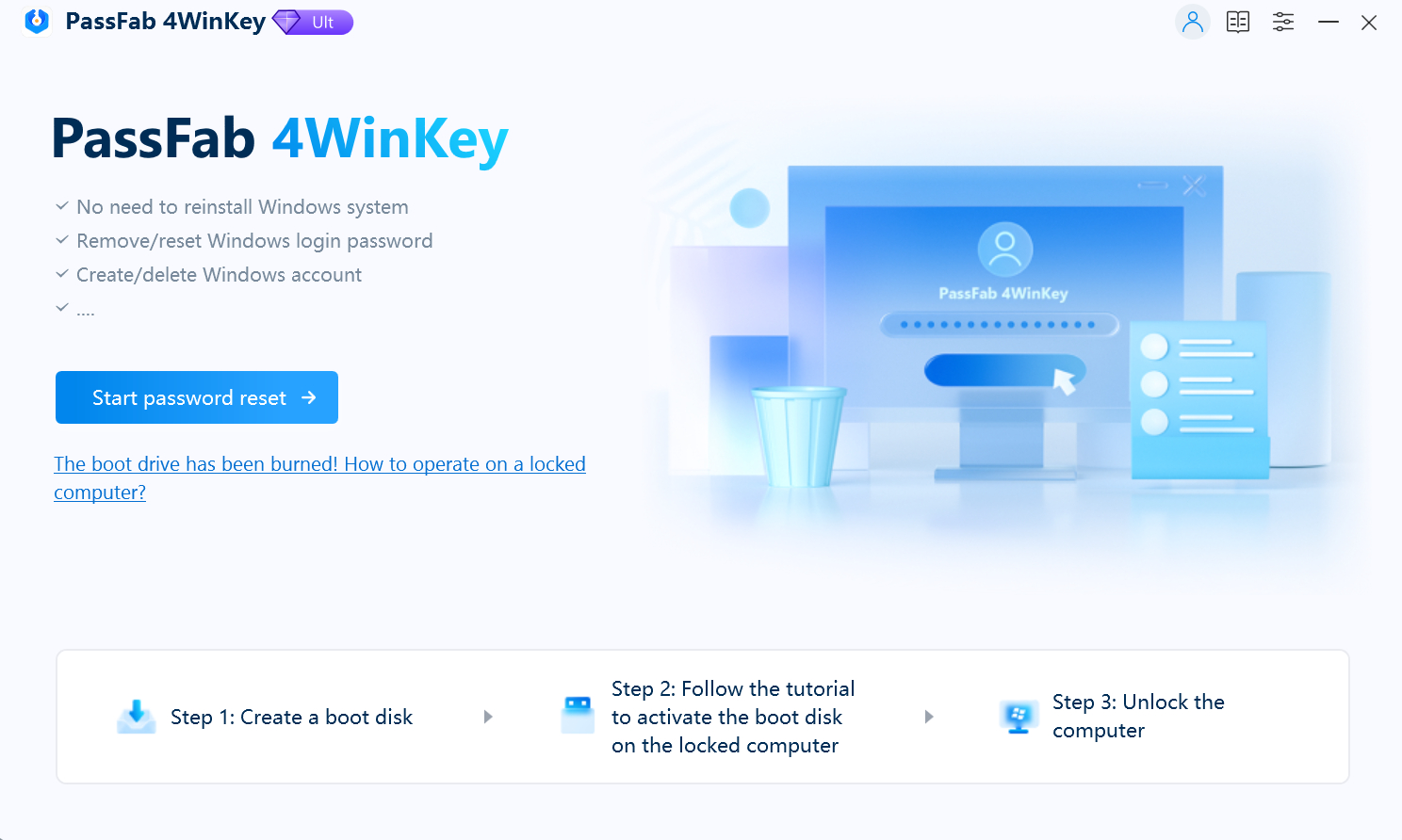
Among the best known are solutions such as Ophcrack o PassFab 4WinKeyAmong others. They usually work by booting the computer from a previously created USB or rescue CD, which allows them to access the file system and Windows password databases without needing to log in.
These programs may, depending on the case, attempt to decrypt the existing password or directly overwrite it with a new password or a blank value. The process is not trivial; it usually requires careful reading of the instructions and sometimes involves paid licenses.
Using this type of software carries risks: you must ensure you download it from [source/source]. reliable sources to avoid malwareUnderstand that they can fail and that there is always a risk of damaging the Windows installation or compromising data if something is done wrong.
In any case, they are a useful lifeline when there is no way to recover your password through official channels and you cannot afford to lose the information stored on your computer. However, it's best to see them as a last resort and not as your regular way of managing your access.
Remove other users and manage who can log in without a password.
Another important aspect of this whole issue is controlling who has an account on your PC, especially if you're going to let them The computer starts without asking for a password.An additional user with their own key can be a way to separate access without completely disabling security.
To view and manage team accounts, open Settings, go to "Accounts," and then to the section "Other users"There you will see a list with all the profiles that exist in the system, in addition to yours.
If there are users that are no longer in use or that you don't want to continue having access, select them with the mouse and click on the option "Remove" to delete themWindows will warn you that your associated files and settings will also be deleted, so make sure you don't need anything before confirming.
Leaving only your main user (or only those that are actually used) simplifies things when You configure an automatic startup with netplwizbecause you ensure that it is always your account that opens without needing a password.
On shared computers, you can combine a passwordless account for general use with other protected accounts for more sensitive tasks. This allows you to maintain some security while still having a quick profile for basic things like browsing, gaming, or multimedia.
After reviewing all these options, it becomes clear that Windows offers more paths than it first appears to log into the PC without typing the password each timeFrom automatic startup with netplwiz to local passwordless accounts, selectively disabling Windows Hello, and adjusting the password prompt after sleep, the key is choosing the combination that best balances convenience and security for your specific needs. On a living room PC or a highly controlled personal computer, removing barriers might make perfect sense, while on a laptop that you carry around or a shared computer, you should think twice before leaving the door wide open.

Editor specialized in technology and internet issues with more than ten years of experience in different digital media. I have worked as an editor and content creator for e-commerce, communication, online marketing and advertising companies. I have also written on economics, finance and other sectors websites. My work is also my passion. Now, through my articles in Tecnobits, I try to explore all the news and new opportunities that the world of technology offers us every day to improve our lives.