- OPUS files are lossy compressed audio files, widely used in WhatsApp, VoIP and streaming due to their efficiency and low latency.
- They can be played directly with compatible players such as VLC, AIMP, Foobar2000 or specific mobile apps.
- If your device doesn't recognize them, you can convert them to MP3, M4A, or other formats using online services or professional software.
- The conversion involves minimal loss of quality for the average user and improves compatibility with older equipment and players.

If you've ever downloaded a WhatsApp audio file to your computer or retrieved a voice note from your phone, you've probably come across a file with .opus extension and you thought: "So what do I open this with now?"Don't worry, you're not alone; the format is very common, but at the same time quite unknown to the average user.
These .opus files are, essentially, WhatsApp voice notes and recordings (and those from other messaging and calling apps)You can listen to them as is or convert them to more "classic" formats like MP3 so you can play them easily on almost any device or player. Throughout this guide you will see What exactly is OPUS, what programs open it on Windows, macOS and mobile, and how to transform those audio files? to other formats without getting lost along the way.
What is an OPUS file and why is it used so much?
A file with the .opus extension (sometimes called “Ogg Opus” because it usually goes inside the Ogg container) is a type of lossy compressed audio, specifically designed for streaming sound over the Internet. This means it reduces file size by removing information that the human ear can barely perceive, while maintaining very good quality with minimal file size.
The OPUS codec was standardized by the Internet Engineering Task Force (IETF) Based on two previous technologies: SILK (the codec traditionally used by Skype) and CELT (developed by Xiph.Org). Thanks to this combination, OPUS adapts very well to both voice and music, and works from very low bitrates to near studio quality.
One of its greatest strengths is that it can encode audio in real time with very low latencyThis makes it perfect for voice calls, video conferencing, and online voice chats, where lag-free calls and dropouts are crucial. Furthermore, it supports a variable bitrate ranging from approximately 6 kbps to 510 kbps, automatically adjusting to the available bandwidth without any user intervention.
Another key point is that it is a format free and open sourceThere are no paid licenses to use it, unlike older codecs such as MP3. This has encouraged many companies to adopt it to reduce costs and modernize their audio platforms.
Today, although it may sound like gibberish to many users, OPUS is everywhere: YouTube, Spotify, Netflix, Vimeo, SoundCloud, WhatsApp, Signal, Discord, Mumble and other large applications and services rely on it to efficiently stream audio.
Main uses of OPUS files in everyday life
The place where we encounter this format most is on mobile devices. WhatsApp saves your voice notes and many of your audio messages in .opus fileswhich are stored in the phone's internal memory. The same applies to voice over IP and video calling services like Skype, voice chat clients like Discord, or online meeting platforms.
However, we also find it behind the scenes in the online music and radio streamingThanks to maintaining very high quality even at low bit rates, it allows platforms to save bandwidth and servers, which on a large scale represents a huge saving.
At a professional level, OPUS has established itself as one of the modern reference formatswith aspirations to become the new standard for compressed audio. The combination of quality, efficiency, and open-source license gives it a significant advantage over older codecs.
The problem is that, despite all that massive use, for the average user it is still a "strange" format. Many older players and devices do not recognize it out of the box.This forces you to install additional programs or convert the files to a more popular format in order to listen to them comfortably.
Where are WhatsApp OPUS files stored on my mobile phone?
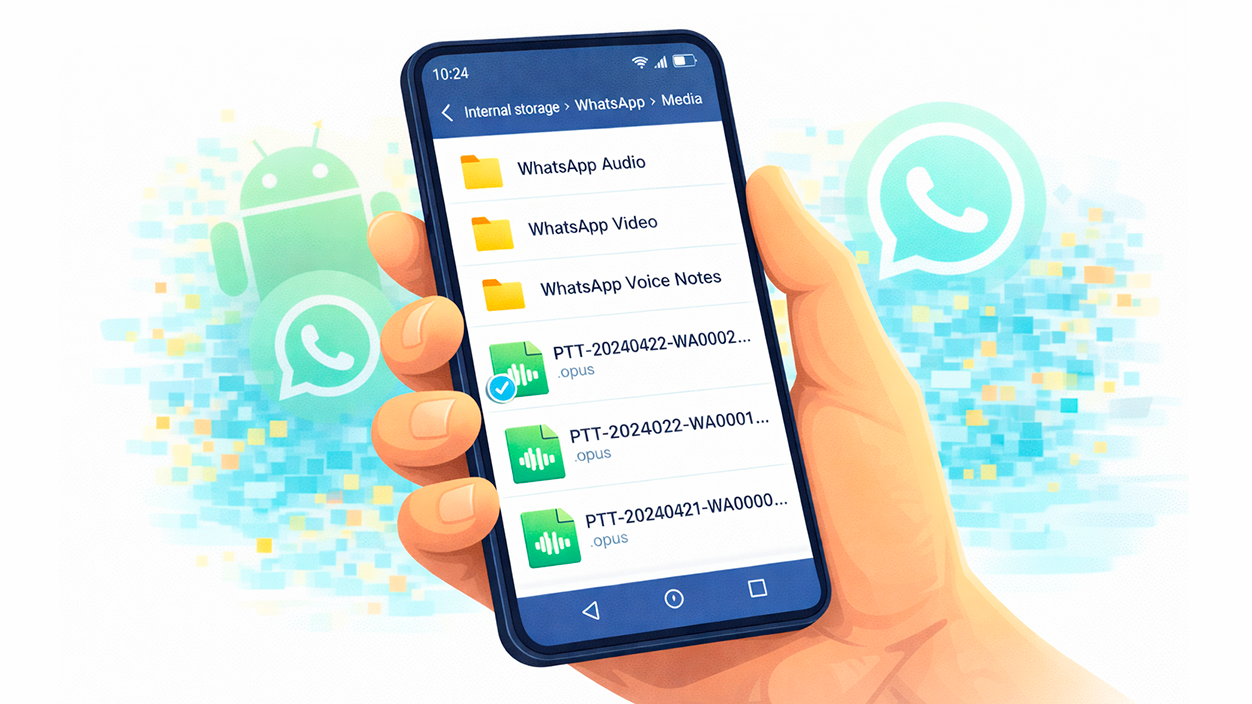
If you want to physically locate those audio files on your phone to copy, save, or convert them, the first thing to know is... In which folder does WhatsApp store .opus files?The typical path on Android is usually quite simple.
On most Android phones, you just need to open the system file explorer (or any file management app), enter the device's internal memory and look for the folder WhatsAppInside you will see another folder called “Media” or similar and, inside it, different subfolders such as “WhatsApp Audio”, “WhatsApp Voice Notes”, etc., where the voice notes and other audio files are located.
From there you can select the OPUS files that interest you and, for example, send them by email or upload them to the cloud to have them available on your computer. You can also copy them to another folder on your phone if you want to organize your audio files more neatly.
On iOS the file system is more closed, so normally You'll have to go through iTunes/Finder, iCloud Drive, or another intermediary app. to extract those audio files from your phone and have them readily available on your computer or iPad.
How to play OPUS files on your mobile phone
The simplest solution, if the files are coming from WhatsApp, is Play the .opus files directly from within the application itself.In the chat, you press the "play" button on the voice note and that's it: it will play using the mobile's speaker or the headset, depending on how you position the phone.
If you want the audio to be more discreet, remember that You can hold the smartphone to your ear so that the calls can be heard through the internal speaker....as if it were a phone call. And of course, you can always use wired or Bluetooth headphones so that not everyone knows what you've been sent.
When you want to open an .opus file that you've saved outside of WhatsApp (for example, on internal memory or an SD card), this can be useful. install a player that supports this formatOn Android, there are apps like Opus Player and other advanced audio players that support the codec without problems.
On iOS, to handle audio files outside of the usual apps, you typically use third-party players such as Foobar2000 or other advanced playersThese allow you to import files using iTunes/Finder, through the Files app, or using cloud services like Google Drive, and then play them from within the app itself.
Some users, for example, They upload their audio library from OPUS to Google Drive and then move it to the player app's folder. (like Foobar2000) from the iPad's Files app, to manage everything locally. Another practical option is to directly use iTunes/Finder's "Share Files with Apps" feature to send the audio files to your preferred music app.
How to open OPUS files in Windows
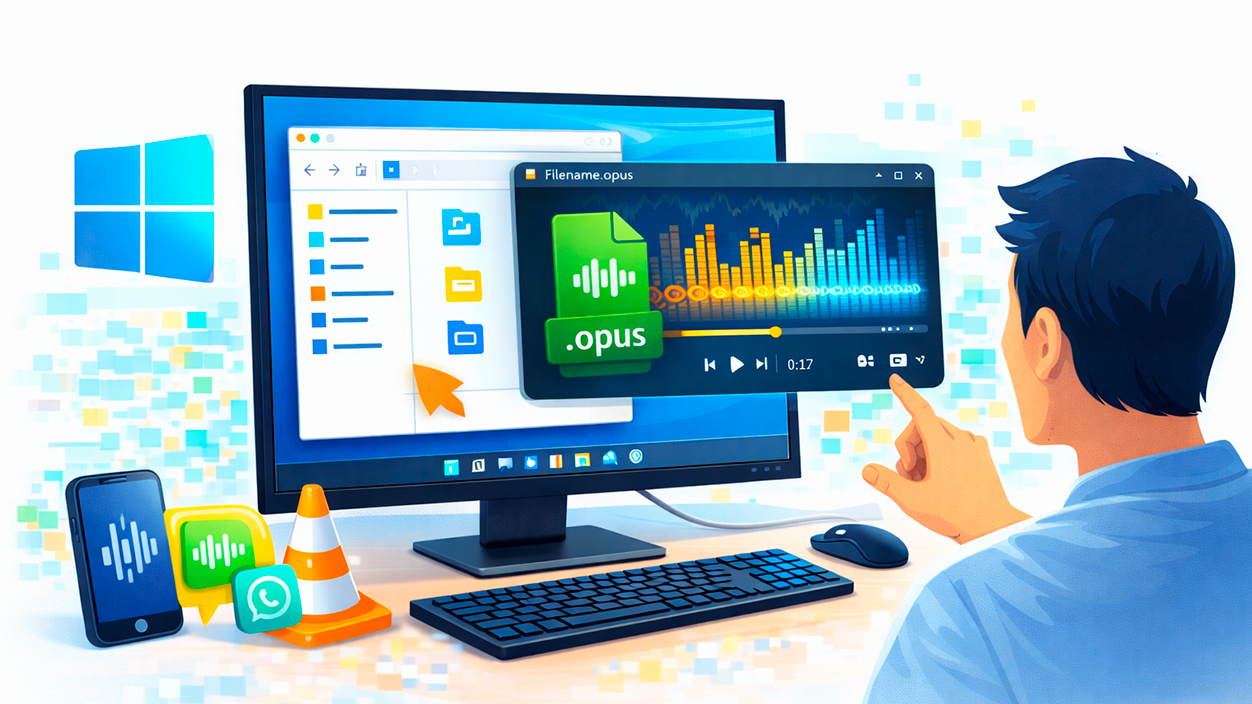
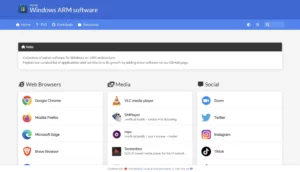
On a Windows PC, the built-in player (Windows Media Player) It is not always able to open .opus files by default.; in systems like Windows ARM the software compatibility on Windows ARM This can influence and force the installation of alternatives. In some cases, support can be added through external codecs, but the most convenient solution is usually to install a player that is already prepared for almost any format.
The most recommended option is VLC Media Player (VideoLAN)It's free, open-source, lightweight, and compatible with a huge number of audio and video formats, including OPUS. Plus, you don't have to install separate codec packs of dubious origin.
To use VLC on Windows, simply go to its official website, download the installer for your version of Windows, and Follow the installation wizard to the endThe system may ask for administrator permissions; simply accept them if the file comes from the official site.
Once installed, locate your .opus file from the File Explorer (Win + E shortcut)Right-click on it and choose the "Play with VLC Media Player" option. The program will open and the audio should start playing automatically.
If that option doesn't appear directly in the context menu, you can use "Open with..." and select VLC from the list of programs. You can even check that set the default player for that extension if you often handle this type of file.
How to open OPUS files on macOS
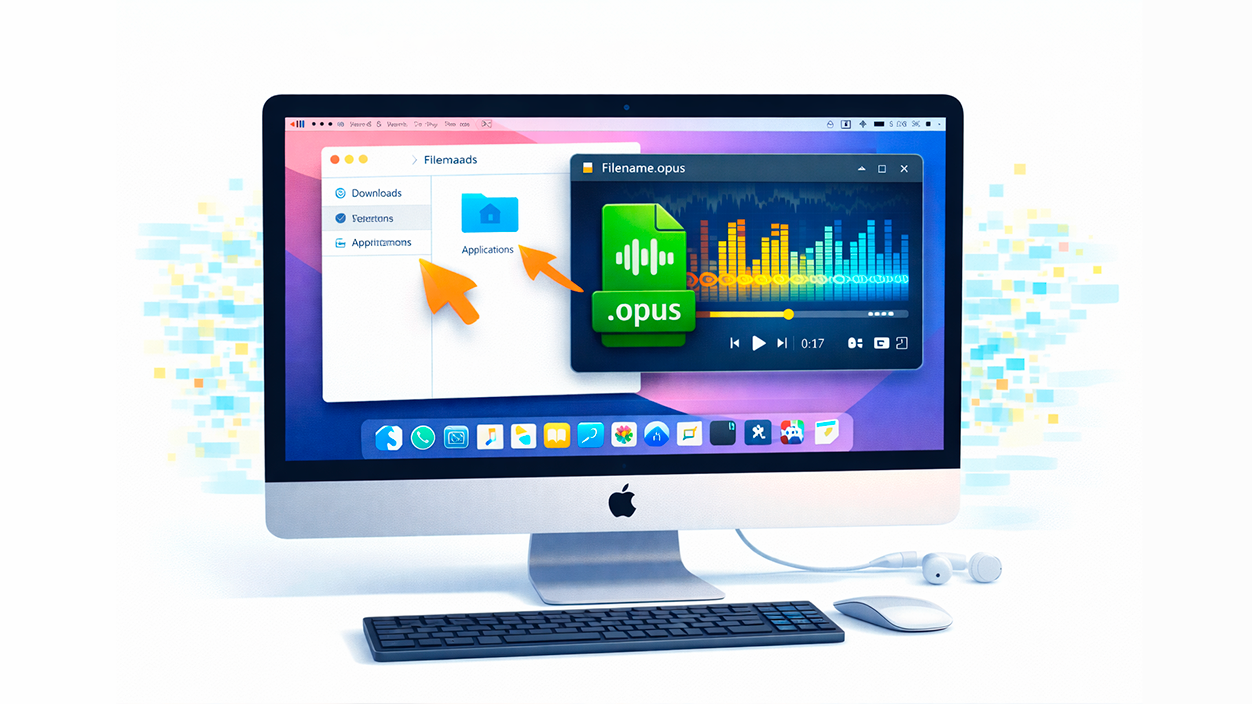
The situation is similar on macOS: Not all native players recognize OPUSBut again, VLC Media Player gets you out of trouble without complications, since it's also available for Mac.
The process involves downloading the macOS version from the VLC website and, once you have the .dmg file in your Downloads folder, drag it to the Applications folder to install itFrom that moment on, it will be available to you like any other app on the system.
To play an OPUS file on a Mac, you can first open VLC and then Go to “File > Open file…” From the menu bar, search for the .opus file you want to play. Another option is drag the file directly onto the VLC icon in the Dock or in the program window itself; as soon as you release it, the audio will be imported and start playing.
If you prefer to manage everything through Finder, simply locate the audio, right-click, and choose “Open with > VLC Media Player”In this way, little by little, You forget about incompatibilities and can use OPUS like any other format within your usual workflow.
Other players compatible with OPUS files
Although VLC is the most famous and practical, it is by no means the only alternative for opening .opus files. There are quite a few audio and video players that include support for this format, both on Windows and on other systems.
Among the desktop programs most frequently mentioned by users are AIMP, Winamp, Foobar2000, Zoom Player, MPC-HC, MediaInfo Player And even, in certain environments, Windows Media Player itself with the appropriate codecs installed. Many of these players stand out for offering very good sound quality and a multitude of customization options.
For example, AIMP can read more than twenty audio formats, including OPUSIt allows you to adjust keyboard shortcuts, equalization, and other advanced parameters. Foobar2000, on the other hand, is very popular among demanding Windows users for its support of almost any format and its library tagging and organization tools.
Programs like MPC-HC (Media Player Classic – Home Cinema) or Zoom Player offer comprehensive multimedia centers with support for multichannel streamsThis is useful if you work with more complex audio. And tools like OPUS tools allow you to directly manipulate OPUS files (encode, decode, etc.) from the command line.
If you already have one of these trusted players installed, it's very likely that You don't need to do format conversions and you can listen to your .opus files directly on your PC with a couple of clicks.
Online converters to convert OPUS to MP3 and other formats
In many cases, rather than opening a direct OPUS, what interests you is convert it to a universal format like MP3 so that it can be played on any car stereo, old stereo system, TV or device without OPUS support.
The quickest option for a one-off thing is... online convertersThere are many websites that allow you to upload an OPUS file and download it transformed into MP3, WAV, M4A and other formats, without installing any programs on your computer.
Among the best-known services that accept OPUS are, for example, Online Audio Converter and Convertioamong many others. The process is usually very similar: you upload the original file or files, choose the output format (for example, OPUS to MP3), click the conversion button, and when finished, download the newly converted files.
This system is very convenient, but it's worth noting some common limitations of these platforms. Most imposes a maximum file size or a limited number of free conversions per daywhich can complicate things if you have to convert an entire folder of long voice notes.
Furthermore, by operating in the cloud, you are entirely dependent on the quality of your internet connectionIf your upload speed is slow or unstable, the process can take forever or even fail halfway through. And if you have a lot of files or they're very large, you'll end up wasting a lot of time just on transfers.
The other major sensitive issue is privacy. To convert audio files online, they have to be uploaded to an external server whose location and jurisdiction are not always known. Uploading voice notes with personal or sensitive information is not recommended.even though the service itself seems serious and reliable.
Professional programs to convert OPUS files on your PC

If you frequently convert audio files or are concerned about data security, you'll probably be more interested in this. use a converter installed on your own computer instead of relying on online services. This way the entire process is done locally, without uploading anything to the cloud.
There are many audio and video conversion programs that include support for OPUS. Some notable examples are: Wondershare UniConverter (formerly Wondershare Video Converter Ultimate) or FonePaw Ultimate Video Converter, in addition to many other paid and free tools.
These types of programs usually allow you to drag your OPUS files to the main window, choose an output format (e.g., MP3, WAV, M4A, etc.) and Convert multiple files at once with a single clickIn addition, they usually offer options to trim, join, adjust the bit rate, or change the codec according to your needs.
Wondershare UniConverter, for example, promises Very fast conversions and no quantity limit Once installed on your PC, it also integrates online video download functions and other multimedia tools. FonePaw, on the other hand, focuses on providing stable conversion between a wide range of formats and can work on both Windows and macOS.
Most of these programs operate on a model of trial version and paid versionThe free version usually has limitations (watermark, maximum number of files, audio duration, etc.), while the full version unlocks all features. If you convert audio frequently, it can be a worthwhile investment.
Transfer voice notes and other OPUS files from your mobile phone to your computer
Before converting anything, of course, you have to get those OPUS files off the phone and onto the PC. On Android it's relatively simple, whereas on iOS it usually requires an additional step or the use of third-party apps.
On an Android phone, simply connect the device to the computer using a USB cable and activate file transfer modeFrom your PC, you'll see the phone's internal memory as if it were an external drive, and you can navigate to the WhatsApp folder and its audio subfolders, copying the .opus files you want to a folder on your computer.
If you prefer not to pull a cable, you can also use transfer applications like FonePaw DoTrans or other similar alternatives, which allow you to send audio, photos, and videos between Android, iPhone, and PC with greater flexibility. This way, you can transfer your voice notes to your computer and then play them back or convert them using your preferred tool.
In the Apple ecosystem, a commonly used method is to send files via iCloud Drive, AirDrop, or the iTunes/Finder file sharing featureSome people first upload the .opus files to services like Google Drive from their mobile device, and then download them to their computer or even move them to a media player app folder on their iPad/iPhone using the Files app.
Whatever method you use, the idea is that your audio files end up in a place where you can work with them without restrictions, whether for Listen to them as is on a compatible player or convert them to MP3 and archive them more universally.
Is there a loss of quality when converting OPUS to MP3?
Both OPUS and MP3 are lossy compression formats, so, in theory, Each conversion involves a small degradation of qualityWhen you convert from OPUS to MP3, you are recompressing audio that was already compressed, so some information will be lost in the process.
However, for most everyday uses (voice notes, podcasts, personal recordings), That loss is usually practically imperceptible.Especially if you choose a reasonable bitrate for the output (for example, 128 kbps or 192 kbps for MP3). The resulting file will still sound good, and you'll also save a considerable amount of space.
Many conversion tools allow you to adjust parameters such as variable bit rate (VBR) and constant bit rate (CBR)If you're not quite sure what to play, you can usually leave it in "Automatic" mode or choose a predefined "medium" or "high" quality profile, which usually offer a good balance between weight and quality.
It is also common that you can choose whether the output file will be stereo or monoFor voice notes and conversation recordings, mono mode is usually sufficient and reduces file size somewhat. For music, stereo is generally preferred to preserve the soundstage.
In some cases, you may want to convert to formats other than MP3. For example, M4A (AAC) offers good compression and can save around 30% of space compared to MP3 The perceived quality is the same, although it's also a lossy format. It all depends on how you intend to use it and the compatibility of your devices.
Ultimately, the most important thing is that you know that You are not obligated to stay stuck in a “weird” formatIf your player doesn't support OPUS, you can always transform the audio into another, more widely accepted container without serious complications and adapt it to your environment.
Knowing what an OPUS file is, why services like WhatsApp and YouTube use it so much, which programs play it directly on Windows, macOS, and mobile, and what options you have for converting it to MP3, M4A, or other more common formats, makes it much easier to decide if you prefer install a compatible player, opt for a professional converter, or use specific online servicesFrom then on, your voice notes, streaming audio, and recordings will no longer be a mystery, and you'll be able to organize and listen to them on any device without racking your brain.
Index
- 1 What is an OPUS file and why is it used so much?
- 2 Main uses of OPUS files in everyday life
- 3 Where are WhatsApp OPUS files stored on my mobile phone?
- 4 How to play OPUS files on your mobile phone
- 5 How to open OPUS files in Windows
- 6 How to open OPUS files on macOS
- 7 Other players compatible with OPUS files
- 8 Online converters to convert OPUS to MP3 and other formats
- 9 Professional programs to convert OPUS files on your PC
- 10 Transfer voice notes and other OPUS files from your mobile phone to your computer
- 11 Is there a loss of quality when converting OPUS to MP3?

I am a technology enthusiast who has turned his "geek" interests into a profession. I have spent more than 10 years of my life using cutting-edge technology and tinkering with all kinds of programs out of pure curiosity. Now I have specialized in computer technology and video games. This is because for more than 5 years I have been writing for various websites on technology and video games, creating articles that seek to give you the information you need in a language that is understandable to everyone.
If you have any questions, my knowledge ranges from everything related to the Windows operating system as well as Android for mobile phones. And my commitment is to you, I am always willing to spend a few minutes and help you resolve any questions you may have in this internet world.