- The Local Security Policy allows you to control passwords, access, and security auditing in Windows 11.
- It is only officially available in Pro, Education and Enterprise editions, not in Windows 11 Home.
- There are multiple ways to open secpol.msc: search, Run, Control Panel, Explorer, CMD, or shortcuts.
- Forcing the activation of gpedit/secpol in Home using DISM scripts is not supported and may lead to stability risks.

Windows 11 comes loaded of utilities, configuration panels and somewhat hidden tools that Most users don't even set foot on itBut if used properly, they can make all the difference in safety and comfort. One of the most overlooked is the Local security policy, a component that passes unnoticed until it's really necessary to toughen the system.
This console, also known as Local Security Policy (LSP)It forms part of the core of Windows security management. Through it, you can define rules about passwords, permissions, remote access, and user rights. Simply put: If you want to control who enters, how they enter, and what they can do on your computer or on your network, Local security policy is one of the key elements.
What exactly is the Local Security Policy in Windows 11?
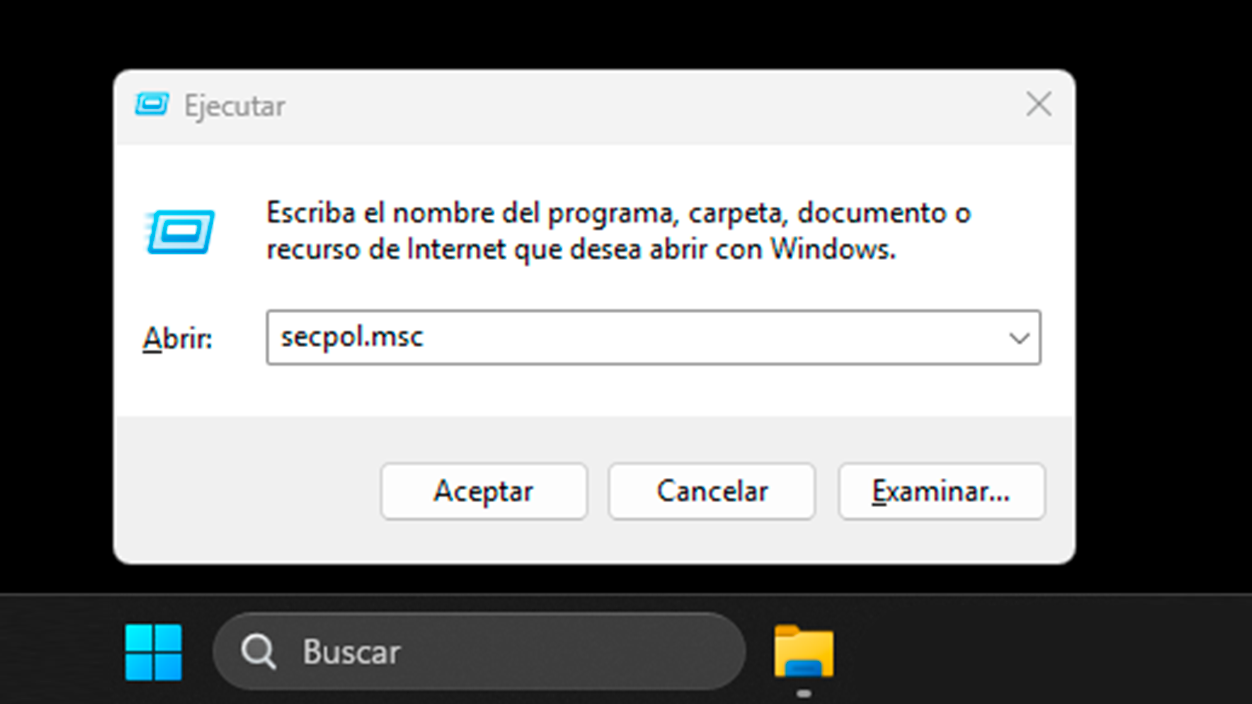
Local security policy is a set of predefined security settings that apply to a specific deviceIt does not operate at the domain level like Active Directory GPOs, but rather works on the PC or server where it is configured.
From this tool, accessible through the file secpol.mscYou can adjust, among other things, the password policies (minimum length, complexity, expiration), the allowed login attempts (to mitigate attacks pass-the-hash), the way in which users authenticate and how the system responds to certain security events.
It also allows you to define highly sensitive user rightsThese parameters include who can log in locally, who can log in via Remote Desktop, which accounts are allowed (or denied) access to the computer from the network, and who can shut down the system. These settings are crucial in environments where multiple users share machines or resources.
Another important block is related to the security auditThrough these options, you can have Windows log every logon attempt, every change to user accounts or policies, or every access to critical resources in the Event Viewer. This is what It then allows you to investigate whether there have been any intrusion attempts or suspicious behavior..
All of this makes LSP especially useful when your team is part of a advanced home network or, above all, a corporate networkThis is where it's crucial to have detailed control over who accesses what and from where. A well-defined configuration here can prevent many unpleasant surprises involving sensitive data or unauthorized access.
Requirements: In which editions of Windows 11 is secpol.msc available?
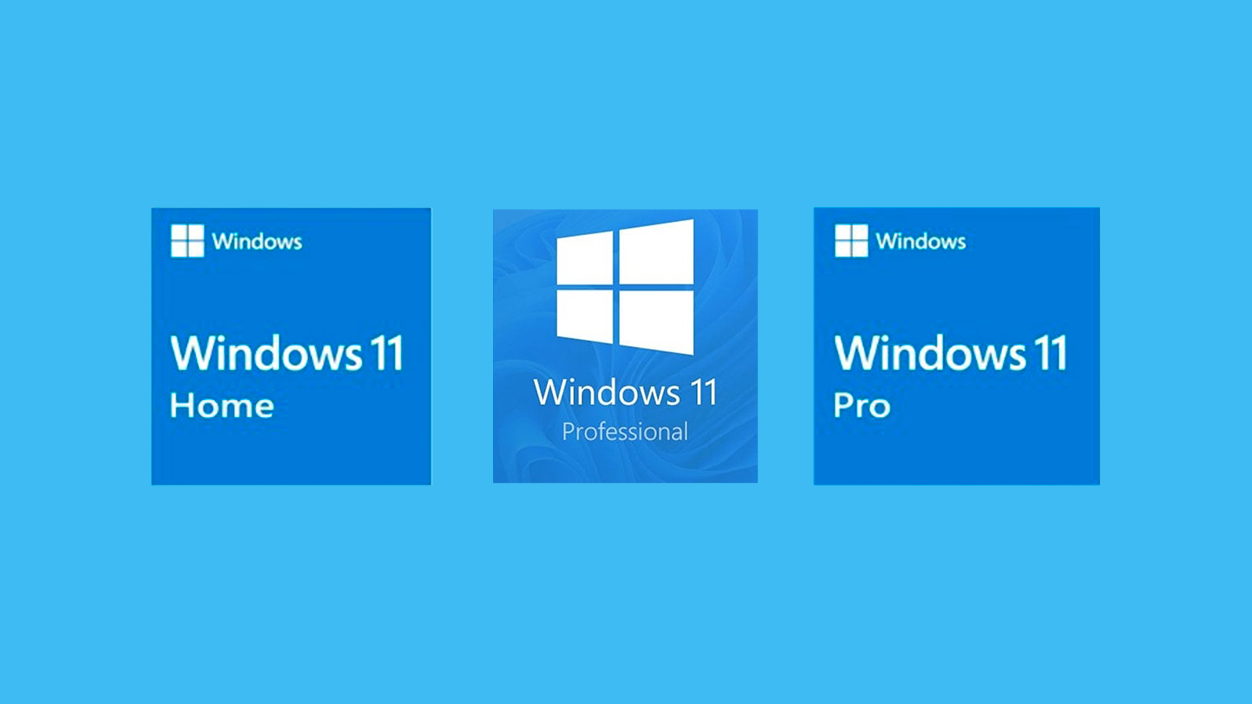
Before you start frantically searching for the tool, there's a key detail: The secpol.msc console is NOT available in all editions of Windows 11Just like with the Group Policy Editor (gpedit.msc), Microsoft reserves it for the more enterprise-oriented versions.
Officially, The local security policy is included in Windows 11 Pro, Education and EnterpriseIn these versions, simply launching the secpol.msc file is enough to open it. However, in Windows 11 Home does not come with the console pre-installed or accessible by default., although internally parts of the policy infrastructure exist.
To find out which edition you are using, you can do something very simple: Press Win + R, type winver and press EnterA window will open showing the system version and edition. If you see "Windows 11 Home," you do not have native support for secpol.msc or gpedit.msc.
This is by design: Microsoft has decided that certain advanced management and security tools are only officially supported in the professional variants of the operating system. Any method to "activate" these consoles in Home falls outside of what the company itself contemplates and supports.
Ways to open the Local Security Policy in Windows 11

If you have a compatible edition of Windows 11 (Pro, Education, Enterprise), you have several ways to access the local security console. Each method is better suited to a particular type of user, but they all lead to the same destination: Open secpol.msc and manage the computer's policies.
1. Open the Local Security Policy from Windows Search
The most direct way for most is to rely on the Windows 11 integrated searchIt's fast, doesn't require remembering strange paths, and works well if you use the Start menu often.
The basic steps would be:
- Press Win + S to open the Windows search box.
- Writes “Local security policy” or “secpol.msc” in the bar.
- Click on the result that matches the Local Security Policy tool.
Once you press the button, the Local Security Policy MMC console will open, from where you can then... Navigate between account policies, local directives, auditing, and other sections.
2. Open the Local Security Policy using the Run dialog box
The Run dialog box is a very quick way if you already know the name of the file you want to launch. In the case of LSP, what is executed is the module. secpol.msc, which resides in the system.
To use this method you only need:
- Press Win + R to display the Run dialog box.
- Write secpol.msc in the text field.
- Press Enter or click OK.
If your edition of Windows 11 supports the tool, you will see the window in a few seconds. Local security policy ready to workOtherwise, you will receive a message that Windows cannot find the file.
3. Open the Local Security Policy from the Start menu
The Windows 11 Start menu includes a folder called Windows Tools (formerly Accessories or Administrative Tools). Within that container are many system utilities, including the local security console.
To get there you can do the following:
- Open the Start menu and tap on All apps.
- Scroll to the bottom of the list and look for the entry Windows Tools.
- Click and, in the new window, locate Local security policy and double click.
This path is useful if you like to have all the administrative tools located in one placewithout having to remember file names or commands.
4. Open the Local Security Policy through the Control Panel
Although the Control Panel is becoming somewhat hidden compared to the Settings app, it is still a central point for accessing classic administrative toolsYou can also launch the LSP from it.
The procedure would be:
- Seeks "Control Panel" in Windows search and open it (or press Win + R, type control and press Enter).
- In the top right, under “View by”, choose Large icons to see all entries.
- Access Windows Tools.
- In the list, locate and double-click on Local security policy.
It's basically another way to get to the same tools directory you see from the Start menu, but it can be useful if You are already making other configurations within the Control Panel.
5. Open the Local Security Policy using Task Manager
The Task Manager isn't just for killing processes that have hung up. It also allows you to start new tasks, which includes system tools such as secpol.msc.
To use it this way:
- Open Task Manager (for example with Ctrl + Shift + Esc or from the context menu on the taskbar).
- In the full view, go to File > Run new task or use the similar button on the Processes tab, depending on the version.
- In the window that appears, type secpol.msc.
- Click OK to launch the console.
This method is especially useful when you are already inside the Task Manager reviewing services, processes or performance and you need to adjust security policies without changing the context.
6. Open the Local Security Policy from File Explorer
File Explorer includes an address bar that can be used almost like a Run dialog box. That is, if you know the name of the executable or MMC file, you can... type it directly into the bar and open it.
In this case, the steps are very simple:
- Open File Explorer (for example with Win + E).
- Click on the address bar.
- Writes secpol.msc and press Enter.
The system will interpret the instruction and The local security policy will load automatically.This is provided it's available in your version of Windows. It's a very handy trick if you spend a lot of time navigating system folders.
7. Create a desktop shortcut for the Local Security Policy
If you work with this tool often, it's most convenient to have a shortcut on desktop to open it with a double-click. There are two common ways to create it.
The first step is to locate the original file in the system folder:
- Open File Explorer and go to C:\Windows\System32.
- In the search box at the top right, type secpol and press Enter.
- When the file appears secpol.mscRight-click on it.
- Choose Show more options > Create shortcut (In Windows 11, this option may be within the classic menu).
- When Windows asks if you want to place it on the desktop, accept.
The second way is more direct using the shortcut wizard:
- Right-click on the desktop and select New > Shortcut.
- In the item location field, enter secpol.msc.
- Click on FollowingGive it a recognizable name (for example, "Local Security Policy") and finish the wizard.
With either method you will have an icon on the desktop that when double-clicked This will directly open the local security console.without having to go through menus or Run dialog boxes each time.
8. Open the Local Security Policy using Command Prompt or PowerShell
If you feel more comfortable working in console mode, you can also use CMD or PowerShell to launch secpol.mscThis is very useful in remote administration sessions or when you are already in an elevated window.
A typical procedure would be:
- Press Win + R and write cmd to open Command Prompt, or PowerShell to open PowerShell.
- Press Ctrl + Shift + Enter if you want to run it with administrator privileges.
- If the User Account Control (UAC) prompt appears, accept to continue.
- In the console, type secpol.msc and press Enter.
After executing the command, the Local Security Policy graphical window will open. This is a good example of how combine command line and traditional MMC tools in administrative tasks.
9. Access the Local Security Policy from the Group Policy Editor
In teams linked to a domain or professional editions, it is common to work with gpedit.msc (Local Group Policy Editor)From there you can also access the configuration structure that manages local security.
To do this you can do the following:
- Press Win + R, writes gpedit.msc and press Enter.
- In the tree on the left, navigate to Computer settings > Windows settings > Security settings.
- By expanding “Security Settings”, you will see all modules that are normally managed also from the local Security Policy console.
This approach is especially useful in more advanced environments where you want combine group and local security policies at a single point of administration.
10. Pin the Local Security Policy to the taskbar
If you access the LSP daily, it might be worth pinning it directly to the taskbar for easy access. The process is very simple and is based on the Windows search.
All you have to do is:
- Open the Start menu and search “Local security policy”.
- Right-click on the result.
- Select the option “Pin to taskbar”.
From that moment on, you'll have the icon pinned to the bottom of the screen, and with a single click you can access the local security console when you need towithout relying on search engines or desktop shortcuts.
In short, the Local Security Policy and the Group Policy Editor are, very powerful tools for fine-tuning the security and behavior of Windows 11But they also come with a certain responsibility: understanding how they interact with domain GPOs, what limitations your edition (Home vs. Pro) has, and what risks you assume by enabling features that Microsoft doesn't include in that context. Using them correctly will allow you to control much more precisely who enters your system, what they can do, and how their actions are logged, truly raising the level of protection for your computer.


I am a technology enthusiast who has turned his "geek" interests into a profession. I have spent more than 10 years of my life using cutting-edge technology and tinkering with all kinds of programs out of pure curiosity. Now I have specialized in computer technology and video games. This is because for more than 5 years I have been writing for various websites on technology and video games, creating articles that seek to give you the information you need in a language that is understandable to everyone.
If you have any questions, my knowledge ranges from everything related to the Windows operating system as well as Android for mobile phones. And my commitment is to you, I am always willing to spend a few minutes and help you resolve any questions you may have in this internet world.