- Disable DRR and set the frequency in Windows to prevent automatic adjustments.
- Configure the Hz settings on NVIDIA, AMD, and Intel panels as well to maintain consistency.
- Check cables, ports, and monitor OSD; a limited link causes frequency changes.
- If it persists, diagnose with a clean boot and rule out conflicting apps or hardware failure.
¿How to prevent Windows from changing your monitor's refresh rate? If you notice your monitor's refresh rate changing on its own in Windows, don't worry: it can be fixed. Many modern laptops and PCs have features that automatically adjust the screen to save energy or for compatibility. Even so, It is possible to set the update frequency you want and avoid those unwanted changes with a few well-made adjustments.
In this guide you'll find everything you need to leave your monitor alone, whether you're looking for Lock it at 60 Hz to save battery life. or keep it at 120/144 Hz for smooth gameplay. We've compiled Windows troubleshooting steps, NVIDIA, AMD, and Intel dashboards, cable tricks, a clean boot diagnostic method, and even a real-world case of a gaming laptop switching to 144 Hz on its own.
What is the refresh rate and why does it sometimes change on its own?
The refresh rate is the number of times per second the screen repaints itself, and it's measured in hertz (Hz). In other words, a 60Hz screen refreshes its image 60 times per second. This is not the same as frames per second (fps)The Hz are from the panel and the fps come from the video source (the game, an app or the system).
To give you an idea, traditional cinema sends 24 frames per second, but each frame can be displayed two or three times by a shutter, resulting in refresh rates of 48 or 72 Hz. In modern LCD monitors and panels, the logic is different: although the pixels don't "flicker" as they once did, The refresh rate still determines how smooth you perceive the image to be.especially when moving windows, moving the mouse, or playing games.
In everyday use, 60 Hz is usually sufficient for office applications, browsing, and video. However, if you play fast-paced games, Increasing to 120/144 Hz (or higher) reduces motion blurIt reduces perceived input lag and smooths scrolling. Lowering the refresh rate, meanwhile, can extend battery life in laptops because the panel consumes less power when refreshing less frequently.
Why does the refresh rate change on its own? Windows 11 has a feature called Dynamic Refresh Rate (DRR) that adapts the refresh rate to usage to balance performance and battery life. Additionally, some drivers, manufacturer utilities, or energy profiles They can force changes when connecting/disconnecting the charger or when opening certain apps. The trick is to disable the relevant settings and manually set the desired rate..
Advantages of properly adjusting the refresh rate
For gaming, upgrading to 120/144 Hz (or higher) can make a significant difference. You'll notice less screen tearing and smoother performance, especially if you also use adaptive sync when available. Reduced motion blur and improved responsiveness are the key points that competitive players are looking for.
In tasks such as scrolling through long documents or writing by hand with a digital pen, a higher frequency also provides fluency. The stroke feels more natural and eye strain is reduced by avoiding small tugs or micro-flickers during prolonged use.
If battery life is your priority on a laptop, lowering the clock speed helps directly. It's not magic, but Reducing the Hz reduces panel power consumption.which is usually one of the components that drains the most battery. On long days away from home, this is noticeable.
Disable or control Dynamic Refresh Rate (DRR) in Windows 11
Windows 11 includes an option that automatically adjusts the refresh rate based on your activity. It's great for balance, but if you're looking for consistency, you should definitely check it out. The path is simple, and compatibility depends on the hardware. and the installed drivers.
How to access the DRR switch in Windows 11: Open Start and go to Settings > System > Display > Advanced display. If your device supports it, you'll see a Dynamic Refresh Rate switchDeactivate it so that the system no longer affects the refresh rate.
Keep in mind that not all monitors and GPUs support DRR from Windows; the setting won't appear on some computers. In any case, You can set the fixed frequency in the same Advanced Display section.which is exactly what we want to prevent automatic changes.
How to manually set the Hz from Windows Settings
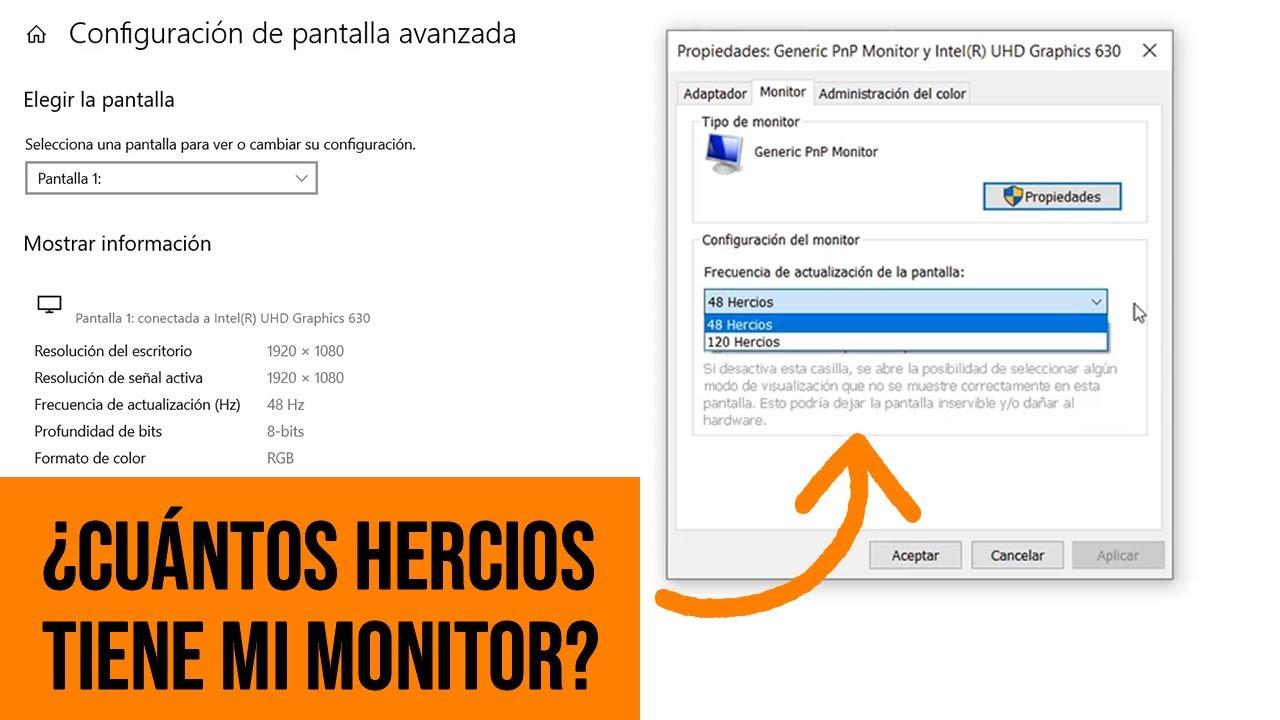
Windows allows you to precisely set the refresh rate without leaving the system. If you use multiple monitors, first select the display you want to adjust. Next, select the frequency from the “Update Frequency” dropdown menu. in Settings > System > Display > Advanced display.
If you work with more than one screen, select the correct monitor under "Choose screen." This prevents you from accidentally selecting the wrong one. The list of available frequencies depends on the panel and the active resolutionSometimes, a lower resolution enables higher Hz.
Still not seeing the refresh rate you need? Update or reinstall your graphics driver (NVIDIA/AMD/Intel). Sometimes, after a major Windows update, display modes are lost until you reinstall the drivers. A clean and up-to-date driver usually restores the advanced options that your monitor supports.
You can also use the classic route: Control Panel > Appearance and Personalization > Display > Adjust resolution > Advanced settings > Monitor tab. In that box you will also see a drop-down menu to set the frequency. and apply the changes. It's the "old-fashioned" way in Windows.
Use the GPU panel: NVIDIA, AMD, and Intel
On PCs with dedicated or integrated GPUs, the manufacturer's control panels offer direct control over resolution and refresh rate. For NVIDIA, right-click on the desktop and open the NVIDIA Control Panel. Under Display > Change resolution, choose your preferred mode and Adjust “Update Frequency” to the desired value (e.g., 144 Hz or 60 Hz).
In AMD, go to AMD Radeon Settings (Adrenalin). Under Display, you'll find the dropdown menu for Hz. Select the correct monitor and set the frequency you want to maintain. In teams with AMD iGPU and NVIDIA GPUCheck both panels to see if the outputs are being routed in a hybrid manner.
For Intel, open Intel Graphics Command Center (or Intel Graphics Settings in earlier versions). In the Display section you will find choose the appropriate refresh rate for the panelThis is useful in ultrabooks with integrated graphics that switch profiles when the charger is disconnected.
Avoid automatic changes: cables, ports, and monitor OSD
It might seem like a minor detail, but the cable matters. If you want 144Hz at 1080p or 1440p, make sure your HDMI cable is 2.0 (or higher) or use a DisplayPort that supports it. An old cable can "capped" the frequency and force changes When incompatible modes are detected, try a different cable or port on both the GPU and the monitor.
Also check the monitor's on-screen display (OSD) menu. Some include "auto-adjust" functions or factory profiles that alter the refresh rate or scaling. Resetting to factory settings from the OSD usually clears rare crashes and returns you to the panel's normal behavior.
If you have another monitor available, do the cross-test: connect the second monitor and see if the problem is reproduced. This quick test tells you if the problem is with the panel, the cable, or the PC.Similarly, test the problematic screen on another device if possible.
Conflicting programs: detect who is playing the Hz
There are utilities that manage windows, overclocking, or overlays that can interfere with screen telemetry. Tools like DisplayFusion or MSI Afterburner, to cite examples, They can force profiles or activate optimizations that alter the frequency. Close or temporarily disable these apps to see if the automatic switching stops.
If you suspect a third-party service is behind it, a clean boot of Windows is invaluable for diagnosis. With a clean boot, Windows starts with the bare essentials. and it allows you to isolate the service or program that is causing the problem.
How to perform a clean boot in Windows (diagnostic method)
First of all, this doesn't delete your data or uninstall programs; it only prevents them from loading at startup. The idea is to disable non-Microsoft services and startup items, and then... Reactivate in batches until you find the culprit.. Do it like this:
- Press Win + R, type msconfig and confirm with Enter to open System Settings.
- On the Services tab, check the box for hide all microsoft services and then click on Disable all.
- Go to the Home tab and open the Task Manager; disables startup items.
- Close Task Manager, click OK in msconfig and Restart the computer to test.
If the frequency stops changing on its own during a clean boot, you're on the right track. Reactivate service groups and start them gradually until you find the culprit. It is a methodical but very effective process to hunt for persistent conflicts.
Safety note: A clean boot is a highly recommended diagnostic technique. Follow the steps carefully and in order. If something doesn't look right, you can revert the changes by returning to "Normal Start" in msconfig when you're finished.
The real case: gaming laptop that "returns" to 144 Hz when plugged in
Imagine a 14-inch ASUS ROG Zephyrus laptop with a 144Hz FHD panel, AMD Ryzen 7 CPU, 16GB of RAM, and an NVIDIA RTX 3060 GPU. After working well for a while, the user sees a black bar at the bottom that appears when the charger is plugged in or when the battery is low. The temporary “solution” is to force 60 HzBut every time I unplug/plug it in, the screen goes back to 144 Hz and the bar reappears.
Additionally, on some startups the refresh rate bar covers the ASUS logo, and over time, another gray bar may appear at the top, or frames may drop when power is connected. The logical question is: how do I lock the refresh rate to 60Hz without the system changing it? There are several levers to check to stop the behavior:
- Disable DRR in Windows 11 and Fixed 60 Hz on Advanced Display with the laptop plugged in and also on battery power.
- Go to the NVIDIA/AMD panel and 60Hz power for that monitor in the default profile.
- Check the manufacturer's software (for example, ASUS Armory Crate) in case any "Savings" or "Performance" profile modifies the screen mode when changing power supply.
- Update or reinstall GPU and chipset drivers; Check cables/adapters if you are using an external monitor.
If the problem persists after setting 60 Hz everywhere and it continues to "bounce" to 144 Hz when plugged in, there are two options: either something is forcing the change (OEM profile or third-party software) or there is a physical problem with the panel/board. At that point, contacting ASUS support is the most sensible thing to do.especially if bars or artifacts start to appear at startup.
Force a specific frequency from the driver
Another useful option is to force the frequency in the graphics driver. In NVIDIA or AMD, you can enable a "locked" mode at 60 Hz where applicable. Open the GPU panel, go to the Display section and select 60 Hz as active mode. Apply and verify that it does not revert when reconnecting the charger.
Keep in mind that using 60 Hz on a 144 Hz panel won't hurt, but it may feel less smooth when moving the cursor or playing games. It's a trade: consistency and battery life in exchange for smoothness.Choose the priority that best suits each scenario.
Cables, ports and compatibilities: small details that make a difference
For 144Hz or higher at 1080p/1440p, HDMI must be 2.0 or higher, and DisplayPort must also be up to standard. If the system detects that the connection is insufficient, It can lower the Hz or automatically switch modes.Try a different port, test another certified cable, and avoid dubious adapters.
If you use a USB-C Thunderbolt hub or dockCheck specifications: not all docks support 144 Hz at the resolution you need. Connect directly to the GPU output when you can to rule out hub limitations.
If you're using a USB-C hub or dock, check the specifications: not all docks support 144Hz at the resolution you need. Connect directly to the GPU output when you can to rule out hub limitations.
The “battle” of 59 vs 60 Hz and the famous 59,94
If you select 60 Hz and Windows defaults to 59 Hz, don't worry. Many displays report 59,94 Hz as their actual refresh rate, and the system offers two labels (59 and 60) for compatibility. This is expected behavior: in practice both options activate the same mode And you don't need to do anything else.
Reset the monitor from its OSD and check the color
Some monitors store internal profiles that overlap with those of the system or GPU. Access the monitor's OSD menu and look for "Reset all" or "Factory settings." Returning to the initial state removes corrupt profiles And, incidentally, it can resolve color space issues if you use the "use NVIDIA color settings" option.
Detects invasive utilities and OEM profiles
Apps that control windows, overlays, resource usage, or gaming modes are fine, but sometimes they're overly ambitious. Check if you have utilities like DisplayFusion, MSI Afterburner or similar that change screen behaviors, or if the manufacturer's software applies profiles when switching from battery to mains power.
Disable those utilities for a while, restart, and check if the frequency stops changing on its own. Once you've identified the culprit, adjust the profile or remove the component that's undoing your settings.It's better to lose a little extra than to suffer constant changes in Hz.
When to ask for help from support or the community
If you have already tried Windows, drivers, cables, OSD and clean boot diagnostics, and the monitor continues to change on its own or bars/artifacts appear, It's time to assess a possible hardware failureFor laptops, the manufacturer (ASUS, Dell, etc.) can provide firmware or repair.
In addition to official support, there are PC enthusiast communities where they share configurations, resolve assembly questions, and help with technical problems. Participate in specialized forums and subreddits It puts you in touch with people who may have already solved your exact problem with your same model.
One final note on battery life: if you're running low on battery, lowering the Hz to 60 can give you that extra few minutes you need to get through the day. When you get home and plug it in, you can restore 120/144 Hz for gaming. and enjoy total fluidity.
Preventing Windows from changing the refresh rate on its own involves disabling DRR when you don't want it to, setting the rate in Advanced Display, confirming the same choice in your GPU control panel, and eliminating any interference (cables, OSD, utilities, power profiles). With these settings, your monitor will stay at the Hz you choose. And your experience will be more stable, smooth, and without surprises.


Passionate about technology since he was little. I love being up to date in the sector and, above all, communicating it. That is why I have been dedicated to communication on technology and video game websites for many years. You can find me writing about Android, Windows, MacOS, iOS, Nintendo or any other related topic that comes to mind.