- CapCut allows you to recover projects from your cloud, local drafts, and system backups if they were set up before the loss.
- On Windows and Mac, the best options combine tools like Wondershare Recoverit with File History or Time Machine.
- On Android and iPhone, recovery apps like Dr.Fone expand the possibilities when CapCut Cloud and backups fail.
- Exporting the final videos and enabling automatic backups minimizes the risk of losing important projects.

¿How to recover a deleted project in CapCut? You've spent hours polishing a montage, adjusting transitions, effects, and music, and suddenly your CapCut project disappears. A tap on Delete, an app crash, or a reinstallation They might leave you feeling like you've wasted your work. Don't worry: in many cases, that project isn't completely lost and it's possible to recover it.
CapCut is a very popular and free video editor for Windows, Mac, Android and iOSwhich also integrates with cloud storage. That works in your favor: there are several ways to recover projects, and similar processes exist for recover a project in FilmoraGoLet's look at all the real options you have, step by step.
Common reasons why projects are lost in CapCut
Before we delve into the solutions, it's worth understanding why projects disappear. Knowing what happened will help you choose the best recovery method Don't waste time with options that don't fit your situation.
One of the most frequent causes is updates to the CapCut application itselfSometimes, when installing a new version, certain projects become incompatible or data migration errors occur, causing some drafts to disappear from the list.
It is also very typical to accidental manual erasureMany users delete drafts or videos to free up space without making a backup first. Or they simply delete the wrong file, whether in CapCut, their phone's photo gallery, or their computer's hard drive.
Another source of problems are the storage device failuresA damaged hard drive, internal memory with corrupted sectors, power outages, or file system errors can cause your projects to become inaccessible, appear damaged, or disappear completely.
We must not forget the Technical errors, bugs and crashes from the app itself. A crash while saving the project, a forced closure, or a failure during cloud synchronization can result in corrupted or invisible projects in the interface, even though some of the data remains.
Understanding the origin of the problem will allow you prioritize between recovering from the cloud, from backups, or using professional programs. data recovery, which directly attacks physical storage.
Can CapCut projects that have been deleted be recovered?
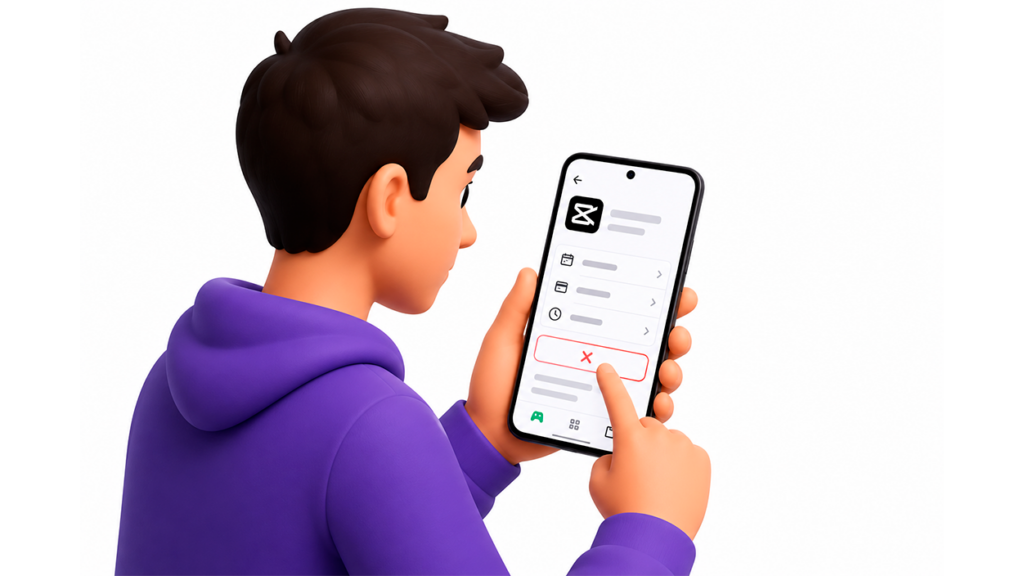
Officially, CapCut states that The deleted projects disappear permanently.This is true from the app's perspective: if you delete a draft within CapCut or uninstall the application without a backup, there is no CapCut "trash" where it might appear.
However, that doesn't mean there aren't any options. When you delete a project, what you're really doing is delete the data associated with the project in storage (internal storage of the mobile phone, PC hard drive, etc.). As long as that data hasn't been overwritten by new data, there's still a chance to try to recover it with specialized software.
You have three main paths to direct recovery if you had taken minimal precautions: cloud storage, system backups, and saved/exported projects such as video files on your device.
If you didn't upload your project to the CapCut cloud, didn't have active backups, or also deleted the exported video, there are still options available: professional data recovery tools For computers, Android and iOS, you can scan storage for video fragments and reconstruct your file.
How to recover deleted CapCut projects on Windows and Mac
On computers, your CapCut projects are usually saved on the system hard drive or on external drives. As long as that data has not been overwrittenIt's quite possible to salvage at least some of the material. Let's look at the most effective methods.
Option 1: Recover CapCut videos with a professional recovery tool
The most effective way to recover deleted files on PC and Mac is to use a dedicated file recovery program. One of the most comprehensive is... Wondershare Recoverit, which stands out for a specific video technology capable of reconstructing large files from multiple fragments scattered across the disk.
Recoverit is capable of recovering Videos, photos, documents, audio, emails, and more from internal and external hard drives, memory cards, NAS devices, computers that won't boot, and even Linux systems. It's especially useful in scenarios like accidental deletion, quick formats, malware attacks, interruptions during transfers, partition corruption, or system failures; if you use another professional editor, for example, you can apply similar techniques when... recover a project in DaVinci.
The process in Recoverit is quite guided. On the main interface, you choose the section for “Video/Photo Restoration” and then “Enhanced Recovery”This is the one that fully utilizes the advanced video engine. Next, you select the drive where the CapCut project was saved (C: drive, external drive, etc.).
When choosing the storage device, the program asks you to Please specify the video format You can choose the file format you want to prioritize (for example, MP4, MOV, etc.). This allows the Deep Scan to more accurately find the appropriate fragments. Confirm by clicking Start, and the analysis will begin.
Recoverit simultaneously executes a quick scan and deep scanThe first locates files that were deleted relatively recently, and the second is responsible for scanning sector by sector to piece together large videos that may be fragmented.
While the program works, you can monitor the progress at the bottom of the window. Once it finishes, a list of recoverable files is displayed. You can preview the videos to check if they correspond to your CapCut project.
Once you've identified the files you're interested in, you select them and click on "Recover"It is very important that you choose to save them in a folder on a different drive than the original, so as not to overwrite data that has not yet been recovered.
Option 2: Retrieve projects from CapCut Cloud on your computer
In its browser version and also in the desktop apps, CapCut offers a cloud storage space where you can save projects. If you used that feature, you have a great opportunity to download your project back to your PC or Mac.
On a computer, many projects appear on the CapCut home screen, within the section “Projects” or “Drafts”If you also worked with the online version, your edits can be synchronized in your CapCut Cloud account; you can also consult practical guides for Recover a project in Final Cut if you work in Apple environments.
The general procedure involves accessing CapCut from your computer, Log in with the exact same account that you used before (it's important to check if it was an email account, Apple ID, Google, TikTok, etc.) and go to the cloud section or "My Space". If the project is there, you can download it back to your computer.
This cloud service can also be used on mobile devices: open CapCut, enter “Cloud / My space” And if the project appears, you download it to have it locally again. This is crucial if you reinstalled the app on your phone or switched devices and thought the setup was lost.
Option 3: Recover CapCut projects using Windows backups
If you're one of those who activate Windows backup tools, you might have a previous version of your projects in File History or in the classic Backup and Restore function (the one from “Windows 7”).
On computers with Windows 7, the process involves connecting the device where you store your backups (external hard drive, NAS, etc.), go to Control Panel and enter the System and Maintenance > Backup and Restore section.
Inside you will see the option “Restore my files”From there, an assistant guides you to locate specific folders or files (including those related to CapCut) and return them to their original location or an alternative folder.
If that button isn't displayed in your case, you can tap on “Select another backup from which to restore the files”Choose the copy point you are interested in and then proceed with the wizard until you select the folders where CapCut stored its data.
In Windows 10 and 11, the most modern option is the File historyTo use it, open the Start menu, go to Settings > Update & Security > Backup and from there, access the "Go to Backup and Restore" link.
Once inside, you can use the button “Search for files” or “Search for folders” To locate the directories where CapCut stored its projects, you specify where you want them restored (original location or a new folder) and confirm with Restore and Finish.
Option 4: Recover CapCut projects on Mac using Time Machine
On Mac, the star tool for recovering old data is Time MachineIf you had it active with a backup disk, it's very likely that it saved previous versions of your CapCut files.
To use it, go to Launchpad or the Applications folder and open the app Time MachineThen you navigate through the timeline that appears on the side, locate the folder where the files associated with CapCut were located, and select what you want to bring back.
By right-clicking on the file or folder to recover, you choose the option "Restore"The system will ask you if you want to replace the existing file, keep both (adding a suffix to differentiate them), or keep the original and add the copy to an alternative location.
Once you select your preferred option and click on "Choose"Time Machine will restore the files to the selected folder. Then you just need to go to that location and check if CapCut opens the restored projects correctly.
How to recover deleted CapCut projects on Android
If you've lost a project on an Android phone, the solutions involve... Data recovery app, cloud backups, and CapCut CloudLet's look at the most relevant options.
Wondershare Dr.Fone is a well-known suite for managing smartphones. It includes a module for data recovery for Android which can recover deleted CapCut videos, whether they were in internal memory or on an SD card.
Dr.Fone is compatible with thousands of Android phone and tablet models and can recover videos, photos, messages, contacts, call history and even Google Drive files, depending on the module you're using. It's especially useful when you've accidentally deleted a project or lost it after a system crash; if you work with mobile editors, you can also see how Recover a project in KineMaster.
There are two ways to use it. The first is directly on your mobile phone: download the Dr.Fone app from Google Play, install it, and then, in the main menu, go to the section “Videos”You give it permission to access the storage and let it scan for recoverable items.
When it's finished, you'll see a list of recoverable videos and you'll be able to preview content To ensure it's your CapCut project, select the ones you want, click "Recover," and choose the destination folder where the recovered files will be saved.
The second way is to use a computer. Install Wondershare Dr.Fone on your PC or Mac, open it, and go to the “Toolbox” > “Data Recovery”Inside, you choose the option for Android and then "Recover Android data".
Connect your mobile phone via USB cable and wait for the program to detect it. When the data type selection screen appears, select “Videos” Then click on start scan. It's recommended to enable the option to show only deleted files to filter the results.
When the analysis is complete, you review the list, choose what you want to restore, define a folder on your computer to save the recovered videos, and press [button name]. "Recover"Then you can transfer those files back to your mobile or work with them directly on your PC.
How to recover deleted CapCut projects on iPhone
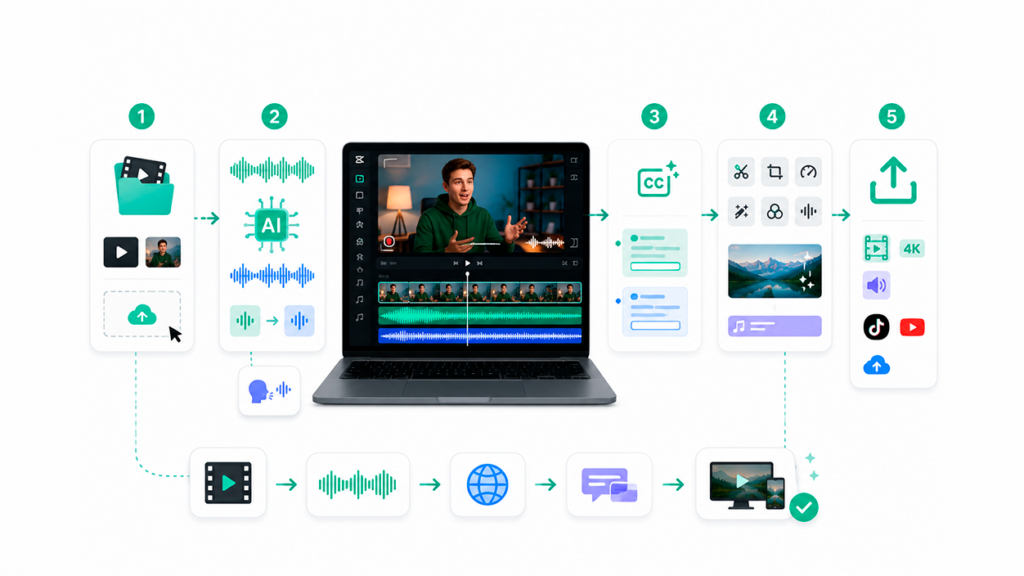
On iOS there are several areas to look in: the Photos app, CapCut internal drafts, CapCut Cloud, iCloud/iTunes backups And, if all else fails, professional iPhone data recovery tools.
Method 1: Check the “Recently Deleted” folder in Photos
If you had already exported your video from CapCut, it should have been saved to your iPhone's Photos app. When you delete a video from Photos, It is not completely eliminated immediately, but it goes to the "Recently Deleted" album for 30 days.
To check, open the app PhotosTap the “Albums” tab and scroll down until you find the “Recently Deleted” album. When you enter it, the system may ask for Face ID or your phone's passcode.
Inside, look for the video exported from CapCut. If you find it, select it and click on "Recover"It will automatically return to your main Photos library, ready to use or re-import back into CapCut if you need to continue editing.
Method 2: Checking CapCut Drafts and Cloud on iPhone
CapCut automatically saves ongoing projects as draftsso you can close the app without fear of losing your work. If your project was never exported and suddenly disappeared from the main view, the first thing to check is this section.
Open CapCut on your iPhone and on the home screen you'll see a list of your “Drafts”Take your time navigating through your files, as organization isn't always straightforward if you have many older projects. If the draft is still there, simply tap it to pick up where you left off.
If you used CapCut's cloud feature (Your Space), open the app and tap the icon. "I" or the “Cloud” section, and make sure you log in with the same account you used when creating the project. Many users have multiple accounts (email, Apple, Google, TikTok, etc.), and the project may be associated with a different one than the one you created.
All your synced drafts should appear within "Your Space." If you see your project, simply select it and download it back to your device to regain full access to the timeline, tracks, effects, and more.
Method 3: Use a professional iOS recovery tool
If there's no trace of the project in Photos, Drafts, or CapCut Cloud, and you don't want to or can't restore a full iPhone backup, you'll have to resort to... Specialized iOS data recovery software.
Applications like Wondershare Dr.Fone (iOS) or similar solutions are designed precisely for this: they scan the iPhone's internal memory for data that has not yet been overwritten, including videos from third-party apps such as CapCut, photos, messages, call logs, etc.; you can also find specific instructions for recover a project in iMovie if you work with Apple apps.
The normal workflow with Dr.Fone is to install the program on your computer, open it, and enter the module. “Data recovery”There you select “Recover iOS Device Data”, connect your iPhone by cable and wait for it to be recognized.
When you have the list of file types, you mark “App Videos”This is where content generated by apps like CapCut usually appears. You start the scan and, once it's finished, you filter the results to show only deleted items if you want to focus on those that are no longer visible on the phone.
The program allows you preview The videos found. If you identify your project, you choose whether to restore it directly to your iOS device or save it to your computer. If you have "Find My iPhone" enabled, Dr.Fone will guide you to temporarily disable it if necessary to complete the restoration.
Method 4: Recover projects from iCloud or iTunes/Finder backups
If you're disciplined with backups, you might not need extra software. Your CapCut projects can be stored within a iCloud backup or your computer backup (iTunes or Finder on macOS), provided that the copy was made after creating the project and before deleting it.
Keep in mind that restoring an iCloud backup involves erase all current content from iPhone and replace it with what was there on the backup date. This means you'll lose photos, chats, and apps added after that date, so consider whether it's worth it beforehand.
To restore from iCloud, go to Settings > General > Transfer or Reset iPhone > Erase all content and settingsOnce the phone restarts and the initial setup begins, on the “Apps & data” screen, choose “Restore from iCloud backup”, log in, and select the most recent backup where you know you still had the project.
If you backed up your iPhone to a computer, you have another option: connect the iPhone, open iTunes (on older Windows or macOS) or Finder (on recent Macs)Select the device and tap "Restore backup". Choose the appropriate backup and wait for the process to finish and the phone to restart.
In either case, when you reinstall CapCut and access your account, you should see the drafts and files that existed at the time of the backup, provided that CapCut saved them in the system backup itself (as is usual in iOS).
Best practices to avoid losing CapCut projects again
Beyond recovering what has already been deleted, it is advisable that from now on you take measures to protect your projects And avoid finding yourself in the same situation again. With just a few habits, you can drastically reduce the risk.
The first thing is to get used to export your final videos As soon as you finish a major edit, save it in more than one place: internal memory, external hard drive, cloud storage (Google Drive, iCloud, Dropbox, etc.). That way, even if the CapCut draft disappears, at least you'll have the finished video.
Activate them whenever possible automatic backups Your system's backups include: File History on Windows, Time Machine on Mac, iCloud Backup on iPhone, and the backup solutions offered by your Android manufacturer. The more backups you have of your data, the easier it will be to restore it.
In CapCut, try working with the function of cloud storage (Your Space / My Space) This will ensure that your projects are also associated with your account. This is especially useful if you use CapCut on multiple devices or if you frequently reinstall apps.
It's also a good idea to keep your devices updated. with sufficient free space and protected against malwareTurn them off properly and avoid tampering with storage (formatting, deleting unknown folders, etc.) without knowing their contents. Many disasters occur simply due to overly aggressive "cleanups."
In short, although deleting a CapCut project might seem like an irreparable disaster, nowadays you have a good range of solutions: from projects saved in the CapCut cloud, to backups on Windows, macOS, iCloud or iTunes, to powerful tools like Wondershare Recoverit or Dr.Fone that allow revive videos supposedly deleted foreverBy combining these methods and adopting a few backup habits, your editing time will be much safer.
Index
- 1 Common reasons why projects are lost in CapCut
- 2 Can CapCut projects that have been deleted be recovered?
- 3 How to recover deleted CapCut projects on Windows and Mac
- 4 How to recover deleted CapCut projects on Android
- 5 How to recover deleted CapCut projects on iPhone
- 6 Best practices to avoid losing CapCut projects again

Passionate about technology since he was little. I love being up to date in the sector and, above all, communicating it. That is why I have been dedicated to communication on technology and video game websites for many years. You can find me writing about Android, Windows, MacOS, iOS, Nintendo or any other related topic that comes to mind.