
All routers allow you to see how many devices are connected to the Wi-Fi network, but few have an interface as clean as Ubiquiti UniFi's. This software allows you to easily and intuitively view the number of devices connected to your Wi-Fi network. Monitor the network for intruders, and block or limit them with just one clickStill don't know how to do it? In this post, we'll tell you how to see who's connected to your UniFi network.
How to see who is connected to your network with UniFi
Seeing who's connected to your UniFi network isn't just a pointless whim. You can do more than just detect unknown devices or unauthorized connections. Primarily, it's useful for... Identify devices that consume too much bandwidthand then do something about it. In UniFi environments—whether with a UniFi Dream Machine (UDM), UDM Pro, Cloud Key—or a controller hosted on a server, this task is especially simple.
Unlike the interface of generic routers, which is often confusing and has a retro design, UniFi's interface couldn't be more user-friendly. It's called UniFi Network Controller (or UniFi Site Manager), and is one of the monitoring tools the most powerful, visual and detailed on the marketHave you just switched to the Ubiquiti UniFi ecosystem? Then you're in luck.
In this guide, we'll explain step-by-step how to see who's connected to your UniFi network. We'll also see how to interpret the various data the system provides. what actions to take to expel or limit intrudersAnd we'll tell you right now that you don't need to be a social media expert to achieve this. (For other cases, see the topic) How to tell if someone is using your Wi-Fi without permission in 2026).
Access the UniFi control panel
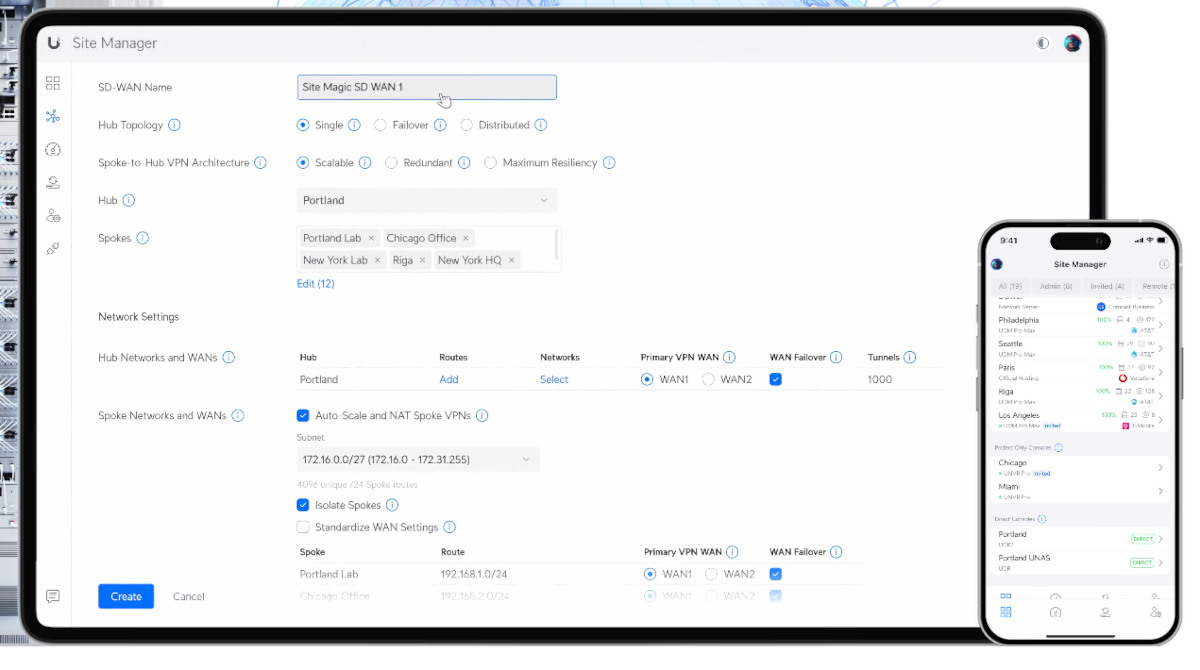
To see who is connected to your UniFi network, you need to access the interface control panelYou can do this in three different ways, although the desktop web version will display the data in a more detailed way:
- From the app UniFi Network, available for iOS and Android.
- From a web browser, accessing https://unifi.ui.com (via the Ubiquiti cloud) or using the controller's local IP address, for example: https://192.168.1.1
- From a Cloud Key or UDMIf you use a UDM or UDM Pro, the control panel is integrated and always available.
When you log in to your UniFi Controller, you'll see the Dashboard. There you'll see a summary of your network's status. The section is located in the left-hand menu. Client Devices (Client Devices), represented by an icon of two silhouettes or a screen. Clicking there will show you a real-time list of absolutely everything interacting with your network infrastructure.
Filter and organize the list to see who is connected to your UniFi network.
The list of connected devices that it shows UniFi Controller It can overwhelm anyone, especially with the amount of information it displays. To avoid getting lost and see who's connected to your UniFi network, it's helpful to break down the key elements. Here's how: filtering and organizing the listAt the top of the Customers section, UniFi allows you to filter the view into three main categories:
- All (All): displays both wired and Wi-Fi connected devices.
- Wireless (Wireless): the best filter if you suspect a neighbor is stealing your Wi-Fi, for example.
- Wired (wiring): shows the devices directly connected to your switches.
Use name and icon recognition
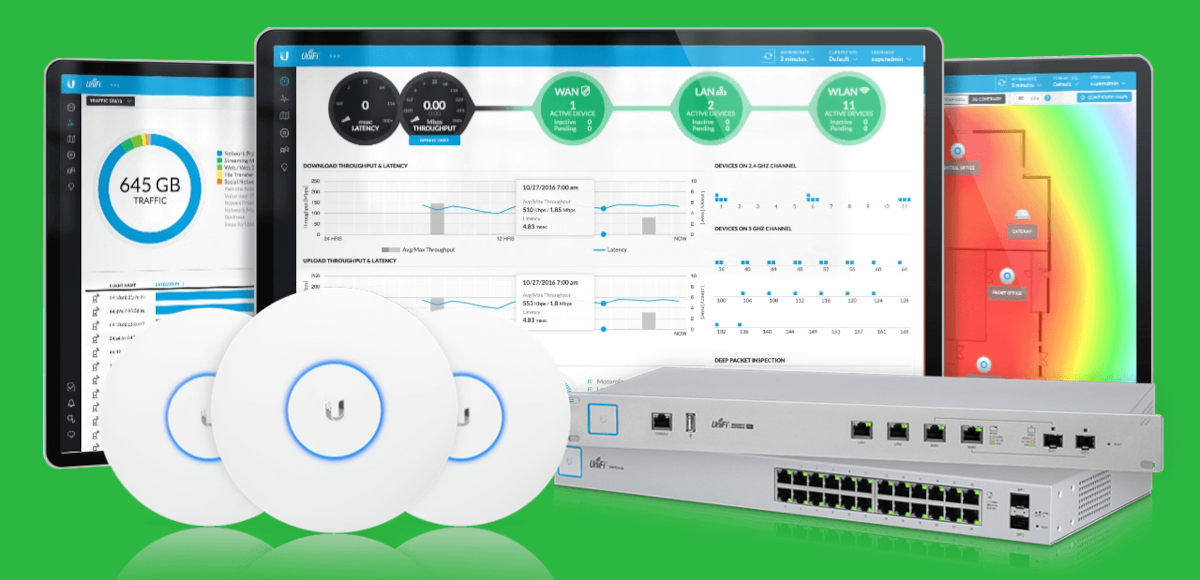
Ubiquiti makes it easy to see who's connected to your UniFi network thanks to its extensive database for recognizing devices. The panel It not only shows the MAC address of each connected deviceIn most cases, it will tell you if it's an iPhone 15, a Samsung TV, a Xiaomi smart bulb, or a PlayStation 5 console.
In addition to indicating the exact name of the team, the interface assigns the corresponding iconThis makes it easier to visually identify which device is connected to the network. If the device is not automatically recognized, it will appear with a generic name (such as the network chip brand) or simply its MAC address.
More details on how to see who's connected to your UniFi network
The interface of UniFi Controller It still provides more details to see who is connected to your UniFi network. By right-clicking on the headings of each column, you can View the real-time behavior of each deviceSome additional data it provides are:
- The logical address of the device on your local network (IP Address).
- The specific access point the user is connected to and on which band (2.4 GHz, 5 GHz or 6 GHz).
- To which network or VLANs is the device connected, for example, to the guest network or the IoT network.
- Activity (Download/Upload) or real-time data traffic. If you see an unknown user downloading at 50 Mbps, you have a problem.
- How long has that device been connected to your network?
Defensive actions: how to block or limit access with UniFi
After seeing who's connected to your UniFi network, it's time to take action if it's an intruder. What can you do? The interface gives you the tools to act immediately. You just have to click on the suspicious clientAnd in the right panel you will see several administration options:
- Immediate blockingBlocking access to your UniFi network is as simple as clicking the "Block" button. This adds the device's MAC address to the blacklist. The intruder will not be able to connect even if they know the password.
- Limit bandwidth (Bandwidth Profile): If you don't want to block the device, you can assign it a speed profile. For example, you can restrict its connection to a modest 2 Mbps download and 512 Kbps upload.
Finally, it is advisable activate notifications This allows the mobile app to send you a notification every time a new device connects. You can do this from the UniFi alert settings; it's useful for taking immediate action against intruders.
In short, see who's connected to your network with UniFi It's a very simple taskTake advantage of all the information provided by the interface to perform comprehensive monitoring. And if you find an unknown device, don't hesitate to block or restrict it to prevent disruption to the entire network.

From a young age, I've been fascinated by all things scientific and technological, especially those advancements that make our lives easier and more enjoyable. I love staying up-to-date on the latest news and trends, and sharing my experiences, opinions, and tips about the devices and gadgets I use. This led me to become a web writer a little over five years ago, focusing primarily on Android devices and Windows operating systems. I've learned to explain complex concepts in simple terms so my readers can easily understand them.