- Combining Sunshine as a server and Moonlight as a client is the most efficient option for reducing input lag compared to alternatives like Steam Link.
- Using Gigabit Ethernet connections and configuring static IPs is essential to stabilizing the bitrate at 4K resolutions.
- Optimizing frame pacing using external tools like RTSS prevents micro-stuttering and smooths the visual experience.
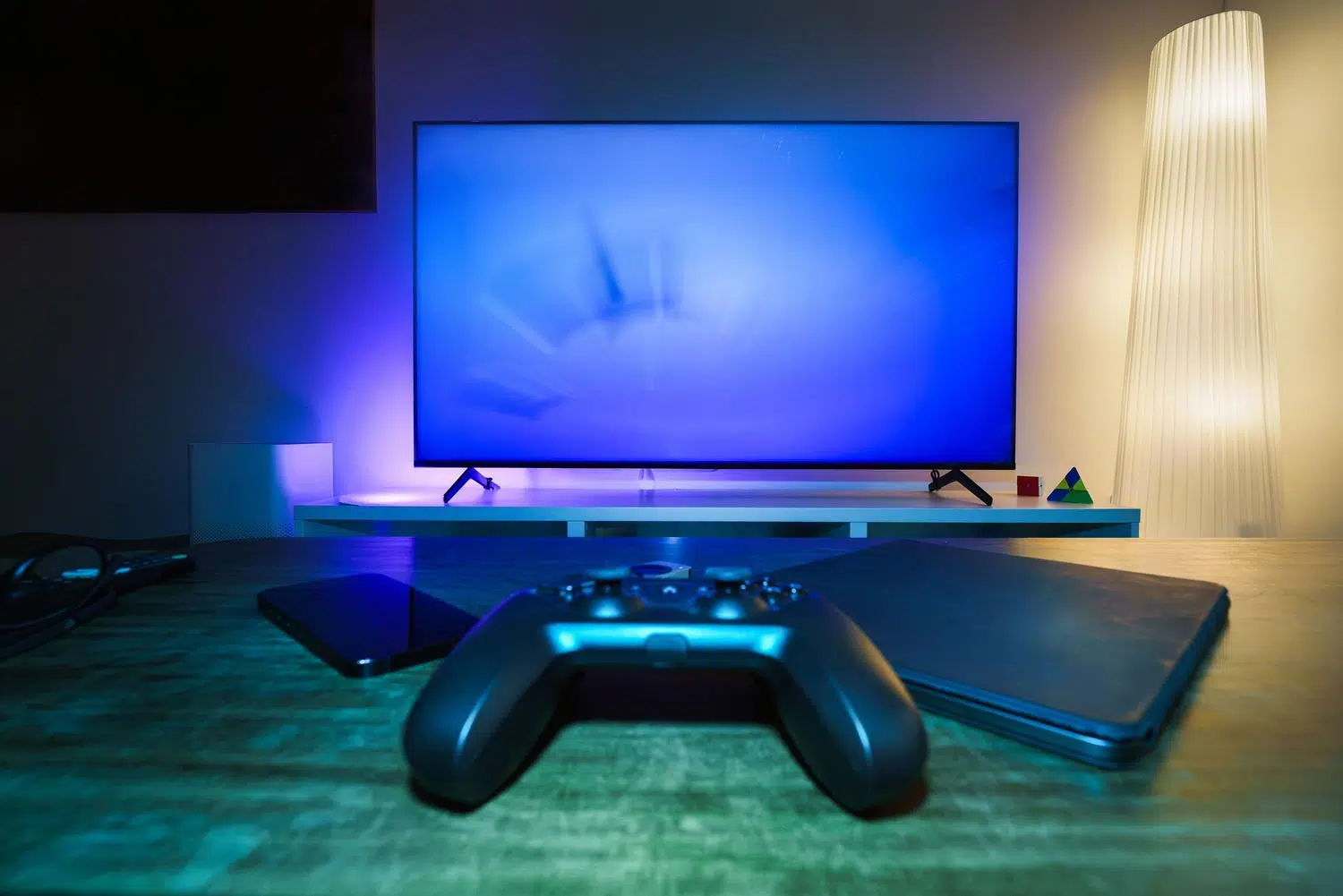
How to use 4K resolution and 120 FPS with Moonlight without significantly increasing latency? If you have a powerful PC in your room but are dying to enjoy your favorite games in the living room, you've probably already experienced the frustration of trying to run an extremely long HDMI cable that always ends up failing. Don't worry, nowadays the game streaming over local network It has advanced tremendously and it is now possible to transmit brutal images without feeling like the controller is lagging, as long as you know how to navigate the correct settings.
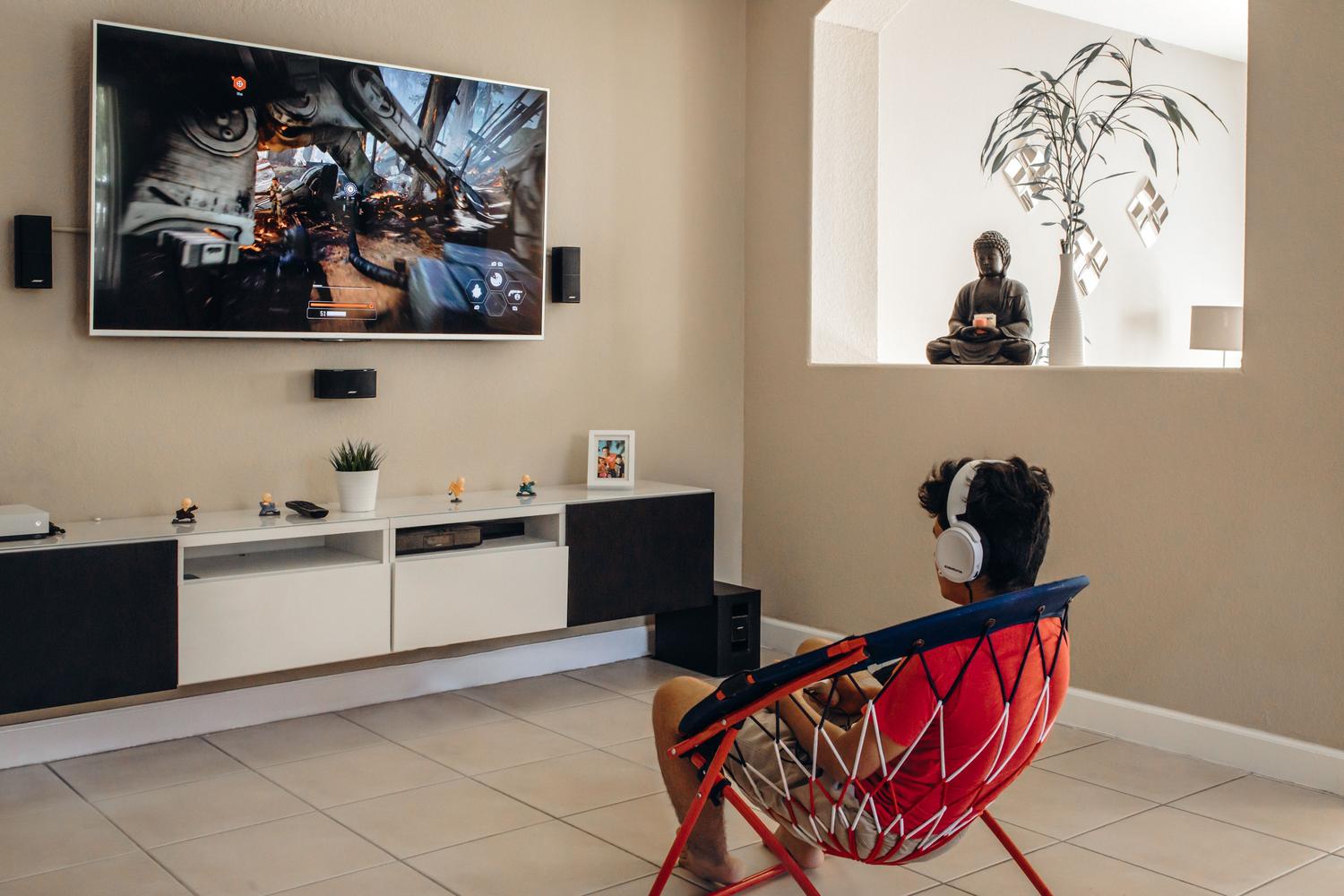
The goal is clear: we want to play 4K and 120 FPS with a fluidity that makes us forget the computer is in another room. To achieve this, the ideal pairing is Sunshine on the host PC and Moonlight on the client device, a solution that puts other options to shame for its minimal latency and visual qualityallowing us to turn any TV or mini PC into a next-generation console.
Assembling the base: Sunshine and Moonlight
The first step is to get the server ready. Sunshine is the software that captures an image of your PC and sends it over the network. After installing it as administrator, you can access its control panel via the web to manage your applications and configure the hardware encoderIt's vital that you use NVENC if you have NVIDIA, AMF for AMD, or QuickSync for Intel; if you use the software encoder, lag will skyrocket and the experience will be a disaster.
On the client side, you install Moonlight on the device where you want to play. Whether it's a Nvidia Shield, a Steam Deck or a Mini PCThe process involves linking both devices using a PIN code. An important detail is that if you want to use Xbox or PlayStation controllers, you must install the driver. ViGEmBus on the server PC so that the controls are recognized without problems.
Customer hardware: The invisible bottleneck
Not all devices are created equal. For example, an Apple TV 4K might fall short by only supporting 60 FPS, which is a shame if your PC can deliver much more. If you're aiming for 120 FPS, you need a client with sufficient decoding power. If you opt for a Mini PC, make sure it has at least one Intel UHD 600 or higherAnything less will limit you to 30 FPS in 4K, ruining the smoothness.
As for the network, forget about Wi-Fi if you want perfection. Although 5GHz is adequate, the Gigabit Ethernet cable He is the absolute king. To prevent the connection from fluctuating, it is best to assign static IP addresses assign IP addresses to both devices and reserve those IPs on the router, thus preventing DHCP from causing outages or reconnection problems. If you can't use a wired connection, there are other options. WiFi 7 routers for gaming that minimize these interferences.
Master tricks to eliminate input lag and stuttering
For the most demanding users, there are in-depth settings that make all the difference. In Windows, you can access the network adapter properties and disable power managementIn addition to increasing the receive and transmit (Rx/Tx) buffers to 1024, this prevents data packets from emptying too quickly during heavy 4K transmission.
Another gem is the process management. Open Task Manager, find the Moonlight executable, and change its priority to "Real-time"This forces the system to give absolute priority to receiving the stream over any other secondary task. Also, in Sunshine, if you notice micro-stuttering, try changing the capture method; some users have found that replace NVFBC with X11 (in certain environments) or adjusting the capture method solves the invisible jerks that drive the player crazy.
Perfect visual synchronization and frame pacing

The biggest enemy of smooth gameplay is micro-stuttering or stuttering. To combat this, it's best not to blindly rely on the client's V-Sync. The winning strategy is to run the game at over 70 FPS and then limit the frames to 60 or 120 Using Riva Tuner Statistics Server (RTSS). By configuring the limiter in "async" mode and disabling "passive wait", you will achieve a Perfect frame pacing and much lower latency than with traditional V-Sync.
Regarding the bitrate, don't go overboard and increase it to the maximum. For 4K on a wired network, a value between 80 and 150 Mbps It's more than enough. Increasing it excessively can increase decoding latency without providing a noticeable visual improvement, causing the system to become overloaded and triggering annoying slow connection warnings.

Remote access and final optimization
If you want to play from away from home, you have two options. The simplest is to use a VPNs like Tailscale or ZeroTier, although it adds a little delay. The pro option is the Port Forwarding On your router, open TCP ports 47984 and 47989 and UDP ports 47998 through 48002. This allows Moonlight to connect directly to your public IP address at the highest possible speed.
To complete the process, remember to disable any automatic game optimization options within Moonlight, as they often override manual graphics settings. If you have a virtual monitor on the server, make sure its update frequency match with the stream's to avoid desynchronizations that feel like lag.
Achieving a smooth 4K gaming experience at 120 FPS requires a stable wired network, client hardware capable of fast video decoding, and fine-tuning of process priorities and frame limits. By optimizing data flow from network buffers to the use of RTSS for frame pacing, it's possible to achieve a response nearly identical to a direct HDMI connection, transforming any corner of your home into a high-performance gaming zone.

Passionate about technology since he was little. I love being up to date in the sector and, above all, communicating it. That is why I have been dedicated to communication on technology and video game websites for many years. You can find me writing about Android, Windows, MacOS, iOS, Nintendo or any other related topic that comes to mind.