
For years, one of the biggest draws of the Apple Watch has been the ability to go out for a workout without leaving your phone at home. And, while it's true that with watchOS 26 you needed to have your phone nearby, with the arrival of watchOS 27 You can now use Workout Buddy on Apple Watch without carrying your iPhone with you.Let's see what the key requirements are and how to activate and use this feature.
How to use Workout Buddy on Apple Watch without carrying your iPhone
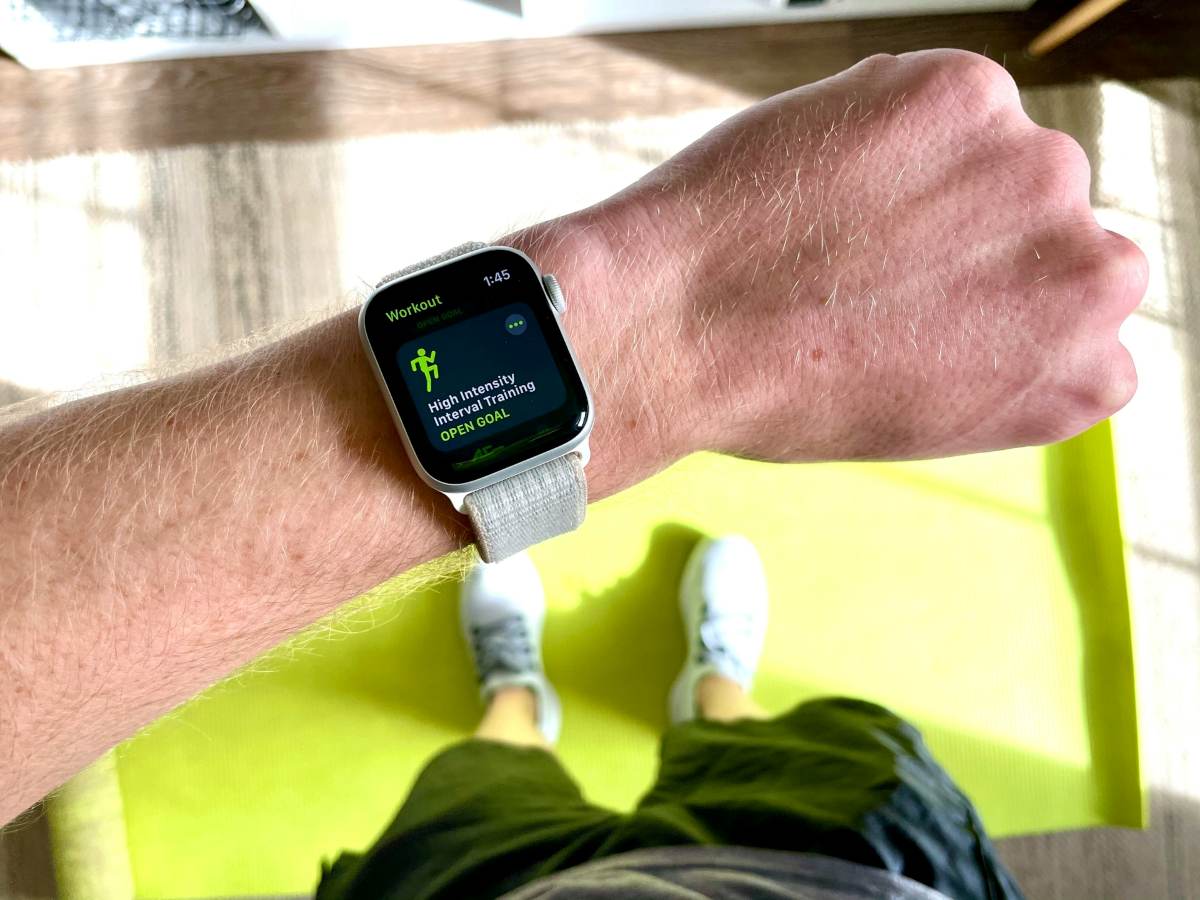
Using Workout Buddy on Apple Watch without your iPhone is back. The feature is now independent of your phone and allows you to Enjoy their mood expressions and real-time analysis While you run, cycle, or lift weights, just wear your watch. In this article, we'll explain exactly what Workout Buddy is, what you need to use it, and how to set it up step by step.
Before explaining how to use Workout Buddy on Apple Watch, let's first see what it is and why you should use it. Workout Buddy is a feature based on Apple Intelligence, that It acts as a personal voice coach.Of course, it's more than just an assistant that encourages you to keep going. It also analyzes your fitness history and current workout data in real time to provide contextual feedback.
One positive aspect of this feature is that It is compatible with a wide variety of workouts: Indoor or outdoor running, indoor or outdoor walking, outdoor and stationary cycling, hiking, elliptical training, stair climbing, high-intensity interval training (HIIT), functional and traditional strength training.
Requirements to use Workout Buddy on Apple Watch without carrying your iPhone
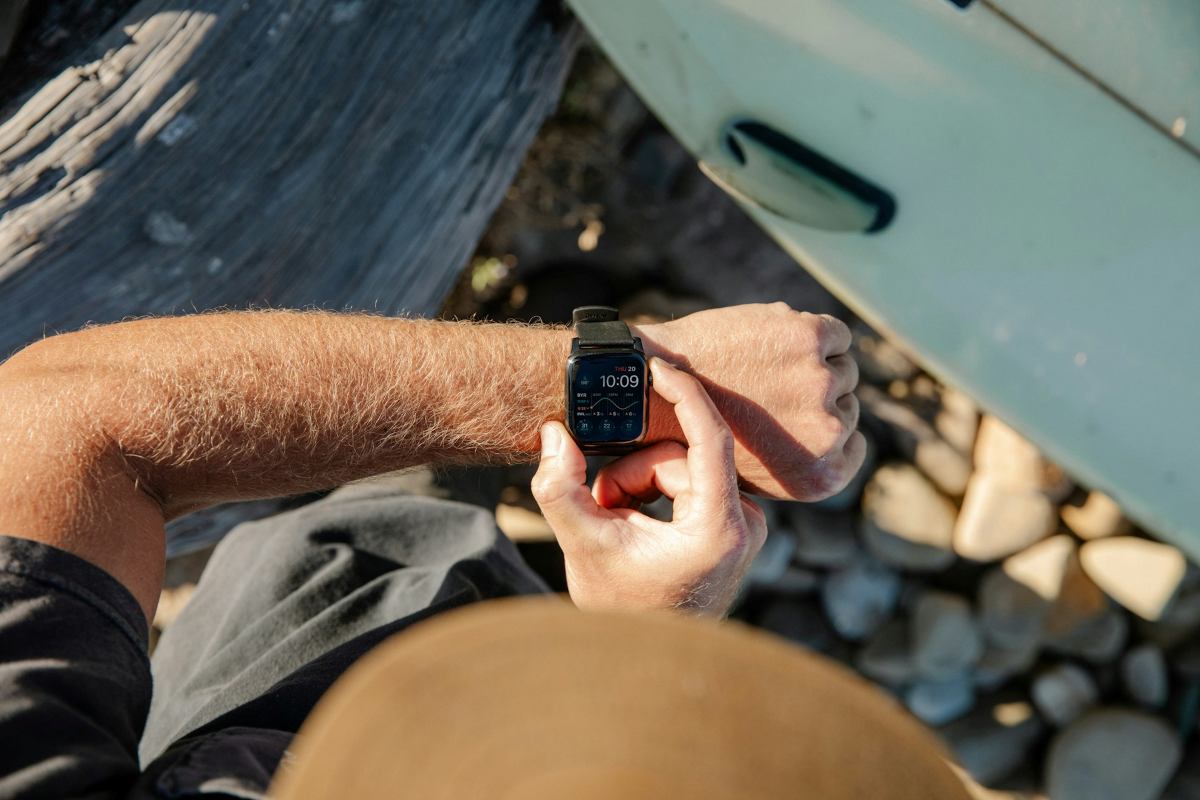
With watchOS 27Apple indicates that you no longer need to have your iPhone nearby to use Workout Buddy on Apple Watch. It works independently as long as your Apple Watch has a Wi-Fi or cellular connection. Now you can use it in Spanish as the language for the device and for Siri. (it was previously only available in English).
So you don't get any surprises, these are the Requirements you must meet with watchOS 27:
- Bluetooth Headphones: Workout Buddy does not play voice through the Apple Watch speaker; you must pair Bluetooth headphones directly to the watch.
- Internet connection: If you don't have your iPhone with you, the Apple Watch will need to be connected to a cellular data plan or Wi-Fi network to process the smart assistance.
- Language: English or Spanish both on the device and in Siri.
- Compatible watch: Series 9 or later, SE 3 Ultra 2 or later.
- Apple Intelligence: The paired iPhone must be compatible with Apple Intelligence.
How to activate and use Workout Buddy on Apple Watch
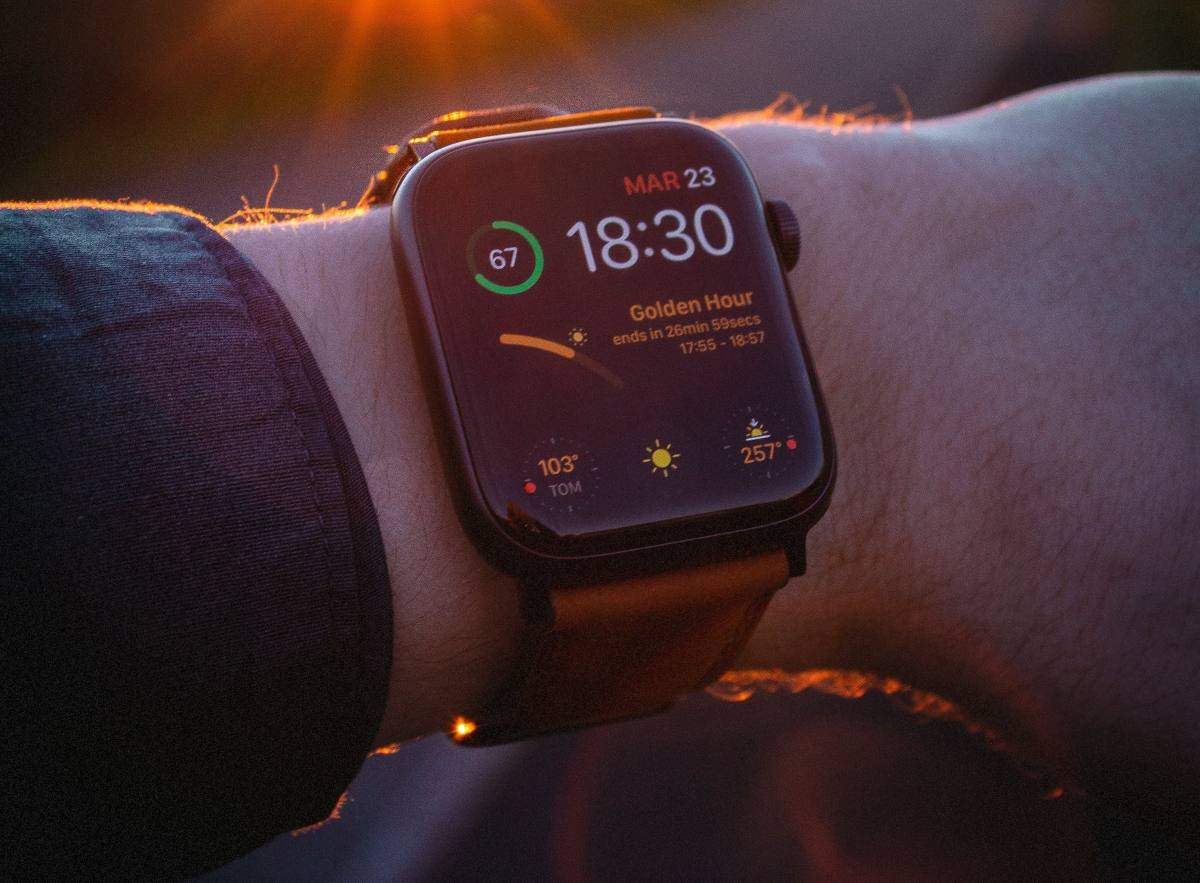
Setting up Workout Buddy is simple, but keep in mind that Activation is performed by type of trainingThis means that if you activate the feature for outdoor running, it won't automatically activate for cycling. You'll have to repeat the setup process for each activity where you want to hear voice prompts.
Follow these Steps to activate and use Workout Buddy on Apple Watch for watchOS 27:
- Put on your Bluetooth headphones and make sure they are connected to your Apple Watch.
- Open the Workout app on your watch.
- Turn the Digital Crown to the type of workout you want to perform.
- Tap the alerts button on the training card (the icon that usually looks like a bell or a speaker).
- Select Workout Buddy and activate the "Use Workout Buddy" option.
- Choose a voice from the available options.
- Press Start and begin your workout whenever you want.
Once activated, Workout Buddy will speak when the session begins, in the milestones you reach and, at the end, it will offer you a summary with the total time, calories burned and other important data of your workout.
How to mute or turn it off mid-training

Of course, there will be times when you don't want to hear a voice while you're working out. That's why, if you ever want to mute Workout Buddy without stopping your workout recording, simply Swipe right on the watch screen and tap MuteIn this way, the voice will stop and the training recording will continue normally.
Now, if what you want is disable it for future sessions of that same type of trainingOr, go back to the alerts button for that activity and turn off Workout Buddy. If you do this, the rest of your workouts will retain their individual settings.
Possible drawbacks of using Workout Buddy on Apple Watch
Sometimes the function may remain silent. If you meet all the requirements and have followed the steps to activate it, but you don't hear anything, Check these points before assuming something is damaged:
- Check that the headphones are connected via Bluetooth.
- Make sure you're in an area with internet coverage. Otherwise, the feature won't work.
- If the type of activity you are doing is not on the compatible list, Workout Buddy will not be available in the alerts menu.
- Remember that both your device language and Siri's language must be English or Spanish. If you have any other language, the feature will not appear or will not work.
Important considerations when using Workout Buddy on Apple Watch
As you can imagine, Workout Buddy isn't a feature that will appeal to everyone. At first, the motivation generated by artificial intelligence might seem novel. But It's normal for it to become repetitive or even annoying again. If you prefer to train in silence or while listening to your own music, this is for you. It's really designed for those who are starting or getting back into physical activity.
However, if you're someone who enjoys having a trainer speak to you, using Workout Buddy on Apple Watch is a good idea. You can leave your iPhone at home and Go out for a workout with just your watch and headphonesIf you make the right adjustments and have a stable connection, Workout Buddy will be that personal coach that gives you a pat on the back whenever you need it.

From a young age, I've been fascinated by all things scientific and technological, especially those advancements that make our lives easier and more enjoyable. I love staying up-to-date on the latest news and trends, and sharing my experiences, opinions, and tips about the devices and gadgets I use. This led me to become a web writer a little over five years ago, focusing primarily on Android devices and Windows operating systems. I've learned to explain complex concepts in simple terms so my readers can easily understand them.