Transforming your smartphone into a microphone for Windows is the ideal solution if you want to improve your audio quality without yet investing in a professional microphone. In this guide, we'll see how to use your mobile phone as a microphone in Windows using [method/method]. Free tools that use Wi-Fi or USBLearn how to leverage your mobile device's technology to change your PC's sound input.
Is it possible to use a mobile phone as a microphone on Windows?
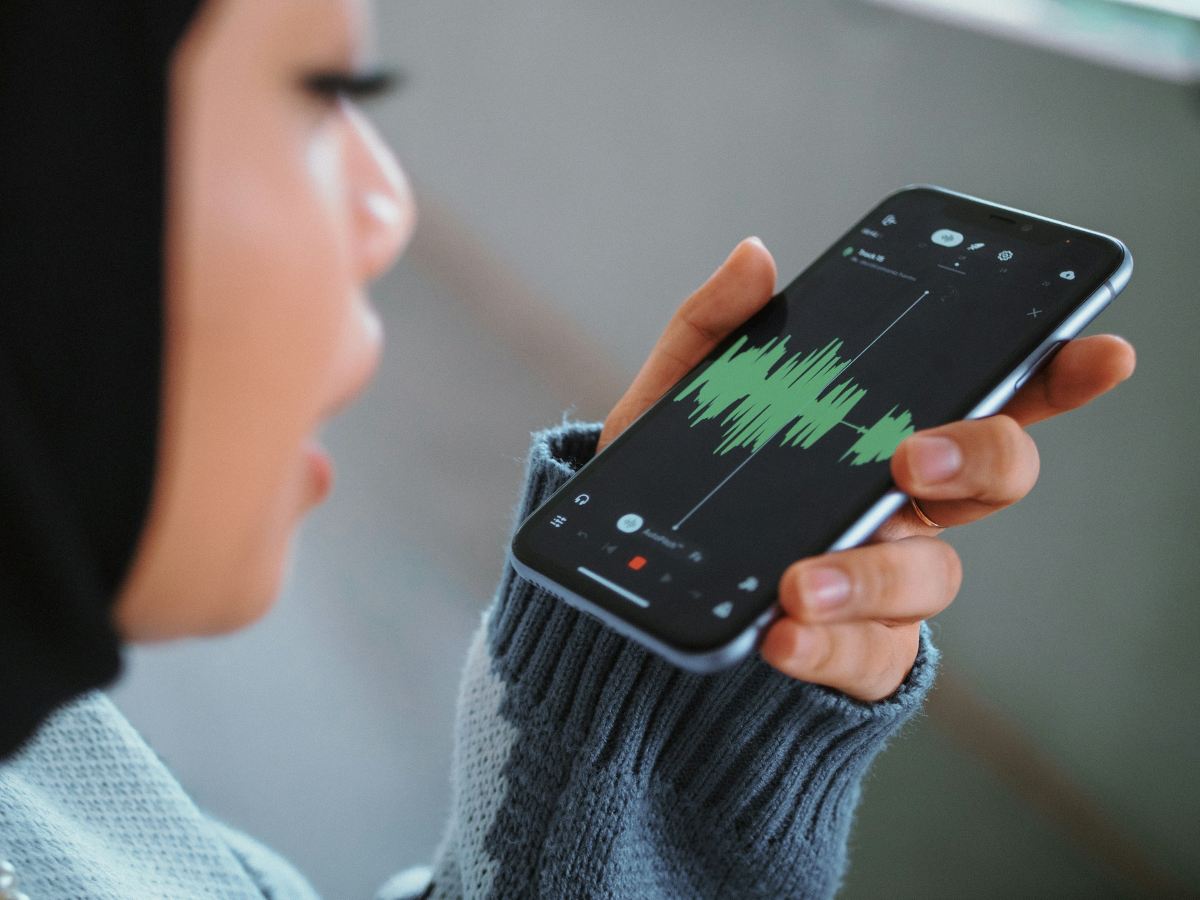
First of all, is it really possible to use a mobile phone as a microphone on Windows? Of courseThis is one of the functions we could call a "trick," but in reality, Windows can recognize your phone as if it were a real physical microphone. Connected via USB. It can be used for video calls, recording, playing games, etc.
However, keep in mind that unfortunately Windows does not have a native function that automatically recognizes a smartphone's microphone via Wi-Fi or USB (except Mobile Link(But this only works within the app for making calls). That's why you need to download an application that works as a virtual audio driver to "trick" the operating system into thinking there's a microphone connected. How do these apps work?
- The app downloaded to your mobile phone captures the sound waves of your voice.
- These waves are converted into digital information that is sent via Wi-Fi, Bluetooth, or USB to your computer.
- Software on your computer receives the data sent.
- This software delivers data to Windows through a virtual input device that will appear on your computer as "WO Mic Device" or something similar.
- The result? Your PC detects your mobile phone as a microphone ready to listen to you.
Use your mobile phone as a microphone on Windows with these apps
Currently, there are different Tools that allow you to use your mobile phone as a microphone in Windows via Wi-Fi, USB, or Bluetooth. In this article, we'll look at reliable and free options. Below, we'll tell you what they are and how to set them up step by step on both your mobile device and your PC.
WO Mic
One of the most popular apps for using your mobile phone as a microphone on Windows is WO Mic. To use it, you need to install a program on Windows and an app on your mobile phone. These are the Steps to use WO Mic:
- On your PC, download the program WO Mic Client (the program that opens the connection with your phone) and WO Mic Virtual Device (the driver that makes Windows recognize the phone as a real microphone) from their official website.
- On mobile, Install the WO Mic app. which is available on both Android and iOS.
- To connect, open the app on your mobile device and tap the Play icon (in settings you can choose to use Wi-Fi, USB, or Bluetooth). On your PC, open the client, go to Connection – Connect, and select the same method you chose on your phone. If using Wi-Fi, enter the IP address displayed on your mobile device's screen.
Iriun 4K Webcam
While the main purpose of this application is to use your mobile phone as a webcam, it also works for create a very stable virtual audio inputTo use it, the steps are similar to those of the previous application. Do the following:
- Configure the appInstall the software on Windows through your official websiteInstall the application on your mobile by downloading it from the Play Store or App Store.
- Main advantage of this toolIf you connect your mobile phone to the camera via Wi-Fi, Windows automatically recognizes it as a new input device called "Iriun Microphone." It's a really easy-to-use application, as it doesn't require manually configuring any IP address.
Audio Relay
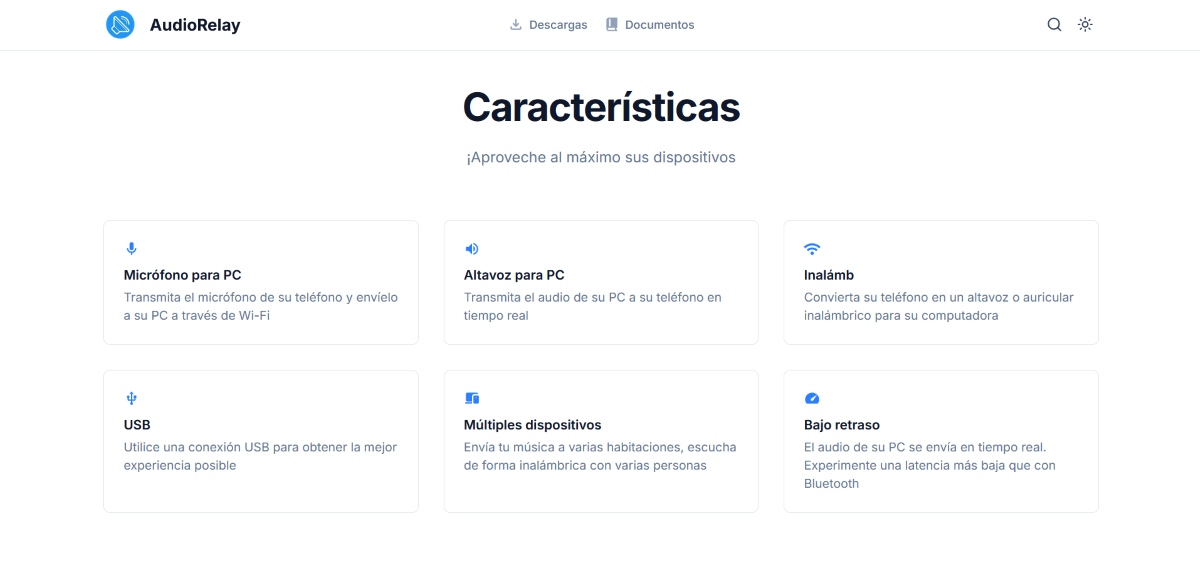
If you want an application that lets you use your mobile phone as a microphone on Windows, but also to send audio from your PC to your mobile phoneAudioRelay is an excellent alternative. To use it, follow these steps:
- On your PC: Enter audiorelay.netDownload the Windows installer and run it. During installation, it's important to make sure you check the box that says "Install Virtual Mic"This will allow Windows to recognize the audio from the mobile device.
- On mobileDownload AudioRelay from the Play Store or the App Store. Go to the Server tab, find the "Audio Sources" option, and select Microphone. When the message "Server is Running" appears, it means the server is working.
After configuring your mobile device, you must do the following: settings in the program downloaded on Windows:
- Go to the Player tab.
- In the Mode section, change the Audio option to Mic.
- Your phone's name should be listed under Servers. Click on your phone's name until you see the status change to Connected.
Adjust the settings on your computer so you can use your mobile phone as a microphone on Windows.
Finally, there are an extra adjustment you need to make in Windows So that your apps can use the sound coming from your phone's microphone. What does that mean?
- Go to Sound settings (Right-click on the sound icon in the Windows taskbar or go to Settings – System – Sound).
- In the section Entrance, opens the foldable menu and select the virtual microphone which you want to use (WO Mic Device or Audio Relay virtual Mic).
- Speak into the phone and verify that the volume bar moves on your PC screen.
- Done. Now you can use your mobile phone as a microphone on Windows.
Using your mobile phone as a microphone in Windows: Additional tips
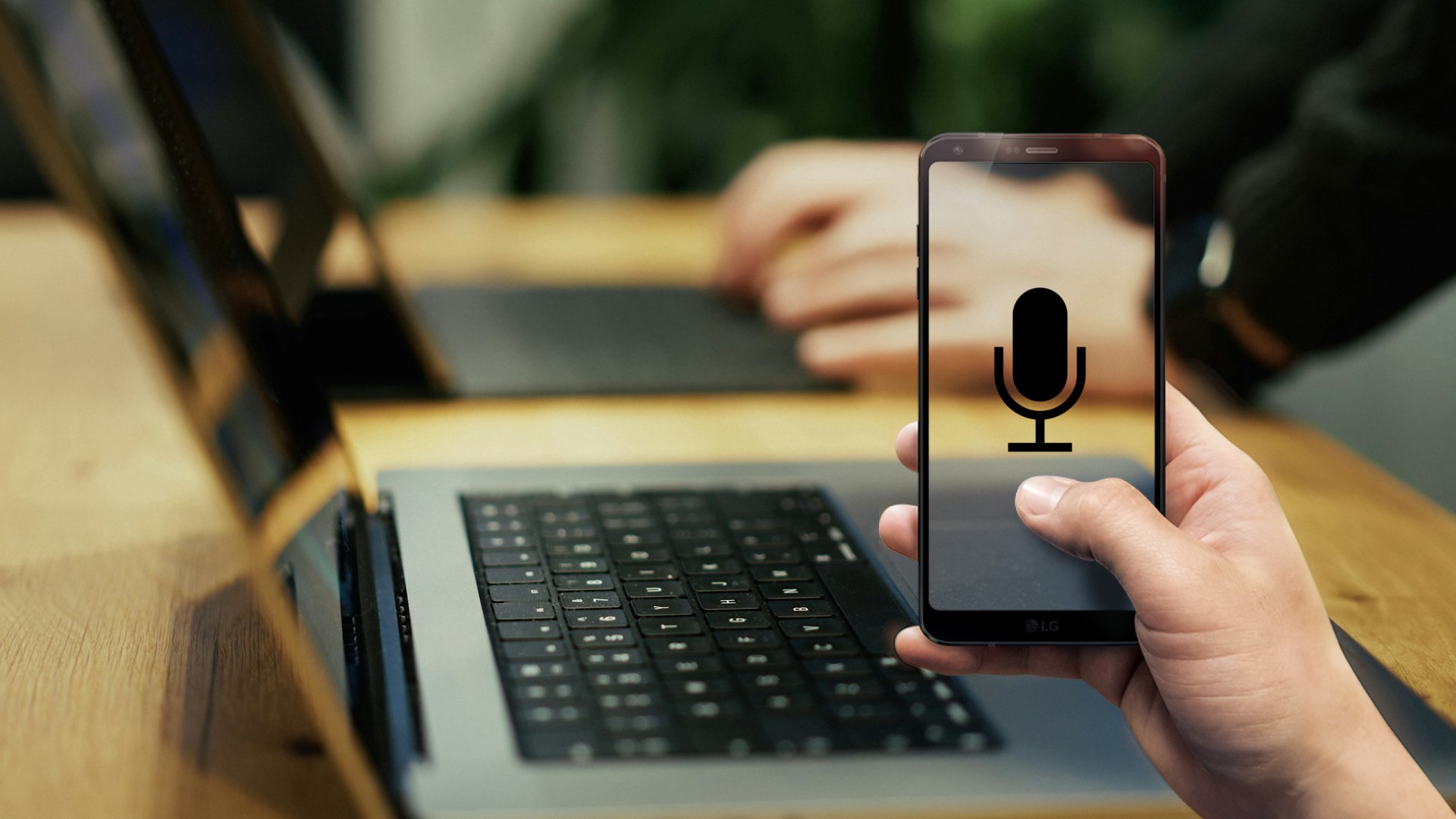
To have a good experience using your mobile phone as a microphone on Windows, there are some important factors you shouldn't overlook. For example, while it's true that using Wi-Fi allows for greater freedom of movement, it can result in higher latency (or delays). In any case, if you use Wi-Fi, Make sure both your mobile phone and PC are connected to the same network to avoid cuts.
However, if you want to avoid any delays, The best option is to use a USB cable connection. Because it's the most stable and fastest for this type of communication. In short, using your mobile phone as a microphone is a practical and economical solution. Whether via USB or Wi-Fi, these tools allow you to get clear audio on Windows without spending a penny. Why not give it a try?
Index

From a young age, I've been fascinated by all things scientific and technological, especially those advancements that make our lives easier and more enjoyable. I love staying up-to-date on the latest news and trends, and sharing my experiences, opinions, and tips about the devices and gadgets I use. This led me to become a web writer a little over five years ago, focusing primarily on Android devices and Windows operating systems. I've learned to explain complex concepts in simple terms so my readers can easily understand them.