- Windows 11 allows you to use your Android phone's camera as an integrated webcam without cables or complex apps.
- It is essential to have Windows 11 updated, Windows Link/Mobile Link in its latest version and Bluetooth + Wi-Fi enabled.
- The function is activated from Settings > Bluetooth & devices > Mobile devices, using the connected camera option.
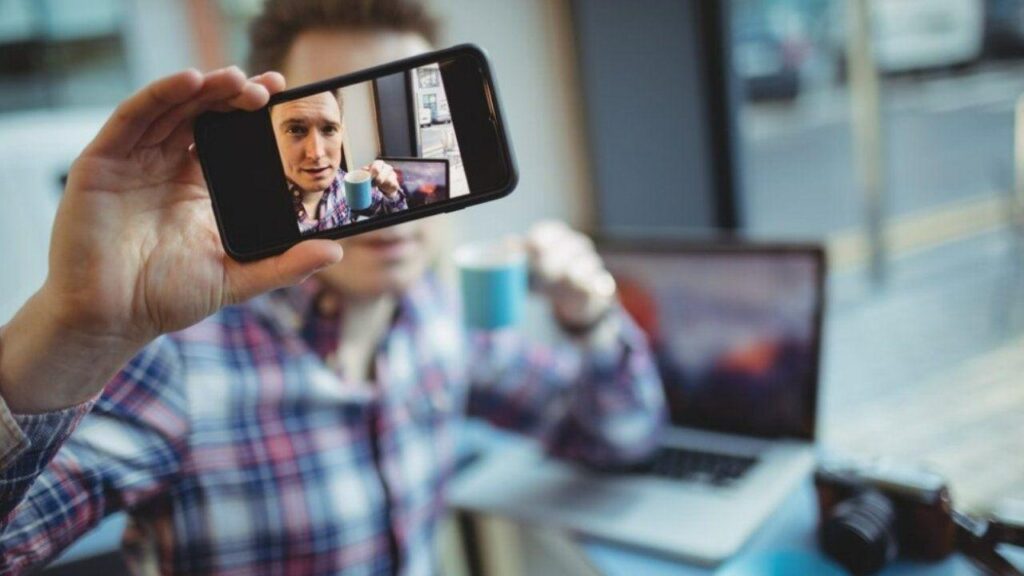
Many people are unaware of this, but Use your mobile phone as a webcam in Windows 11 It's now a real, stable, and very easy-to-use option. Microsoft has integrated this feature directly into the system, so there's no need to install strange applications or struggle with USB cables if you don't want to.
In the following lines you will see Everything you need to know to use your mobile phone as a webcam in Windows 11: exact requirements, how to activate the connected camera function with Link to WindowsHow to select the correct camera in your video calling apps, typical problems (such as the dreaded permissions window that doesn't appear on your mobile) and also alternatives with third-party apps when the native function still doesn't appear in your system.
What exactly does Windows 11 allow you to do with your mobile phone as a webcam?
The latest Windows 11 feature related to Android makes it possible to Use your mobile phone's camera as if it were another webcam on your PC.integrated with the system and visible in any program that uses video: Zoom, Teams, Google Meet, Skype, OBS or the Windows Camera app itself.
Once everything is properly configured, The phone appears in Windows as a “Virtual Windows Camera” (or similar name) and the selection of that camera is done in the same way as with any other, from the settings of each video calling application or from the system camera settings.
Furthermore, Microsoft has considered real-world, day-to-day use and allows switch between front and rear camerapause the image or apply some effects directly from your mobile screen while using it as a webcam, without touching anything on the computer.
All of this works by leveraging the integration between Windows 11, Link to Windows on Android, and the Bluetooth/Wi-Fi connectionThe magic lies in the fact that the video transmission goes over the network, while certain permissions and activations depend on Bluetooth between both devices.
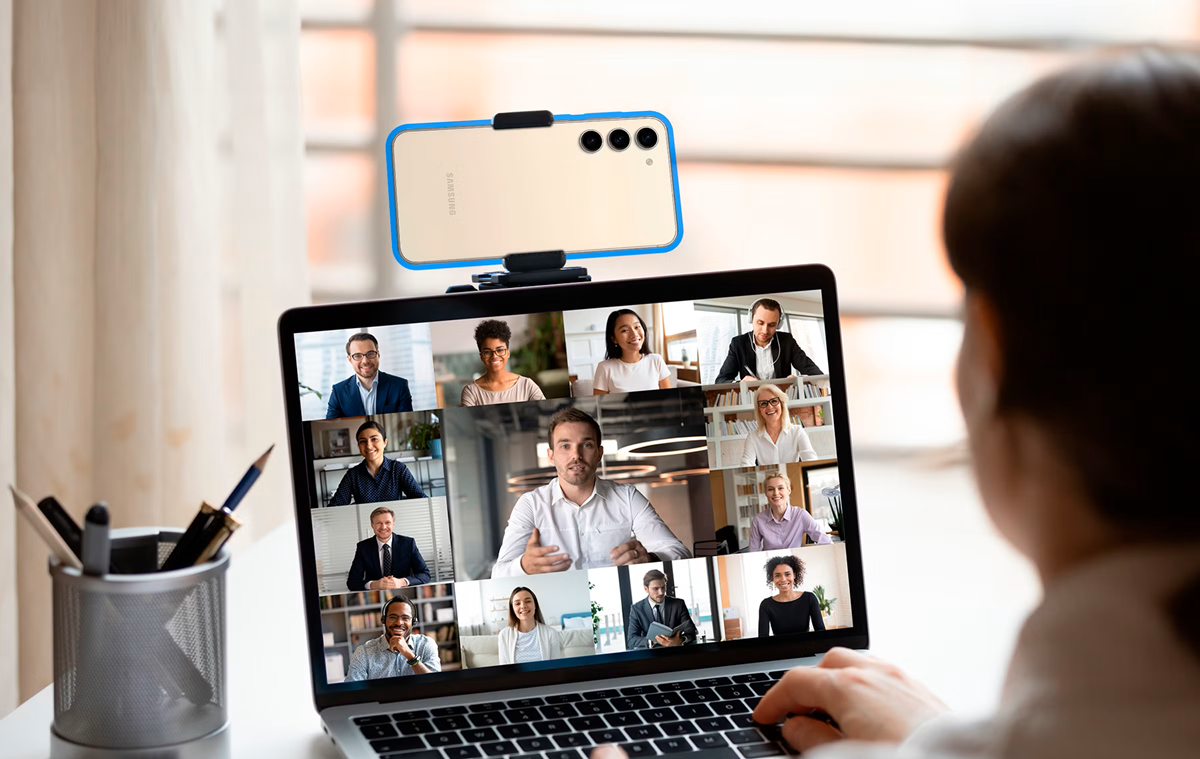
Requirements for using an Android mobile phone as a webcam in Windows 11
Before you delve into the settings, it's important to understand that This feature is only available in Windows 11And in relatively recent versions of the system. If you follow the steps and the connected camera option doesn't appear, the problem is almost certainly with the system version.
On one hand, Microsoft specifies that you need a PC with Windows 11 or laterSome advanced guides mention that the new feature started in Insider builds like the Windows 11 Insider Preview Build 22635.3212But today it is gradually reaching stable versions through cumulative updates.
Regarding the mobile device, Microsoft's official pages mention Android 10 or higherWhile other practical guides indicate that users with Android 9.0 or later have also been able to use the feature in the testing phase. In any case, The more recent your Android device, the fewer compatibility problems you'll have. you will have.
- PC with updated Windows 11 (ideally the latest version available on Windows Update).
- Android 10 or higher mobile device (It has worked in many tests since Android 9, but it is not guaranteed for everyone).
- Windows Link application on the mobile in modern version (1.24012 / 1.24022 or higher, depending on the source).
- Mobile Link Application (Phone Link) on Windows 11 with the latest update from the Microsoft Store.
- Shared Wi-Fi connection via PC and mobile (for video transmission).
- Bluetooth enabled and paired between mobile and PC (for camera control and permissions).
Please note that some users have had to sign up for the Windows Insider program (Beta channels or similar) to receive this feature earlier, especially in the initial rollout phases. In some cases, the most cumbersome part has been updating Windows to the correct build, rather than the webcam configuration itself.
Updating Windows 11 and Mobile Link: the step many skip
If your PC is a bit "neglected" in terms of updates, it's possible that The famous "Use as connected camera" switch will not appear Even if everything is paired. Before you panic, double-check the status of Windows and Microsoft apps.
In Windows 11 itself, go to Settings > Windows Update Run the update checker. You likely have pending patches if you don't have automatic updates enabled, and those patches often include the connected camera feature.
In more advanced cases, some users have had to Join the Windows Insider program and download builds like 22635.3212Some even tried manually downloading the offline update, encountered installation errors, reinstalled the same version they already had, and only then did Windows Update finally offer them the build with the webcam function from the mobile phone.
Equally important is that Update the Phone Link app from the Microsoft StoreAlthough webcam control is not done directly from that app, it does depend on having the latest versions of the "Phone Link + Link to Windows" ecosystem that Microsoft uses to link the mobile phone.
On your Android phone, open Google Play and search for “Link to Windows”Make sure it updates to version 1.24012 or higher / 1.24022. If you want to go a step further, you can Sign up for the Link to Windows beta on Google Play to receive the latest version, which usually includes the experimental webcam features first.
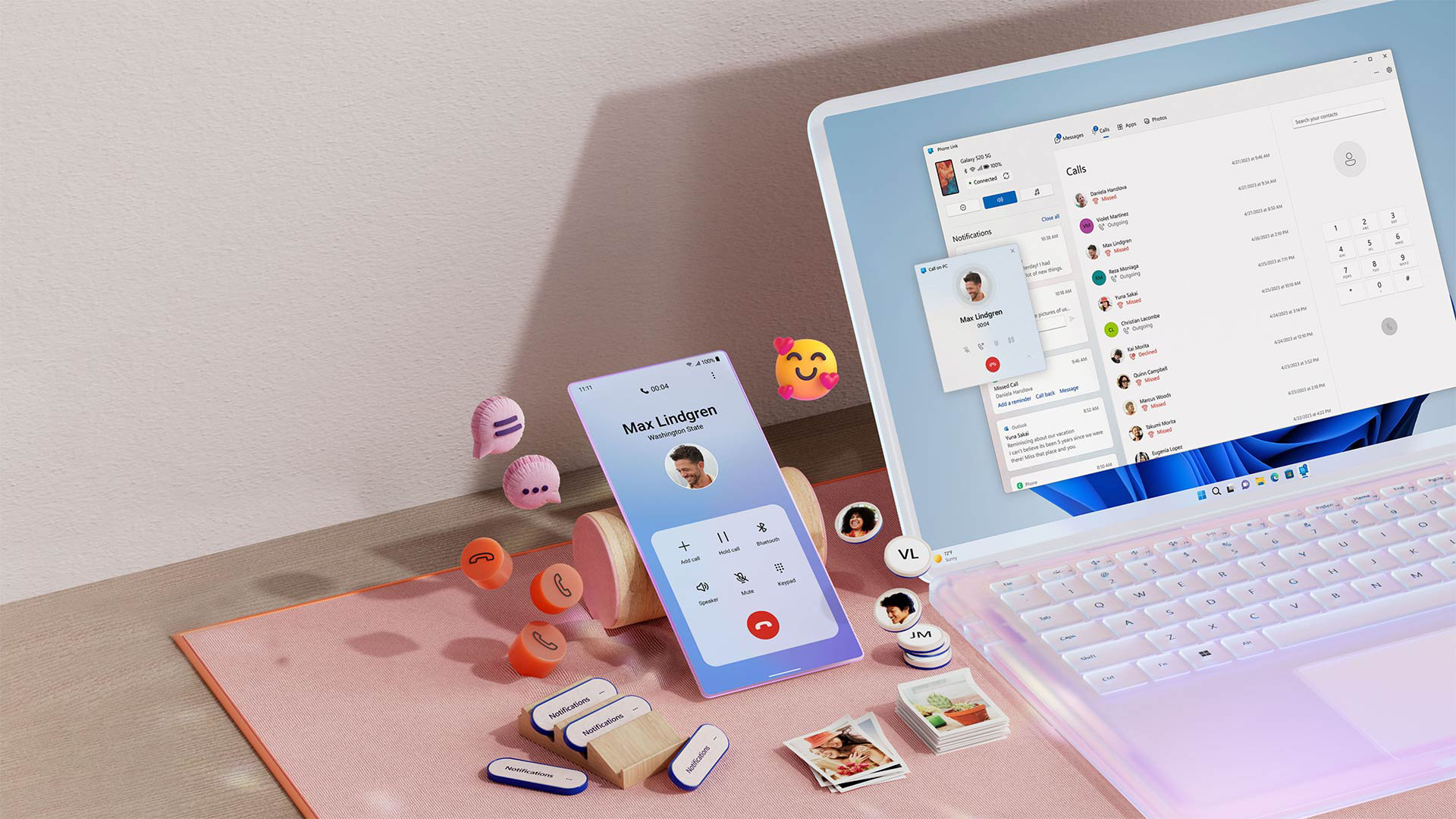
Link your Android phone to your PC using Link to Windows
Once you have Windows and your applications up to date, the next step is Link your Android device to your PC using Link to Windows / Mobile LinkWithout this connection, the system will not recognize the mobile phone as a device suitable for use as a connected camera.
On many mobile phones (especially Samsung, OnePlus and other recent models), Link to Windows comes pre-installedIf you can't find it, download it from Google Play. Then, sign in with the same Microsoft account you use on your PC, because the entire integration revolves around that identity.
Upon opening Mobile Link In Windows 11, the assistant will ask you to choose the type of phone (Android) and It will show you a QR code on your computer screenFrom the mobile device, in Link to Windows, the option "Sign in with QR code" or similar usually appears to launch the integrated camera and read that code.
Interestingly, on some mobile phones, Windows Link does not include a built-in QR reader And you must use any camera app or tool like Google Lens that opens the link in the browser. If you need help, you can check how scan a QR code from your mobile phone.
When everything is working correctly, the PC will already be displaying messages, calls, notifications, and even Android apps in mirror modeThis allows you to open mobile apps from Windows. Don't worry if you don't see anything about webcams at this point: the camera settings are controlled from a different area.
Enable mobile device access in Windows 11
The key to enabling the option to use your mobile phone as a camera in Windows 11 is in the section of “Mobile devices” within Settings > Bluetooth & devicesThat's precisely where many users expect to see a switch, but it doesn't appear.
On your PC, press Win + I to open Settings Then go to “Bluetooth & devices”. Within that section, you’ll see a subsection called “Mobile devices”. Go into it and check the box. “Allow this team to access your mobile devices”, which is what enables features like the connected camera and photo notifications.
By checking that box, Windows will display the mobile phones that you already have linked via Link to WindowsNext to them, you should see a button or link for “Manage devices”. Clicking it opens a window with options specific to that phone.
In the version of Windows 11 that includes the new feature, it should appear on that management screen. a switch labeled “Use as connected camera”as well as other options such as receiving notifications of recent photos or allowing different access to the device.
If your mobile phone appears listed but You don't see the connected camera switchThere are several possibilities: you might not yet have the Windows build with the feature, the Mobile Link app might be outdated, or Microsoft might not have enabled the feature for your region or account. Therefore, it's a good idea to check all of the above and, ultimately, consider joining the Insider program.
Setting up and using your mobile phone as a webcam in Windows 11
Once you've managed to get Windows to display the switch “Use as a connected camera” And once you've activated it for your mobile, the phone's camera becomes available as another video source within the system, without you having to do anything unusual in the applications.
In the app of Windows 11 CameraFor example, you'll see a control to switch video devices (a camera swap icon or a drop-down menu, depending on the version). The new virtual camera linked to your phone should appear there, usually with a name like "Windows Virtual Camera" or something similar.
If your computer already had a built-in webcam, you'll have at least two cameras listed, so you'll need to manually select the mobile phone camera In the settings of each video calling program: Zoom, Microsoft Teams, Google Meet, Skype, etc. All of them allow you to select the camera device in their video preferences.
When choosing the camera linked to your mobile phone, Windows will usually ask you to unlock the phoneWhen you do this, several controls will appear on your mobile screen to manage the transmission:
- Switch between front and rear camerasto choose whether you want to show yourself or what's in front of you.
- Pause the video, without needing to touch the PC.
- In some models, Apply background effects or basic filters.
The actual experience is quite good: The latency is very low and the image quality is usually much higher It's similar to many built-in webcams, especially on older laptops where the original camera is, to put it mildly, rubbish. Plus, since it doesn't need a cable, you can place your phone anywhere with an inexpensive stand and get much more flattering angles.
Choosing which camera to use in each PC application
If you have multiple cameras on your device (the laptop's built-in camera, a USB webcam, and now your mobile phone), you might sometimes the system or app automatically chooses the one you're not interested inLuckily, changing it is easy from the settings of each program.
In general, any application that uses video includes a settings section where you can select camera deviceThe terminology varies slightly between Zoom, Teams, Meet, OBS, and others, but they all display a list of available camera names.
In Windows 11 you can also go to the section of Settings > Bluetooth & devices > Camera To see all connected cameras. From there you can check that The connected camera on the mobile phone appears to be recognized. and, if the interface allows it, set it as preferred for certain apps.
In some menus dedicated to the connected camera, you will have the option to view a preview of the video coming from the mobile phone, switch between the front and rear cameras, pause the transmission, and even run the troubleshooter if something isn't looking or sounding right.
This fine-tuning allows you, for example, completely do without the laptop's integrated webcam and always work with the mobile phone camera, which offers a much more professional and flexible angle and quality.
Permissions, screen rotations, and other typical problems
When using your mobile phone as a webcam, it often appears on the phone. a notification asking for permission to access the cameraThis notification is triggered when the PC selects the mobile device as the video source, and it is essential to accept it for the transmission to begin.
If you have chosen the mobile camera in Windows but You don't see the permission notification On your phone, Microsoft recommends checking the video preview: if a black screen with a white icon appears, look in the Windows taskbar for a new window with a camera icon and your phone's name. From that window, the system will guide you through the necessary steps.
Another option is to go directly to the Android settings > Applications > Link to Windowsand check that camera permission is enabled. If it was disabled, enable it and then click the refresh button in the Windows connected camera window to have the system retry the video connection.
Regarding orientation, it may happen that The image does not rotate from vertical to horizontal. When you rotate your phone. In that case, check your Android settings to see if auto-rotate is locked. If rotation is locked, the phone will maintain its original orientation even if you turn it to landscape mode.
Regarding backgrounds and effects, if you notice that the video stutters or "freezes" when you use a blurred or virtual background, try disable background and effects within the video calling applicationSometimes it's the combination of app effects and the mobile signal processing that causes the lag.
When the “Use as connected camera” switch does not appear
One of the most discussed problems is the case in which, even though the mobile phone is correctly linked and appears in “Mobile Devices”The "Use as connected camera" switch does not appear anywhere on the "Manage devices" screen.
If this happens to you with a modern phone (for example, a fully updated Galaxy S23 Ultra) and Windows 11 with seemingly all updates up to date, it's possible that Microsoft has not yet enabled the feature in your region or in your specific branch of Windows..
In these situations, many users have opted to temporarily register for the Windows Insider program and switch to a channel that receives the latest feature updates (such as the Beta channel). After restarting and updating, the switch usually finally appears.
If it still doesn't work, check:
- That Windows Mobile Link is updated from the Microsoft Store.
- That Link to Windows on your mobile device if you have the same or a higher version. which requires the webcam function (1.24012 / 1.24022 or more).
- That the mobile phone and the PC are paired via Bluetooth and connected to the same Wi-Fi network.
- That you don't have company policies or restrictions (in corporate teams) that limit these functions.
In short, if everything is fine and you still don't see the option, the problem is most likely not yours, but theirs. Microsoft has not yet fully rolled out the feature for your specific Windows configuration.
Real advantages of using your mobile phone as a webcam compared to a traditional webcam
The main reason why many people end up using their mobile phone as a webcam is obvious: the camera quality of a modern smartphone It is usually infinitely better than that of the cheap integrated webcams that most laptops have.
In a remote work environment, interviews, or meetings with clients, a blurry, dark, or pixelated image It gives a very bad professional impression.With the mobile phone, you switch to a larger sensor, decent optics, and highly refined image processing that improves sharpness, dynamic range, and light management.
In addition, using your phone as a webcam allows you to play with position and angle With much more freedom than a fixed webcam. You can position your phone slightly above eye level, use a mini tripod, rest it on books… and achieve a much more flattering perspective than the typical keyboard-level camera.
Another advantage is that can recycle an old mobile phone that you have stored away in a drawer. Even if you no longer use it as your main phone, it probably still has a better camera than your laptop, so you can turn it into a dedicated webcam without spending a penny.
And of course, you don't need buy additional hardware if you don't want toBetween the native Windows 11 function and apps like DroidCam, you can put together a very decent solution using what you already have at home, without spending any money.
Ultimately, with the built-in features of Windows 11 and the increasing support between Android and PC, Using your mobile phone as a webcam has become almost plug & playA couple of adjustments, granting the correct permissions and selecting the appropriate camera in your apps, and you go from looking like a giant pixel to having a crisp and smooth video, perfect for both work and talking to friends or family.

Editor specialized in technology and internet issues with more than ten years of experience in different digital media. I have worked as an editor and content creator for e-commerce, communication, online marketing and advertising companies. I have also written on economics, finance and other sectors websites. My work is also my passion. Now, through my articles in Tecnobits, I try to explore all the news and new opportunities that the world of technology offers us every day to improve our lives.