- Using DNS-level blockers (AdGuard Home or Pi-hole) allows you to filter advertising and tracking across the entire network without installing extensions on each device.
- These systems function as custom DNS servers that respond only to clean domains and block entire lists of domains containing ads, malware, and adult content.
- You can set them up on a compatible router, a Raspberry Pi, an old PC, or a VPS, and then configure the router so that all devices use that filtered DNS.
- The combination of good filters, client control and, if you want, remote access via VPN or Tailscale, gives a faster, more private and secure network for the whole family.
¿How to use your router to block ads throughout your home? If you're fed up with the internet being a barrage of ads on every page you open, you're not alone. You go online to read the news, look up a recipe, or check anything, and you're bombarded with banners, pop-ups, videos, and trackers everywhere. You can still use classic ad blockers in your browser, but when you switch to your phone, tablet, or smart TV, things get much worse, and often you can't even install anything.
The good news is that you can stop much of that intrusion from the router itself.This allows any device that connects to your Wi-Fi to benefit without any further action required. In addition to reducing ads, you can also limit trackers, malicious websites, and, if you wish, adult content or specific services. All of this is achieved by manipulating something you're already using without realizing it: the DNS system.
Blocking ads from your router: the general idea
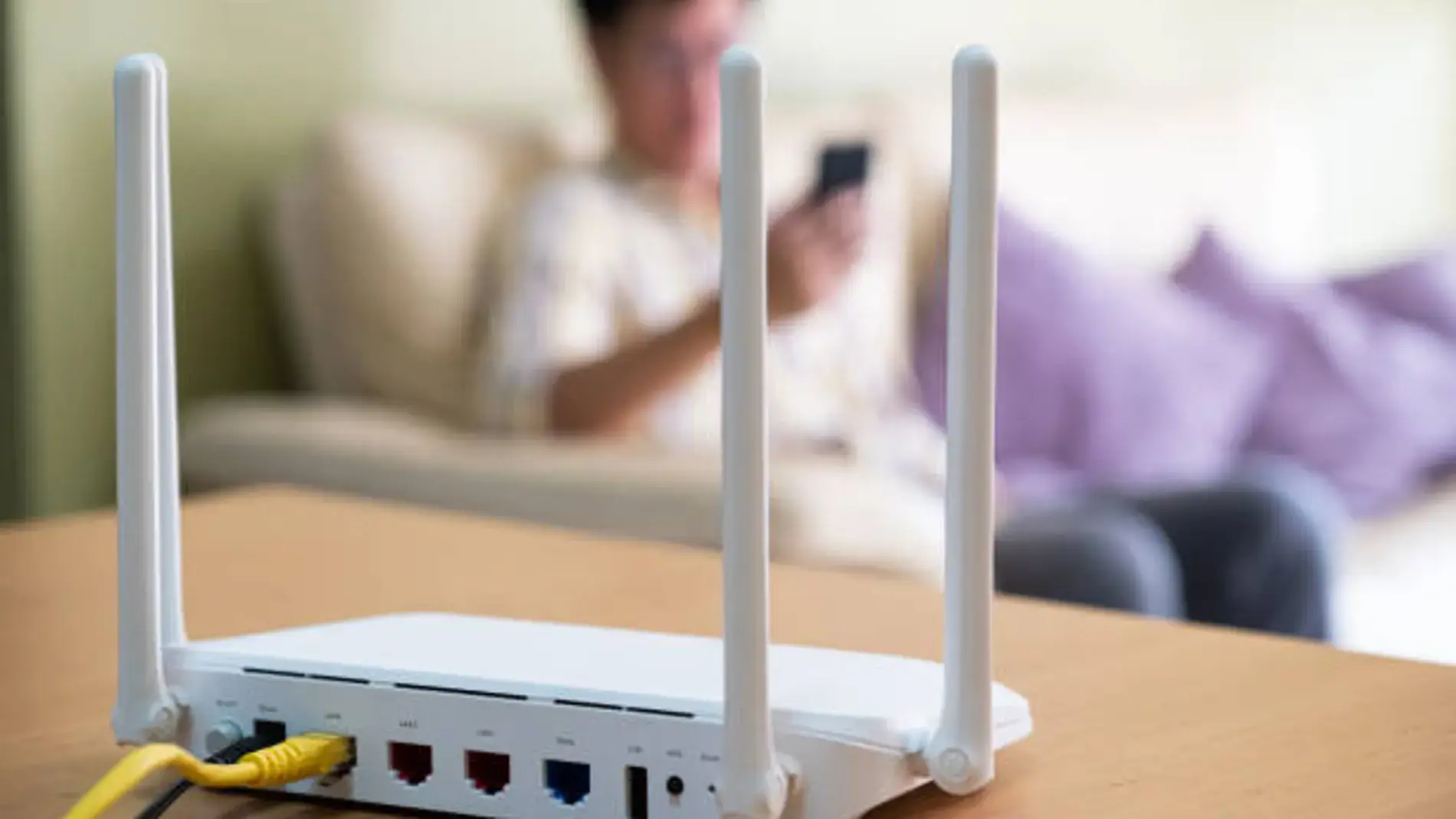
The trick to blocking ads throughout your home is to tackle the problem at the network level.Not in each browser. Instead of installing separate extensions, you set up a DNS server that acts as a filter: it only resolves "good" domains and cuts off domains dedicated to advertising, tracking, malware, or whatever you decide.
When that filtered DNS becomes your router's primary DNS serverAll your connected devices (phones, computers, TVs, game consoles, smart speakers, etc.) will start using it without you having to configure anything on each one. Your router continues to assign IP addresses with DHCP, but now, instead of providing the ISP's DNS servers, it assigns the IP address of your IP blocker.
There are two major players in this field: Pi-hole and AdGuard HomeBoth are open source, install on very modest hardware (a Raspberry Pi, an old mini PC or even certain advanced routers) and offer web panels from which you can view statistics, activate blocklists and customize the filtering to your liking.
You can also choose to simply change your router's DNS settings to more private providers. like Cloudflare (1.1.1.1) to stop using your ISP's DNS servers, which register every domain you access. This improves privacy and sometimes speed, but if you want comprehensive ad blocking across your entire home, it's best to switch to solutions like AdGuard Home or Pi-hole.
What is DNS and why is it key to blocking ads?
The DNS (Domain Name System) is basically the Internet's contact listHumans like names like google.comBut machines communicate using numerical IP addresses. When you type a domain into your browser, your device asks the DNS server for the corresponding IP address, and only when it receives the answer can it connect to the actual web server.
Normally, your router will automatically use the DNS servers provided by your internet service provider. (Movistar, Vodafone, Orange, etc.). This means the operator sees all the domains you request, although thanks to HTTPS they don't see the exact content of each page. With this information, they can compile statistics, apply regional blocks (as LaLiga does with certain websites), or, in the worst-case scenario, fuel more aggressive advertising systems.
If you replace those DNS servers with a more respectful service, like those from Cloudflare (1.1.1.1) or some public DNS servers with basic filtering, you already improve privacy. But the interesting step to blocking ads throughout your home is for the DNS to stop being a mere "translator" and become an intelligent filter that decides which domains pass through and which don't.
On a technical level, DNS-level ad blockers function like a "supercharged" DNS server.When a device requests a domain's IP address, the server only returns it if the domain passes all its filters. If the domain is categorized as advertising, a tracker, malware, or a prohibited category, the request is blocked and nothing is ever downloaded from that server.
The beauty of it is that the decision is made before the browser or app starts loading the external content.If a page tries to display a banner that comes from ads.ejemplo.com And since that domain is blacklisted, the filtered DNS doesn't respond, so the ad isn't downloaded or displayed. This saves bandwidth, reduces visual clutter, and speeds up many websites.
How a filtered DNS blocks ads (AdGuard Home and Pi-hole)
AdGuard Home and Pi-hole work following the same basic conceptThey are set as the primary DNS server for your network and use lists of domains to decide what is resolved and what is blocked. This decision is based on thousands of entries maintained by communities and projects specializing in blocking advertising, tracking, phishing, or adult content.
The typical flow of a request with AdGuard Home or Pi-hole is something like this:
- Your device sends a DNS query asking for the IP address of a domain (for example, the main domain of a digital newspaper).
- The leaked DNS server checks the domain against its lists. blocking lists (blacklists) and exception lists (whitelists).
- If the domain is flagged as advertising, a tracker, or maliciousThe response is blocked: it may return a null IP, a "black hole" IP, or simply not respond.
- If the domain is "clean"The server queries upstream DNS (such as Cloudflare, Quad9, etc.), caches the response, and delivers it to your device.
How a single webpage can load resources from dozens of different domains (images, scripts, ads, analytics, CDN, etc.), the blocker analyzes each domain one by one. What's on the blacklist is blocked. What isn't, passes through. In the end, you see the page with less clutter and, often, better performance.
Both Pi-hole and AdGuard Home allow the use of well-known lists. (the same ones used by extensions like uBlock Origin) and you can also add your own rules. You can decide to block entire services like TikTok, Facebook, gambling websites, or any domain you consider problematic for your home or business.
In addition to filtering, these solutions offer very useful extra features.Parental controls by category, phishing and malware blocking, detailed statistics of which domains are being accessed on your network, forced safe search on Google/YouTube, blocking schedules for certain devices, and much more.
AdGuard Home vs Pi-hole: Two ways to block ads across the web
Pi-hole was the first major popular project to block ads at the network level in homes and small officesIt's been around for years, is highly polished, and has a huge community of users and tutorials behind it. Its role is that of a filtered DNS server designed to run primarily on Raspberry Pi or any lightweight Linux machine.
AdGuard Home came later, inspired in large part by Pi-hole.But with some differences that in practice make many people prefer it: a more modern interface, more features integrated from the start, and a greater focus on DNS encryption and parental controls.
At the level of main functions, both allow:
- Filter domains using blocklists to block ads, trackers, and risky sites.
- Manage custom whitelists and blacklists according to your needs.
- View DNS usage statistics: how many queries have been made, how many have been blocked, which devices are most active, etc.
- Integrate with the router as the primary DNS server to cover the entire home network.
Where AdGuard Home usually stands out from Pi-hole is in several points:
- More modern and intuitive interface, with a clean and easy-to-understand panel, even for those who are not very technical.
- Built-in security and privacy features as standard: support for encrypted DNS (DNS-over-HTTPS and DNS-over-TLS), specific blocking of phishing and malware, and very easy-to-activate parental controls.
- Ready-to-use integrated DHCP server If you want AdGuard to distribute IPs instead of the router, something that in Pi-hole usually requires extra steps.
- Implementation in GoThis results in a single binary, fewer dependencies, and good performance on modest hardware.
Pi-hole, for its part, maintains its strengthsIt's very stable, extremely well-documented, works on almost any Linux distribution, and fits perfectly on an existing Raspberry Pi. If you're looking for something classic and tried and tested, it's still a safe bet.
In practice, those who try both usually end up with the one that is easier for them to set up and maintain.Some people start with Pi-hole and then migrate to AdGuard Home because of its interface and extra features, and vice versa. Technically, for blocking ads across the web, either one does an excellent job.
Where to install your ad blocker: router, Raspberry Pi, PC, or VPS
To use your router as a "control center," you don't always need to install anything on the router itself.In most cases, the router will simply point its DNS servers to a server that you have set up on another device on your network.
The most common hardware options for deploying AdGuard Home or Pi-hole are:
- Raspberry PiThe classic home lab option. Any model will do, because the service uses few resources. It's inexpensive, quiet, and uses very little electricity, so it's perfect for running 24/7.
- Old PC or laptopIf you have an old computer you no longer use, you can install Linux on it or even use Docker on Windows to run the blocker. It's not as energy-efficient as a Raspberry Pi, but it's a way to recycle hardware.
- VPS in the cloudProviders like Oracle Cloud offer free instances that allow you to set up AdGuard Home remotely. This is useful if you don't want to rely on your home hardware or if you want to use your ad blocker remotely via VPN or tools like Tailscale.
- Advanced router or AI router supportedSome high-end routers (for example, certain ASUS models with AI Board) allow you to install AdGuard Home directly from their web panel, without needing to tinker with another machine.
The only really important requirement is that the device where the blocker runs is always turned on.It's designed to handle all DNS requests from your home: if it shuts down, you'll lose internet access until your router switches to different DNS servers or you manually change them.
If you use a Raspberry Pi within your local network, it's advisable to assign it a static IP address. (static) so that the router always sees it at the same address. This can be done by editing the Raspberry Pi's network settings or from the router's DHCP server, depending on the model.
Install AdGuard Home with Docker (VPS or Raspberry Pi)
A very convenient and modern way to install AdGuard Home is by using DockerWhether on a VPS server or a Raspberry Pi running Linux, Docker lets you package everything in a container, with its dependencies and configuration well isolated, and update or move the service with just a few commands.
The general, simplified process usually follows this sequence:
- Prepare the system: update packages, install basic dependencies and add the official Docker repository.
- Install Docker Engine and the Docker Compose plugin in order to be able to start services defined in a file
docker-compose.yml. - Create a folder for AdGuard Home where you will store the configuration and persistent data (e.g., statistics, custom lists, etc.).
- Draft a file
docker-compose.ymlspecifying the AdGuard image, the ports you want to expose (53/UDP and 53/TCP for DNS, a port for the web interface and other optional ports) and the data volumes. - Verify that port 53 is freebecause in many modern distributions a service called
systemd-resolvedIt's occupied by default. If so, you'll need to disable it and create a/etc/resolv.confstatic pointing to an external DNS such as 1.1.1.1 so that the server itself has Internet access. - Open the necessary ports in the local firewall (for example with
ufwin Ubuntu) and, in the case of a VPS, also in the cloud provider's security panel (inbound rules for ports 53, 3000, 80/443, etc.). - Start the container with
docker compose up -dand check the logs to make sure the service is listening where it should be.
Once the container is up and running, AdGuard Home usually shows the following in the logs: a line indicating on which address and port the initial assistant is available, usually something like http://127.0.0.1:3000From your browser, using the server's IP address, you will access that wizard to complete the setup.
AdGuard Home Initial Setup: Step-by-Step Wizard
Upon first accessing the AdGuard Home web interfaceYou'll be greeted by an assistant who will guide you through the most important points: language, ports, credentials, and basic parameters. It's a one-time process that determines how the service will be integrated into your network.
The most relevant steps in that wizard are:
- Choose your language and start the assistant so that the entire interface is in Spanish if you prefer.
- Define the port for the management interfaceYou can leave port 80 as is if you don't have other web services on the same server, or map it to another external port such as 8181 in Docker to avoid conflicts.
- Configure the DNS service portwhich will almost always be 53 (both TCP and UDP), the standard for all DNS queries.
- Choose the network interface on which it will listen (For example,
eth0if your server is on a 192.168.1.x LAN, or the WAN interface in the case of an ASUS router with AI Board). - Create administrator username and password For the AdGuard Home panel. It's best to use a long password that doesn't match the router's password.
- Note the IP address shown by the wizard as the DNS server addressbecause it's the one you'll need to enter later in the router settings.
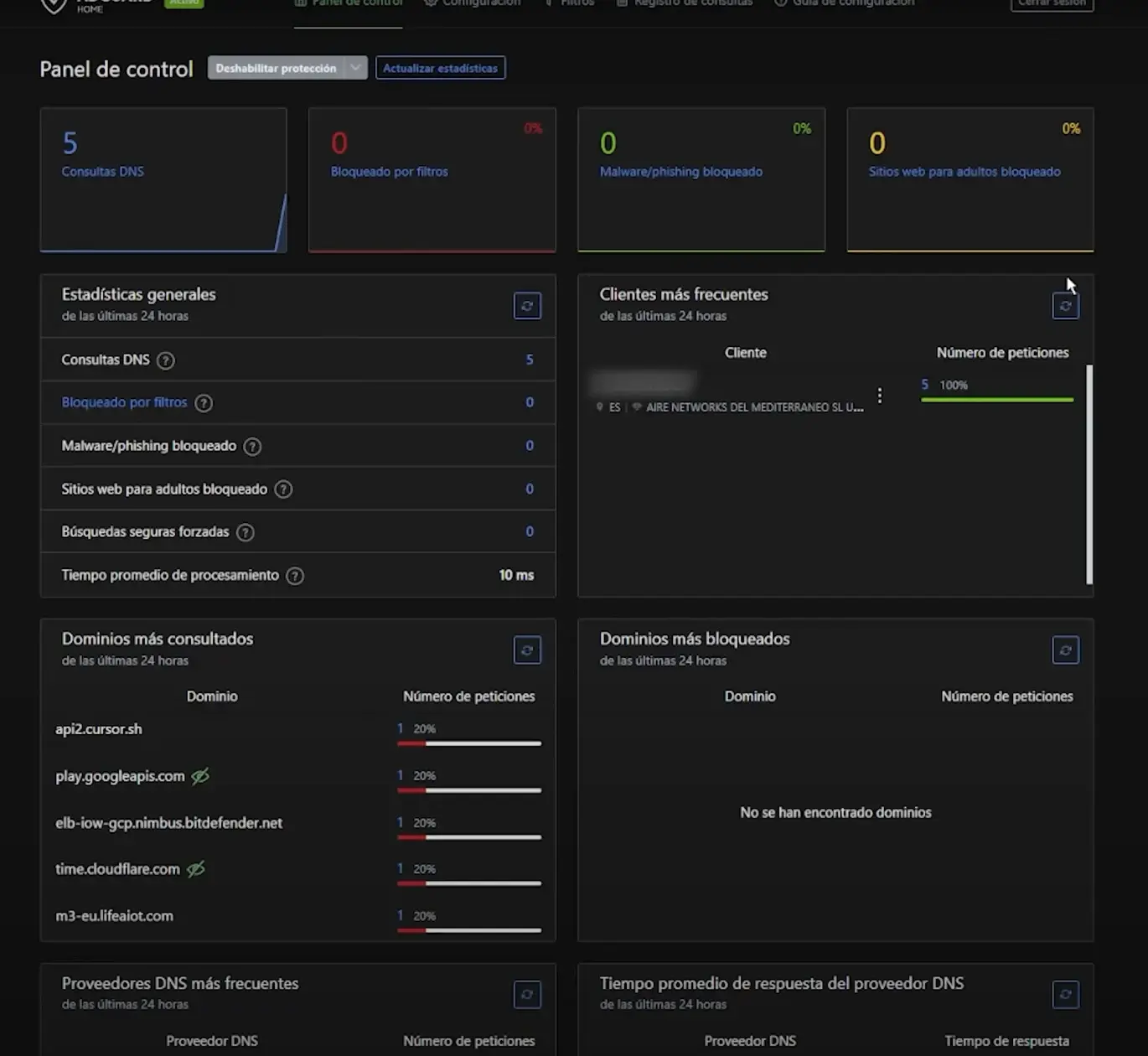
After completing the wizard, you can now log in to the main panel. (usually something like this) http://IP_DEL_SERVIDOR:8181 o http://hostname.local:3000 (depending on how you configured the ports). From there you will see the dashboard with the initial statistics and all the configuration menus.
On the first visit it is advisable to touch a couple of basic things: the "Allowed Clients" section, where you can limit which IPs accept queries (very important if your DNS is exposed to the Internet), and the DNS filters tab, where you activate or add blocklists that interest you.
Install and configure AdGuard Home on an ASUS AI router
Some ASUS routers with AI Board features include integration with AdGuard Home even further awayThe installation is done directly from the router's control panel, without needing any other machine. This is very convenient if you don't want to rely on a Raspberry Pi or an additional server.
The usage scheme for these routers is usually as follows::
- You access the router's web interface (something like
https://www.asusrouter.com:8443), you log in with your username and password and locate the AdGuard Home section. - You press the installation button and the system itself downloads and deploys AdGuard Home on the internal AI Board.
- During the process you see a hostname (For example,
aiboard‑anpu.local) which you should write down, because it will serve as your address to access the AdGuard Home panel. - Once installed, you connect to
http://<nombre_de_host>:3000From your browser, follow the same initial wizard: choose language, ports, administrator user, and note the service's IP address.
The advantage of this integration is that both the router and AdGuard Home work very much in sync.From the router's LAN settings, you can specify that the DNS server to be assigned via DHCP is AdGuard's IP address, so all devices on the network will start using it without additional configuration.
If after activating AdGuard Home you find that you can no longer access the router via its usual URL (For example www.asusrouter.com o aiboard‑anpu.local), it's likely those addresses are now going through the DNS filter. In that case, you can access the router using its direct IP address and then add a DNS rewrite in AdGuard that maps that URL to the correct IP address to recover it.
Customize filters, blocked services, and parental controls
Once AdGuard Home is working as your filtered DNSNow comes the interesting part: tailoring the filtering to your needs. It's not just about blocking ads, but about deciding what type of traffic you want to allow or block on your network.
In the "Filters" section of the AdGuard dashboard, you'll find several key tools.:
- DNS blocklistsCollections of domains categorized as advertising, tracking, malware, etc. You can activate several lists by default and add others by copying their URLs. The more lists you activate, the more aggressive the filtering will be (and the greater the risk of false positives, which you can correct with whitelists).
- Blocked servicesIt allows you to disable entire platforms (social networks, streaming services, gambling sites, etc.) at a glance, without having to track down each domain individually. Very practical for controlling the use of certain apps or limiting distractions.
- Parental controls and safe searchWith just a couple of clicks, you can force SafeSearch on Google/YouTube and block adult or inappropriate content categories, which is especially useful if there are children at home.
- Whitelists and exceptionsIf a service stops working properly because its domain has been blocked, you can manually add it to the whitelist to always allow it.
In addition to domain filtering, AdGuard Home shows you a real-time log of DNS queries.The "Query Log" option lets you see which devices are requesting which domains, which ones are being blocked, and how often. This helps you detect unusual behavior or excessively "snitching" devices that are constantly sending data.
With a little observation, you can adjust your sunscreen to the millimeter.: allow certain services you need, block particularly heavy or suspicious domains, and adjust the aggressiveness of the filtering based on what you see in those statistics.
Configure the router so that the whole house uses the blocker.
The final step to turn your router into the anti-ad guardian of the entire network This tells it to use your AdGuard Home or Pi-hole server as its primary DNS. From that point on, any device that obtains an IP address from the router will also receive your blocker's DNS address.
The general way to do it is very similar in most home routers.:
- You enter the router's administration panel using your IP address (usually
192.168.0.1o192.168.1.1) and the access credentials. - You're looking for the LAN / DHCP / Local Network section, where the addresses that the router distributes and the DNS that it provides are configured.
- You disable the option to automatically use the provider's DNS servers. (sometimes it appears as "Get DNS from ISP" or similar).
- Enter the IP address of your AdGuard Home or Pi-hole as the primary DNS server.which will be the one all devices will get when they connect.
- You decide what to set as the secondary DNS.You can leave it empty so that, if the primary one goes down, resolution fails (which is a bit drastic but guarantees that everything goes through the blocker), or enter a public DNS like 1.1.1.1 or 8.8.8.8 as a backup.
- Save the settings and, if necessary, restart the router so that he can start giving the new directions.
In some advanced models, such as ASUS with AI Board, the step of using AdGuard as DNS It is done directly from the "DHCP server DNS" option within the router interface, pointing to the IP address that the AdGuard Home wizard showed you during installation.
To ensure the changes take effect across all your devices, disconnecting and reconnecting your WiFi may help. Or restart any devices that have been caching network settings for extended periods. From then on, you should start seeing fewer ads, and your AdGuard dashboard should show statistics that improve with each new query.
Special considerations: mobile devices, private DNS, and external access

Even if the router redirects the entire network to your blocker, there are nuances to consider with some devices and browsers.The most important one has to do with the so-called "secure DNS" or "private DNS" that certain apps and systems activate on their own.
Browsers like Google Chrome have a "Secure DNS" option. This forces the use of its own DNS servers (often Google's) via HTTPS, ignoring the DNS provided by your router. If this option is enabled, you'll see that some ads still appear because the requests don't go through your Pi-hole or AdGuard Home.
The solution, in this case, is to disable the browser's secure DNS.In Chrome, for example, it's located in Settings > Privacy and security > "Use secure DNS". By disabling it, the browser will revert to using the system's DNS servers, which now point to your blocker.
Recent Android and iOS mobile devices also offer the option to configure private DNS at the system level.If you enable it to use, for example, a different encrypted DNS than your home network, you'll be bypassing the router's filtering. It's advisable to check that it's disabled if your goal is for all browsing to go through AdGuard Home.
If you want to enjoy ad blocking even when you're not at home (For example, when browsing using mobile data or public Wi-Fi), a very powerful strategy is to combine your filtered DNS with a VPN like WireGuard or services like Tailscale. That way, when you connect to your personal VPN, you become virtually part of your home network and continue using the same blocking DNS server wherever you are.
Some users have been using this type of configuration, combining AdGuard Home and Tailscale, for over a year. They say it feels like "carrying your home filter in your pocket": whether you're traveling or connected to an unreliable network, you still benefit from the same level of blocking, privacy, and statistics.
Set up a whole-house ad-blocking system using your router and a filtered DNS server It's one of those projects that, once you try it, is hard to abandon. With something as simple as a Raspberry Pi, a small VPS, or a router compatible with AdGuard Home, you can drastically reduce advertising, improve loading speeds, cut off some invasive telemetry, and streamline your network traffic. And the best part is that, after the initial setup and router configuration, the system works automatically for all devices without anyone having to install extensions or adjust any extra settings.

Passionate about technology since he was little. I love being up to date in the sector and, above all, communicating it. That is why I have been dedicated to communication on technology and video game websites for many years. You can find me writing about Android, Windows, MacOS, iOS, Nintendo or any other related topic that comes to mind.