- Jellyfin is a free and open-source media server compatible with Fire TV.
- Installation can be done via the Amazon App Store or by uploading APK files for Android TV.
- It allows you to organize movie and TV series libraries with advanced filters and high-definition streaming.

Install Jellyfin on Fire TV It allows you to access movies, TV shows, music, and photos stored on your own server directly from your TV. The app is optimized for the Amazon remote and provides an interface specifically designed for remote use from the comfort of your couch.
The Fire TV acts only as a client. Before you begin, you need a running Jellyfin server on a computer, NAS, or home server. If you don't already have one, you can Install Jellyfin with Docker and then add your media folders.
The official app is available for various Amazon devices, including numerous Fire TV Stick and Fire TV Cube models, as well as TVs with built-in Fire TV. However, compatibility with codecs such as HEVC, AV1, Dolby Vision, and certain audio formats is limited. It depends on the specific model..
What you need before installing Jellyfin on Fire TV
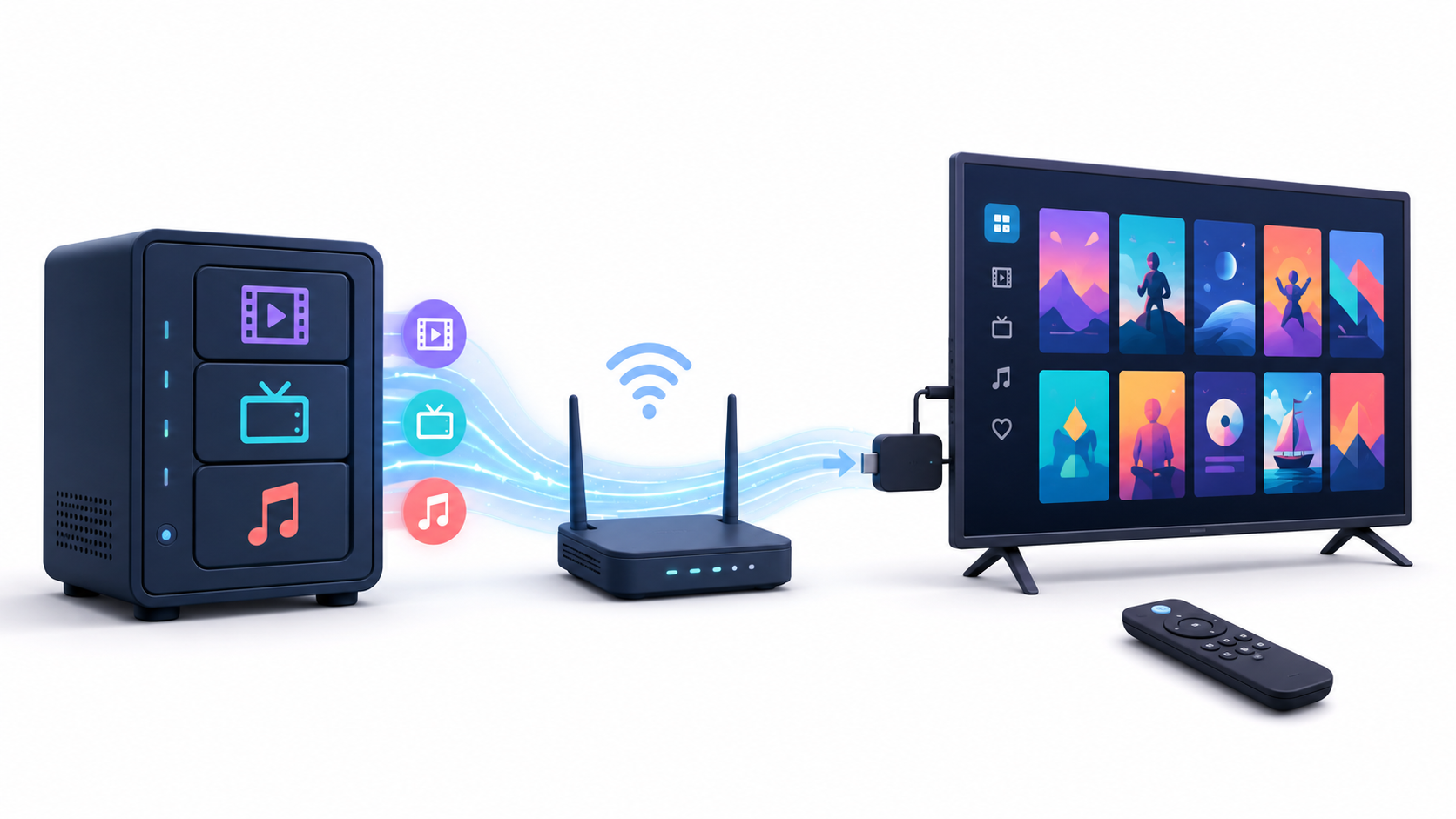
Before installing the application, check that you have:
- A compatible and up-to-date Fire TV.
- An Amazon account linked to the device.
- A Jellyfin server powered on and accessible.
- The IP address or domain of the server.
- A Jellyfin user account.
- A network connection stable enough for the bitrate of the videos.
If the Fire TV and the server are in the same house, it's best to connect them over the same local network. Whenever possible, connect the server via Ethernet. The Fire TV can use Wi-Fi, although a weak signal can cause buffering with high-bitrate 4K files.
You must also have created and scanned at least one library. You can find out how. Add and organize movies and TV shows in Jellyfin if the server is not yet displaying content.
How to install Jellyfin from the Amazon Appstore
The recommended way to install the client is to use the official Amazon store:
- Turn on the Fire TV and open the home screen.
- Access Look for or use the voice button on the remote.
- Seeks Jellyfin for Fire TV.
- Check that the application belongs to the Jellyfin project.
- Press Obtain o Discharge.
- Wait for the installation to finish and open the application.
An app's visibility can depend on the country associated with your Amazon account, your Fire OS model, and version. If Jellyfin isn't listed, first check that your device is up to date and that your account region is correct.
Do not install apps with similar names without checking the developer. They may appear in the store. Jellyfin-compatible third-party clients which are not the official application.
How to connect Fire TV to the Jellyfin server
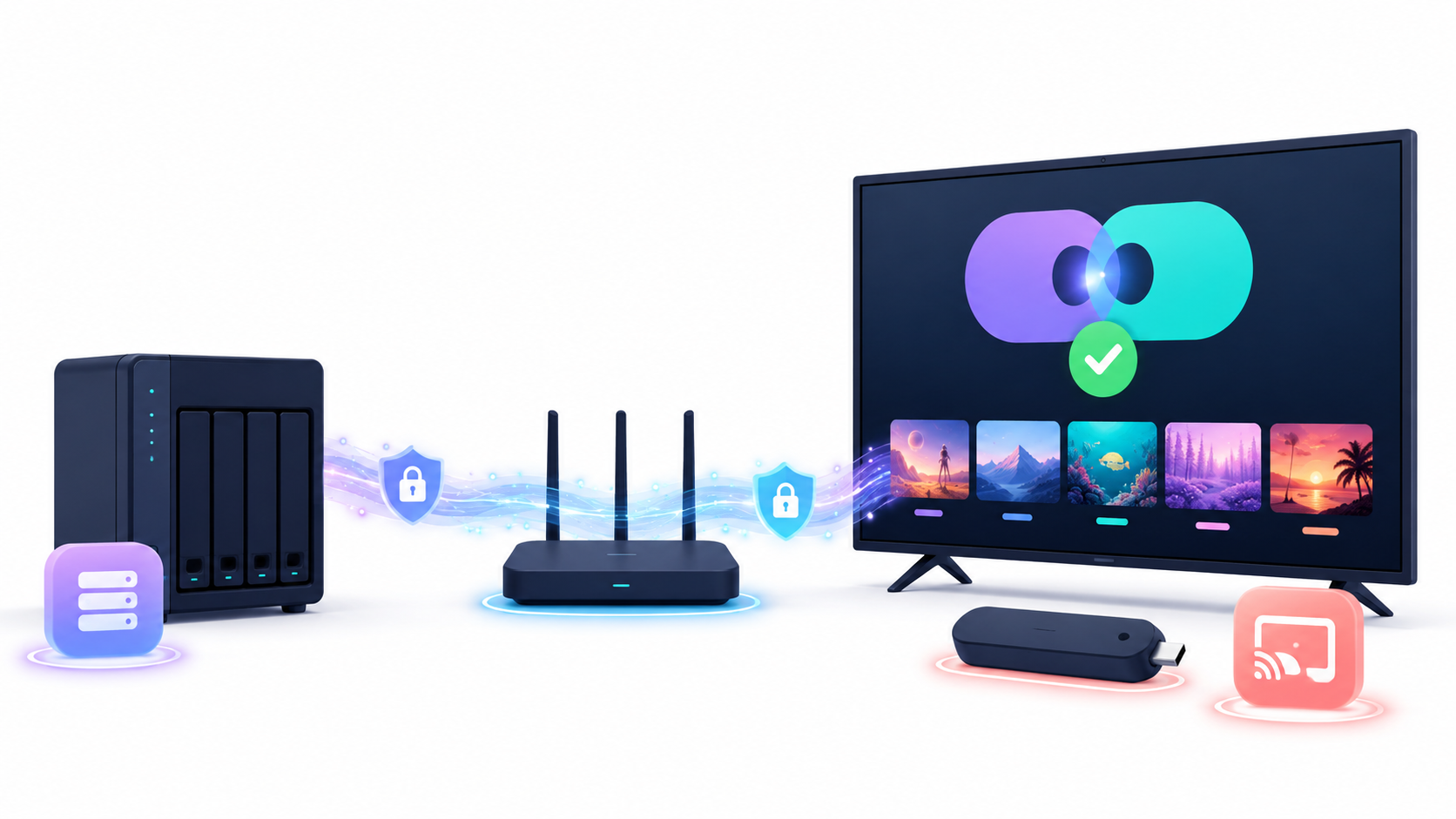
When you open the application, Jellyfin will attempt to automatically discover available servers on the local network. This process uses port 7359/UDPHowever, discovery can fail when there are multiple subnets, guest networks, or Wi-Fi isolation rules.
If the server doesn't appear, select the option to add it manually and enter its address. On a home network, it usually has this format:
http://192.168.1.50:8096Replace the address with the server's actual IP address. Do not use localhostBecause from the Fire TV that address points to the device itself, not to the computer where Jellyfin is running.
If you are accessing via a domain and reverse proxy, enter the full HTTPS address:
https://jellyfin.tudominio.esAfter locating the server, the application will display the authentication screen. Enter your username and password or use Quick Connect.
How to log in using Quick Connect
Quick Connect Avoid having to type a long password using the TV's on-screen keyboard:
- Select Quick Connect on the Fire TV login screen.
- Write down the six-character temporary code.
- Open Jellyfin from a browser or mobile device where you are already logged in.
- Enter Settings > Quick Connect.
- Enter the code shown on the television.
- Confirm the authorization.
The Fire TV will log in with that account. The code expires quickly and can only be used once. If it appears as invalid, generate another one and repeat the process.
Quick Connect must be enabled on the server. The administrator can check this from Control Panel > General.
It's recommended to create a separate account for each person. This keeps playback history, favorites, and progress separate. You can also Configure child profiles in Jellyfin to restrict content by age.
How to adjust playback on Fire TV
Jellyfin can play files in four ways:
- Direct Play: submit the original file without modifying it.
- Remux: It changes the container, but preserves the audio and video tracks.
- Direct Stream: It converts the audio while preserving the video.
- Transcoding: convert the video to adapt it to Fire TV.
Direct playback offers the lowest resource consumption, but only works when the device supports the file's codec, container, video profile, audio, subtitles, and bitrate.
In the app's playback settings you can check:
- Top quality: limits the bitrate requested from the server.
- Preferred player: determines which engine plays the files.
- Audio passthrough: sends specific tracks to a compatible receiver or soundbar.
- Subtitles: Some formats may require the server to transcode the video.
Initially, keep the player on its default setting. Switching to an external player may affect progress tracking, controls, track selection, or the continue watching feature.
During playback, the administrator can open the server panel to check if the Fire TV is using direct playback or transcoding. If the server is constantly converting videos, review the formats being used or configure the appropriate settings. Hardware acceleration.
How to install the official APK if Jellyfin doesn't appear
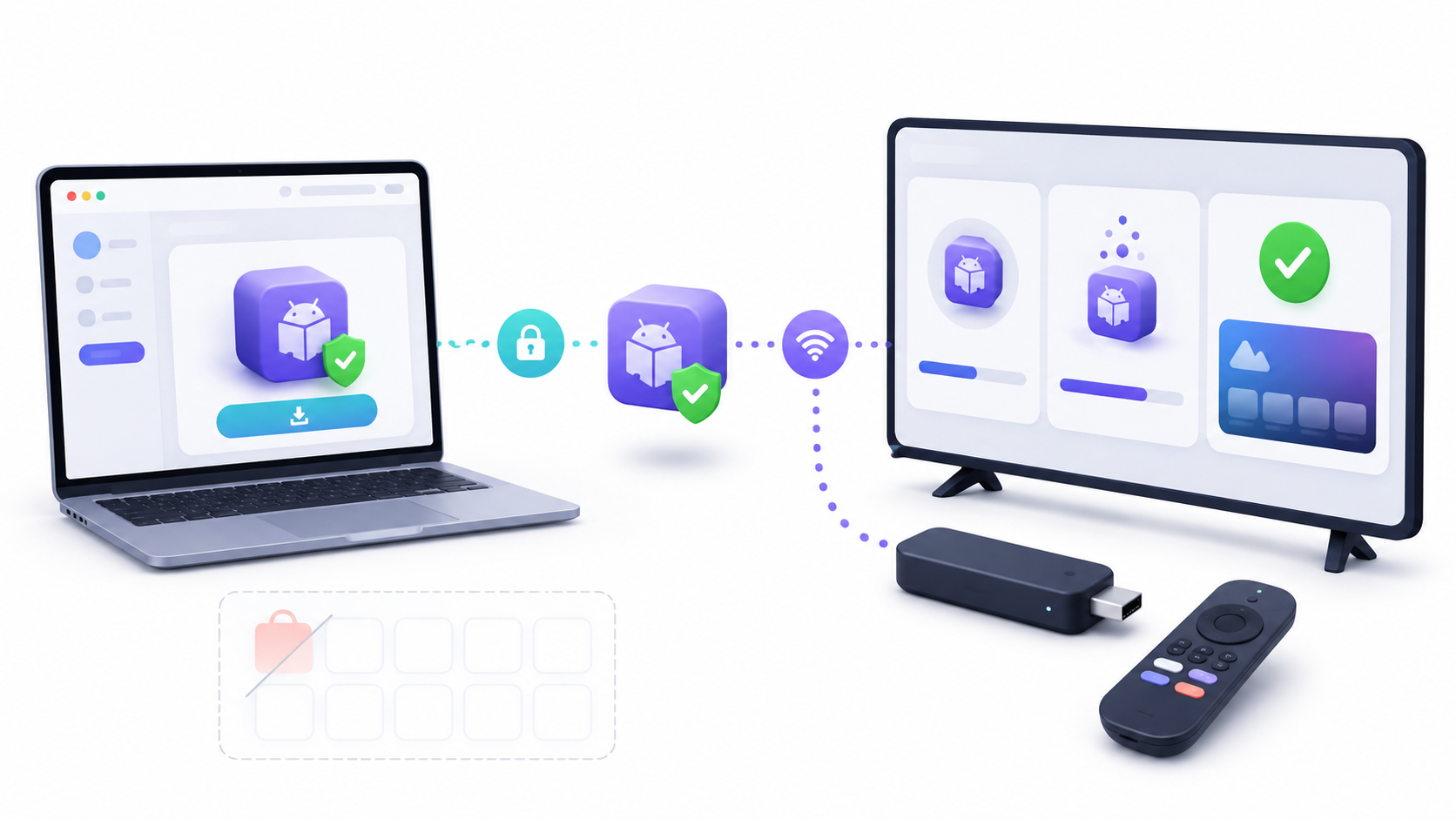
Manual installation should only be used when the official app is unavailable for your account or device. Always download the file from the [source/source]. Jellyfin's official Android TV releases.
Do not download APKs from unknown repositories, download pages, or links shared on forums. A compromised application could access your server credentials and the contents of your library.
How to enable developer options
- Open Settings > My Fire TV > About.
- Select the device name.
- Press the center button on the remote seven times.
- Return to My Fire TV.
- Enter Developer options.
- Enable ADB debugging.
The exact names of the menus may change depending on the Fire OS version. On some devices they appear as Device and software.
How to install the APK using ADB
Locate the Fire TV IP address from Settings > My Fire TV > About > NetworkThen connect your computer using Android Platform Tools:
adb connect IP_DEL_FIRE_TV:5555Accept the authorization request that will appear on your TV. Then install the official APK:
adb install -r jellyfin-fire-tv.apkReplace the name with the name of the downloaded file. The option -r It updates an existing installation while preserving its data when the signature and version are compatible.
A manually installed app may not receive automatic updates from the Amazon Appstore. You'll need to check the official releases periodically and install a new version when necessary.
How to access Jellyfin outside your home using Fire TV
A commercial VPN installed only on the Fire TV It does not make the home server automatically accessible.That type of service changes the device's internet connection, but it doesn't create a secure route to your home network.
To connect from another location, you need to prepare the server using one of these methods:
- A private VPN that connects the Fire TV to the home network.
- An HTTPS domain behind a reverse proxy.
- A remote server that acts as a secure proxy.
Do not expose the port directly 8096 to the Internet. You can check how Access Jellyfin from outside your home without opening ports before setting up the public address on the Fire TV.
Mirroring and casting are not the same thing
The native app is the best way to use Jellyfin on Fire TV. It provides remote control navigation, track switching, subtitles, history, and progress syncing.
Some models allow screen mirroring via MiracastTo check, press and hold the home button on the controller or enter Settings > Display and sound and look for the duplication option.
If that option doesn't appear, the device doesn't support mirroring using that method. Additionally, mirroring the screen can reduce quality, increase latency, and drain the phone's battery faster.
The Google Cast button on certain Android apps does not automatically turn your Fire TV into a Chromecast. Support depends on the app, the model, and the features built in by Amazon.
How to update Jellyfin on Fire TV
When the app comes from the Amazon Appstore, updates may be installed automatically. You can also check for updates manually from the Fire TV app library.
If you installed it via ADB, download the new APK from the official repository and run:
adb install -r nueva-version-jellyfin.apkReview the release notes for each version. Future major client releases may require a minimum version of the Jellyfin server.
Common mistakes when using Jellyfin on Fire TV
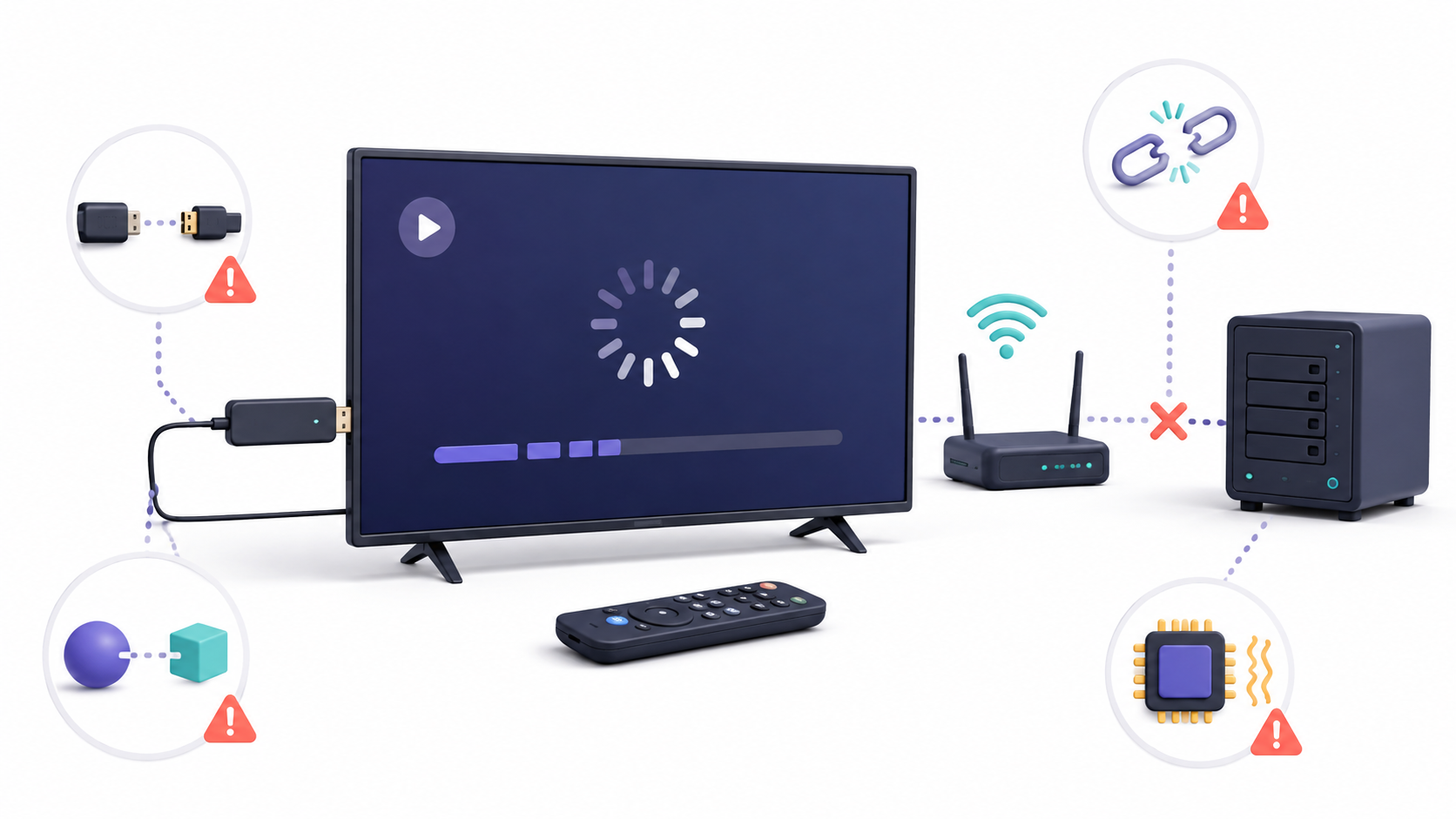
Jellyfin is not listed on the Amazon Appstore
Check your account region, device compatibility, and Fire OS updates. If it still doesn't appear, use only the APK published by the Jellyfin project.
The application cannot find the server.
Make sure both devices are on the same network and that the Fire TV isn't connected to a guest network. Manually enter the server IP address and port. 8096.
Connection refused appears
The server may be down, the port may be blocked, or the address may be incorrect. First, check from another device that this address works:
http://IP_DEL_SERVIDOR:8096Quick Connect displays an invalid code
The codes expire and can only be used once. Generate a new one and authorize it from a user who is already logged in.
The videos keep stopping or loading continuously.
Check your Wi-Fi strength and see if the file is being transcoded in the server control panel. Temporarily reduce the maximum quality to determine if the problem is bandwidth.
The image appears black when playing HDR or Dolby Vision
Support depends on the Fire TV model, the TV, the Dolby Vision profile, and the container. Try a compatible version of the file or allow the server to convert the content to SDR.
No audio is heard
Temporarily disable passthrough and check if your TV, soundbar, or receiver supports the format being used. Jellyfin can convert the audio if the device is not compatible.
Subtitles cause transcoding
Some image-based or advanced styled subtitles must be embedded in the video. This forces the server to transcode them and significantly increases resource consumption.
The APK does not install
Make sure ADB debugging is enabled, that you have authorized your computer, and that the APK comes from a compatible stable release. Do not attempt to install an older version over a newer one.
The screen duplication option does not appear
Not all Fire TV devices support Miracast. The missing menu is not a Jellyfin issue and cannot be fixed by changing server settings.
Using Jellyfin on Fire TV It offers a convenient way to bring a self-hosted media library to your TV. The recommended procedure is to install the client from the Amazon Appstore, add the server address, and log in using Quick Connect.
For smooth playback, it's best to use direct playback, a stable connection, and ensure your device is compatible with the codecs you're using. If the app isn't available in the store, only use the APK file published by the project and keep both the client and server updated.

I am a technology enthusiast who has turned his "geek" interests into a profession. I have spent more than 10 years of my life using cutting-edge technology and tinkering with all kinds of programs out of pure curiosity. Now I have specialized in computer technology and video games. This is because for more than 5 years I have been writing for various websites on technology and video games, creating articles that seek to give you the information you need in a language that is understandable to everyone.
If you have any questions, my knowledge ranges from everything related to the Windows operating system as well as Android for mobile phones. And my commitment is to you, I am always willing to spend a few minutes and help you resolve any questions you may have in this internet world.