
Do you need Get your new computer readyWhile installing and testing programs one by one is still great, sometimes there's no time to waste. That's why in this post we'll tell you how to install all your favorite shows all at once Using WinGet. We'll see how this native Windows tool works and how to get the most out of it.
How to install all your favorite programs at once using WinGet

After buying a new computer, the priority is install all the necessary programs for its first use. And the same goes when you've just formatted your PC: you have to start from scratch. When you have plenty of time, it's no trouble to install and test each application one by one. But what if you need to get your PC up and running as soon as possible?
Fortunately, Windows users have a tool to automate the entire processLinux users have been enjoying something like this for decades, while Microsoft made it official starting with Windows 10. We're talking about WinGet, the Windows command-line package manager.
WinGet (Windows Package ManagerMicrosoft Package Manager (formerly known as Package Manager) is the official Microsoft package manager. Essentially, it's a massive digital library supported by the community and Microsoft itself. This library contains thousands of programs ready to be installed directly from the command console (PowerShell).
Thanks to this utility, you can install all your favorite programs at once without even opening your browser. order the installation of 10, 20 or 50 programs with a single line of textWinGet handles downloading and installing them in the background almost silently. Let's see what the minimum requirements are for using WinGet.
Prerequisites: How do I know if I have WinGet?
To install all your favorite programs at once with WinGet, the first thing to do is check that it runs on your PCIf you're using a modern version of Windows 11 or Windows 10 (version 1809 or later), you most likely already have it installed. To be sure, right-click the Windows Start button and select Terminal (or PowerShell). Then, type the command winget and press Enter.
If the system returns a list of commands and help options, you've got it. However, if an error appears If it says "winget is not recognized as an internal or external command", you have to go to the Microsoft Store, search Application installer (App Installer) and update it. Once that's done, let's look at some ways to use WinGet to install all your favorite programs at once.
Individual installation in a chain
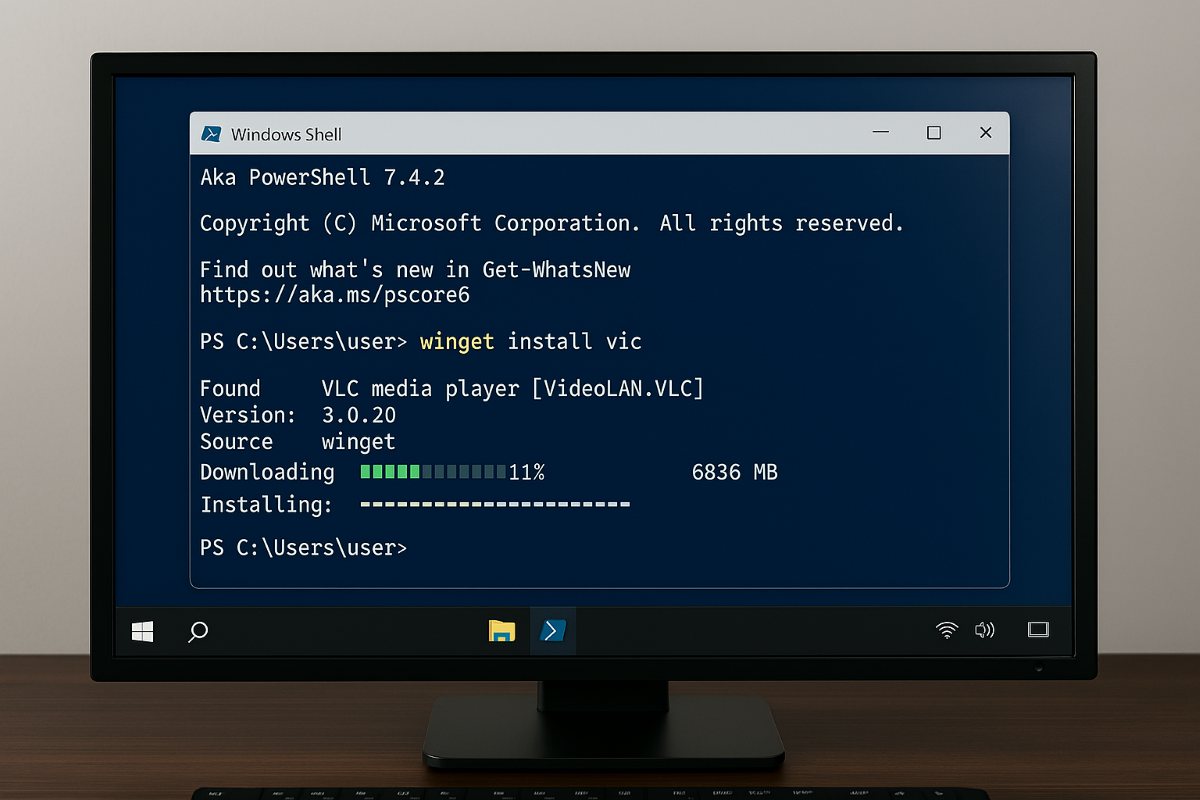
With WinGet You can install from one program to as many as you wantFor example, if you only want to install Google Chrome, open PowerShell as administrator and type winget install Google.ChromeBut what if you want to install two or three of your favorite programs one after the other?
In that case, you can chain the commands using the && operatorThis is like telling the system to run the first installation and, as soon as it finishes successfully, move on to the next. Let's say you want to install three programs: Google Chrome, VLC, and Spotify. The chained command would be:
winget install Google.Chrome --silent && winget install VideoLAN.VLC --silent && winget install Spotify.Spotify --silent
La label –silent It's optional but highly recommended. It tells WinGet to perform a silent installation, meaning it hides the visual wizards and automatically applies the default settings. In the end, you can install three of your favorite programs at once, without any manual intervention.
One more thing: how do you know what name to give the program you want to install? There's the name you know (vlc) and then there's the program ID (VideoLAN.VLC), which is what you need to use to run the installation. find out the ID of your favorite programs, write in PowerShell Winget search followed by the name, for example: winget search vlc.
Install all your favorite programs at once with a .bat file
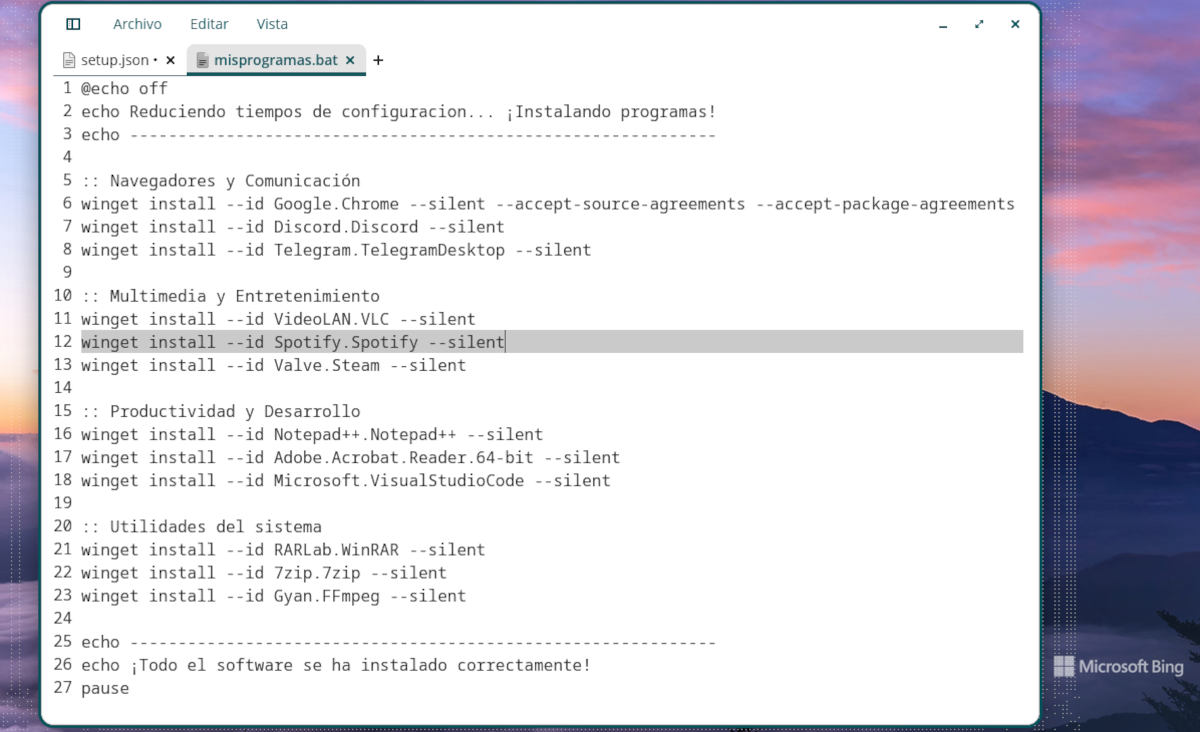
Chaining commands is fine for three or four applications. But if you're building a whole working environment from scratch with 15 programs, the command line will become incredibly long. In these cases, you can install all your favorite programs at once with WinGet. using a .bat file.
A .bat file is a batch processing script ideal for Automate tasks in Windows, such as installing multiple programs at once. The best part is that You don't need to know how to program to use itYou just have to follow these simple steps:
- Open Windows Notepad.
- Type @echo off on the first line to clear the screen of unnecessary commands.
- Right below, type a list of installation commands, one per line.
- Save the file with any name you want, but make sure it ends with the .bat extension (for example, my_programs.bat).
You can see an example of what the .bat file looks like in the image above. If you look closely, you'll notice that the command has been added. –silent, as well as –accept-source-agreements y –accept-package-agreementsThese last ones They automate the acceptance of the license terms from Microsoft and the developers. This way you avoid touching a single key during the entire installation process.
Now you just need to run the .bat file to install all your favorite programs at once with WinGet. Right-click on the file and select Run as administratorNext, the console will open and begin downloading and installing each program one after the other.
With a JSON bulk installation file
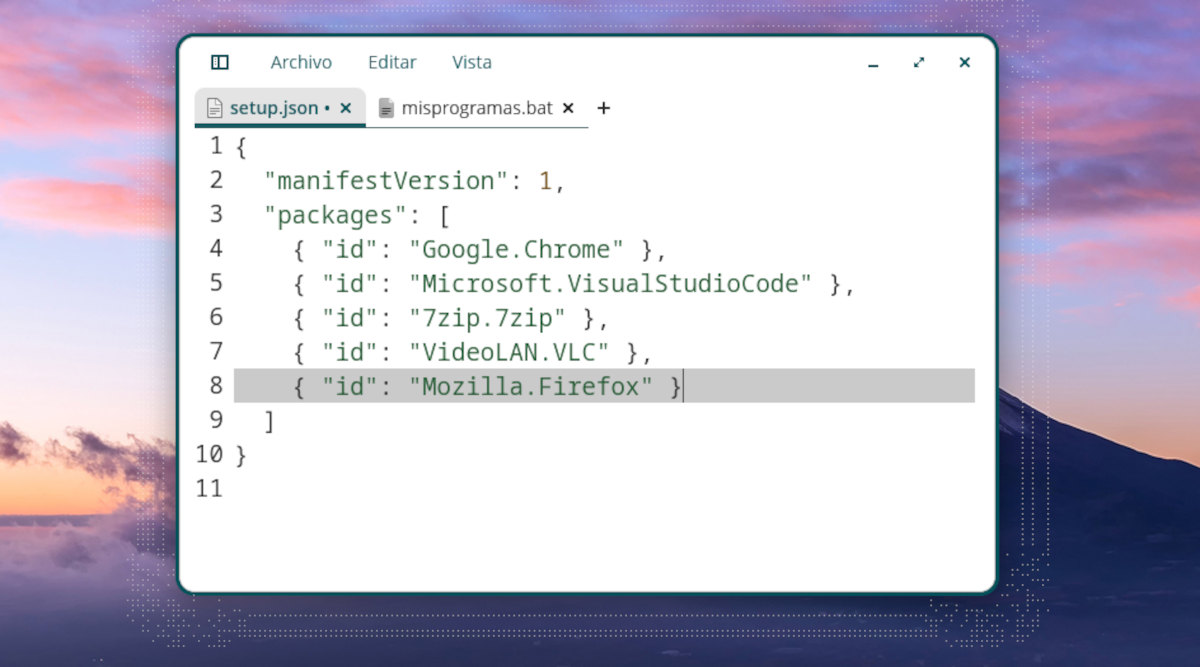
There's another way to install all your favorite programs at once with WinGet, and that's by using a JSON file. How do you do it? Open Notepad and create a file with the following structure:
{ "manifestVersion": 1, "packages": [ { "id": "Google.Chrome" }, { "id": "Microsoft.VisualStudioCode" }, { "id": "7zip.7zip" }, { "id": "VideoLAN.VLC" }, { "id": "Mozilla.Firefox" } ] }
You can add as many programs as you like. Just make sure you use the correct identifiers: within the keys, exact IDs and one per lineFinally, save the file with the following name: setup.jsonNow open PowerShell and run the following command: `winget configure --file setup.json`. WinGet will read the file and begin installing each program automatically.
You've got it! Three different modes Install all your favorite programs at once with WinGet. You can use chained commands, a .bat file, or a JSON file, and the result will be the same: a quick, clean, and secure installation of all the applications you need every day.

Index